Python | wxPython module Introduction (original) (raw)
Last Updated : 19 May, 2021
Python provides wxpython module which allows us to create high functional graphical user interface. It is an Open Source module, which means it is free for anyone to use and the source code is available for anyone to look and modify.
It is implemented as a set of extension modules that wrap the GUI components of wxWidgets library which is written in C++. It is cross platform GUI toolkit for python, Phoenix version Phoenix is the improved next-generation wxPython and it mainly focused on speed, maintain ability and extensibility.
Install using this command:
pip install wxpython
Creating GUI using wxpython:
- First import wx module.
- Create an object for application class.
- Create an object for frame class and other controls are added to frame object so its layout is maintained using panel .
- Then add a Static text object to show Hello World .
- Show the frame window by using show method.
- Run the app till the window is closed by using main event loop application object.
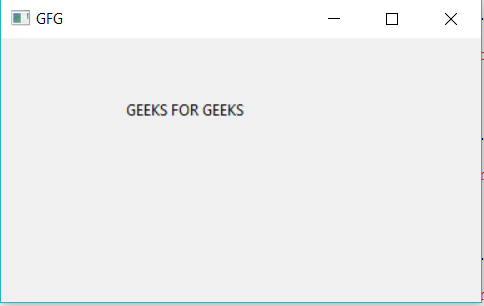
Example #1: A simple GUI application which says GEEKS FOR GEEKS using wxpython.
Python3 `
import wx module
import wx
creating application object
app1 = wx.App()
creating a frame
frame = wx.Frame(None, title ="GFG") pa = wx.Panel(frame)
Adding a text to the frame object
text1 = wx.StaticText(pa, label ="GEEKS FOR GEEKS", pos =(100, 50))
show it
frame.Show()
start the event loop
app1.Mainloop()
`
Output:
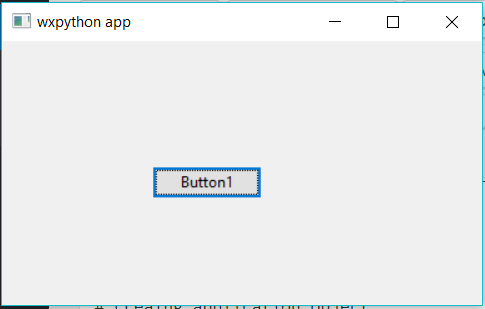
Example #2: Creating Buttons using wx module
Python3 `
Import wx module
import wx
creating application object
app1 = wx.App()
creating a frame
frame = wx.Frame(None, title ="wxpython app") pa = wx.Panel(frame)
Button creation
e = wx.Button(pa, -1, "Button1", pos = (120, 100))
show it
frame.Show()
start the event loop
app1.Mainloop()
`
Output:
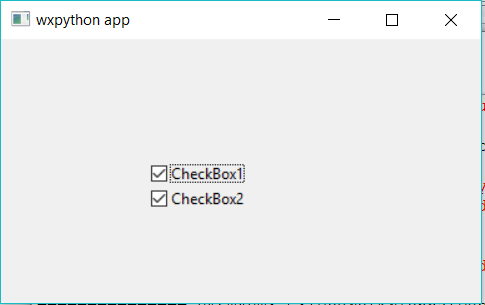
Example #3: CheckBox using wxpython
Python3 `
importing wx module
import wx
creating application object
app1 = wx.App()
creating a frame
frame = wx.Frame(None, title ="wxpython app") pa = wx.Panel(frame)
Checkbox creation using wx module
e = wx.CheckBox(pa, -1, "CheckBox1", pos = (120, 100)) e = wx.CheckBox(pa, -1, "CheckBox2", pos = (120, 120))
show it
frame.Show()
start the event loop
app1.Mainloop()
`
Output:
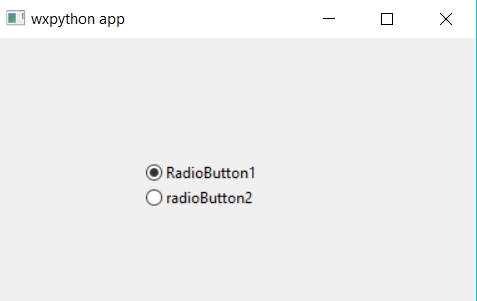
Example #4: RadioButtons using wxpython
Python3 `
importing wx module
import wx
creating application object
app1 = wx.App()
creating a frame
frame = wx.Frame(None, title ="wxpython app") pa = wx.Panel(frame)
RadioButton creation using wx module
e = wx.RadioButton(pa, -1, "RadioButton1", pos = (120, 100)) e = wx.RadioButton(pa, -1, "radioButton2", pos = (120, 120))
show it
frame.Show()
start the event loop
app1.Mainloop()
`
Output: