Selenium Python Introduction and Installation (original) (raw)
Last Updated : 18 Oct, 2025
Selenium’s Python module provides a powerful and intuitive interface for automating web browser interactions using Python. It allows developers and testers to write functional and acceptance tests with Selenium WebDriver, supporting multiple browsers and operating systems. With its open-source nature, portability and easy-to-understand API, Selenium simplifies browser automation and enhances testing efficiency across diverse environments.
- **Open Source & Portable: Freely available and works across platforms.
- **Multi-Browser Support: Chrome, Firefox, Edge, Opera, Safari and more.
- **Cross-Platform Compatibility: Runs on Windows, macOS, Linux android and iOS.
- **Parallel Test Execution: Reduces execution time and boosts efficiency.
- **Lightweight: Requires fewer resources than tools like UFT or RFT.
- **Latest Version: Selenium 4.5.0 (supports Python 3.7+).
Python Selenium Installation
For any operating system, Selenium Installation can be done on your operating system. If not, check out - Download and Install Python 3 Latest Version
Open Terminal/Cmd and Write Command as written Below
python -m pip install selenium
Alternatively, you can download the source distribution Here, unarchive it and run the command below:
python setup.py install
Installing Webdriver
One Can Install Firefox, Chromium, PhantomJs (Deprecated Now), etc.
- For using Firefox you may need to install GeckoDriver.
- For using Chrome, you need to install ChromeDriver (or use webdriver-manager).
In this article, Firefox is used so One can Follow the Below Steps to Install:
Selenium Installation on Windows
Step 1. Same as Step 1 in Linux Download the GeckoDriver.
Step 2. Extract it using WinRar or any application you may have.
Step 3. Add it to your system path using Command Prompt.
setx path "%path%;GeckoDriver Path"
For Example
setx path "%path%;c:/user/eliote/Desktop/geckodriver-v0.26.0-win64/geckodriver.exe"
Selenium Installation on Linux
Step 1. Go to the geckodriver releases page . Find the latest version of the driver for your platform and download it.
For example
Step 2. Extract the file.
tar -xvzf geckodriver*
Step 3. Make it executable.
chmod +x geckodriver
Step 4. Move Files to usr/local/bin
sudo mv geckodriver /usr/local/bin/
Creating Simple Code for
Python `
Python program to demonstrate selenium
import webdriver
from selenium import webdriver
create webdriver object
driver = webdriver.Firefox()
get google.co.in
service = Service(ChromeDriverManager().install()) options = webdriver.ChromeOptions() driver = webdriver.Chrome(service=service, options=options)
try: # Open Google driver.get("https://www.google.com/") finally: # Close the browser driver.quit()
`
Output
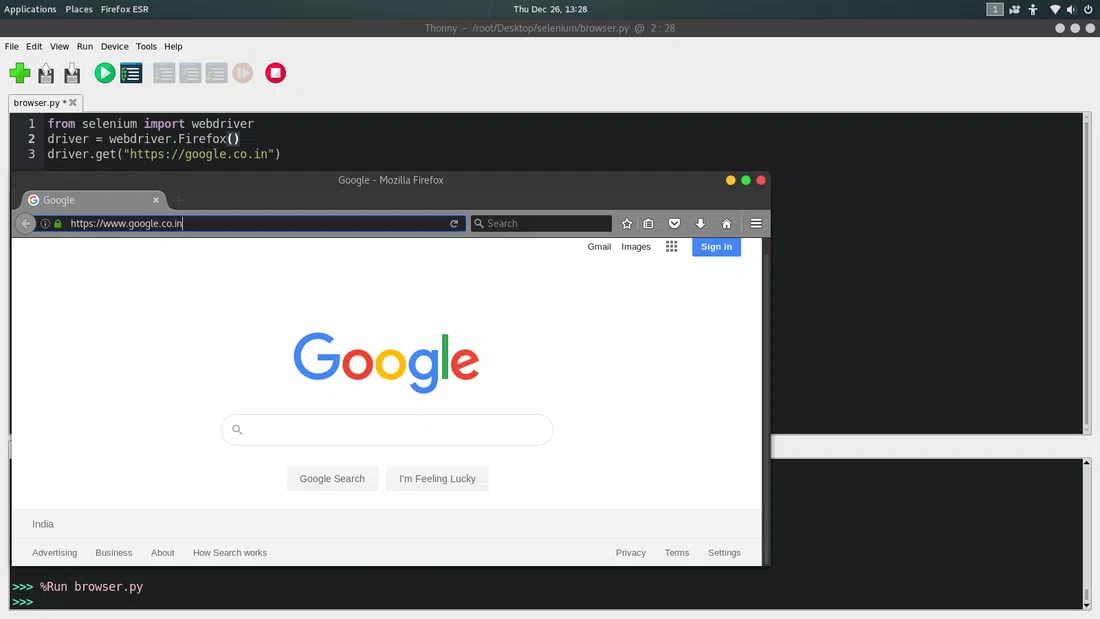
Selenium Python example solution output
To check more details about Selenium visit - Selenium Basics – Components, Features, Uses and Limitations .