Setup SciPy on PyCharm (original) (raw)
Last Updated : 4 Jul, 2025
PyCharm is Python IDE developed by JetBrains, widely used for software development, data science and scientific computing. SciPy is a core library for scientific computing in Python used for advanced mathematics, signal processing, linear algebra and much more.
To use SciPy in PyCharm, these two methods are follow:
- Using PyCharm’s graphical interface (GUI)
- Using terminal
Before Starting, make sure Python and PyCharm is installed on your system.
**To install Python, click here
**To install PyCharm, click here
Installing SciPy via PyCharm’s GUI
Step 1: Launch PyCharm
Open PyCharm and create a new Python project or open an existing one.
Step 2: Open Project Settings
Go to:
- File --> Settings (on Windows/Linux)
- PyCharm --> Preferences (on macOS)
Step 3: Install NumPy (Required for SciPy)
Since SciPy depends on NumPy, install it first using terminal:
pip install numpy
Step 4: Open Python Interpreter
In Settings/Preferences, navigate to: Project: --> Python Interpreter
You'll see a list of installed packages.
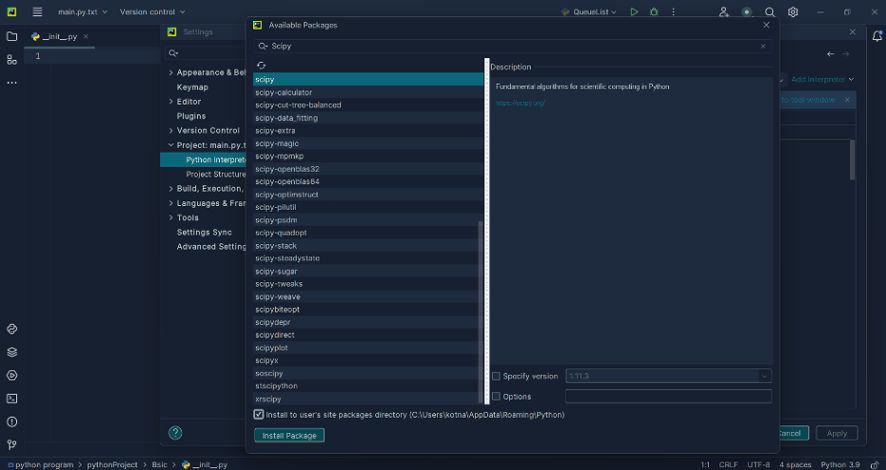
Step 5: Search and Install SciPy
Click the "****+**" icon to open the package installer, then search for scipy in the search bar. Select SciPy from the results and click Install Package to complete the installation.
Install SciPy In PyCharm using Terminal
If you prefer using the terminal, you can install SciPy directly using pip.
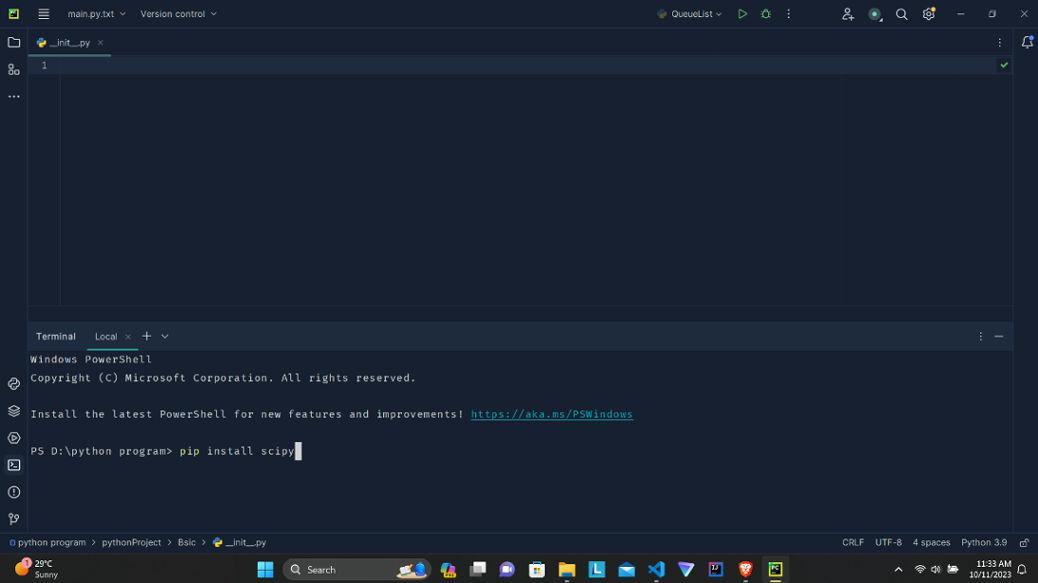
Step 1: Open Terminal in PyCharm
Click on the "Terminal" tab at the bottom of PyCharm.
Step 2: Run the Installation Command
pip install scipy
Or, if python3 is used on your system:
python3 -m pip install scipy
PyCharm will install the package into your current project interpreter.
**Related Articles: