sys.stdout.write in Python (original) (raw)
Last Updated : 15 Jul, 2025
**sys.stdout.write() is a built-in Python method that writes output directly to the console without automatically adding a newline (\n). It is part of the sys module and requires **import sys before use.
Unlike print(), it does not insert spaces between multiple arguments, allowing precise control over text formatting. It returns the number of characters written instead of None. **Example:
Python `
import sys
sys.stdout.write("Hello, ") sys.stdout.write("World!")
res = sys.stdout.write("Gfg") # Capturing return value print("\nReturn Value:", res)
`
Output
Hello, World!Gfg Return Value: 3
**Explanation:
- **sys.stdout.write("Hello, ") writes "Hello, " without moving to a new line.
- **sys.stdout.write("World!") continues on the same line.
- **sys.stdout.write("Gfg") appends "Gfg" and returns 3, the number of characters written. Finally, print("\nReturn Value:", res) moves to a new line.
Syntax of sys.stdout.write
sys.stdout.write("string")
**Parameters:
- **string: The text that will be written to the standard output.
**Return Value: It returns the number of characters written. In interactive mode, this value may be displayed because the interpreter echoes function return values.
Examples of sys.stdout.write
Example 1: Use sys.stdout.write() in a loop
This example demonstrate how to print elements of a list on the same line and then on separate lines using sys.stdout.
Python `
import sys
var = sys.stdout
s = ['Python', 'is', 'awesome']
Print on the same line
for e in s: var.write(e + ' ') var.write('\n') # New line
Print each element on a new line
for e in s: var.write(e + '\n')
`
Output
Python is awesome Python is awesome
**Explanation: sys.stdout.write() prints list elements on the same line using a space and then on separate lines with **\n. This avoids automatic spaces or newlines from print().
Example 2: Redirect output to a file
A useful feature of **sys.stdout is that it can be reassigned, allowing us to redirect output to a file instead of displaying it on the console. This is particularly helpful for logging and storing program results.
Python `
import sys
with open('output.txt', 'w') as file: sys.stdout = file # Redirect output to file print('Geeks for geeks')
sys.stdout = sys.stdout # Restore stdout
`
**Output
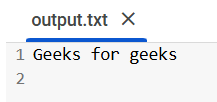
output.txt file
**Explanation:
- Temporarily redirect **sys.stdout to a **file object.
- Any standard output (**like print()) is then written to the file.
- After writing, we restore the original **sys.stdout to resume console output.
Example 3: Create a dynamic countdown
This example shows how to use sys.stdout.write() to dynamically update text on the same line, it's useful for countdowns or progress bars.
Python `
import sys import time
for i in range(5, 0, -1):
sys.stdout.write(f'\rCountdown: {i} ')
sys.stdout.flush()
time.sleep(1)
sys.stdout.write("\nTime's up!\n") # Use double quotes to avoid conflict with the apostrophe
`
**Output

dynamic countdown
**Explanation:
- **\r (carriage return) moves the cursor to the start of the line.
- **sys.stdout.flush() ensures the text is immediately printed.
- **time.sleep(1) adds a one-second delay between updates.
- Finally, we print **“Time’s up!” on a new line.
To read about more Python's built in methods, refer to Python's Built In Methods
Difference between print() and sys.stdout.write()
Understanding this difference is important for precise output control, especially in scenarios like dynamic console updates, logging or writing to files. It helps in optimizing performance, avoiding unnecessary formatting and ensuring the desired output structure in various programming tasks.
| Feature | print() | sys.stdout.write() |
|---|---|---|
| Auto newline | Yes (print() adds \n by default) | No (must manually add \n if needed) |
| Output Formatting | Supports sep and end parameters | No additional formatting options |
| Returns | None | Number of characters written |