Turtle Programming in Python (original) (raw)
Last Updated : 15 Jan, 2026
Turtle is a Python module that provides a virtual drawing board where one can control a cursor (called a turtle) to draw shapes and patterns on the screen using simple commands.
- **Control Movement: Move the turtle to exact positions and rotate it in any direction.
- **Interactive: The drawing can respond to mouse clicks or keyboard input.
- **Set Speed: One can make the turtle draw faster or slower to see the drawing step by step.
- **Change Pen Style: You can change the color and thickness of the pen and fill shapes with colors.
- **Draw Shapes and Stamps: You can draw shapes or leave a turtle-shaped stamp on the screen.
Plotting Using Turtle
To use Turtle in Python, simply import turtle (no installation needed). A basic Turtle program follows four steps:
**1. Import the turtle module: import Turtle in Python in the following ways.
import turtle
or
from turtle import *
2. **Create a turtle to control: After importing the turtle library, we create a drawing window and a turtle. Here, 'wn' is the window and 'skk' is the turtle.
wn = turtle.Screen()
wn.bgcolor("light green")
wn.title("Turtle")
skk = turtle.Turtle()
3. **Draw around using the turtle methods: Now that the window and turtle are ready, we can move the turtle. For example, to move skk forward by 100 pixels.
skk.forward(100)
4. **Run turtle.done(): This draws a line 100 pixels long in the direction 'skk' is facing. To finish the program, call.
turtle.done()
Examples
Below are some examples of Turtle programs demonstrating different shapes and patterns.
Shape 1: Square
In this program, we show how to draw a square using Turtle in Python.
Python `
import turtle skk = turtle.Turtle()
for i in range(4): skk.forward(50) skk.right(90)
turtle.done()
`
**Output
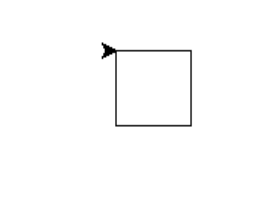
**Explanation:
- **skk = turtle.Turtle(): Create a turtle named skk.
- **skk.forward(50): Move forward 50 units.
- **skk.right(90): Turn 90° clockwise.
- **turtle.done(): Keep the window open.
Shape 2: Star
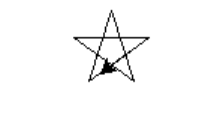
In this program, we show how to draw a star using Turtle in Python.
Python `
import turtle star = turtle.Turtle()
star.right(75) star.forward(100)
for i in range(4): star.right(144) star.forward(100)
turtle.done()
`
**Output
Some Turtle Programs
1. Spiral Square Outside In and Inside Out
In this program, we draw spiral squares that grow outward and inward to create a visually interesting pattern.
Python `
import turtle wn = turtle.Screen() wn.bgcolor("light green") skk = turtle.Turtle() skk.color("blue")
def sqrfunc(size): for i in range(4): skk.fd(size) skk.left(90) size = size + 5
sqrfunc(6) sqrfunc(26) sqrfunc(46) sqrfunc(66) sqrfunc(86) sqrfunc(106) sqrfunc(126) sqrfunc(146)
`
**Output
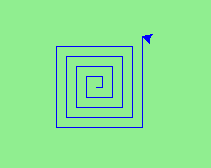
Output
**Explanation:
- **wn = turtle.Screen(): Creates a drawing window (canvas).
- **wn.bgcolor("light green"): Sets the background color of the window to light green.
- **skk = turtle.Turtle(): Creates a Turtle object named skk to draw shapes.
- **skk.color("blue"): Sets the pen color of the turtle to blue.
- **skk.fd(size): Moves the turtle forward by size units.
- **skk.left(90): Turns the turtle 90 degrees left after each side.
- **size = size + 5: Increases the side length slightly for each iteration (creates a growing effect).
- **sqrfunc(6), sqrfunc(26), … Calls the function multiple times with increasing initial sizes to draw multiple squares in sequence.
2. Spiral Helix Pattern
In this program, we create a spiral helix pattern by drawing circles with increasing and decreasing radii.
Python `
import turtle loadWindow = turtle.Screen() turtle.speed(2)
for i in range(100): turtle.circle(5i) turtle.circle(-5i) turtle.left(i)
turtle.exitonclick()
`
**Output
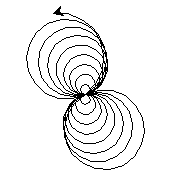
Output
**Explanation:
- **loadWindow = turtle.Screen(): Creates the drawing window.
- **turtle.speed(2): Sets the turtle’s drawing speed.
- **turtle.circle(5*i): Draws a circle with increasing radius.
- **turtle.circle(-5*i): Draws a circle in the opposite direction.
- **turtle.left(i): Rotates the turtle to form a spiral effect.
- **turtle.exitonclick(): Keeps the window open until a mouse click.
Common Turtle Methods
Below are some common Turtle methods used to move the turtle, draw shapes and control colors.
| Method | Parameter | Description |
|---|---|---|
| Turtle() | None | Creates and returns a new turtle object |
| forward() | amount | Moves the turtle forward by the specified amount |
| backward() | amount | Moves the turtle backward by the specified amount |
| right() | angle | Turns the turtle clockwise |
| left() | angle | Turns the turtle counterclockwise |
| penup() | None | Picks up the turtle's Pen |
| pendown() | None | Puts down the turtle's Pen |
| up() | None | Picks up the turtle's Pen |
| down() | None | Puts down the turtle's Pen |
| color() | Color name | Changes the color of the turtle's pen |
| fillcolor() | Color name | Changes the color of the turtle will use to fill a polygon |
| heading() | None | Returns the current heading |
| position() | None | Returns the current position |
| goto() | x, y | Move the turtle to position x,y |
| begin_fill() | None | Remember the starting point for a filled polygon |
| end_fill() | None | Close the polygon and fill with the current fill color |
| dot() | None | Leave the dot at the current position |
| stamp() | None | Leaves an impression of a turtle shape at the current location |
| shape() | shapename | Should be 'arrow', 'classic', 'turtle' or 'circle' |