Working with PDF files in Python (original) (raw)
All of you must be familiar with what PDFs are. In fact, they are one of the most important and widely used digital media. PDF stands for **Portable Document Format. It uses ****.pdf** extension. It is used to present and exchange documents reliably, independent of software, hardware, or operating system.
Invented by **Adobe, PDF is now an open standard maintained by the International Organization for Standardization (ISO). PDFs can contain links and buttons, form fields, audio, video, and business logic.
In this article, we will learn, how we can do various operations like:
- Extracting text from PDF
- Rotating PDF pages
- Merging PDFs
- Splitting PDF
- Adding watermark to PDF pages
**Installation: Using simple python scripts!
We will be using a third-party module, pypdf.
pypdf is a python library built as a PDF toolkit. It is capable of:
- Extracting document information (title, author, …)
- Splitting documents page by page
- Merging documents page by page
- Cropping pages
- Merging multiple pages into a single page
- Encrypting and decrypting PDF files
- and more!
To install pypdf, run the following command from the command line:
pip install pypdf
This module name is case-sensitive, so make sure the **y is lowercase and everything else is uppercase. All the code and PDF files used in this tutorial/article are available here.
**1. Extracting text from PDF file
Python `
importing required classes
from pypdf import PdfReader
creating a pdf reader object
reader = PdfReader('example.pdf')
printing number of pages in pdf file
print(len(reader.pages))
creating a page object
page = reader.pages[0]
extracting text from page
print(page.extract_text())
`
The output of the above program looks like this:
20
PythonBasics
S.R.Doty
August27,2008
Contents
1Preliminaries
4
1.1WhatisPython?...................................
..4
1.2Installationanddocumentation....................
.........4 ****[and some more lines...]**
Let us try to understand the above code in chunks:
reader = PdfReader('example.pdf')
- Here, we create an object of **PdfReader class of pypdf module and pass the path to the PDF file & get a PDF reader object.
print(len(reader.pages))
- **pages property gives the number of pages in the PDF file. For example, in our case, it is 20 (see first line of output).
pageObj = reader.pages[0]
- Now, we create an object of **PageObject class of pypdf module. PDF reader object has function **pages[] which takes page number (starting from index 0) as argument and returns the page object.
print(pageObj.extract_text())
- Page object has function **extract_text() to extract text from the PDF page.
**Note: While PDF files are great for laying out text in a way that’s easy for people to print and read, they’re not straightforward for software to parse into plaintext. As such, pypdf might make mistakes when extracting text from a PDF and may even be unable to open some PDFs at all. It isn’t much you can do about this, unfortunately. pypdf may simply be unable to work with some of your particular PDF files.
**2. Rotating PDF pages
Python `
importing the required classes
from pypdf import PdfReader, PdfWriter
def PDFrotate(origFileName, newFileName, rotation):
# creating a pdf Reader object
reader = PdfReader(origFileName)

# creating a pdf writer object for new pdf
writer = PdfWriter()

# rotating each page
for page in range(len(reader.pages)):

    pageObj = reader.pages[page]
    pageObj.rotate(rotation)

    # Add the rotated page object to the PDF writer
    writer.add_page(pageObj)

# Write the rotated pages to the new PDF file
with open(newFileName, 'wb') as newFile:
    writer.write(newFile)
def main():
# original pdf file name
origFileName = 'example.pdf'

# new pdf file name
newFileName = 'rotated_example.pdf'

# rotation angle
rotation = 270

# calling the PDFrotate function
PDFrotate(origFileName, newFileName, rotation)
if name == "main": # calling the main function main()
`
Here, you can see how the first page of **rotated_example.pdf looks like ( right image) after rotation:
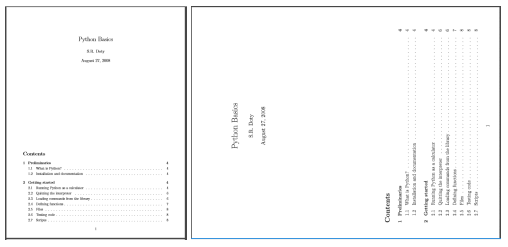
Some important points related to the above code:
- For rotation, we first create a PDF reader object of the original PDF.
writer = PdfWriter()
- Rotated pages will be written to a new PDF. For writing to PDFs, we use the object of **PdfWriter class of pypdf module.
for page in range(len(pdfReader.pages)):
pageObj = pdfReader.pages[page]
pageObj.rotate(rotation)
writer.add_page(pageObj)
- Now, we iterate each page of the original PDF. We get page object by ****.pages[]** method of PDF reader class. Now, we rotate the page by **rotate() method of page object class. Then, we add a page to PDF writer object using **addage() method of PDF writer class by passing the rotated page object.
newFile = open(newFileName, 'wb')
writer.write(newFile)
newFile.close()
- Now, we have to write the PDF pages to a new PDF file. Firstly, we open the new file object and write PDF pages to it using **write() method of PDF writer object. Finally, we close the original PDF file object and the new file object.
**3. Merging PDF files
Python `
importing required modules
from pypdf import PdfWriter
def PDFmerge(pdfs, output): # creating pdf file writer object pdfWriter = PdfWriter()
# appending pdfs one by one
for pdf in pdfs:
    pdfWriter.append(pdf)

# writing combined pdf to output pdf file
with open(output, 'wb') as f:
    pdfWriter.write(f)
def main(): # pdf files to merge pdfs = ['example.pdf', 'rotated_example.pdf']
# output pdf file name
output = 'combined_example.pdf'

# calling pdf merge function
PDFmerge(pdfs=pdfs, output=output)
if name == "main": # calling the main function main()
`
The output of the above program is a combined PDF, **combined_example.pdf,obtained by merging **example.pdf and **rotated_example.pdf.
- Let us have a look at important aspects of this program:
pdfWriter = PdfWriter()
- For merging, we use a pre-built class, **PdfWriter of pypdf module.
Here, we create an object **pdfwriter of PDF writer class
appending pdfs one by one
for pdf in pdfs:
pdfWriter.append(pdf)
Now, we append file object of each PDF to PDF writer object using the **append() method.
writing combined pdf to output pdf file
with open(output, 'wb') as f:
pdfWriter.write(f)Finally, we write the PDF pages to the output PDF file using **write method of PDF writer object.
**4. Splitting PDF file
Python `
importing the required modules
from pypdf import PdfReader, PdfWriter
def PDFsplit(pdf, splits): # creating pdf reader object reader = PdfReader(pdf)
# starting index of first slice
start = 0

# starting index of last slice
end = splits[0]


for i in range(len(splits)+1):
    # creating pdf writer object for (i+1)th split
    writer = PdfWriter()

    # output pdf file name
    outputpdf = pdf.split('.pdf')[0] + str(i) + '.pdf'

    # adding pages to pdf writer object
    for page in range(start,end):
        writer.add_page(reader.pages[page])

        # writing split pdf pages to pdf file
        with open(outputpdf, "wb") as f:
            writer.write(f)

        # interchanging page split start position for next split
        start = end
        try:
            # setting split end position for next split
            end = splits[i+1]
        except IndexError:
            # setting split end position for last split
            end = len(reader.pages)
def main(): # pdf file to split pdf = 'example.pdf'
# split page positions
splits = [2,4]

# calling PDFsplit function to split pdf
PDFsplit(pdf, splits)
if name == "main": # calling the main function main()
`
Output will be three new PDF files with **split 1 (page 0,1), split 2(page 2,3), split 3(page 4-end).
No new function or class has been used in the above python program. Using simple logic and iterations, we created the splits of passed PDF according to the passed list **splits.
**5. Adding watermark to PDF pages
Python `
importing the required modules
from pypdf import PdfReader, PdfWriter
def add_watermark(wmFile, pageObj): # creating pdf reader object of watermark pdf file reader = PdfReader(wmFile)
# merging watermark pdf's first page with passed page object.
pageObj.merge_page(reader.pages[0])

# returning watermarked page object
return pageObj
def main(): # watermark pdf file name mywatermark = 'watermark.pdf'
# original pdf file name
origFileName = 'example.pdf'

# new pdf file name
newFileName = 'watermarked_example.pdf'

# creating pdf File object of original pdf
pdfFileObj = open(origFileName, 'rb')

# creating a pdf Reader object
reader = PdfReader(pdfFileObj)

# creating a pdf writer object for new pdf
writer = PdfWriter()

# adding watermark to each page
for page in range(len(reader.pages)):
    # creating watermarked page object
    wmpageObj = add_watermark(mywatermark, reader.pages[page])

    # adding watermarked page object to pdf writer
    writer.add_page(wmpageObj)

# writing watermarked pages to new file
with open(newFileName, 'wb') as newFile:
    writer.write(newFile)

# closing the original pdf file object
pdfFileObj.close()
if name == "main": # calling the main function main()
`
Here is how the first page of original (left) and watermarked (right) PDF file looks like:
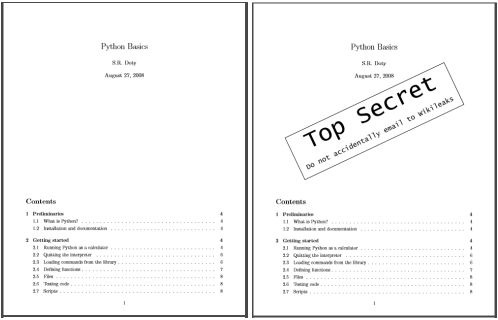
- All the process is same as the page rotation example. Only difference is:
wmpageObj = add_watermark(mywatermark, pdfReader.pages[page])
Page object is converted to watermarked page object using **add_watermark() function.
Let us try to understand **add_watermark() function:
reader = PdfReader(wmFile)
pageObj.merge_page(reader.pages[0])
return pageObjForemost, we create a PDF reader object of **watermark.pdf. To the passed page object, we use **merge_page() function and pass the page object of the first page of the watermark PDF reader object. This will overlay the watermark over the passed page object.
And here we reach the end of this long tutorial on working with PDF files in python.
Now, you can easily create your own PDF manager!
**References:
If you like GeeksforGeeks and would like to contribute, you can also write an article using write.geeksforgeeks.org or mail your article to review-team@geeksforgeeks.org. See your article appearing on the GeeksforGeeks main page and help other Geeks.
Please write comments if you find anything incorrect, or if you want to share more information about the topic discussed above.