Creating Interactive Plots using Shiny (original) (raw)
Last Updated : 5 Jun, 2026
Interactive data visualization allows users to explore data dynamically instead of viewing static charts. By using tools like Shiny in R, we can build web applications that respond to user inputs such as dropdowns, sliders and buttons. This makes data analysis more engaging, flexible and insightful.
- Shiny enables creation of interactive web apps directly from R code.
- Users can modify inputs and see real-time changes in plots and outputs.
- It integrates easily with visualization libraries like ggplot2 and plotly.
Shiny App
Shiny is an R package that simplifies the process of building web applications directly from R code. It provides a framework for creating interactive web applications without requiring expertise in web development technologies such as HTML, CSS or JavaScript.
It includes two key components:
- **User Interface (UI): The UI component shows a blueprint for defining the visual elements of the Shiny app using R functions that generate HTML.
- **Server: It reacts responsively to user input, processes data and generates dynamic output predicated on user interactions.
Syntax
library(shiny)
ui <- fluidPage()
server <- function(input, output) {}
shinyApp(ui = ui, server = server)
K-Means Clustering using Shiny
In this example, users can select X and Y variables from the iris dataset and choose the number of clusters.
Step 1: Install and load required packages
R `
install.packages("shiny") install.packages("cluster") library(shiny) library(cluster)
`
Step 2: Define the UI
Create a UI with dropdown lists (select inputs) for choosing the X and Y variables and a slider for selecting the number of clusters.
R `
ui <- fluidPage( titlePanel("K-means Clustering on Iris Dataset"), sidebarLayout( sidebarPanel( selectInput("x_var", "X Variable:", choices = names(iris)[-5]), selectInput("y_var", "Y Variable:", choices = names(iris)[-5]), sliderInput("clusters", "Number of clusters:", min = 1, max = 5, value = 3) ), mainPanel( plotOutput("plot") ) ) )
`
Step 3: Define the server logic
R `
server <- function(input, output) { output$plot <- renderPlot({ # Perform K-means clustering on the selected X and Y variables iris_clusters <- kmeans(iris[,c(input$x_var, input$y_var)],centers = input$clusters)
# Plot clusters
plot(iris[, c(input$x_var, input$y_var)], col = iris_clusters$cluster,
     main = "K-means Clustering on Iris Dataset")
points(iris_clusters$centers, col = 1:input$clusters, pch = 8, cex = 2)
}) }
`
Step 4: Run the Shiny app
Combine the UI and server functions using `shinyApp()` and run the app.
R `
shinyApp(ui = ui, server = server)
`
**Output:
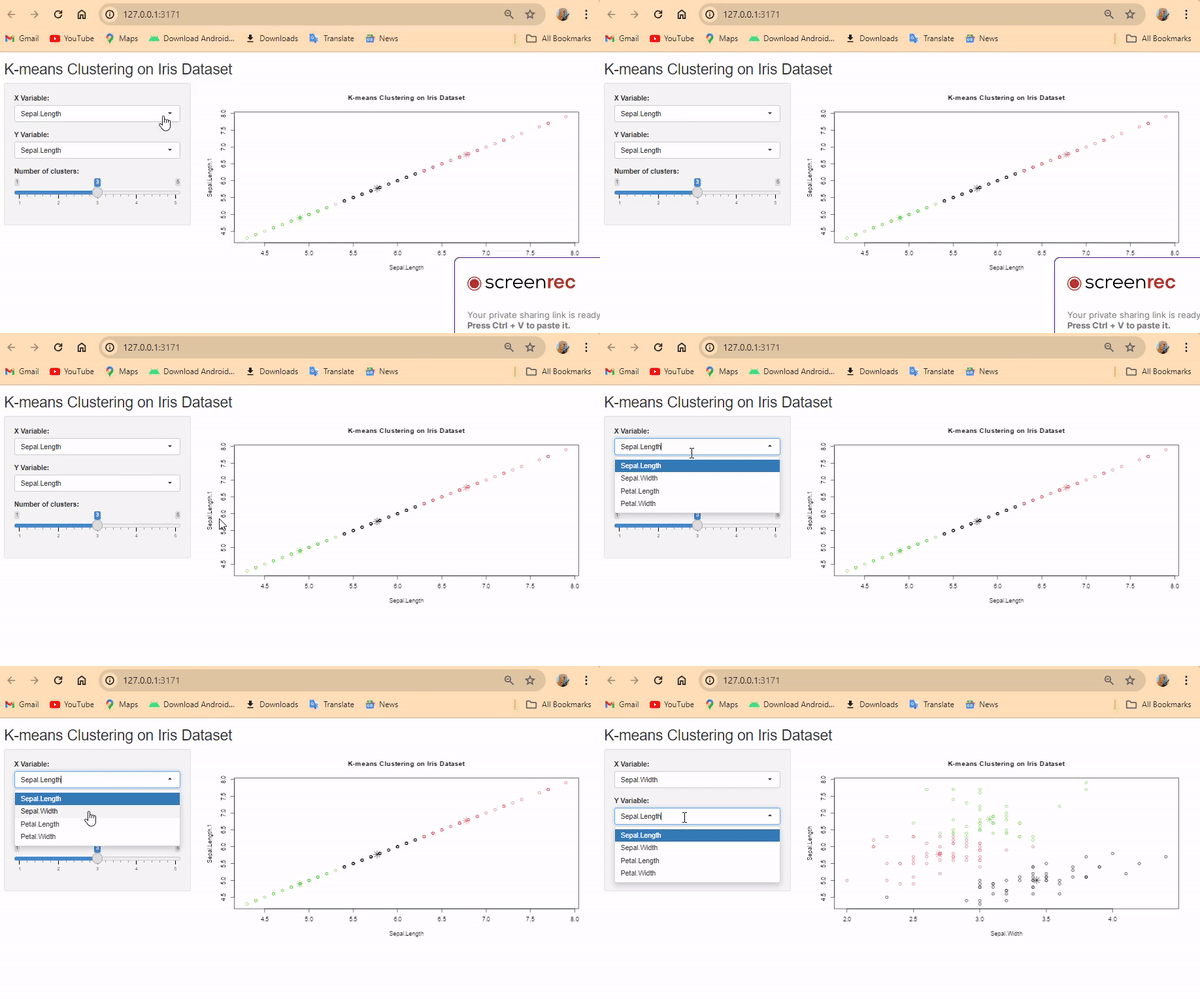
Plotting K-Means Clustering Using Shiny
Create a UI layout with dropdown lists (select inputs) and a slider for selecting variables and clusters.
- Create a UI using fluidPage() with a titlePanel() and sidebarLayout().
- Add selectInput() for X and Y variables and sliderInput() for number of clusters inside sidebarPanel().
- Display the plot in mainPanel().
- In the server, use renderPlot() to apply kmeans() based on user inputs.
- Plot clusters using plot() and points().
- Combine UI and server using shinyApp() and run the app.
Creating Interactive Plots using Shiny
An interactive plot allows users to explore data dynamically instead of viewing a fixed graph. Unlike static plots, interactive visualizations respond to user inputs such as dropdown selections, sliders and buttons. Using Shiny and Plotly, we can create responsive plots that update in real time.
Interactive Scatter Plot (Shiny + Plotly)
R `
library(shiny) library(plotly)
Define UI
ui <- fluidPage( titlePanel("Interactive Plot with mtcars Dataset"), sidebarLayout( sidebarPanel( selectInput("x_var", "X-axis variable:", choices = names(mtcars)), selectInput("y_var", "Y-axis variable:", choices = names(mtcars), selected = "mpg") ), mainPanel( plotlyOutput("plot") ) ) )
Define server logic
server <- function(input, output) { output$plot <- renderPlotly({ # Create plotly plot based on user inputs plot_ly(data = mtcars, x = ~get(input$x_var), y = ~get(input$y_var), type = 'scatter', mode = 'markers') %>% layout(title = 'Interactive Plot with mtcars Dataset', xaxis = list(title = input$x_var), yaxis = list(title = input$y_var)) }) }
Run the application
shinyApp(ui = ui, server = server)
`
**Output:
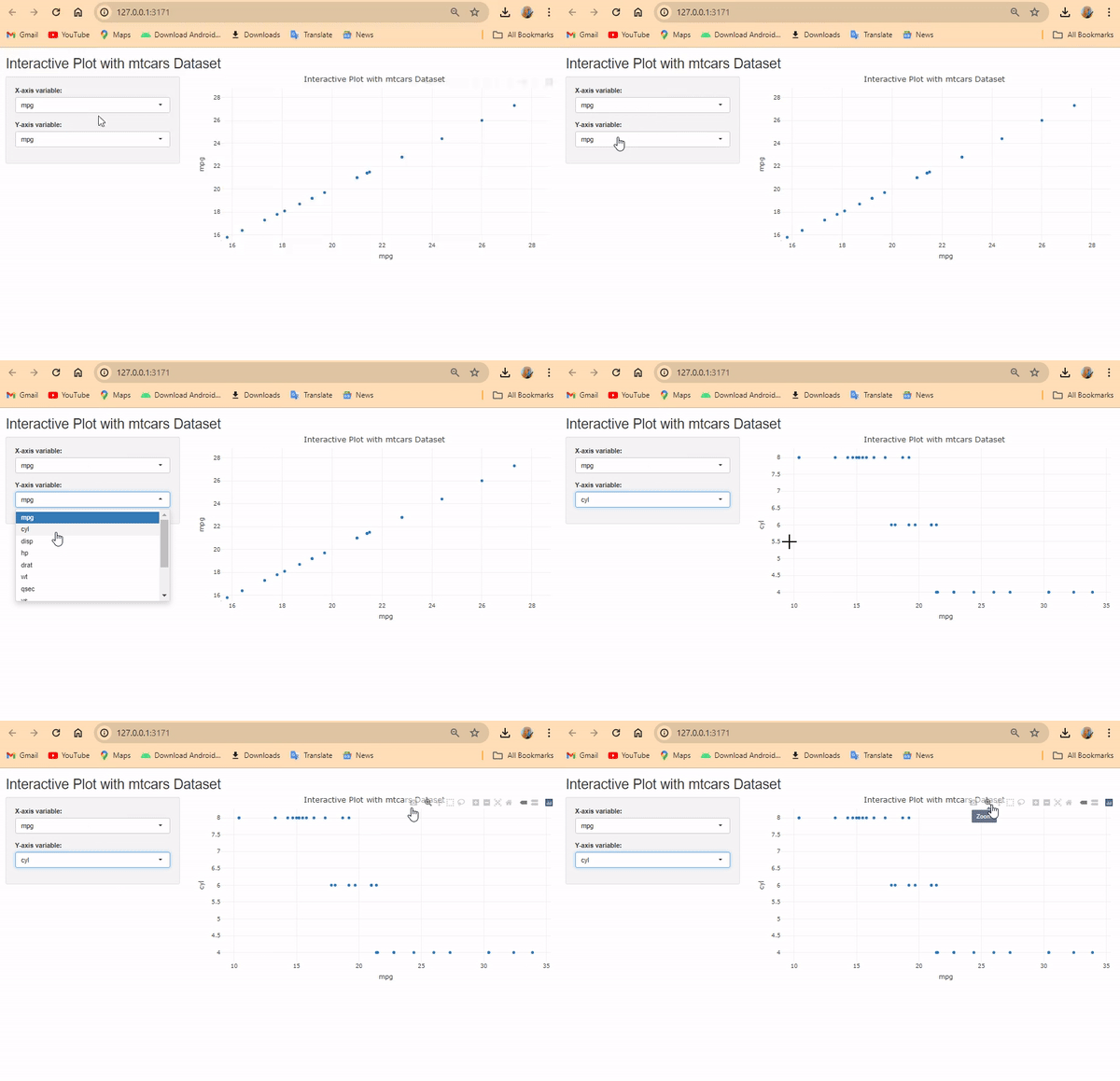
Interactive Plotting using Plotly
**Explanation:
- Users select X and Y variables dynamically.
- The scatter plot updates automatically.
- Hover, zoom and pan features are enabled.
Creating Customized Interactive Plot
This version allows more user control such as selecting plot type and adding regression lines.
R `
library(shiny) library(plotly) library(ggplot2)
Define UI
ui <- fluidPage( titlePanel("Interactive Plot with mtcars Dataset"), sidebarLayout( sidebarPanel( radioButtons("plot_type", "Select Plot Type:", choices = c("Scatter Plot", "Box Plot", "Bar Plot")), selectInput("x_var", "X-axis variable:", choices = names(mtcars)), selectInput("y_var", "Y-axis variable:", choices = names(mtcars), selected = "mpg"), checkboxInput("add_line", "Add Line", value = FALSE), sliderInput("smooth_span", "Smooth Span:", min = 0, max = 1, value = 0.5, step = 0.1), checkboxInput("add_regression", "Add Regression Line", value = FALSE), sliderInput("limit", "Limit:", min = min(mtcars$mpg), max = max(mtcars$mpg), value = c(min(mtcars$mpg), max(mtcars$mpg))), textInput("plot_title", "Plot Title:", value = "Interactive Plot"), downloadButton("download_plot", "Download Plot") ), mainPanel( plotlyOutput("plot") ) ) )
Define server logic
server <- function(input, output) { output$plot <- renderPlotly({ # Determine plot type if (input$plot_type == "Scatter Plot") { p <- plot_ly(data = mtcars, x = ~get(input$x_var), y = ~get(input$y_var), type = "scatter", mode = "markers") } else if (input$plot_type == "Box Plot") { p <- plot_ly(data = mtcars, x = ~get(input$x_var), y = ~get(input$y_var), type = "box") } else if (input$plot_type == "Bar Plot") { p <- plot_ly(data = mtcars, x = ~get(input$x_var), y = ~get(input$y_var), type = "bar") }
# Add line
if (input$add_line) {
  p <- p %>% add_lines()
}

# Add smooth line
if (input$add_line) {
  p <- p %>% add_trace(y = fitted(loess(get(input$y_var) ~ get(input$x_var),
                                        span = input$smooth_span)),
                       name = "Smooth Line")
}

# Add regression line
if (input$add_regression) {
  lm_model <- lm(get(input$y_var) ~ get(input$x_var), data = mtcars)
  p <- p %>% add_trace(y = predict(lm_model), name = "Regression Line")
}

# Set limits
p <- p %>% layout(xaxis = list(range = input$limit))

# Customize plot title
p <- p %>% layout(title = input$plot_title)

# Return the plot
p
})
Download plot
output$download_plot <- downloadHandler( filename = function() { paste(input$plot_type, "plot.html", sep = "_") }, content = function(file) { htmlwidgets::saveWidget(output$plot, file) } ) }
Run the application
shinyApp(ui = ui, server = server)
`
**Output:
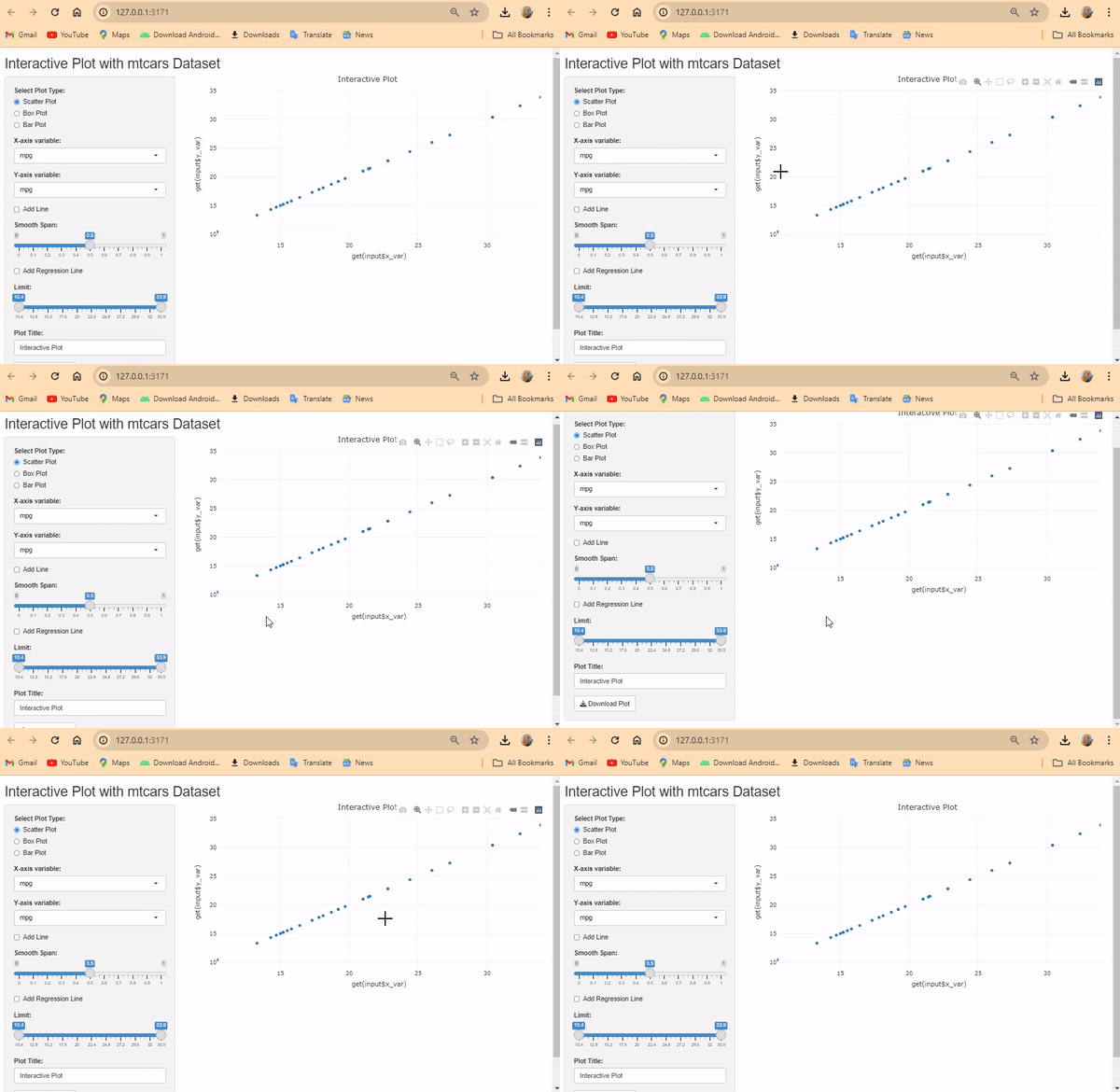
Customized Interactive Plot
**Explanation: Users can select the plot type (Scatter Plot, Box Plot, Bar Plot) via radio buttons and select variables for X and Y axes with dropdown menus.
- They can add a line, smooth line (with adjustable span) and regression line using checkboxes.
- checkboxInput() creates a checkbox that lets users enable or disable an option.
- Users can set limits on the X-axis using a slider.
- Customize the plot title using a text input.
- Download option is available for the plot as an HTML file.
Creating Heatmap using Shiny
R `
library(shiny) library(plotly)
Define UI
ui <- fluidPage( titlePanel("Interactive Heatmap with mtcars Dataset"), sidebarLayout( sidebarPanel( selectInput("x_var", "X-axis variable:", choices = names(mtcars)), selectInput("y_var", "Y-axis variable:", choices = names(mtcars)), selectInput("z_var", "Z-axis variable:",choices = names(mtcars),selected = "mpg"), selectInput("color_scale", "Color Scale:", choices = c("Viridis", "Plasma", "Inferno", "Magma", "Cividis")), textInput("plot_title", "Plot Title:", value = "Heatmap"), actionButton("refresh", "Refresh Plot"), downloadButton("download_plot", "Download Plot") ), mainPanel( plotlyOutput("plot") ) ) )
Define server logic
server <- function(input, output, session) {
Generate heatmap plot
generate_heatmap <- function() { plot <- plot_ly( x = mtcars[, input$x_var], y = mtcars[, input$y_var], z = mtcars[, input$z_var], type = "heatmap", colorscale = input$color_scale ) %>% layout(title = input$plot_title) return(plot) }
Initial plot generation
output$plot <- renderPlotly({ generate_heatmap() })
Refresh plot on button click
observeEvent(input$refresh, { output$plot <- renderPlotly({ generate_heatmap() }) })
Download plot
output$download_plot <- downloadHandler( filename = function() { paste(input$plot_title, ".html", sep = "") }, content = function(file) { htmlwidgets::saveWidget(output$plot, file) } ) }
Run the application
shinyApp(ui = ui, server = server)
`
**Output:

Creating Interactive Heatmap
**Explanation: Users can select the variables for the X-axis (x_var), Y-axis (y_var) and Z-axis (z_var) from dropdown menus.
- They can choose the color scale for the heatmap from a predefined list (color_scale).
- Users can customize the plot title using a text input (plot_title).
- The "Refresh Plot" button allows users to update the plot with the selected options.
- There's an option to download the plot as an HTML file.