Data Cleaning in R (original) (raw)
Last Updated : 21 Feb, 2026
Data cleaning is the process of identifying and correcting errors, inconsistencies and inaccuracies in a dataset before analysis. It ensures that the data is reliable, well-structured and ready for meaningful interpretation. Proper data cleaning improves the accuracy of statistical results and machine learning models. It involves:
- Handles missing, incorrect or duplicate values in datasets.
- Standardizes data formats and structures for consistency.
- Prepares raw data for accurate analysis and modeling.
How it Works
Data cleaning in R transforms raw datasets into reliable, analysis-ready information by detecting and correcting issues such as incorrect data types, missing values, formatting inconsistencies and validation errors. This structured workflow ensures data accuracy and consistency before performing statistical analysis or building machine learning models.
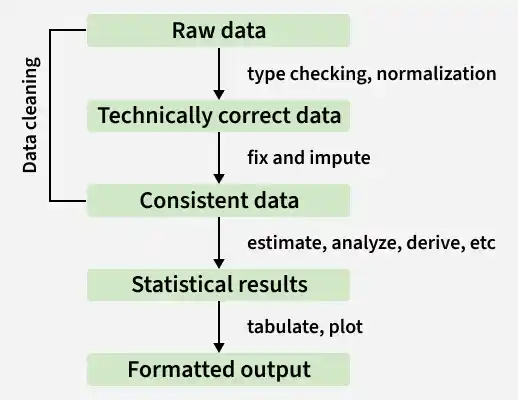
Data cleaning
1. Raw Data
This is the original data collected from sources like CSV files, Excel sheets, databases, APIs or surveys. It often contains issues such as:
- Missing or unclear column names
- Incorrect data types
- Duplicate rows
- Missing (NA) values
- Inconsistent formats or extra spaces
At this stage, the data is unclean and not ready for analysis.
2. Technically Correct Data
The dataset is properly imported into R and basic structural fixes are applied.
- Meaningful column names are assigned
- Data types are corrected
- Duplicates are removed
- Missing values are identified
The data is now organized and ready for deeper cleaning.
3. Consistent and Validated Data
The dataset is cleaned, standardized and logically verified.
- Missing values are handled
- Categories and formats are standardized
- Outliers are checked
- Value ranges are validated
At this stage, the data is fully ready for analysis and modeling
Step By Step Implementation
Step 1: Install and Load Required Libraries
Installs and loads the necessary R packages for data manipulation, cleaning, visualization and correlation analysis.
R `
install.packages(c("tidyverse", "skimr", "janitor", "corrplot"))
library(tidyverse) library(skimr) library(janitor) library(corrplot)
`
Step 2: Load the Dataset and Preview Data
Here we load the built-in airquality dataset and examine its structure and summary statistics.
- head() shows the first 6 rows.
- summary() provides statistical summaries and missing value counts.
- skim() gives a detailed overview including data types and NA values. R `
air_df <- airquality head(air_df) summary(air_df) skim(air_df)
`
**Output:
Step 3: Check Missing Value Percentage
Here we calculates the percentage of missing values in each column.
R `
sapply(air_df, function(x) sum(is.na(x)) / length(x) * 100)
`
**Output:
Ozone 24.1830065359477 Solar.R 4.57516339869281 Wind 0 Temp 0 Month 0 Day 0
Step 4: Remove Duplicate Rows
This ensures that no duplicate records exist in the dataset.
R `
air_df <- air_df %>% distinct()
`
Step 5: Clean Column Names
Standardizes column names to lowercase and consistent format.
R `
air_df <- air_df %>% clean_names() colnames(air_df)
`
**Output:
'ozone' 'solar_r' 'wind' ' temp' 'month' 'day'
Step 6: Handle Missing Values Using Median Imputation
Replaces missing values in ozone and solar_r with their median values.
R `
air_df <- air_df %>% mutate( ozone = ifelse(is.na(ozone), median(ozone, na.rm = TRUE), ozone), solar_r = ifelse(is.na(solar_r), median(solar_r, na.rm = TRUE), solar_r) )
`
Step 7: Correct Data Types and Create Date Column
Convert month into factor and create a proper date column.
R `
air_df$month <- as.factor(air_df$month) air_df$date <- as.Date(paste(1973, air_df$month, air_df$day, sep = "-"))
`
Step 8: Define Outlier Capping Function (IQR Method)
Creates a reusable function to detect and cap outliers using IQR. cap_outliers function limits extreme values within calculated lower and upper bounds.
R `
cap_outliers <- function(x) { Q1 <- quantile(x, 0.25, na.rm = TRUE) Q3 <- quantile(x, 0.75, na.rm = TRUE) IQR_val <- Q3 - Q1 lower <- Q1 - 1.5 * IQR_val upper <- Q3 + 1.5 * IQR_val x <- pmin(pmax(x, lower), upper) return(x) }
`
Step 9: Apply Outlier Treatment
Apply the outlier capping function to numeric columns. Extreme values are capped within acceptable IQR limits.
R `
air_df$ozone <- cap_outliers(air_df$ozone) air_df$solar_r <- cap_outliers(air_df$solar_r) air_df$wind <- cap_outliers(air_df$wind) air_df$temp <- cap_outliers(air_df$temp)
`
Step 10: Feature Engineering
Create a new categorical variable based on temperature. temp_category classifies temperature as Low, Medium or High.
R `
air_df <- air_df %>% mutate(temp_category = case_when( temp < 70 ~ "Low", temp >= 70 & temp < 85 ~ "Medium", TRUE ~ "High" ))
`
Step 11: Visualize Cleaned Data
Visualize the cleaned numeric variables using boxplots to examine data distribution and confirm that extreme outliers have been effectively controlled.
R `
boxplot(air_df[, c("ozone", "solar_r", "wind", "temp")], main = "Boxplot After Cleaning")
`
**Output:
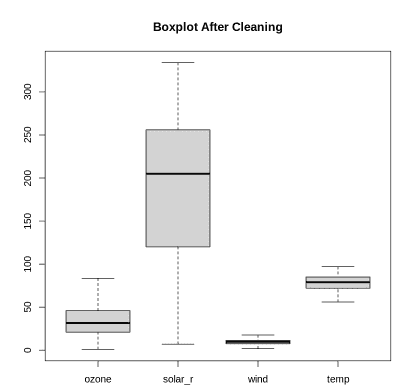
Boxplot
The boxplot shows that after cleaning, there are no extreme outliers, indicating they were properly treated or removed. Solar radiation has the highest variability, while wind has the lowest median and smallest spread.
Step 12: Distribution of Ozone
Here we creates a histogram to visualize the distribution of ozone levels in the cleaned dataset. It helps in understanding the frequency pattern and overall spread of ozone values after preprocessing.
R `
ggplot(air_df, aes(x = ozone)) + geom_histogram(bins = 20, fill = "skyblue", color = "black") + theme_minimal() + labs(title = "Distribution of Ozone")
`
Output:
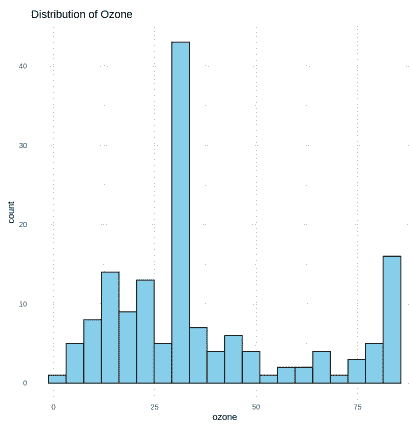
Output
Step 13: Data Inspection and Verification
Here we reviews the cleaned dataset to confirm that all transformations and preprocessing tasks have been applied correctly.
R `
head(air_df) summary(air_df)
`
**Output:
Download full code from here.