How to export a DataFrame to Excel File in R ? (original) (raw)
Last Updated : 21 Apr, 2021
It is a frequent requirement to save our dataframe for portability after working on it on the auxiliary memory of the computer system using R Programming Language. In this article, we will be using writexl package to export our dataframe to excel(.xlsx). The write_xlsx() function of the writexl package is used to export our dataframe to an Excel file.
Getting Started
The writexl is a simple package that contains a function write_xlsx() function which is used to write a dataframe to an Excel (.xlsx) file.
Installation
Packages are installed in R by using the install.packages() function. To install a package pass the name of the package/library to the install.packages() function.
We can install the writexl package by running the command below in the R console.
install.packages("writexl")
Export the dataframe to excel
Example 1: In the first line of the code below, we have used library("writexl") function to load the package named -> "writexl". We have then used write_xlsx() function of the writexl library to export the dataframe to an Excel file. In the below example, our write_xlsx() function takes 2 arguments, the first argument is the dataframe itself which is to be converted to an Excel file, thesecond argument is the path with "file_name.xlsx" which specifies the location where our Excel file will be saved with specified file_name.
To create a ".xlsx" with (multiple) named sheets, simply set "df" to a named list of data frames.
Syntax: write_xlsx(dataframe_name, "path\\file_name.xlsx")
Code:
R `
loads the package
library("writexl")
sample dataframe
df <- data.frame(name = c("This", "is", "GFG"), roll = c(10,20,30)) df
saves the dataframe at the specified
path
write_xlsx(df,"MY_PATH\df.xlsx")
`
Output:
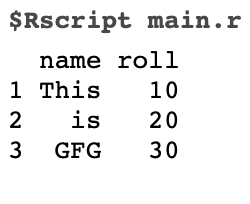
Our dataframe gets exported in the form of an Excel file to the specified location or path.
Example 2:
The only difference in this example from the previous examples is the arguments, in the example code below we have passed 2 extra arguments which help us have more control over the formatting of the Excel file. Those arguments and their usage are:
- col_names: write column names at the top of the Excel file(.xlsx)
- format_headers: make the column names(col_names) in the Excel file(.xlsx) centered and bold
Syntax:
write_xlsx( df, "path\file_name.xlsx"), col_names = TRUE, format_headers = TRUE )
Code:
R `
loads the package
library("writexl")
sample dataframe
df <- data.frame(name = c("This", "is", "GFG"), roll = c(10,20,30)) df
saves the dataframe at the specified path
write_xlsx( df,"My_path\df.xlsx", col_names = TRUE, format_headers = TRUE)
`
Output:
Our dataframe gets exported in the form of an excel file to the specified location or path.
Export the dataframe to a CSV
The write.csv() is an inbuilt function in R, we do not require installing any additional library for using this function.
In the code below, our write.csv() function takes 2 arguments, the first argument is the dataframe itself which is to be converted to a CSV file, the second argument is the path with "file_name.csv" which specifies the location where our CSV file will be saved with specified file_name.
Syntax: write.csv(dataFrame_name, "path\\file_name.csv")
Code:
R `
sample dataframe
df <- data.frame(name = c("This", "is", "GFG"), roll = c(10,20,30)) df
saves the dataframe at the specified path
write.csv(df,"My_Path\df.csv")
`
Output: