R Bar Charts (original) (raw)
Last Updated : 12 Jul, 2025
Bar charts provide an easy method of representing categorical data in the form of bars. The length or height of each bar represents the value of the category it represents. In R, bar charts are created using the function barplot(), and it can be applied both for vertical and horizontal charts.
Syntax:
barplot(H, xlab, ylab, main, names.arg, col)
**Parameters:
- **H: This parameter is a vector or matrix containing numeric values which are used in bar chart.
- **xlab: This parameter is the label for x axis in bar chart.
- **ylab: This parameter is the label for y axis in bar chart.
- **main: This parameter is the title of the bar chart.
- **names.arg: This parameter is a vector of names appearing under each bar in bar chart.
- **col: This parameter is used to give colors to the bars in the graph.
1. Creating a Simple Bar Chart
A vector "A" is taken which contains numeral values to be used. This vector **A is plot using **barplot().
R `
A <- c(17, 32, 8, 53, 1)
barplot(A, xlab = "X-axis", ylab = "Y-axis", main ="Bar-Chart")
`
**Output:
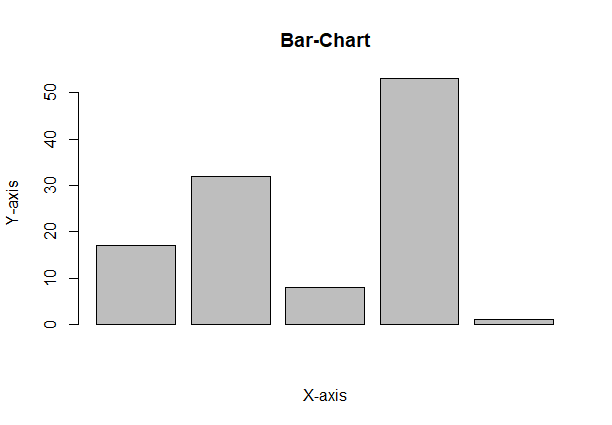
R - Bar Charts
A simple bar chart showing information in the form of rectangular bars, with the height or length of the bar indicating the value.
1.1 Horizontal Bar Chart
To create a horizontal bar chart, add the **horiz = TRUE argument.
R `
A <- c(17, 32, 8, 53, 1)
barplot(A, horiz = TRUE, xlab = "X-axis", ylab = "Y-axis", main ="Horizontal Bar Chart" )
`
**Output:
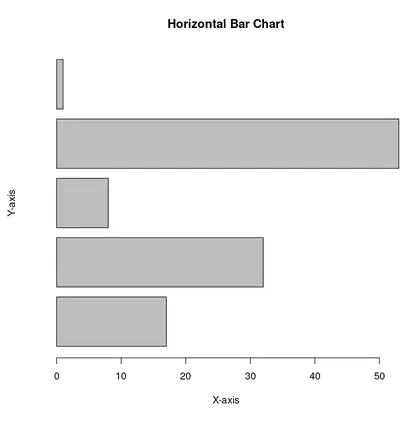
Horizontal Bar Chart
2. Customizing the Bar Chart
Label, title and colors are some properties in the bar chart which can be added to the bar chart
R `
A <- c(17, 2, 8, 13, 1, 22) B <- c("Jan", "feb", "Mar", "Apr", "May", "Jun")
barplot(A, names.arg = B, xlab ="Month", ylab ="Articles", col ="green", main ="GeeksforGeeks-Article chart")
`
**Output:
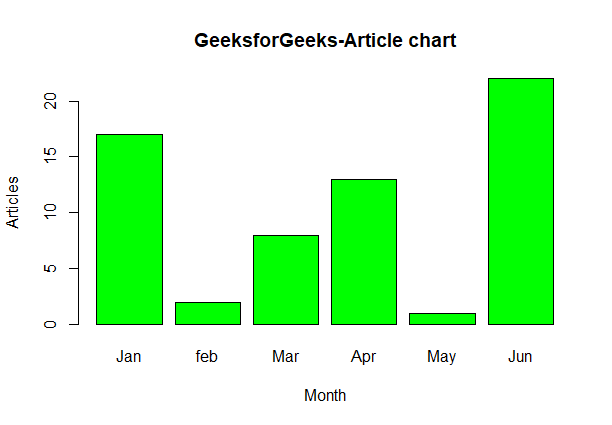
R - GeeksforGeeks-Article chart
**2.1 Adding Data Labels on Top of Each Bar
You can add the actual values on top of each bar using the text() function.
- cex.main, cex.lab, and cex.axis manage the chart title, x-axis label, and y-axis label font size, respectively, to enhance readability.
- The text() function adds data labels above each bar by placing them slightly above the bar height. R `
A <- c(17, 2, 8, 13, 1, 22) B <- c("Jan", "Feb", "Mar", "Apr", "May", "Jun")
barplot(A, names.arg = B, xlab = "Month", ylab = "Articles", col = "steelblue", main = "GeeksforGeeks - Article Chart", cex.main = 1.5, cex.lab = 1.2, cex.axis = 1.1)
text( x = barplot(A, names.arg = B, col = "steelblue", ylim = c(0, max(A) * 1.2)), y = A + 1, labels = A, pos = 3, cex = 1.2, col = "black" )
`
**Output:

GeeksforGeeks - Article Chart
3. Grouped and Stacked Bar Charts
A Grouped Bar Chart displays bars for different categories side by side, allowing for easy comparison between multiple groups, while a Stacked Bar Chart piles bars for different categories on top of one another to show the total value as well as the individual contributions from each category.
**3.1 Grouped Bar Chart
A grouped bar chart is useful when you want to compare multiple categories or groups side by side. It displays each category as separate bars grouped together, making it easy to compare the values within each group across different categories.
- **beside = TRUE: places the bars for each category side by side, thus creating a grouped bar chart. R `
colors = c("green", "orange", "brown") months <- c("Mar", "Apr", "May", "Jun", "Jul") regions <- c("East", "West", "North")
Values <- matrix(c(2, 9, 3, 11, 9, 4, 8, 7, 3, 12, 5, 2, 8, 10, 11), nrow = 3, ncol = 5, byrow = TRUE)
barplot(Values, main = "Total Revenue", names.arg = months, xlab = "Month", ylab = "Revenue", col = colors, beside = TRUE)
legend("topleft", regions, cex = 0.7, fill = colors)
`
**Output:
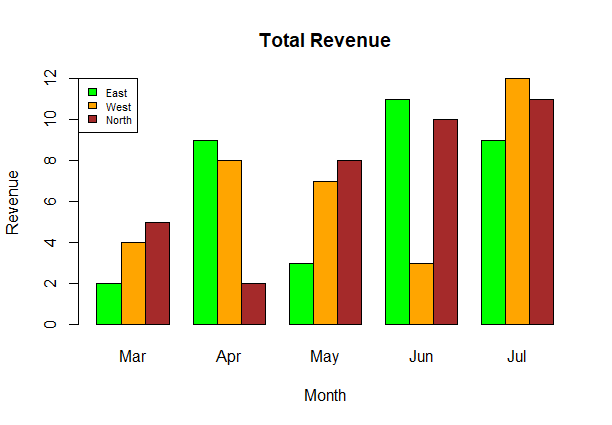
R - Total Revenue
**3.2 Stacked Bar Chart
A stacked bar chart is ideal when you want to show how different categories contribute to a whole. It stacks the bars on top of one another, allowing you to see both the total value and the breakdown of each segment within the bar.
- **beside = FALSE (default behavior): When this parameter is not set to TRUE, the bars for different categories (e.g., East, West, North) will be stacked on top of one another. R `
colors = c("green", "orange", "brown") months <- c("Mar", "Apr", "May", "Jun", "Jul") regions <- c("East", "West", "North")
Values <- matrix(c(2, 9, 3, 11, 9, 4, 8, 7, 3, 12, 5, 2, 8, 10, 11), nrow = 3, ncol = 5, byrow = TRUE)
barplot(Values, main = "Total Revenue", names.arg = months, xlab = "Month", ylab = "Revenue", col = colors)
legend("topleft", regions, cex = 0.7, fill = colors)
`
**Output:

R - Bar Charts
**Related Articles: