React Bootstrap Ratios Utilities (original) (raw)
Last Updated : 23 Jul, 2025
React Bootstrap provides the facility to create responsive and visually appealing layouts. One such feature is the Ratios Utilities, which allows you to easily manage aspect ratios for your components. In this article, we will learn about React Bootstrap Ratios Utilities and explore how they can be used to enhance the design and responsiveness of web applications.
Prerequisites
- Introduction and installation of React JS
- React-Bootstrap
An aspect ratio is the proportion between an object's width and height. 16:9, 4:3, and 1:1 are the common aspect ratios used in the development. For example, a widescreen video with a 16:9 aspect ratio means that for every 16 units of width, there are 9 units of height. Aspect ratios play a crucial role in UI design, especially when dealing with images, videos, or containers. They help maintain a consistent and visually appealing layout across different devices and screen sizes.
React Bootstrap's Ratio simplifies the process of managing these ratios and allows you to focus on creating responsive user interfaces.
Syntax:
{/* content */}Ratios Props:
- **aspectTatio: This prop sets the desired aspect ratio for the element, which defines the width and height.
- **children: This prop represents the content within the ****** component, that allows nested elements or components to be included while controlling aspect ratio.
- **bsPrefix: This prop defines the Bootstrap CSS class prefix for styling.
**Steps to create React Application And Installing Module:
**Step 1: Create a React application using the following command:
npx create-react-app foldername
Step 2: After creating your project folder i.e. folder name, move to it using the following command:
cd foldername
**Step 3: After creating the ReactJS application, Install therequiredmodule using the following command:
npm install react-bootstrap
npm install bootstrap
**Project Structure: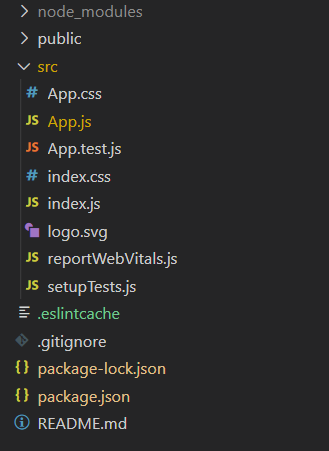
The updated **dependencies in package.json file will look like:
"dependencies": {
"@testing-library/jest-dom": "^5.17.0",
"@testing-library/react": "^13.4.0",
"@testing-library/user-event": "^13.5.0",
"bootstrap": "^5.3.2",
"react": "^18.2.0",
"react-bootstrap": "^2.9.2",
"react-dom": "^18.2.0",
"react-scripts": "5.0.1",
"web-vitals": "^2.1.4"
}
**Example: Now write down the following code in the **App.js file. Here, the App is our default component where we have written our code.
JavaScript `
//App.js
import React, { useState } from "react"; import { Ratio } from "react-bootstrap"; import "bootstrap/dist/css/bootstrap.css";
function App() { const [selectRatio, setSelectRatio] = useState("16x9");
const ratioFn = (newRatio) => {
    setSelectRatio(newRatio);
};

return (
    <div>
        <h1 style={{ color: "green" }}>GeeksforGeeks</h1>
        <h3>React Bootstrap Ratios Utilities</h3>
        <div>
            <label>Select Aspect Ratio:</label>
            <select
                value={selectRatio}
                onChange={(e) => ratioFn(e.target.value)}
            >
                <option value="1x1">1:1</option>
                <option value="4x3">4:3</option>
                <option value="16x9">16:9</option>
                <option value="21x9">21:9</option>
            </select>
        </div>
        <div style={{ width: "500px", height: "500px" }}>
            <Ratio aspectRatio={selectRatio}>
                <img
src="https://media.geeksforgeeks.org/wp-content/cdn-uploads/gfg_200x200-min.png" alt="GeeksforGeeks Logo" className="img-fluid" /> ); }

export default App;
`
**Step to Run Application: Run the application using the following command from the root directory of the project:
npm start
**Output: Now open your browser and go to http://localhost:3000/, you will see the following output: