React onBlur Event (original) (raw)
Last Updated : 23 Jul, 2025
In React, handling user interactions efficiently is important for building responsive and dynamic applications. One of the commonly used events for managing focus behaviour is the onBlur event. This event is important for tracking when a user moves the focus away from an element, such as an input field or a button.
In this article, we will explore the onBlur event in React, its purpose, how it works, and common use cases.
What is onBlur Event?
The onBlur event in React is a synthetic event that is triggered when an element loses focus. It is commonly used with form elements like input fields, text areas, and buttons to handle situations when the user moves away from an element, either by clicking elsewhere on the page or navigating to another element using the keyboard (e.g., pressing the "Tab" key).
**Syntax
- ****:** The React component or HTML element (like input, textarea, etc.) you want to track the focus loss for.
- **handleBlur: The function that will be executed when the element loses focus. This function can be defined in your component.
It is similar to the HTML DOM onblur event but uses the camelCase convention in React.
When Does the onBlur Event Get Triggered?
The onBlur event gets triggered when an element loses focus. This can happen in several ways:
- The user clicks outside the element.
- The user presses the "Tab" key to navigate to another element.
- The user clicks or focuses on another interactive element, such as a button or link.
Handling the onBlur Event
The onBlur event in React is fired when an element loses focus. This event is commonly used for performing actions after a user finishes interacting with an input field, such as form validation, UI updates, or saving data.
JavaScript `
import React, { useState } from 'react';
function App() { const [value, setValue] = useState('');
const handleBlur = () => {
    console.log('Input blurred');
};

return (
    <form action="">
        <label htmlFor="">Name:</label>
        <input
            type="text"
            value={value}
            placeholder='Write Your Name'
            onChange={
                (e) =>
                setValue(e.target.value)}
            onBlur={handleBlur}
        />
    </form>
);
}
export default App;
`
**Output
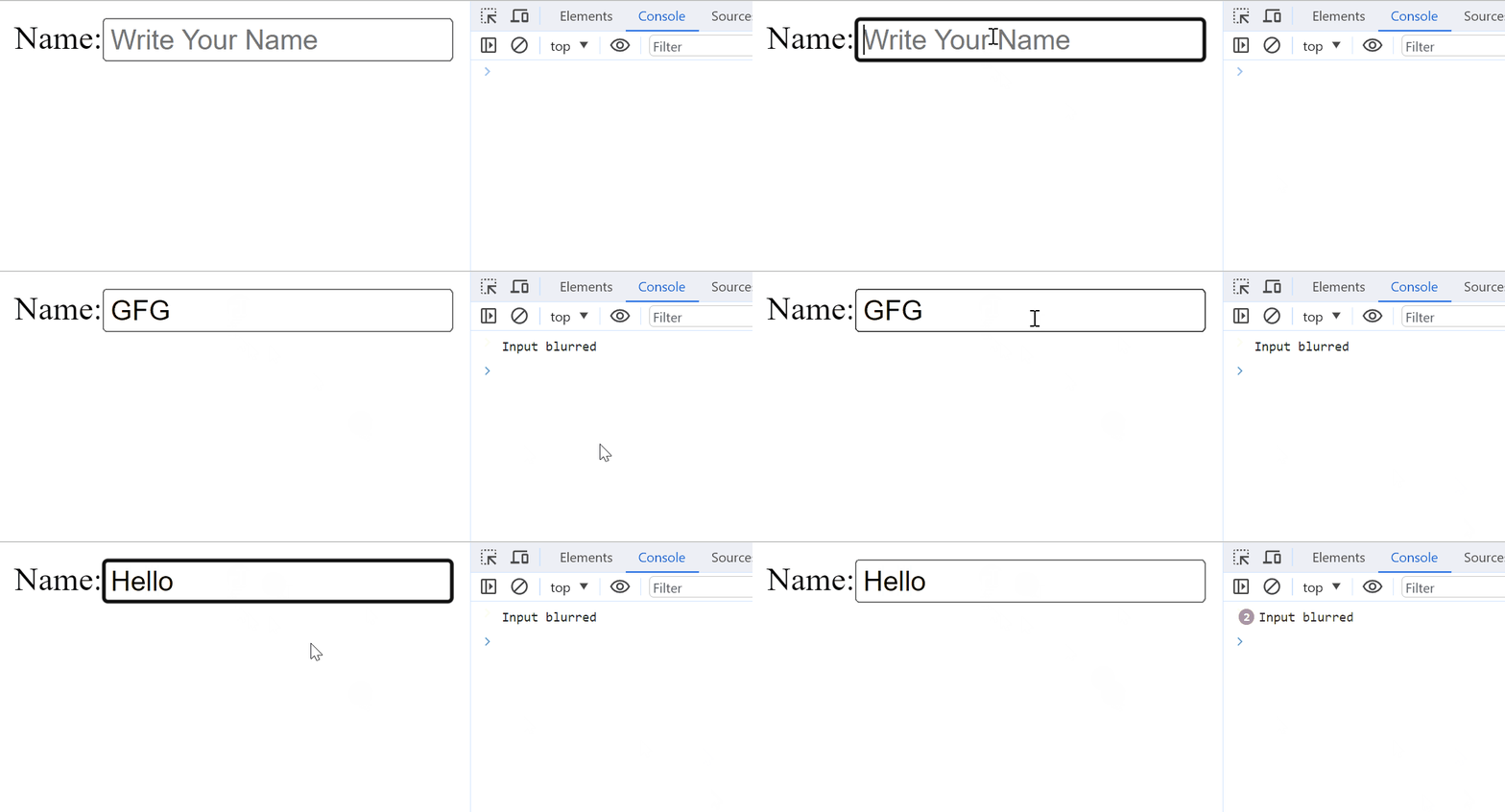
Handling the onBlur Event
**In this code
- A React component with a controlled input field using the useState hook.
- The value state holds the input's current value.
- The onChange event updates the value state as the user types.
- The onBlur event triggers the handleBlur function and logs "Input blurred" when the input loses focus.
Preventing Default Behavior
In some cases, you may want to prevent certain default behaviors triggered by the onBlur event, such as re-focusing or unintended UI changes. We prevent the default form submission behavior using the onSubmit event in React, which is commonly used in forms. We'll use the event.preventDefault() method to stop the form from reloading the page when the user submits it. Instead, we handle the form submission programmatically.
JavaScript ``
import React, { useState } from "react";
function PreventDefault() { const [value, setValue] = useState(""); const [message, setMessage] = useState("");
const handleSubmit = (event) => {
    event.preventDefault();
    if (!value.trim()) {
        setMessage("Please enter something in the input field!");
    } else {
        setMessage(`Form submitted successfully with value: ${value}`);
    }
};

const handleChange = (event) => {
    setValue(event.target.value);
    setMessage("");
};

return (
    <div>
        <h2>Form with Prevented Default Submission</h2>
        <form onSubmit={handleSubmit}>
            <label>
                Enter Text:
                <input
                    type="text"
                    value={value}
                    onChange={handleChange}
                    placeholder="Type something"
                />
            </label>
            <button type="submit">Submit</button>
        </form>

        {/* Display the message based on form submission */}
        {message && <p>{message}</p>}
    </div>
);
}
export default PreventDefault;
``
**Output

Preventing Default Behavior
**In this code
- This React component prevents form submission from reloading the page using event.preventDefault().
- It validates the input field on submission, displaying an error message if empty, or a success message with the entered value.
- The input is managed using state, and the message is cleared when the user types.
Accessing the Event Object
The onBlur event handler in React receives an event object that provides details about the focus change. This event object is useful for accessing information such as the element that lost focus, the previous element, and other relevant data.
JavaScript `
import React, { useState } from "react";
function AccessEvent() { const [value, setValue] = useState("");
const handleChange = (event) => {
    console.log("Event Object:", event);
    console.log("Input Value:", event.target.value);
    setValue(event.target.value);
};

return (
    <div>
        <h2>Access Event Object Example</h2>
        <input
            type="text"
            value={value}
            onChange={handleChange}
            placeholder="Type something"
        />
        <p>Input Value: {value}</p>
    </div>
);
}
export default AccessEvent;
`
**Output
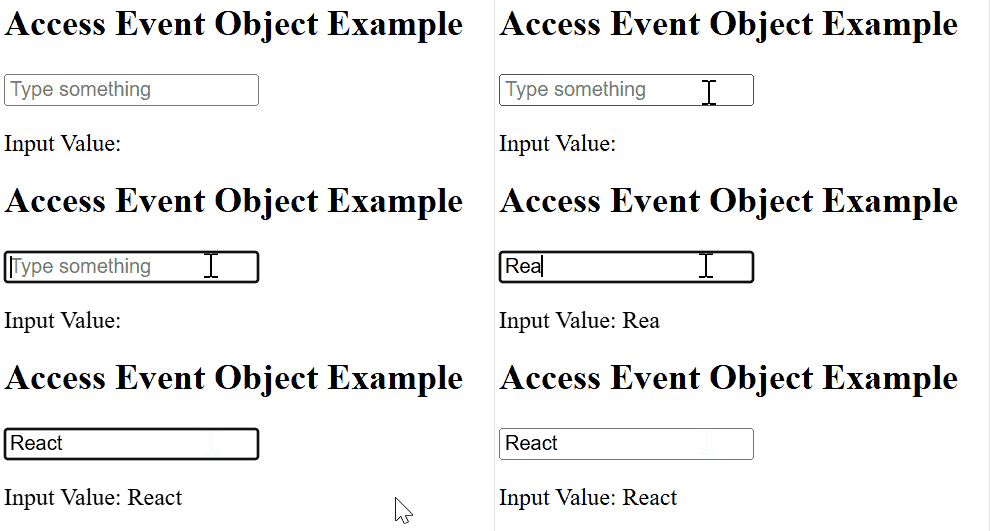
Accessing the Event Object
**In this code
- This React component logs the event object and input value whenever the user types in the input field.
- The handleChange function updates the state with the input value (event.target.value) and logs the event details.
- The current input value is displayed below the input field.
Using onBlur for Focus Validation
One common use case for the onBlur event is focus validation, which allows you to validate user input when they move focus away from an input field (e.g., checking if an email address is valid after they leave the input field).
JavaScript `
import React, { useState } from "react";
function FocusValidation() { const [email, setEmail] = useState(""); const [error, setError] = useState("");
const handleBlur = () => {
    const regex = /^[a-zA-Z0-9._-]+@[a-zA-Z0-9.-]+\.[a-zA-Z]{2,6}$/;
    if (!regex.test(email)) {
        setError("Please enter a valid email.");
    } else {
        setError("");
    }
};

const handleChange = (event) => {
    setEmail(event.target.value);
};

return (
    <div>
        <input
            type="email"
            value={email}
            onChange={handleChange}
            onBlur={handleBlur}
        />
        {error && <p style={{ color: "red" }}>{error}</p>}
    </div>
);
}
export default FocusValidation;
`
**Output
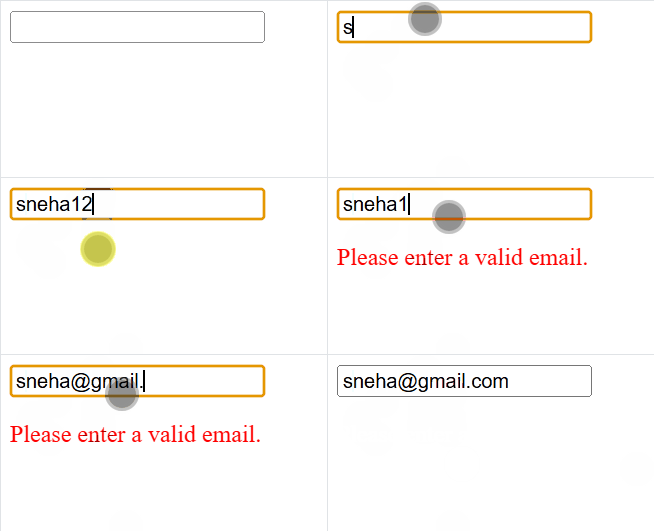
Using onBlur for Focus Validation
Using onBlur for Toggling Edit Modes
We can also use the onBlur event to toggle between edit and view modes in a UI component, allowing users to edit a field and then automatically switch it back to a display mode when they finish.
JavaScript `
import React, { useState } from "react";
function ToggleEdit() { const [isEditing, setIsEditing] = useState(false); const [value, setValue] = useState("Click to Edit");
const handleBlur = () => {
    setIsEditing(false);
};

const handleChange = (event) => {
    setValue(event.target.value);
};

return (
    <div>
        {isEditing ? (
            <input
                type="text"
                value={value}
                onChange={handleChange}
                onBlur={handleBlur}
            />
        ) : (
            <p onClick={() => setIsEditing(true)}>{value}</p>
        )}
    </div>
);
}
export default ToggleEdit;
`
**Output

Using onBlur for Toggling Edit Modes
**In this code
- **Edit Mode: When the user clicks the displayed text (
), it switches to an input field, allowing them to edit the text. The onBlur event exits edit mode when the input loses focus.
- **Display Mode: The text is displayed as a paragraph (
). Clicking on the text switches it to edit mode.
Common Use Cases for React onBlur Event
The onBlur event in React is highly versatile and can be used to handle various interactions and enhance user experience. Below are some common use cases where onBlur can be particularly useful:
- **Form Validation: Trigger validation when a user exits an input field (e.g., check if an email is valid).
- **Auto-Saving: Automatically save data when the user finishes editing a field.
- **UI Updates: Change UI elements, like showing validation feedback or changing field styles.
- **Focus Management: Automatically move focus to the next field or step in a form.
- **Hide UI Elements: Hide tooltips, dropdowns, or popups when focus is lost.
- **Closing Modals: Close modals or popups when the user clicks away or moves focus.
Conclusion
The onBlur event in React is a powerful tool for handling user focus interactions. It provides a way to respond to changes in focus, such as validating input, displaying helpful messages, or formatting data. By understanding when and how to use onBlur, you can significantly improve the user experience in your React applications, especially when dealing with forms and interactive elements.