How to Handle Static Web Tables using Selenium WebDriver using Java? (original) (raw)
Last Updated : 23 Jul, 2025
Web Tables are used to organize similar types of content on the web page, Web tables are groups of elements that are logically stored in a row and column format. Web table has various HTML tags like., table, th, tr, td. Let's understand these tags a bit more:
- It defines a table
- It defines a header cell - It defines a row in a table. - It defines a cell in a table. the tag always lies inside the tag.
Example of HTML Table
Static Demo Table
The below table is a static demo table and the HTML code for the table:
HTML `
| BookName | Author | Subject | Price |
|---|---|---|---|
| Learn Selenium | A | Selenium | 100 |
| Learn Java | B | Java | 500 |
| Learn JS | C | Javascript | 700 |
| Master In Selenium | D | Selenium | 1000 |
| Master In Java | E | JAVA | 2000 |
| Master In JS | F | Javascript | 1000 |
`
Save the code as “table.html”, then you will get an HTML table like below.
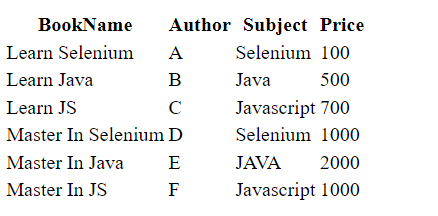
To print the total cost of all the books listed in the table:
- Open URL
- Find the x-path
- compute the cost for each book,
Find the X-Path of the Table:
- Go to the website
- Right-click on the table and select inspect and copy the x-path.
- If any doubts check this article
- For finding the price we have to copy the x-path for the 4th column ie. the price column
/html/body/table/tbody/tr/td[4]
Java `
package GFG_Maven.GFG_MAven; import java.util.List;
import org.openqa.selenium.By; import org.openqa.selenium.WebElement; import org.openqa.selenium.chrome.ChromeDriver;
public class Geeks { public static void main(String args[]) throws InterruptedException {
    System.setProperty("webdriver.chrome.driver","C:\\Users\\ADMIN\\Documents\\chromedriver.exe");
    ChromeDriver driver = new ChromeDriver();

    // Maximize the browser
    driver.manage().window().maximize();

    // Launch Website
    driver.get("file:///C:/Users/ADMIN/Desktop/table.html");
    List<WebElement> costColumns= driver.findElements(By.xpath("/html/body/table/tbody/tr/td[4]"));

      int sum_price=0;

      for(WebElement e : costColumns)
    {
       sum_price= sum_price+Integer.parseInt(e.getText());
    }

    System.out.println("total price: "+sum_price);

}
}
`
Step by Step Code Explanation:
- In setup method do all the config stuff, like launch a browser, open URL.
- To get the URL you should define the address of the file which saved as table.html in your system
- Creating a List of data type web elements and storing all the values in the 4th column in the table
- Now looping through the List and convert the data into integer and sum the price.
- Print the total cost
- Then click on run java application in eclipse.
For setting the chrome driver and selenium webdriver refer to this article How to Open Chrome Browser Using Selenium in Java?
Output: