Hybrid Framework in Selenium (original) (raw)
Last Updated : 18 May, 2026
A Hybrid Framework in Selenium combines multiple testing frameworks, mainly Data-Driven and Keyword-Driven, to create a flexible and scalable automation approach. It improves reusability, scalability, and maintainability in testing.
- Uses a combination of Data-Driven and Keyword-Driven approaches for efficient automation.
- Utilizes external data sources like Excel, CSV, XML, or databases for test data management.
- Separates test data, keywords, and object repositories to reduce duplication and improve maintainability.
Execution Flow of Hybrid Framework in Selenium
The flow shows how test execution moves from inputs to final results using different framework components.
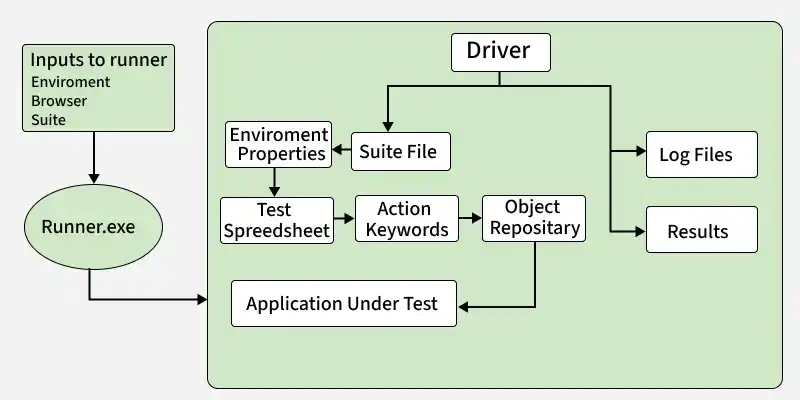
Below is the step-by-step execution flow of the Hybrid Framework based on the diagram:
- **Input to Runner: Environment, browser, and test suite details are provided to the runner (Runner.exe)
- **Runner -> Driver: Runner initializes the Driver, which controls the complete execution process
- **Driver -> Suite File: Driver reads the suite file to identify which test cases need to be executed
- **Suite File -> Environment Properties: Environment configurations (like URL, browser settings) are loaded
- **Test Spreadsheet -> Action Keywords: Test steps and keywords are read from the spreadsheet
- **Action Keywords -> Object Repository: Keywords are mapped to object locators stored in the repository
- **Execution on Application: Actions are performed on the Application Under Test using Selenium
- **Driver -> Log Files & Results: Execution details are recorded in log files and final results are generated
Components of Hybrid Framework
Components of hybrid framework such as test data and keywords are externalized. This approach makes the script more generalized and adaptable.
1. Function Library
The function library contains reusable functions that perform common actions on the web application. These functions are called by the test case design template to execute specific actions.
**Example: Let us take an instance to automate the below test cases.
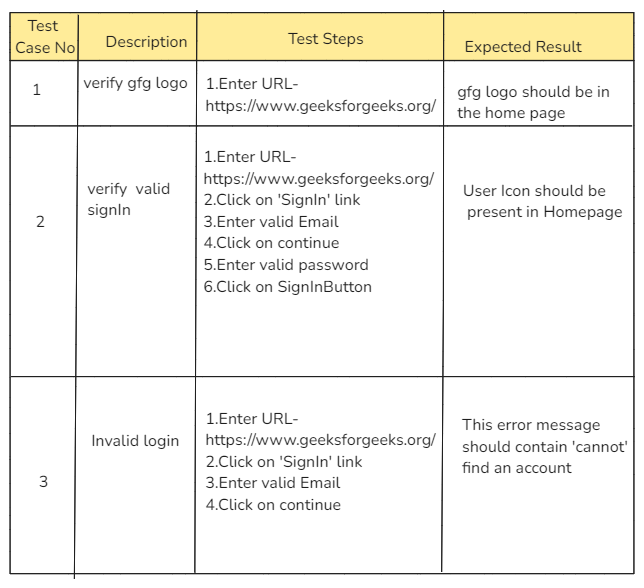
First, the test cases and their test steps are analyzed and their actions are noted down.
Say,
- **In TC01: Verify gfg logo present- the user actions will be: Enter URL
- **In TC02: Verify Valid SignIn- the user actions are Enter URL, Click, TypeIn
- **In TC03: Verify Invalid Login- the user actions are Enter URL, Click, TypeIn
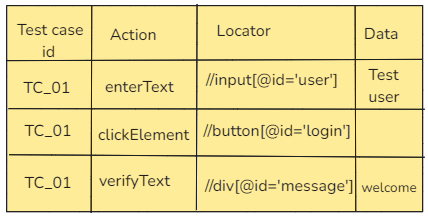
2. Excel Sheet to store Keywords
Stores test data and keywords.
**Example:
3. Test Case Design Template
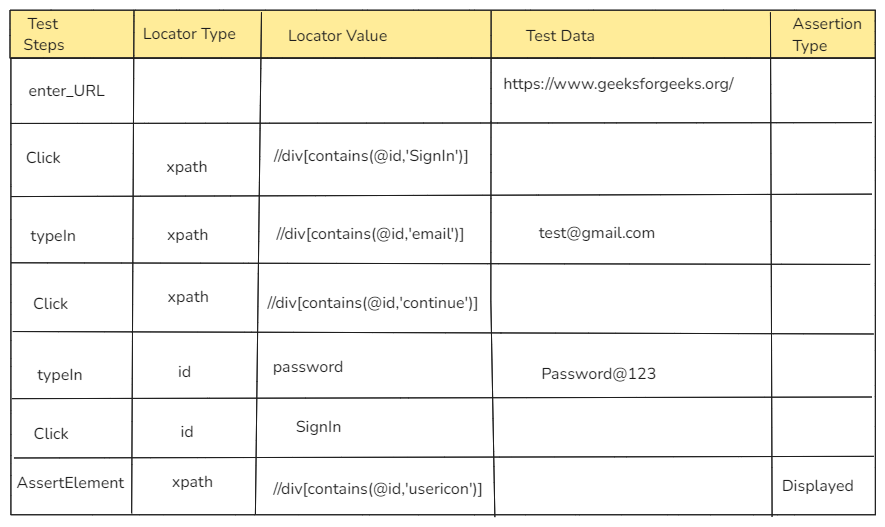
The test case design template defines the structure of test cases, reads steps from an external source, and executes them sequentially by mapping each action to functions in the function library.
4. Object Repository for Elements
An object repository is a centralized location where all web elements used in automation scripts are stored and managed, making scripts more maintainable and easier to update.
Let’s create a keyword library file.
Java `
package Keywords;
import java.io.File; import java.io.FileInputStream; import java.io.IOException; import java.util.Properties; import org.openqa.selenium.By; import org.openqa.selenium.WebDriver;
public class Keywords {
private String path; // Define the path variable

public Keywords(String path) {
    this.path = path;
}

public void click(WebDriver driver, String ObjectName, String typeLocator) throws IOException {
    driver.findElement(this.getObject(ObjectName, typeLocator)).click();
}

By getObject(String ObjectName, String typeLocator) throws IOException {
    // Object Repository is opened
    File file = new File(path + "\\Externals\\ObjectRepository.properties");
    Properties prop = new Properties();

    try (FileInputStream fileInput = new FileInputStream(file)) {
        // Properties file is read
        prop.load(fileInput);
    } catch (IOException e) {
        e.printStackTrace();
        throw e; // Rethrow the exception to indicate failure in reading the file
    }

    // Determine the locator type and return the appropriate By object
    if (typeLocator.equalsIgnoreCase("XPATH")) {
        return By.xpath(prop.getProperty(ObjectName));
    } else if (typeLocator.equalsIgnoreCase("ID")) {
        return By.id(prop.getProperty(ObjectName));
    } else if (typeLocator.equalsIgnoreCase("NAME")) {
        return By.name(prop.getProperty(ObjectName));
    } else {
        throw new IllegalArgumentException("Invalid locator type: " + typeLocator);
    }
}
}
`
**Expected Output:
The method performs actions on web elements based on the provided object name and handles errors appropriately if issues occur.
**case 1: When the click method is executed
This represents the successful execution flow where the element is located and the action is performed.
- The getObject method will read the locator for the given ObjectName from the properties file.
- The code then attempts to locate the element using Selenium's By locator (e.g., By.xpath, By.id, or By.name).
- Once the element is found, it will perform a click action on it.
**case 2: If the element is not found or there is an issue with reading the properties file
This represents the failure scenario where execution is interrupted due to an error.
- An exception could be thrown (e.g., NoSuchElementException if the element is not found, or IOException if there’s an issue reading the file)
- Proper exception handling should be implemented to manage such errors gracefully.
5. Driver Script
The Driver Script is the entry point for the test execution. It initializes the webdriver, reads the test cases from the external source (like Excel file) and triggers the execution of each test case.
Here's a simple example of a driver script in Java that uses the Selenium WebDriver and the Keywords class you provided earlier:
Java `
package TestAutomation;
import org.openqa.selenium.WebDriver; import org.openqa.selenium.chrome.ChromeDriver; import Keywords.Keywords; import java.io.IOException; import java.util.concurrent.TimeUnit;
public class DriverScript { public static void main(String[] args) { // Set up WebDriver (assuming ChromeDriver is used) System.setProperty("webdriver.chrome.driver", "path/to/chromedriver"); WebDriver driver = new ChromeDriver();
    // Maximize the browser window
    driver.manage().window().maximize();

    // Define a base URL
    String baseUrl = "https://example.com/";

    // Open the base URL
    driver.get(baseUrl);

    // Implicit wait
    driver.manage().timeouts().implicitlyWait(10, TimeUnit.SECONDS);

    // Path to the Object Repository properties file
    String objectRepoPath = "path/to/your/objectRepository.properties";

    // Create an instance of Keywords class with the path to the Object Repository
    Keywords keywords = new Keywords(objectRepoPath);

    try {
        // Perform actions using keywords
        keywords.click(driver, "loginButton", "XPATH");
        // You can add more actions as needed
        // keywords.type(driver, "usernameField", "USERNAME", "ID");
        // keywords.type(driver, "passwordField", "PASSWORD", "NAME");
        // keywords.click(driver, "submitButton", "XPATH");

    } catch (IOException e) {
        e.printStackTrace();
    } finally {
        // Close the browser
        driver.quit();
    }
}
}
`
**Expected Output:
The script executes browser actions and displays results or errors in the console based on execution success or failure.
**Browser Actions:
This describes how the browser interacts with the application during test execution.
- The browser will open, navigate to https://example.com/, and attempt to click the element specified by the "loginButton" XPath locator.
- The browser performs actions based on the instructions defined in the automation script.
**Console Output:
This shows the messages or errors generated during execution.
- If the actions are successful and there are no exceptions, there will be no output in the console.
- If the element with the locator "loginButton" is not found, a NoSuchElementException will be thrown, and the stack trace will be printed in the console.
- If there is an issue reading the properties file (e.g., file not found or incorrect path), an IOException will be caught, and its stack trace will be printed.
**Browser Behavior:
This explains the overall behavior of the browser during and after execution.
- The browser will navigate to the specified URL, attempt the action (clicking the button), and then close.
- The execution flow depends on whether the element is successfully located or an exception occurs.
A Hybrid Framework in Selenium is typically integrated with testing and build tools to enable structured execution and project management.
- TestNG or JUnit is used to manage test execution, grouping, and reporting.
- Maven or Gradle is used for build management and dependency handling.
- These tools help integrate the framework with CI/CD pipelines for continuous testing.
- They provide better control over test execution, reporting, and scalability.
Advantages of Hybrid Framework in Selenium
A Hybrid Framework combines the strengths of multiple frameworks, making automation more efficient and scalable.
- Improves reusability by separating test data, keywords, and object repositories.
- Increases flexibility by supporting multiple testing approaches in a single framework.
- Reduces code duplication through modular and structured design.
- Enhances maintainability, making updates easier when application changes occur.
- Supports scalability for large and complex automation projects.