Selenium Locating Strategies (original) (raw)
Last Updated : 9 Jun, 2026
Selenium locating strategies are methods used to identify web elements (like buttons, input fields, and links) on a webpage. These locators help automation scripts interact with elements accurately and reliably. Choosing the right locator improves test stability and reduces script failures.
- Used to uniquely identify web elements in a web application.
- Helps Selenium perform actions like click, send keys, and get text.
- Improves accuracy and reliability of automated test scripts.
Types of Locators in Selenium
Selenium provides different types of locators to identify web elements on a webpage. These locators help automation scripts interact with elements like buttons, input fields, links, and more.
1. Locating By ID
The ID attribute in HTML is a unique identifier assigned to a web element. Since it is unique on a webpage, it is one of the most reliable and fastest ways to locate elements in Selenium.
Locating elements by ID is faster than methods like XPath or CSS Selector because it uses browser-level optimization.
In Selenium, we use the By.ID locator provided by the By class to locate elements using their ID.
**Syntax:
element = driver.find_element(By.ID, "element_id")
Python `
Python program to implement Locating by ID
from selenium import webdriver from selenium.common import NoSuchElementException from selenium.webdriver.common.by import By
driver = webdriver.Chrome()
Replace this with your actual url
url = "https://www.geeksforgeeks.org/dsa/dsa-tutorial-learn-data-structures-and-algorithms/"
driver.get(url)
Replace ID_NAME with the Id of your element
try:
# Replace this with the id of the element
element = driver.find_element(By.ID, "nav_tab_courses")
except NoSuchElementException: print("Not Found") else: print("Found")
`
**Output:
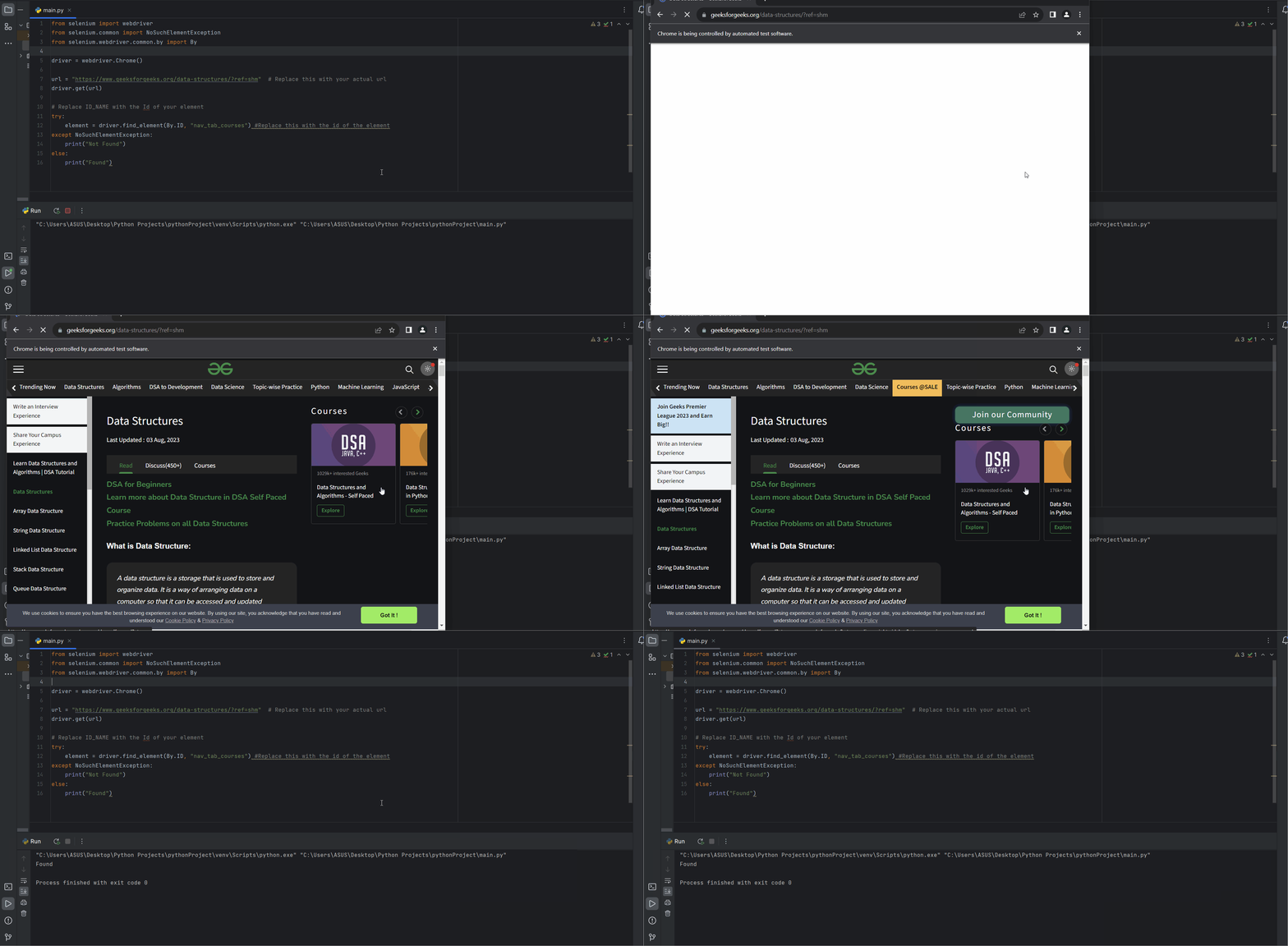
Selenium Locating Strategies
**Explanation:
driver:Selenium WebDriver instancefind_element():Method used to locate a single web element- **
By.ID:**Locator strategy using ID attribute "element_id": Actual ID value of the web element
2. Locating By Class Name
The class attribute in HTML is used to group multiple elements that share similar styling or functionality. Since many elements can share the same class name, it is useful for locating elements when uniqueness is not required.
However, class names are not always unique, so this locator may return multiple elements. That’s why it is important to use it carefully.
In Selenium, we use the By.CLASS_NAME locator provided by the By class to locate elements using their class attribute.
**Syntax:
element = driver.find_element(By.CLASS_NAME, "element_class_name")
Below is the Python program to implement Locating by Class Name:
Python `
Python program to implement Locating by Class Name
from selenium import webdriver from selenium.common import NoSuchElementException from selenium.webdriver.common.by import By
driver = webdriver.Chrome()
Replace this with your actual url
url = "https://www.geeksforgeeks.org/dsa/dsa-tutorial-learn-data-structures-and-algorithms/"
driver.get(url)
Replace ID_NAME with the Id of your element
try:
# Replace this with the id of the element
element = driver.find_element(By.CLASS_NAME, "entry-title")
except NoSuchElementException: print("Not Found") else: print("Found")
`
**Output:
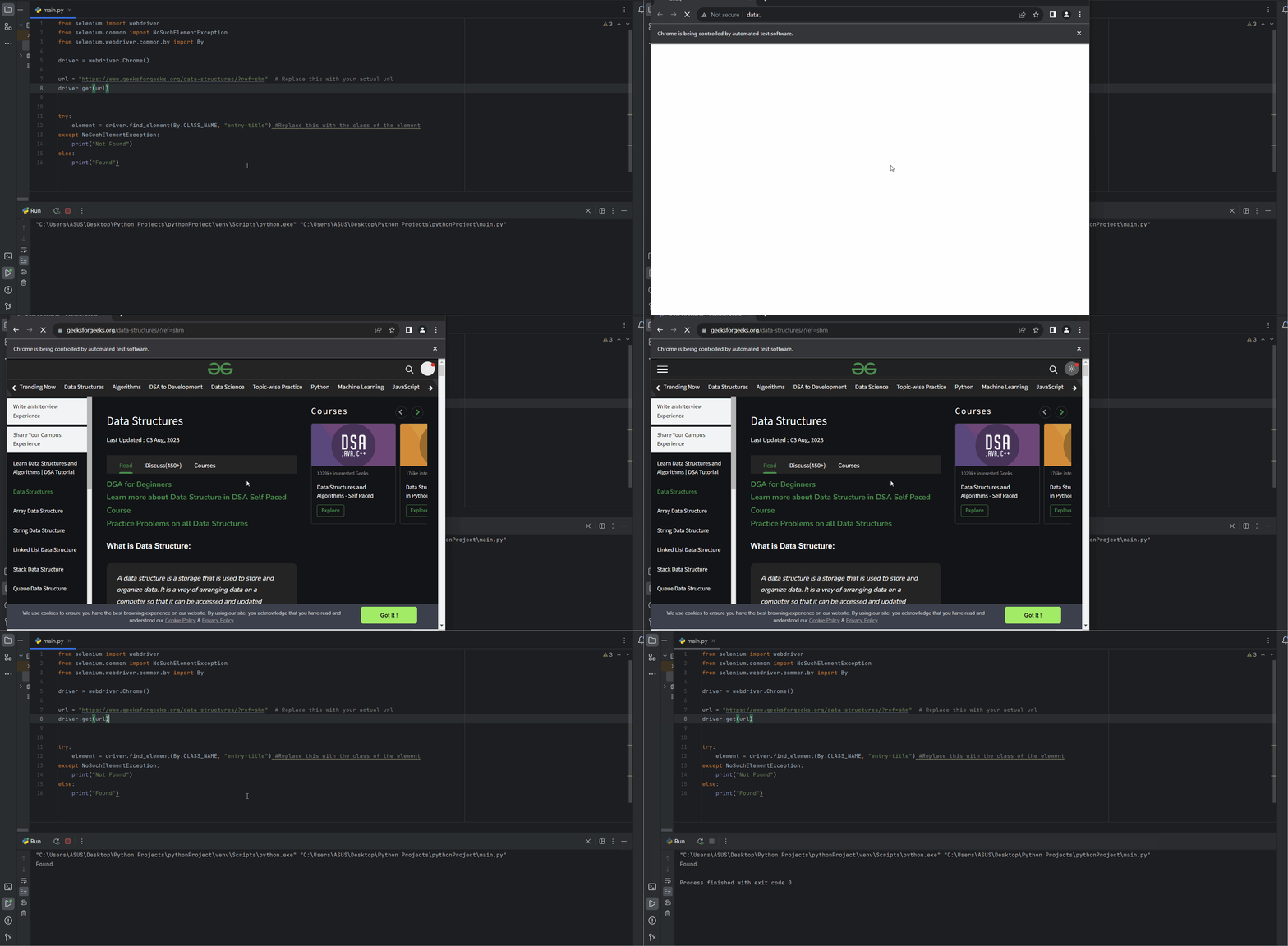
Selenium Locating Strategies
**Explanation:
- **
driver:**Selenium WebDriver instance - **
find_element():**Used to locate a single web element - **
By.CLASS_NAME:**Locator strategy using class attribute - **
"element_class_name":**Actual class value of the element
3. Locating By Name
The name attribute in HTML is used to identify form elements such as input fields, radio buttons, and checkboxes. Unlike the id attribute, the name value is not always unique on a webpage.
It is mainly used in HTML forms to collect and submit user input data. Because of this, the name locator is especially useful when working with form elements in Selenium.
In Selenium, we use the By.NAME locator provided by the By class to locate elements using their name attribute.
**Syntax:
element = driver.find_element(By.NAME, "element_name")
**Here,
**driver: This is the selenium web driver instance.
**find_element(): This method is used to locate element in Selenium.
**By.NAME: This specifies that you're locating the element by its name.
**element_name: Replace this with the actual name of the element you want to locate.
Below is the Python program to implement Locating by name:
Python `
Python program to implement Locating by name
import time
from selenium import webdriver from selenium.common import NoSuchElementException from selenium.webdriver.common.by import By
driver = webdriver.Chrome()
Replace this with your actual url
url = "https://www.geeksforgeeks.org/about/contact-us/"
driver.get(url)
Replace ID_NAME with the Id of your element
try:
# Replace this with the name of the element
element = driver.find_element(By.NAME, "feedback_area")
except NoSuchElementException: print("Not Found") else: print("Found")
`
**Output:
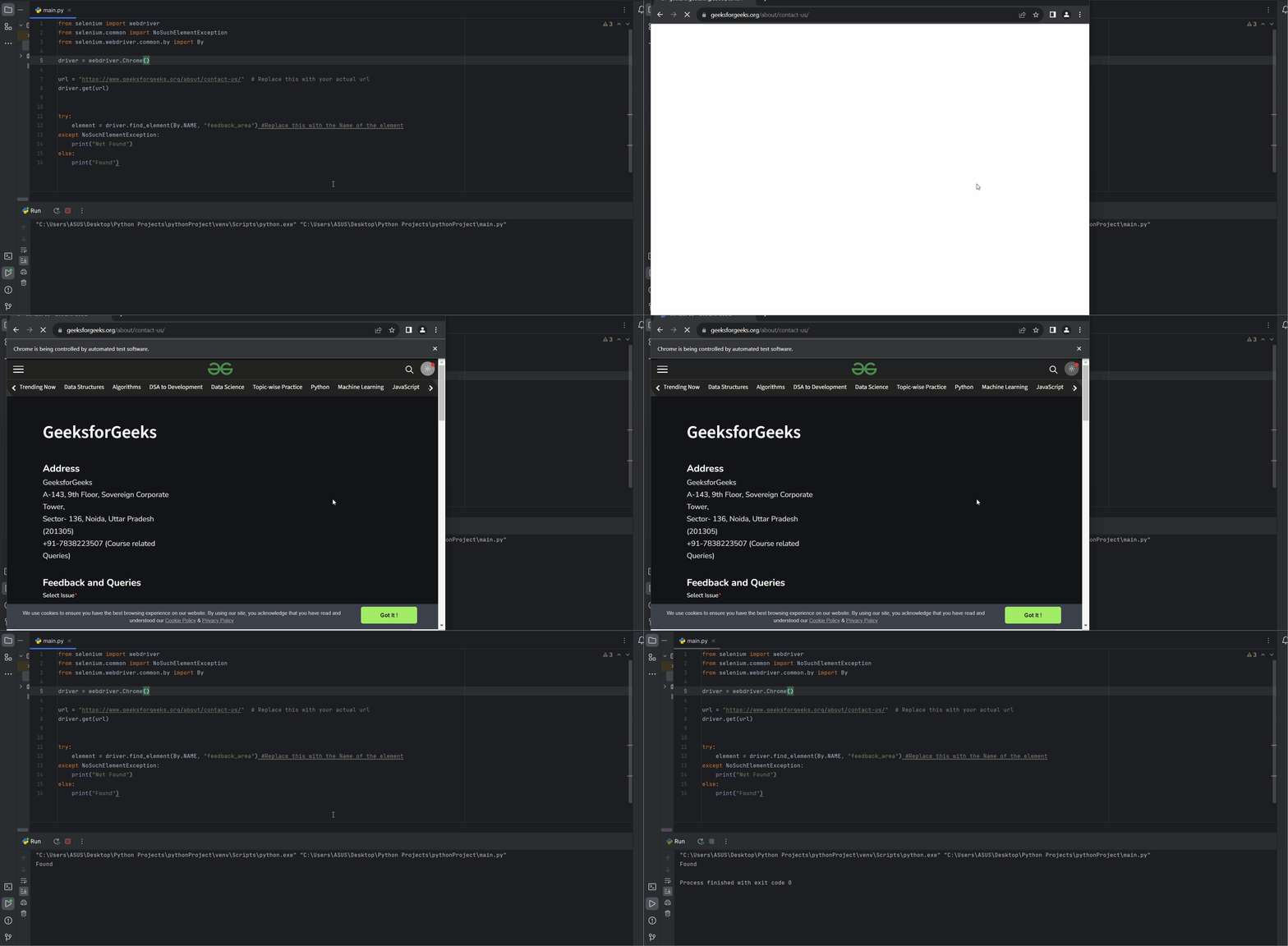
Selenium Locating Strategies
**Explanation:
- **
driver:**Selenium WebDriver instance find_element():Used to locate a single web elementBy.NAME:Locator strategy using name attribute- **
"element_name":**Actual name value of the element
4. Locating By Tag Name
Tag Name locator is used to identify web elements using their HTML tag such as input, button, div, etc. It is useful when working with multiple elements of the same type on a webpage. However, it is not suitable for uniquely identifying elements.
- Uses HTML tag name to locate elements
- Useful for handling multiple similar elements
- Not ideal for uniquely identifying a single element
**Syntax:
element = driver.find_element(By.TAG_NAME, "tag_name")
Below is the Python program to implement Locating by tag name:
Python `
Python program to implement Locating by tag name
import time
from selenium import webdriver from selenium.common import NoSuchElementException from selenium.webdriver.common.by import By
driver = webdriver.Chrome()
Replace this with your actual url
url = "https://www.geeksforgeeks.org/about/contact-us/"
driver.get(url)
try:
# Replace this with the Tag Name of the element
element = driver.find_element(By.TAG_NAME, "select")
except NoSuchElementException: print("Not Found") else: print("Found")
`
**Output:
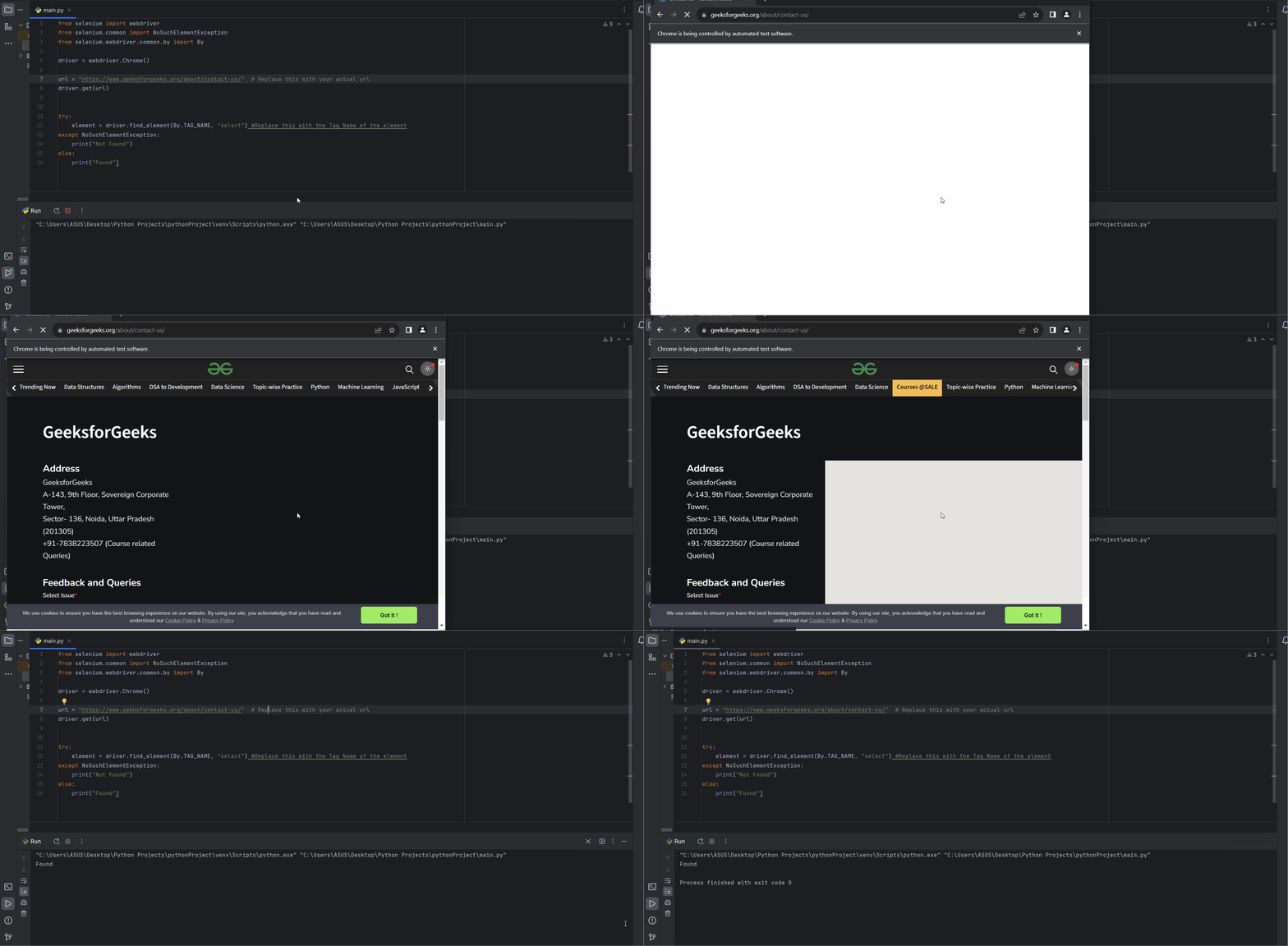
Selenium Locating Strategies
**Explanation:
driver: Selenium WebDriver instance- **
find_element():**Locates a single web element - **
By.TAG_NAME:**Locator strategy using HTML tag name - **
"tag_name":**Actual HTML tag (e.g., input, button, div)
5. Locating by CSS Selectors
CSS Selectors are patterns used to locate HTML elements based on tag name, class, id, attributes, or hierarchy. They are widely used in Selenium because they are fast, flexible, and powerful for identifying web elements.
- Used to locate elements using CSS patterns
- Can identify single or multiple elements on a webpage
- Fast and widely used locator in Selenium
**Common CSS Selectors
- **Element Selector: selects by tag name (e.g.,
pselects all<p>elements) - **Class Selector: selects elements by class (e.g.,
.btn) - **ID Selector: selects a unique element (e.g.,
#header) - **Descendant Selector: selects nested elements (e.g.,
ul li)
Syntax:
driver.find_element(By.CSS_SELECTOR, "element_css_selector")
Below is the Python program to implement Locating by CSS Selector:
Python `
Python program to implement Locating by CSS Selector
from selenium import webdriver from selenium.common import NoSuchElementException from selenium.webdriver.common.by import By
driver = webdriver.Chrome()
Replace this with your actual url
url = "https://www.geeksforgeeks.org/about/contact-us/"
driver.get(url)
try:
# Replace this with the css selector of the element
element = driver.find_element(By.CSS_SELECTOR, "div.title")
except NoSuchElementException: print("Not Found") else: print("Found")
`
**Output:
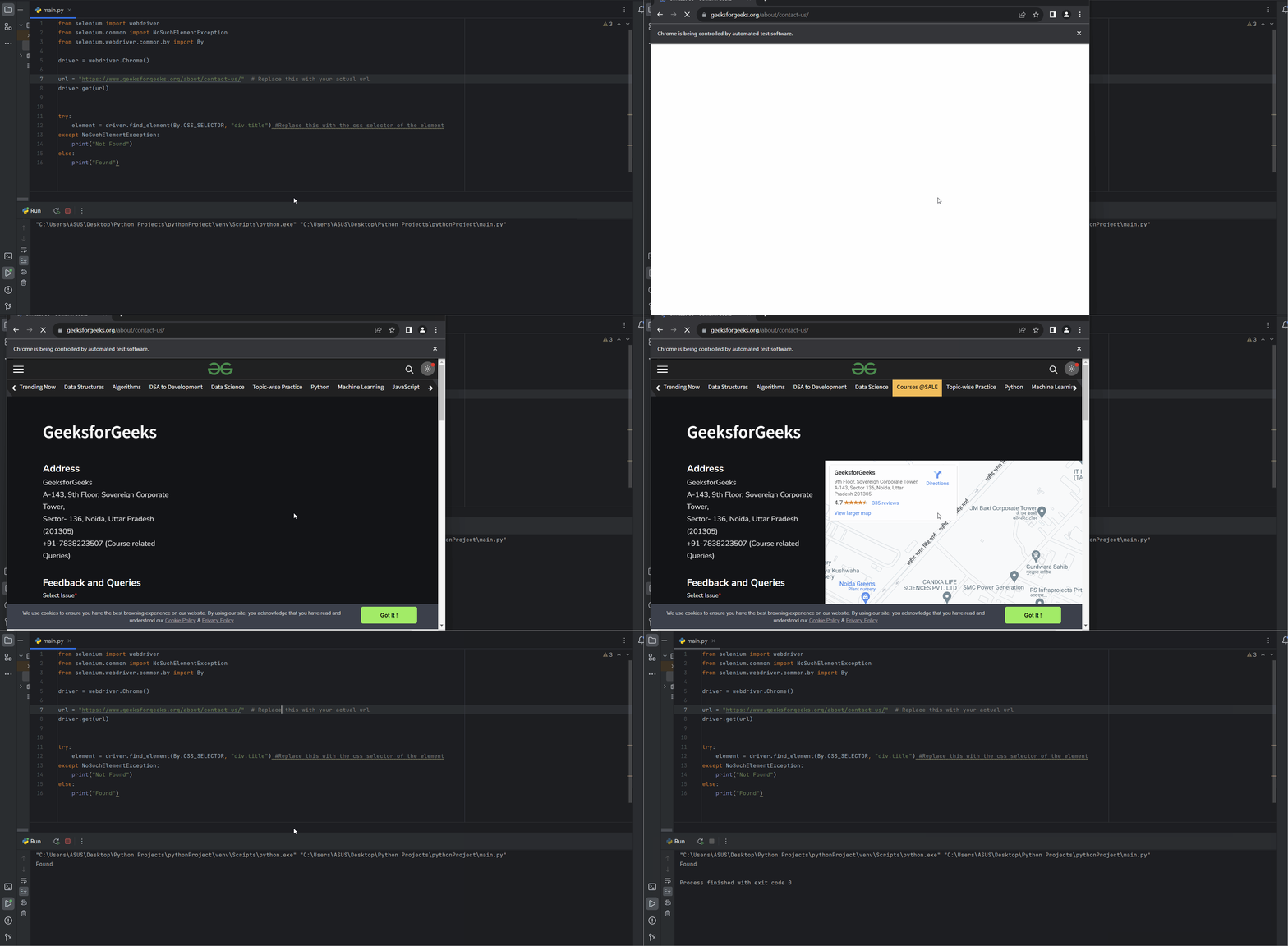
Selenium Locating Strategies
**Explanation:
- **
river:**Selenium WebDriver instance find_element():Locates a single web elementBy.CSS_SELECTOR:Locator strategy using CSS selector"element_css_selector":Actual CSS selector value
6. Locating By XPath
XPath (XML Path Language) is a powerful locator strategy used to identify web elements on a webpage based on attributes, hierarchy, and relationships in the HTML structure. It is widely used in Selenium when other locators like ID, class, or name are not available.
- Used to locate elements using XML path expressions
- Works with attributes, position, and HTML structure
- Useful when other locators are not reliable or available
**Syntax:
element = driver.find_element(By.XPATH, "element_xpath")
Below is the Python program of Locating by XPath:
Python `
Python program of Locating by XPath
from selenium import webdriver from selenium.common import NoSuchElementException from selenium.webdriver.common.by import By
driver = webdriver.Chrome()
Replace this with your actual url
url = "https://www.geeksforgeeks.org/about/contact-us/"
driver.get(url)
try:
# Replace this with the XPATH selector of the element
element = driver.find_element(By.XPATH,
                              "/html/body/div[3]/div[2]/div[1]/div/div")
except NoSuchElementException: print("Not Found") else: print("Found")
`
**Output:
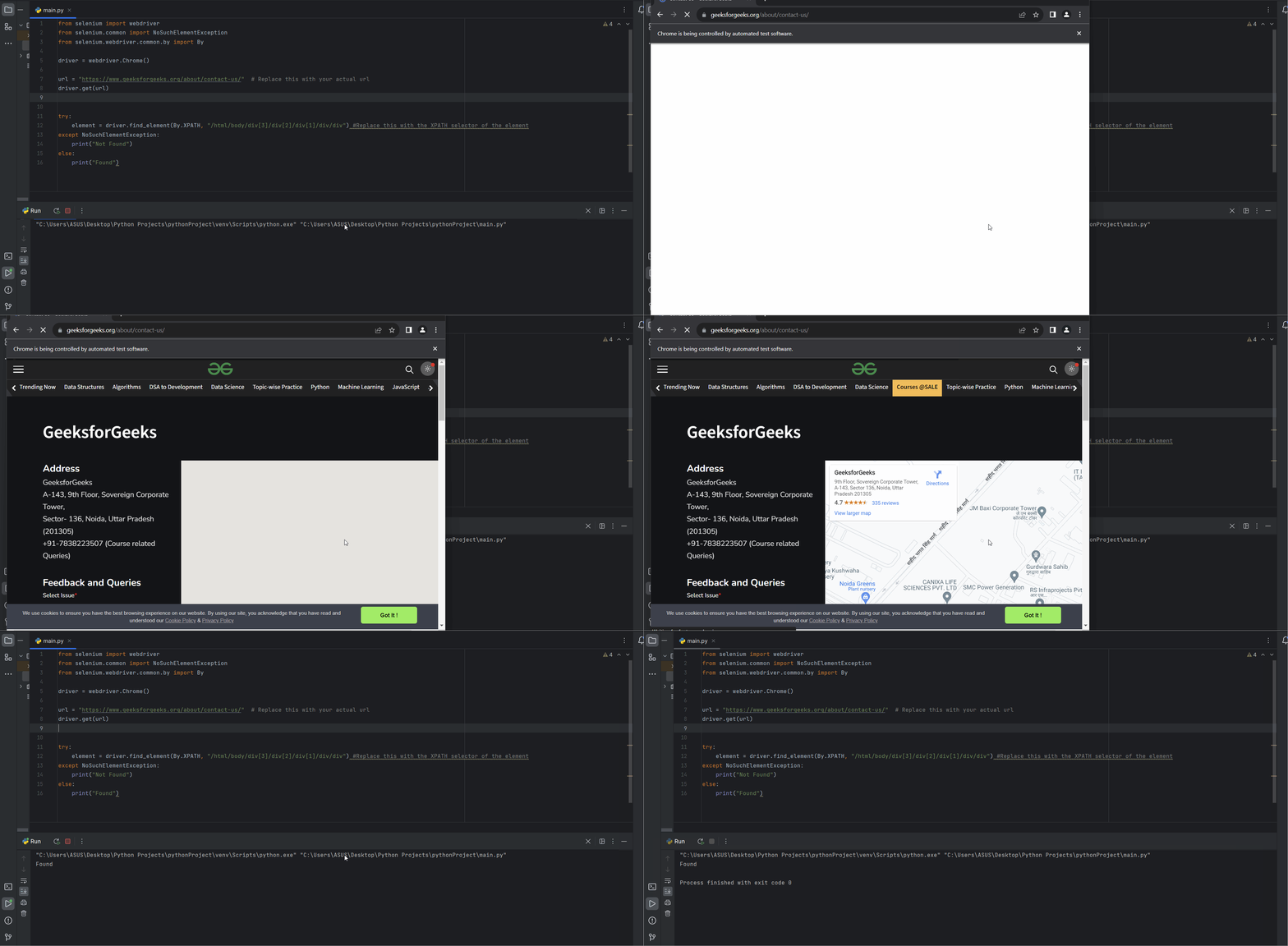
Selenium Locating Strategies
**Explanation:
- **
driver:**Selenium WebDriver instance find_element():Used to locate a single web elementBy.XPATH:Locator strategy using XPath"**element_xpath":**Actual XPath expression
7. Locating using Link Texts and Partial Link Texts
Link Texts as the name suggests are primarily used to locate anchor tags '' elements on a webpage . Anchor tags are primarily used for hyperlinks (those which navigate us to different page or resource on a website).
- To locate an element by its link text we provide the exact text that contained within the anchor elements. Selenium then searches the web page for an anchor element that matches with the text you provided.
- Partial link texts are similar to link texts but it allows us to search for elements by providing only a part of the link text instead of the full text.
- This can be particularly used when we want to locate element with dynamic or changing texts.
- By using By.LINK_TEXT we can find the elements with exact link text, while By.PARTIAL_LINK_TEXT we can find elements with partial match of link texts.
**Syntax:
Link Text: element = driver.find_element(By.LINK_TEXT, "element_link_text")
Partial Link Text: element = driver.find_element(By.PARTIAL_LINK_TEXT, "element_partial_link_text")
Below is the Python program to implement Locating using Link Texts and Partial Link Texts:
Python `
Python program to implement Locating
using Link Texts and Partial Link Texts
from selenium import webdriver from selenium.webdriver.common.by import By
driver = webdriver.Chrome()
Replace this with your url
url = "https://www.example.com/" driver.get(url)
Replace Learn more with the Link Text of the element
element1 = driver.find_element(By.LINK_TEXT, "Learn more");
Replace Click with the Link Text of the element
element2 = driver.find_element(By.PARTIAL_LINK_TEXT, "Click");
`
**Output:
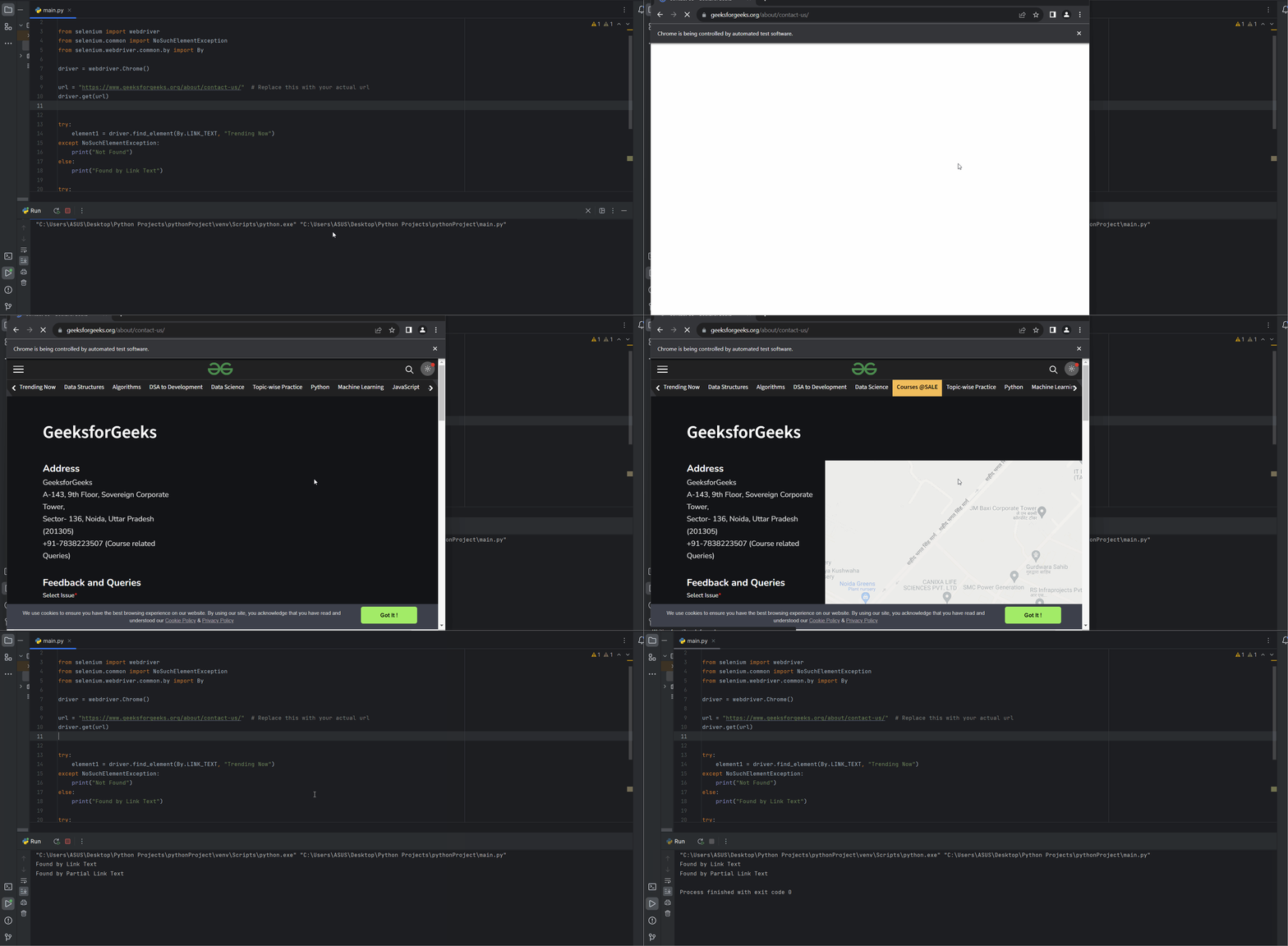
Selenium Locating Strategies
**Explanation:
- **
By.LINK_TEXT:**used for exact match of link text By.PARTIAL_LINK_TEXT:used for partial match of link text- **
"element_link_text":**full visible text of the link - **
"element_partial_link_text":**part of the visible link text
CSS Selector Vs XPath in Selenium
CSS Selector and XPath are both used to locate web elements in Selenium, but they differ in syntax, performance, and capabilities. CSS Selectors are generally faster and simpler, while XPath is more powerful and flexible for complex element selection.
| Feature | CSS Selector | XPath |
|---|---|---|
| Speed | Faster | Slower compared to CSS |
| Syntax | Simpler and cleaner | More complex but powerful |
| Direction | Only forward (parent -> child) | Both forward and backward |
| Text Handling | Cannot directly locate by text | Can locate using text() |
| Traversal | Limited navigation | Full DOM traversal support |
| Usage | Preferred when possible | Used when CSS is not sufficient |