Selenium WebDriverHandling Alerts in Python (original) (raw)
Selenium WebDriver-Handling Alerts in Python
Last Updated : 30 Jul, 2025
In Selenium WebDriver, handling alerts is a common requirement for automating interactions with web applications using Python. These alerts are classified into three types:
- Simple Alert
- Confirmation Alert
- Prompt Alert
1. Simple Alert
It is the most basic type of alert. It is a simple alert that displays the message with an "Okay" button. It is commonly used to provide an important message to the user.
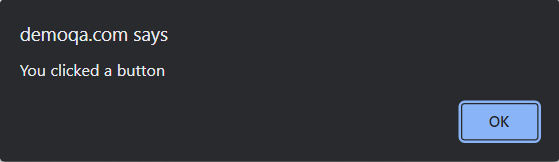
Simple Alert
2. Confirmation Alert
It is a type of alert that is used to ask the user for confirmation. It displays a message with an "Okay" and "Cancel" Button. It is commonly used for asking the user for intent to do something.
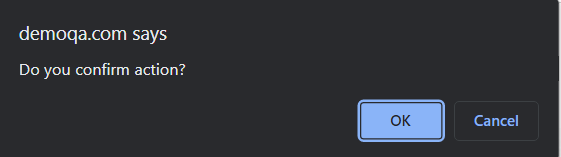
Confirmation Alert
3. Prompt Alert
It is a type of alert which is used to collect input from the user. It displays a message with a input field, Okay and Cancel Button. It is commonly used to ask the user for some information or input.
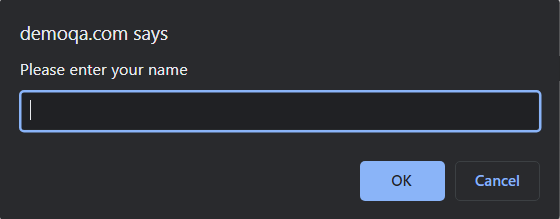
Prompt Alert
Methods for Handling Alerts in Selenium (Python)
The Alert class in Selenium’s Python bindings provides four key methods, as follows:
**1. dismiss():
Clicks the "Cancel" button on an alert (used for confirmation or prompt alerts).
alert = Alert(driver)
alert.dismiss()
**2. accept():
Clicks the "OK" button on an alert (used for all alert types).
alert = Alert(driver)
alert.accept()
**3. text:
Get the alert’s message.
alert_text = Alert(driver).text
4. send_keys(text):
Sends text to a prompt alert’s input field
Alert(driver).send_keys("Vaibhav")
Prerequisites
Before handling alerts with selenium-python, ensure the following are set up:
- **Python: Install Python 3.8+ from python.org. Verify with python --version.
- **Selenium WebDriver: Install the Selenium package using pip:
pip install selenium
- **unittest: Python’s built-in testing framework (included with Python, no installation needed).
- **ChromeDriver: Download the ChromeDriver version matching your Chrome browser from chromedriver.chromium.org. Ensure it’s in your system’s PATH or specify its path in the code.
- **IDE: Use an IDE like PyCharm, VS Code, or any text editor for writing and running tests.
Example of Alert Handling Using Selenium-python
To create reusable and clean test scripts, use a base class to manage WebDriver setup and teardown.
**base_test.py
Python `
import unittest from selenium import webdriver from selenium.webdriver.chrome.service import Service from selenium.webdriver.chrome.options import Options
class BaseTest(unittest.TestCase): def setUp(self): # Set up ChromeDriver (update path to your chromedriver executable) chrome_options = Options() chrome_options.add_argument("--start-maximized") # Maximize browser window service = Service("C:\Users\change the path of chromedriver.exe\drivers\chromedriver.exe") # Update to your path self.driver = webdriver.Chrome(service=service, options=chrome_options)
    # Set implicit wait for element detection
    self.driver.implicitly_wait(10)  # 10 seconds

def tearDown(self):
    if self.driver:
        self.driver.quit()
`
In base_test.py setup, the ChromeDriver is initialized, and the WebDriver is configured to open and close the browser automatically for each test.
Create class test_alert.py, and combined the three types of alerts which handling simple, confirmation, and prompt alerts on https://bonigarcia.dev/selenium-webdriver-java/dialog-boxes.html.
- **Simple Alert: This alert shows a message and has only an "OK" button. We click the button to trigger the alert, then switch to the alert, verify its message, and accept it.
- **Confirmation Alert: This alert asks a user to confirm or cancel an action, with "OK" and "Cancel" options. We click the button to open the confirmation alert, verify its message, and dismiss the alert (selecting "Cancel").
- **Prompt Alert: This alert asks the user to enter some text. We click the button to open the prompt alert, enter some text in the input field, and accept the alert to submit the text.
test_alert.py
Python `
import unittest from selenium.webdriver.common.by import By from selenium.webdriver.support.ui import WebDriverWait from selenium.webdriver.support import expected_conditions as EC from selenium.webdriver.common.alert import Alert from base_test import BaseTest
class TestAlerts(BaseTest): URL = "https://bonigarcia.dev/selenium-webdriver-java/dialog-boxes.html"
def test_simple_alert(self):
    try:
        # Navigate to the test page
        self.driver.get(self.URL)

        # Click the button to trigger the simple alert
        self.driver.find_element(By.ID, "my-alert").click()

        # Wait for the alert to appear and switch to it
        alert = WebDriverWait(self.driver, 5).until(EC.alert_is_present())
        alert = Alert(self.driver)

        # Validate the alert text
        alert_text = alert.text
        self.assertEqual(alert_text, "Hello world!", "Simple alert text does not match expected.")
        print("Simple Alert Text:", alert_text)

        # Accept the alert (click OK)
        alert.accept()
        print("Simple Alert Executed Successfully")
    except Exception as e:
        self.fail(f"Failed to handle simple alert: {str(e)}")

def test_confirm_alert(self):
    try:
        # Navigate to the test page
        self.driver.get(self.URL)

        # Click the button to trigger the confirmation alert
        confirm_button = WebDriverWait(self.driver, 5).until(EC.element_to_be_clickable((By.ID, "my-confirm")))
        confirm_button.click()

        # Wait for the alert to appear and switch to it
        confirm = WebDriverWait(self.driver, 5).until(EC.alert_is_present())
        confirm = Alert(self.driver)

        # Validate the alert text
        alert_text = confirm.text
        self.assertEqual(alert_text, "Is this correct?", "Confirmation alert text does not match expected.")
        print("Confirmation Alert Text:", alert_text)

        # Dismiss the alert (click Cancel)
        confirm.dismiss()

        print("Confirmation Alert Executed Successfully")
    except Exception as e:
        self.fail(f"Failed to handle confirmation alert: {str(e)}")

def test_prompt_alert(self):
    try:
        # Navigate to the test page
        self.driver.get(self.URL)

        # Click the button to trigger the prompt alert
        self.driver.find_element(By.ID, "my-prompt").click()

        # Wait for the alert to appear and switch to it
        prompt = WebDriverWait(self.driver, 5).until(EC.alert_is_present())
        prompt = Alert(self.driver)

        # Send text to the prompt
        prompt.send_keys("vaibhav")

        # Accept the prompt (click OK)
        prompt.accept()

        print("Prompt Alert Executed Successfully")
    except Exception as e:
        self.fail(f"Failed to handle prompt alert: {str(e)}")
`
**Output
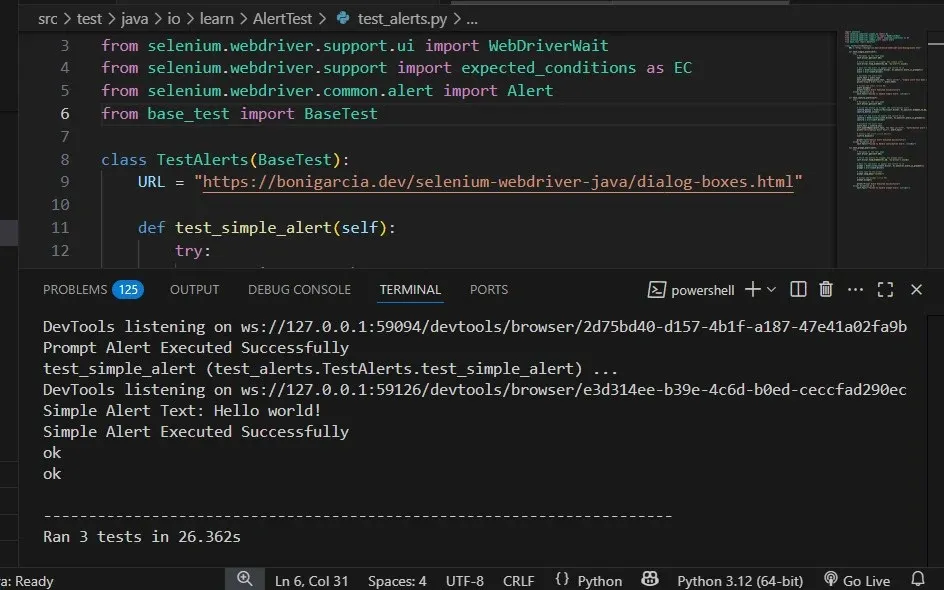
Output of handing alerts in python
Handling Alerts is one of the important steps in automating dynamic web applications, whether they are a simple alert, confirmation alert or prompt alert they all require a user interaction and can affect the flow of your automation testing. By using the above steps you'll be easily able to handle all types of alerts In Selenium and make your testing script more stable and reliable.