SQL UPDATE Statement (original) (raw)
Last Updated : 9 Feb, 2026
The SQL UPDATE statement is used to modify existing data in a table by changing the values of one or more columns.
- The WHERE clause specifies which rows should be updated.
- Without WHERE, all rows in the table are modified.
**Example: First, we will create a demo SQL database and table, on which we will use the UPDATE Statement command.
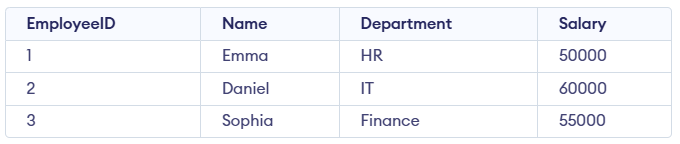
**Query:
UPDATE Employees SET Salary = 65000 WHERE Name = 'Daniel';
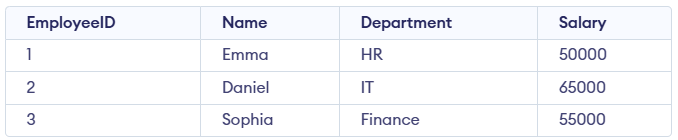
**Syntax:
UPDATE table_name SET column1 = value1, column2 = value2,... WHERE condition;
- **table_name: Name of the table you want to update.
- **SET: The column(s) you want to update and their new values.
- **WHERE: Filters the specific rows you want to update.
**Note: The SET keyword assigns new values to columns, while the WHERE clause selects which rows to update. Without WHERE, all rows will be updated.
Working with the UPDATE Statement
Consider the Customer table shown below, which contains each customer’s unique ID, name, last name, phone number, and country. This table will be used to demonstrate how the SQL UPDATE statement works.
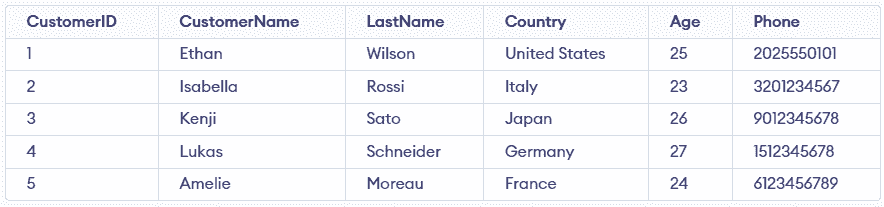
Customer Table
Example 1: Update Single Column
We have a Customer table and we want to update the Age to 25 for the customer whose CustomerName is 'Isabella'.
**Query:
UPDATE Customer SET Age = 25 WHERE CustomerName = 'Isabella';
SELECT * FROM customer;
**Output:
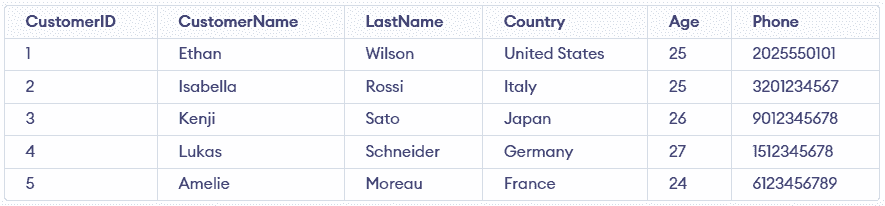
- The query updates the Age to 25 for the customer named 'Isabella'.
- It affects only the row where CustomerName = 'Isabella'.
- It is used to modify existing data in a specific record.
Example 2: Updating Multiple Columns
We need to update both the CustomerName and Country for a specific CustomerID.
**Query:
UPDATE Customer SET CustomerName = 'John', Country = 'Spain' WHERE CustomerID = 1;
**Output:
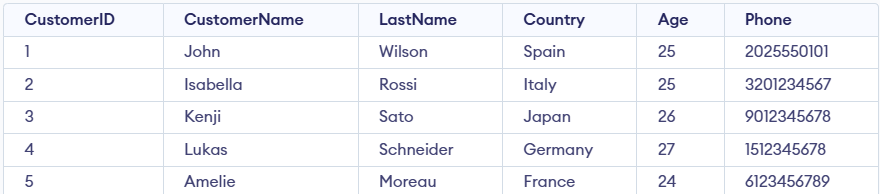
- The query targets the row where CustomerID = 1.
- It updates CustomerName to 'John' and Country to 'Spain'.
- Both columns are updated simultaneously in a single SQL statement.
**Note: For updating multiple columns we have used comma(,) to separate the names and values of two columns.
Example 3: Omitting WHERE Clause in UPDATE Statement
If we accidentally omit the WHERE clause, all the rows in the table will be updated, which is a common mistake. Let’s update the CustomerName for every record in the table:
**Query:
UPDATE Customer SET CustomerName = 'Mike';
SELECT * FROM customer;
**Output:
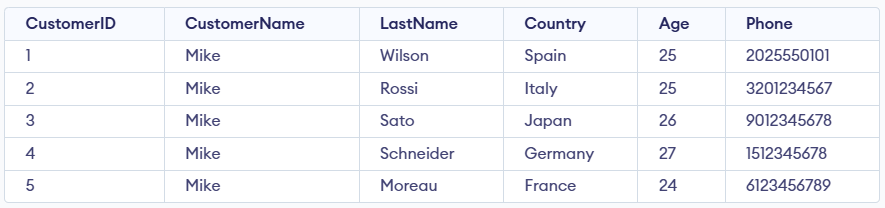
- Updates the CustomerName to 'Mike' for all rows in the Customer table.
- It affects every record because no WHERE clause is used.