How to Customize Taskbar in Windows 11 (original) (raw)
Last Updated : 22 Dec, 2025
The Windows taskbar is the horizontal bar usually located at the bottom of the screen. It helps you launch programs, switch between open apps, and access system features quickly.
Main parts of the Windows taskbar include
- **Program icons: Shortcuts to pinned apps and currently running programs for quick switching.
- **Start Menu: Located on the left side of the taskbar, it lets you search for apps, files, and settings.
- **System tray: Found on the right side, it shows background apps like Wi-Fi, volume, battery, antivirus, and the clock.
- **Open windows: Each running app appears as an icon, allowing easy navigation.
- **Taskbar previews: Hovering over an app icon shows a preview of open windows.

How to Customize the Taskbar in Windows 11
Customizing the taskbar can transform the system into a personalized hub that affects the user's workflow and enhances overall work productivity. Here, we'll discuss 7 methods to customize the taskbar in Windows 11.
Method 1: Remove the default icons
Some taskbar icons cannot be unpinned directly, but you can hide them using settings.
**Steps:
- Right-click on an empty area of the taskbar.
- Select Taskbar settings.
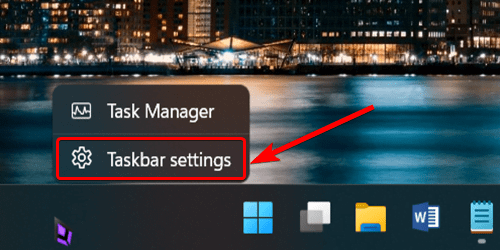
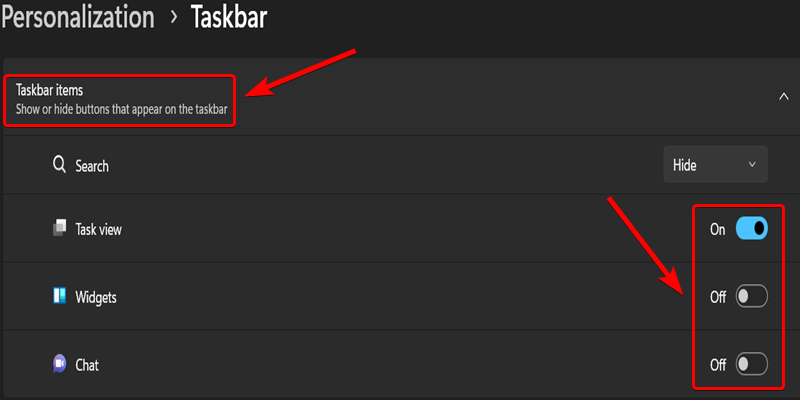
- You’ll see options like Search, Task View, Widgets, and Chat.
- Turn off the toggle for any icon you don’t want to appear.
Method 2: Change taskbar Alignment
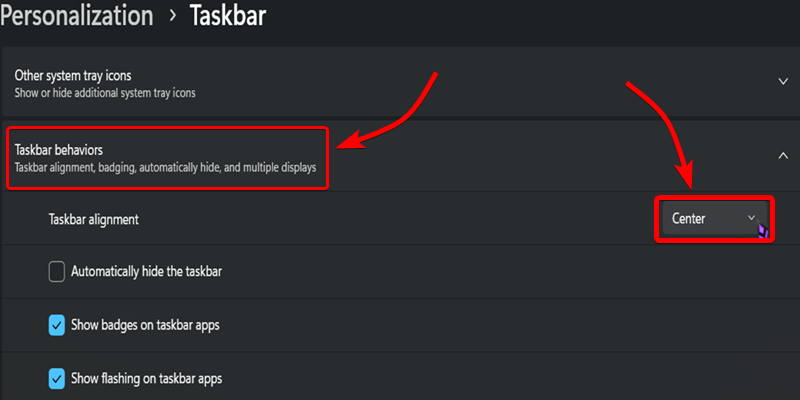
Windows 11 allows you to move taskbar icons from the center to the left.To Change taskbar alignment or to move the Taskbar from the Right side to the Left side you need to Click on Empty taskbar and again choose "Taskbar settings". Then Scroll down and Click on the "Taskbar Behaviour" section and change the alignment option to Left to change the alignment to Left or change it to right or in the Centre if you want it.
- Right-click on the taskbar and open Taskbar settings.
- Scroll down and expand Taskbar behaviors.
- Change Taskbar alignment to Left or Center as preferred.
Method 3: Pin icons to the taskbar
Pinning apps gives you faster access to frequently used programs.
**Steps:
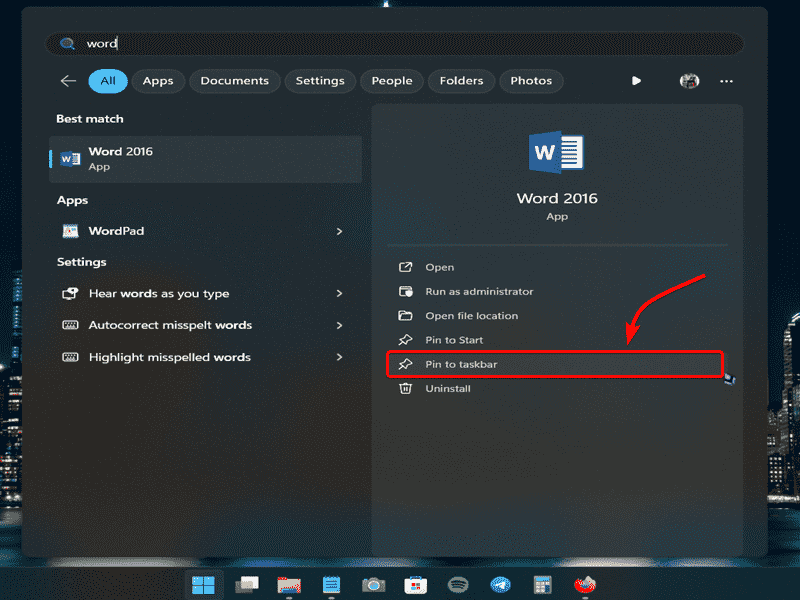
- Open Windows Search.
- Search for the app you want.
- Right-click the app and select Pin to taskbar.
The app icon will now stay on your taskbar.

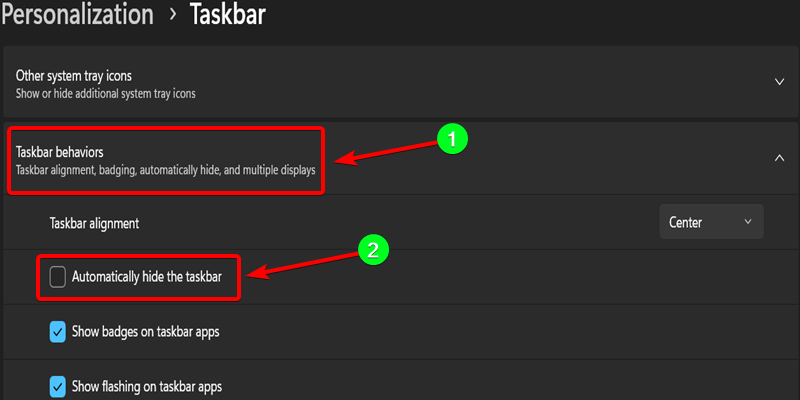
Method 4: Enable taskbar auto-hide
Auto-hide hides the taskbar when not in use, giving you more screen space.
**Steps:
- Right-click the taskbar and open Taskbar settings.
- Scroll to Taskbar behaviors.
- Check Automatically hide the taskbar.
Method 5: Make the Windows 11 taskbar transparent
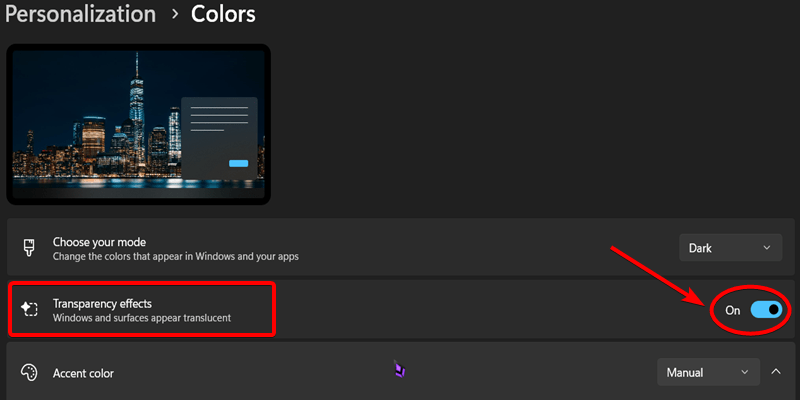
A transparent taskbar blends better with your desktop background.
**Steps:
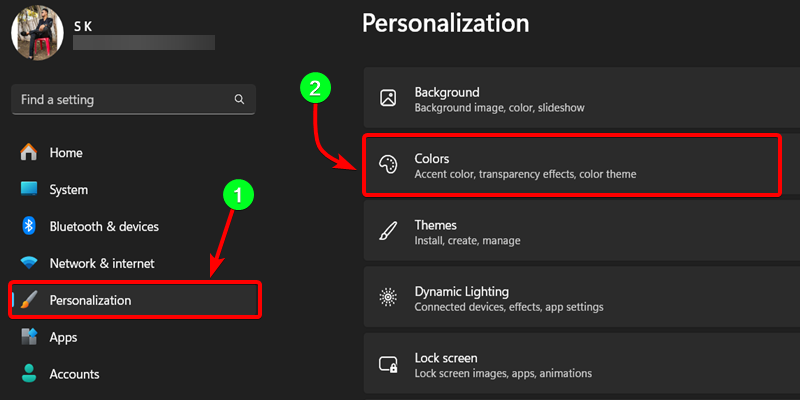
- Open Settings.
- Go to Personalization → Colors.
- Turn on Transparency effects
Method 6: Change the taskbar color
You can customize the taskbar color using accent colors.
**Steps:
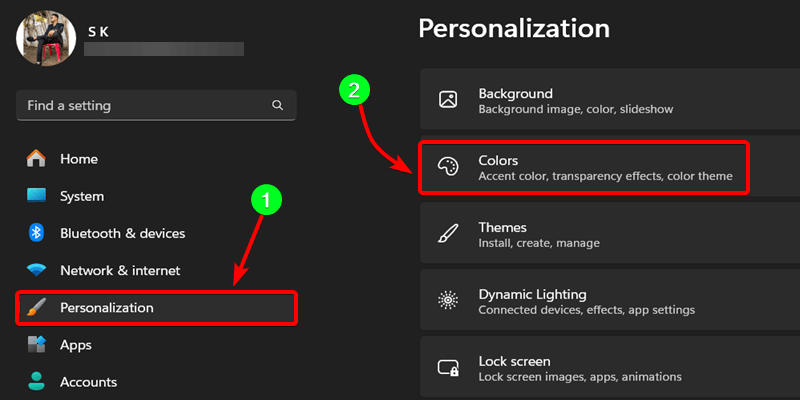
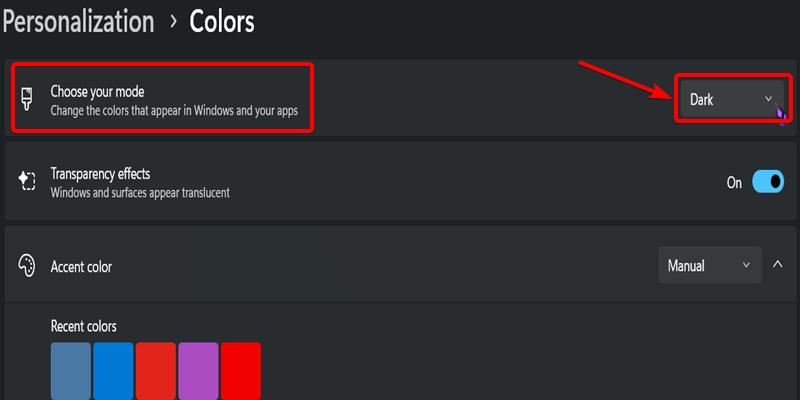
- Open Settings → Personalization → Colors.
- Set Choose your mode to Dark.
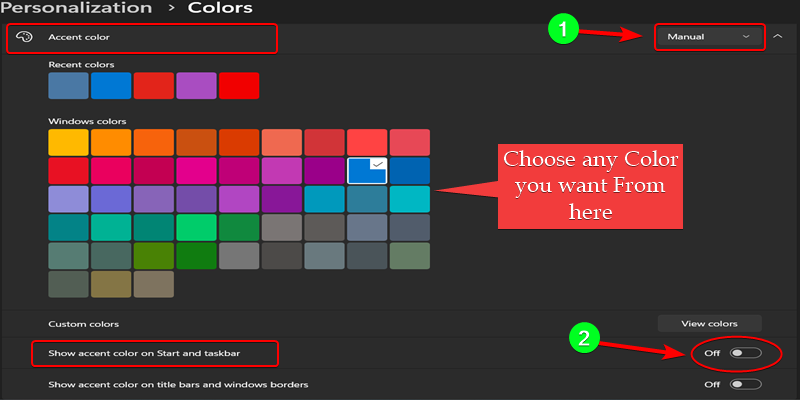
- Change Accent color to Manual.
- Enable Show accent color on Start and taskbar.
- Select your preferred color from the palette.
Method 7: Change the Taskbar Size
Changing taskbar size requires editing the Windows Registry. This is safe if done correctly.
**Steps:
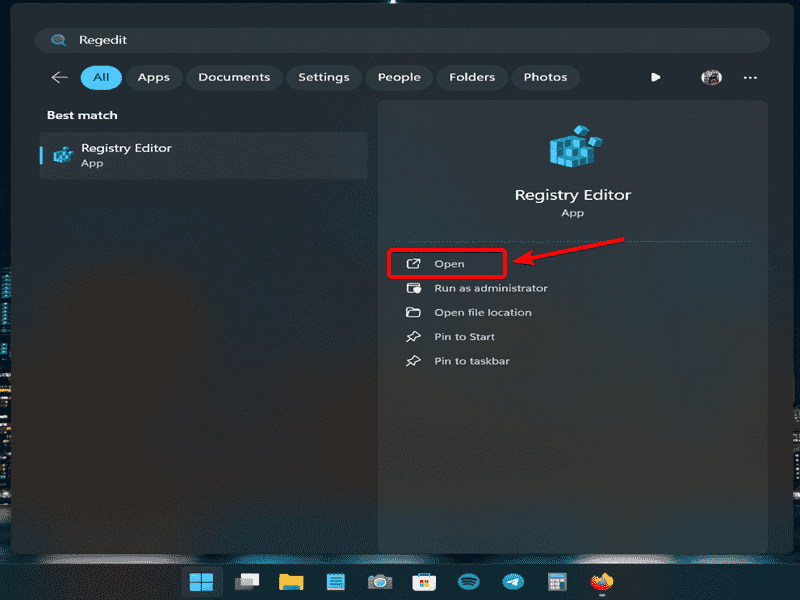
- Open Registry Editor by typing
regeditin Start.
Navigate to:
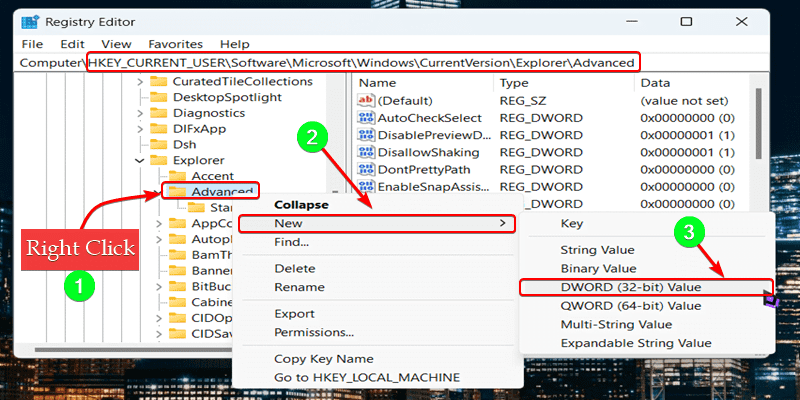
HKEY_CURRENT_USER\Software\Microsoft\Windows\CurrentVersion\Explorer\Advanced
- Right-click Advanced → New → DWORD (32-bit) Value.
- Name it TaskbarSi.

Double-click it and set the value:
0= Small icons1= Medium icons (default)2= Large icons
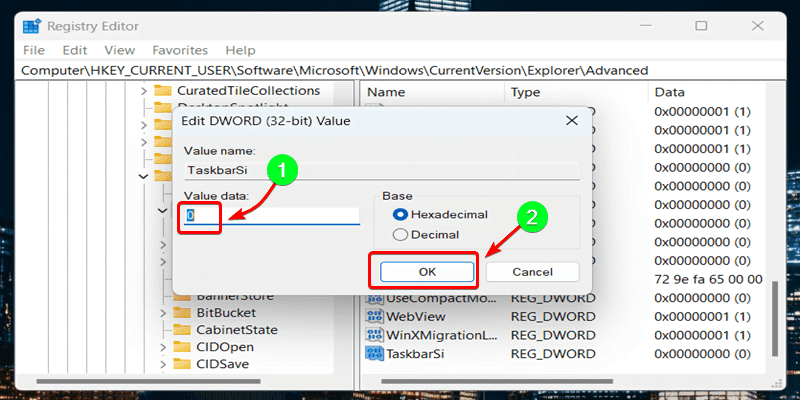
- Click OK.
- Restart Windows Explorer from Task Manager.