How To Disable Web Search Results On Windows 11? (original) (raw)
Last Updated : 23 Jul, 2025
**Quick Solution!
Here is a quick solution for our active and speedy learners. Follow these steps to disable web search results on Windows 11.
- Press Win + R, type **gpedit.msc, and press Enter.
- Go to **User Configuration > Administrative Templates > Windows Components > File Explorer.
- Double-click on **Turn off display of recent search entries.
- Select **Enabled > **Apply > **OK.
Now, Restart your computer to apply all the changes
Windows 11 has many features. However certain users might not appreciate the web search integration, within the Start menu and search box as it defaults to displaying results from Bing. These search outcomes can sometimes be irrelevant, intrusive, or even negatively impact search performance. Luckily there exist methods for web search results on Windows 11.
In this article, we will show you how to disable web search results on Windows 11
Table of Content
- Method 1: Disable Windows Web Search Results Using Registry Editor
- Method 2: Disable Windows Web Search Results Using Group Policy Editor
- Method 3: Disable Windows Web Search Results Using a third-party tool
- FAQs: How To Disable Web Search Results On Windows 11
Method 1: Disable Windows Web Search Results Using Registry Editor
**Step 1: To open the registry editor. Press **Win + S then on the search bar type ****"Registry Editor"**
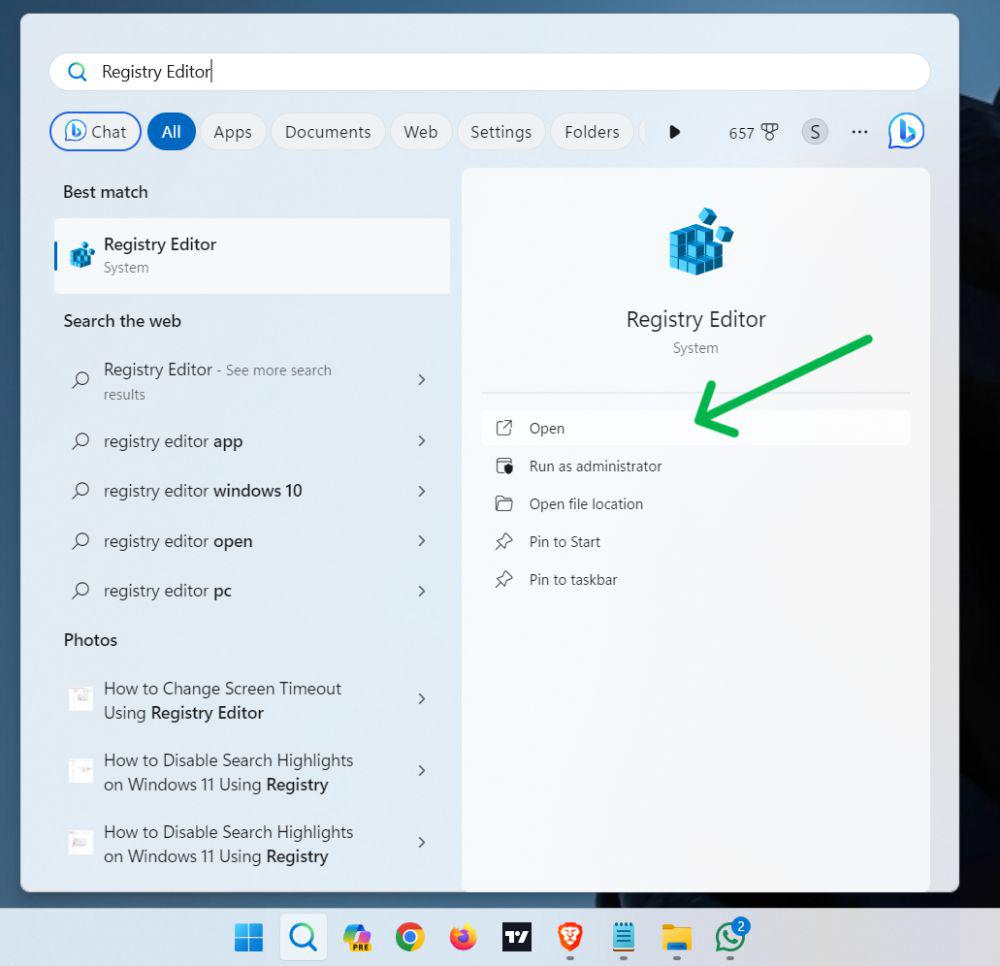
**Step 2: Navigate to the:
HKEY_CURRENT_USER\SOFTWARE\Policies\Microsoft\Windows
**Step 3: Right Click on Windows then hover on "**New" then click on "**Key".
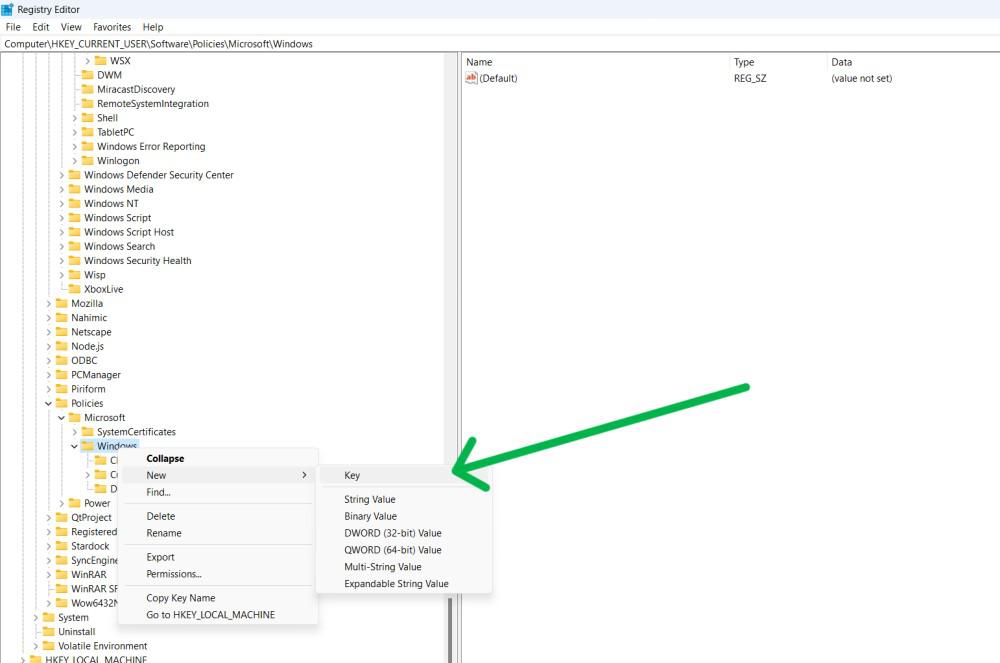
**Step 4: Name key to **Explorer
**Step 5: Right-click, select "**New" > "**DWORD (32-bit)"
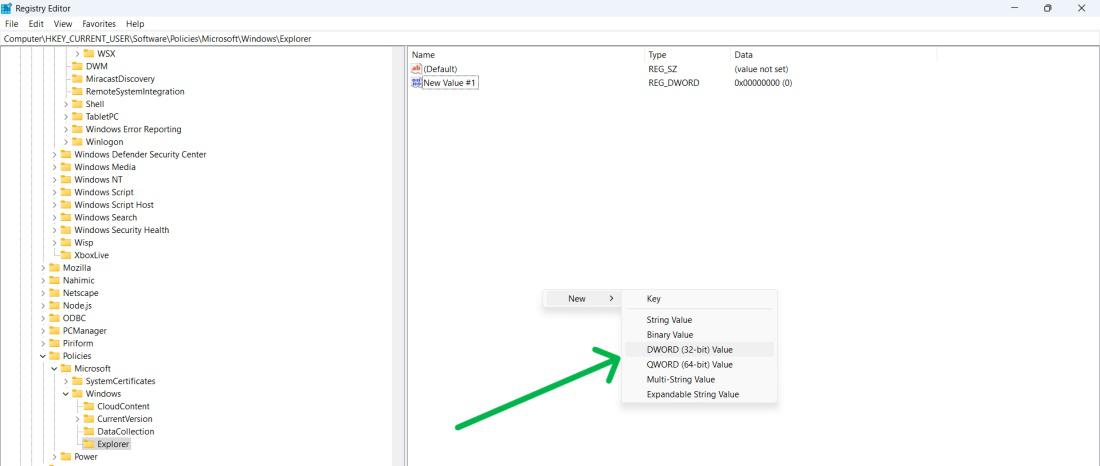
**Step 6: Name the DWORD **DisableSearchBoxSuggestions and hit Enter.
**Step 7: Double-click **DisableSearchBoxSuggestions and set its value to **1.
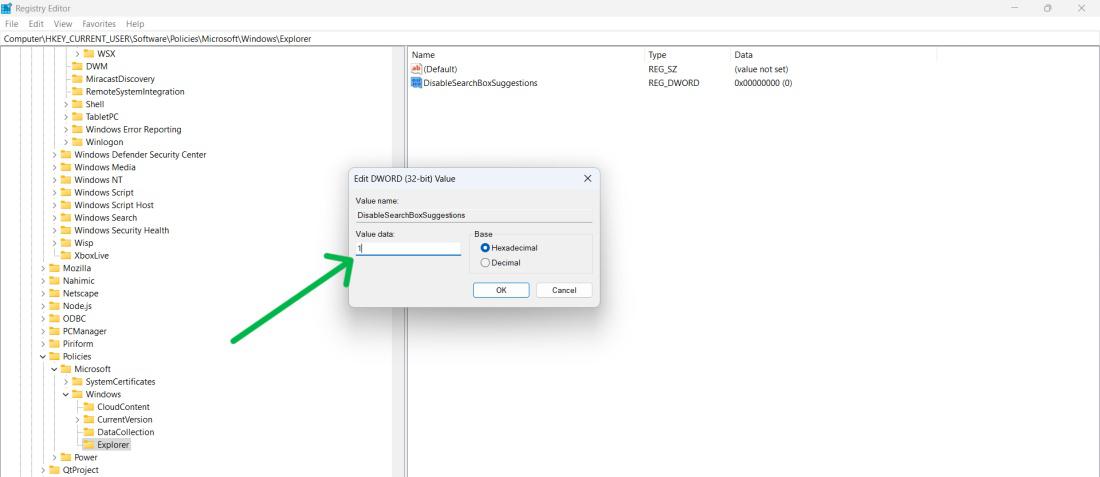
**Step 8: Restart your PC
Method 2: Disable Windows Web Search Results Using Group Policy Editor
**Step 1: Press Win + R, type **gpedit.msc, and hit Enter.
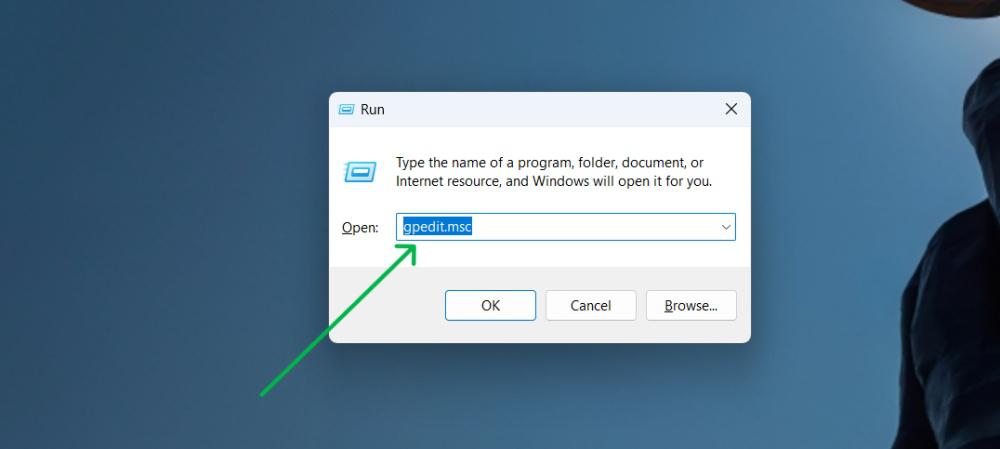
**Step 2: Navigate to the:
User Configuration > Administrative Templates > Windows Components > File Explorer
**Step 3: Double-click "**Turn off display of recent search entries in the File Explorer search box", select "**Enabled", and click "**Apply" and "**OK".
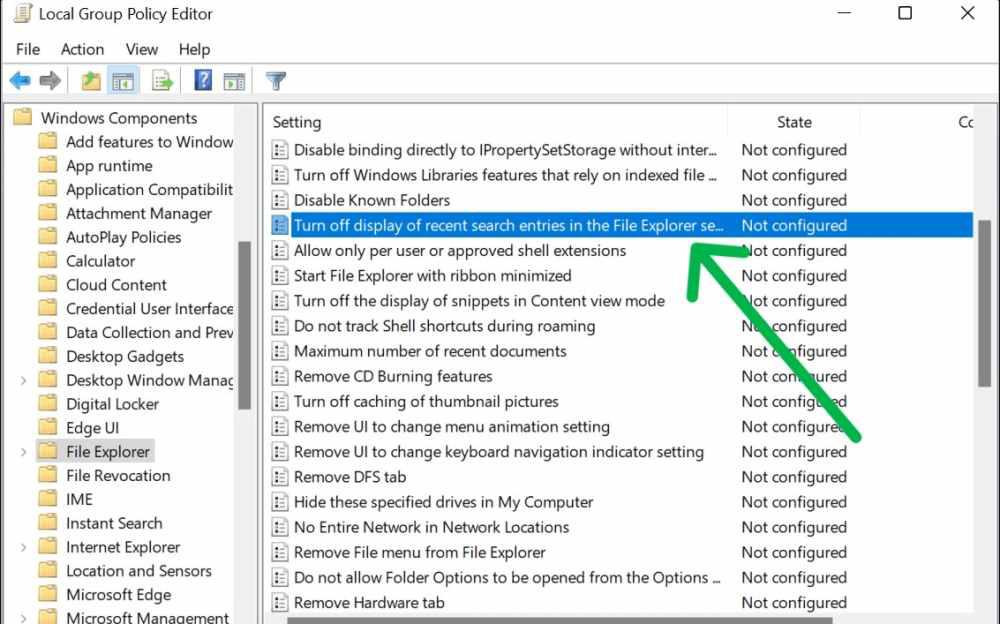
**Step 4: Restart your the computer.
To turn Off web search results on Windows Search in Windows 11, use a third-party tool like Winaero Tweaker, which offers additional features and can be downloaded and installed.
**Step 1: Open **Winaero Tweaker
**Step 2: On left sidebar find and Expand the **Desktop and Taskbar
**Step 3: Find **Disable Web Search then click on it
**Step 4: On right side pane, Check the box for **Disable web search in the taskbar and Cortana
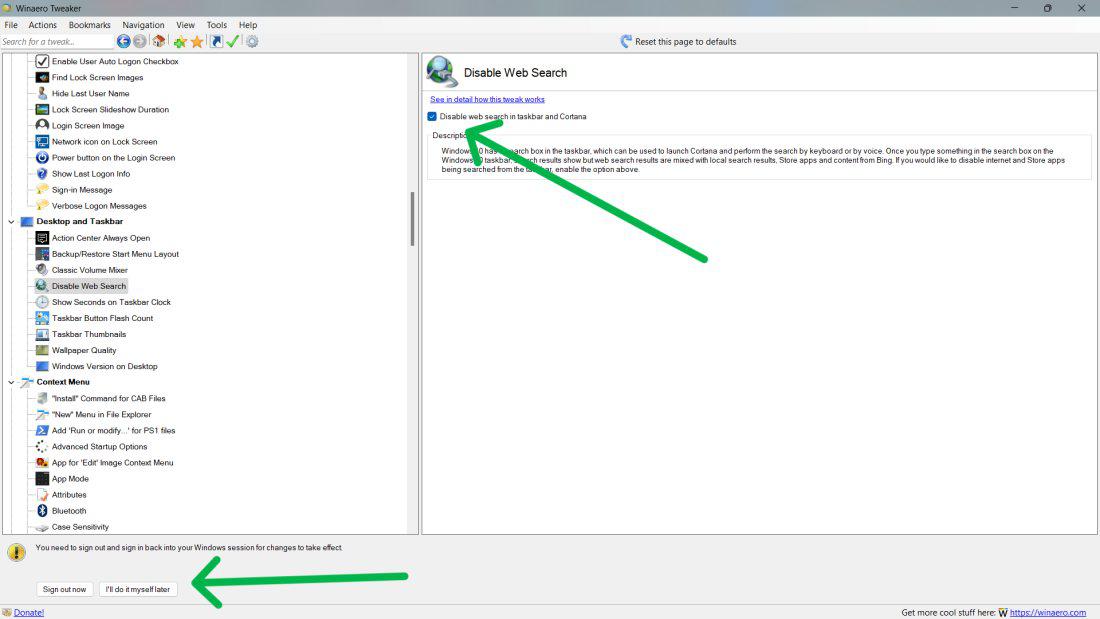
**Step 5: Restart your computer or sign out then sign in again
Conclusion
Some people find web search results, on Windows 11 to be helpful while others may find them annoying. If you're looking to turn off web search results on Windows 11 there are a methods you can try. However, be careful when using the Registry Editor and the Group Policy Editor as they can potentially impact system performance and stability if not used properly. Always remember to back up your system and registry before making any changes.