How To Edit Your Hosts File On Windows? (original) (raw)
Last Updated : 23 Jul, 2025
The operating system generally uses a host file to establish a connection between domain names and IP addresses before it goes to the domain name servers. However, sometimes it is required to host files on Windows, MacOS, and Linux to prevent any malicious attack.

In this article, hands-on practice is demonstrated for a better understanding of editing the host file on Windows, MacOS, Linux
What is a Host file?
A host file is a plain text file on a computer that maps hostnames to IP addresses. It establishes a connection between Domain Names and IP addresses. This file helps in local network configuration and can be used to block or redirect websites by associating them with different IP addresses.
Why you should edit the Host File?
You should edit the Host File for different reasons, It allows users to **block specific websites, redirect sites to different addresses, or **test website changes before they go live. It's a simple way to control internet access and manage network configurations on a local level without relying on external DNS servers.
_Prerequisite – How to Show Hidden Files and Folders in Windows 10
How To Edit Your Hosts File On Windows 10 and 11?
There are 2 different standard methods to edit Host file in Windows:
- **Methode 1: Using Notepad to host files in Windows
- **Methode 2: Using PowerToys to host files in Windows
Let's go through both methods for Edit Hosts file on Windows
Methode 1: Edit Your Hosts File On Windows Using the Notepad
**Step 1: Go to the start menu on the desktop and type the Notepad and press **Enter button

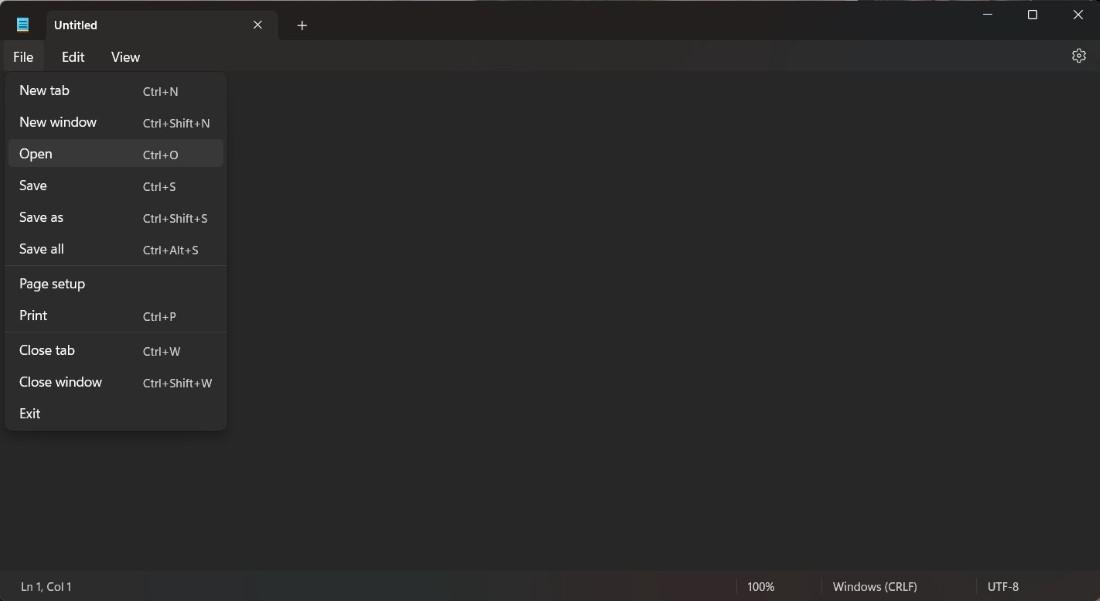
**Step 2: Then open **Notepad **-> File -> Open to open the Hosts file
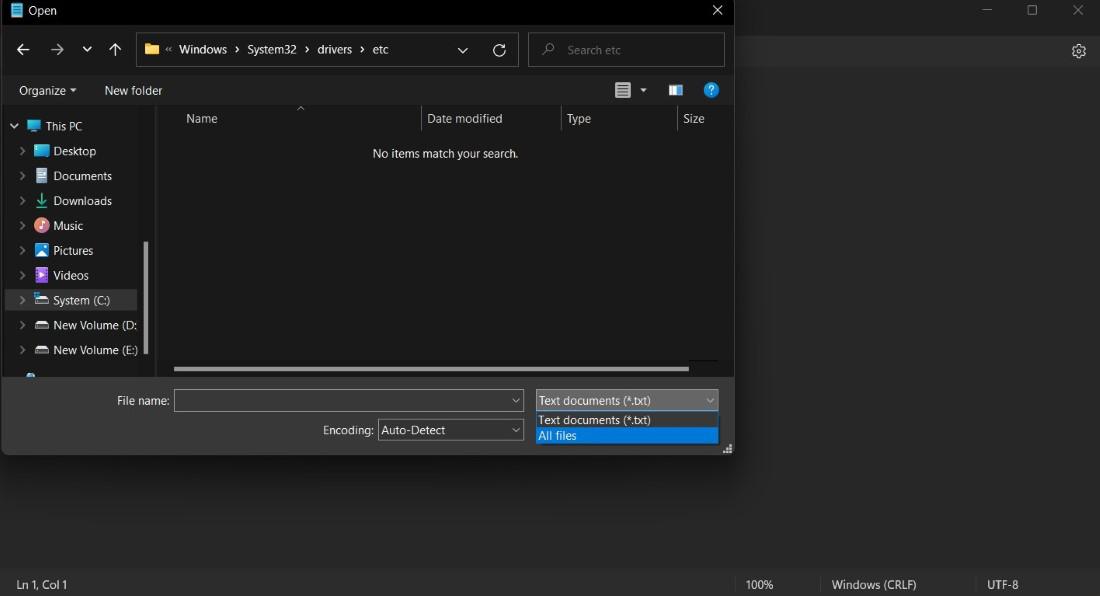
**Step 3: Now you need to go to system c disk and go to **Windows> System32 > drivers > etc and Select All Files on the right side
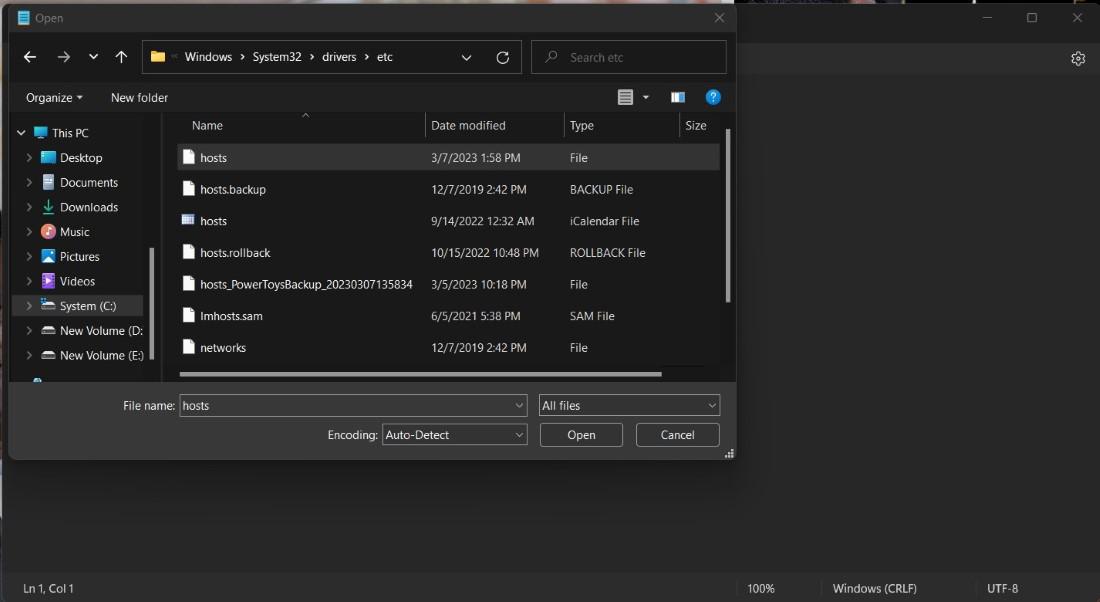
**Step 4: Following this, you will now see the host file and click the entry for the open file in Notepad
**Step 5: Now our file ready to EDIT
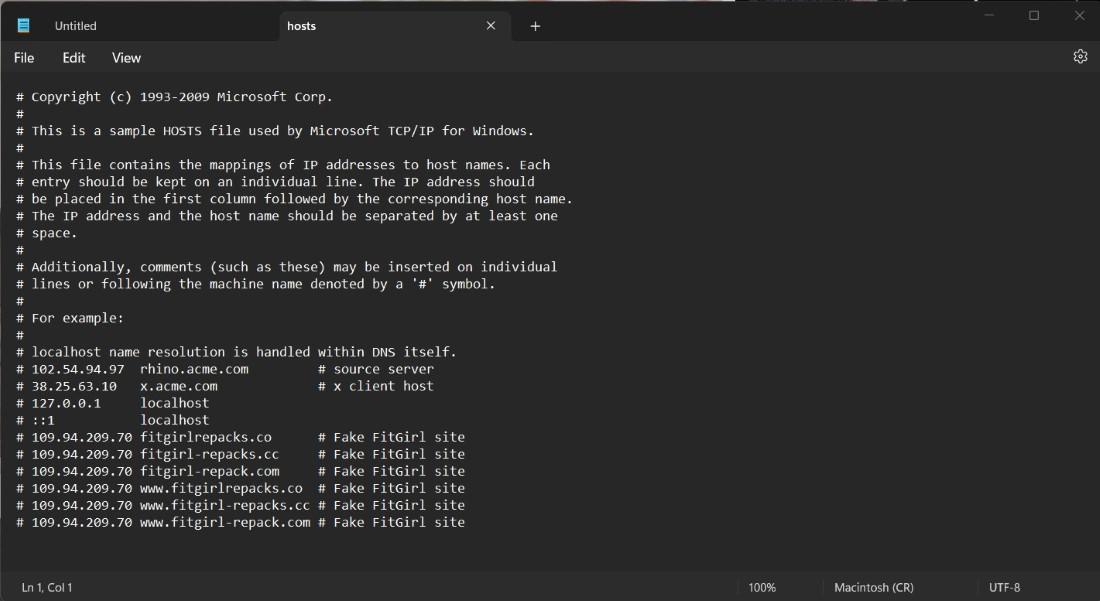
Now, your Hosts file is ready to edit in just 5 simple steps.
Methode 2: Edit Your Hosts File On Windows using PowerToys
**Step 1: Hit the **Start on the desktop and type the Microsoft Store and press Enter button

**Step 2: You need to search the Microsoft PowerToys and click the install button from the Microsoft Store.

**Step 3: Once the installation is complete, simply click on the PowerToys icon and click the **Settings
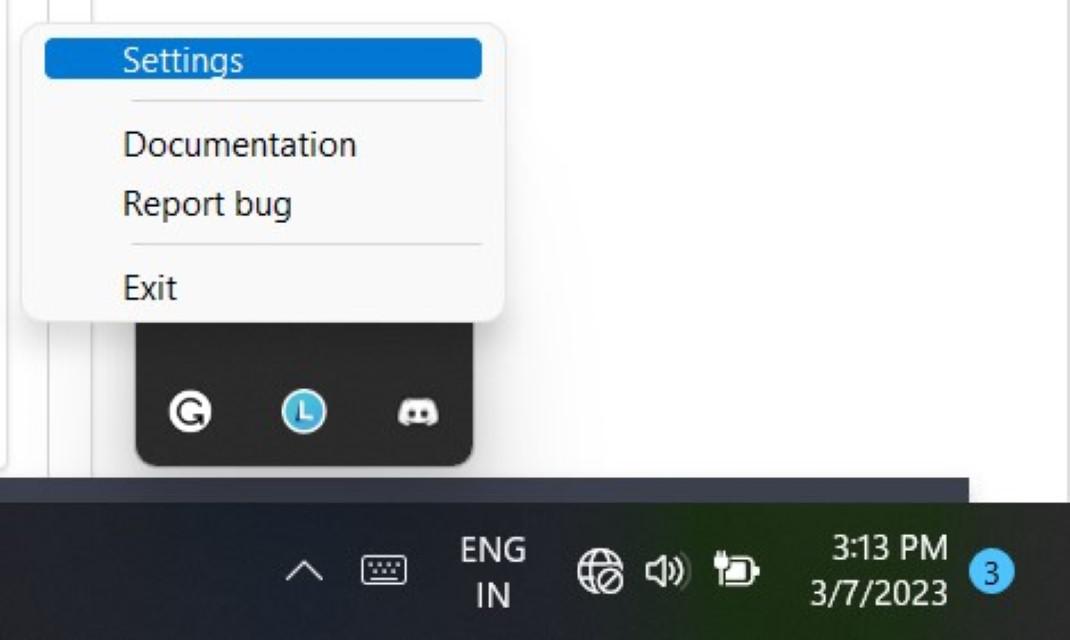
**Step 4: Following this, now click on the Hosts File Editor and click on **Launch Host File Editor

**Step 5: Now simply click on the **host file editor, and your Hosts file is ready to Edit

How to Edit Hosts File in Linux?
To edit the hosts file in Linux, follow these steps to edit the Linux host files:
**Step 1: Open a terminal ( Ctrl+Alt+T )
**Step 2: Run Text Editor with Administrative Rights by typing following command, you can replace "nano" with your preferred text editor
sudo nano /etc/hosts
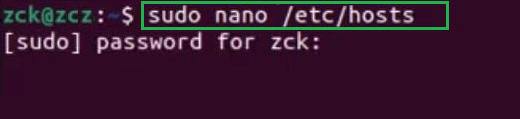
**Step 3: Enter your Admin password.
**Step 4: Edit the file entries in the format "**IP_address domain_name".
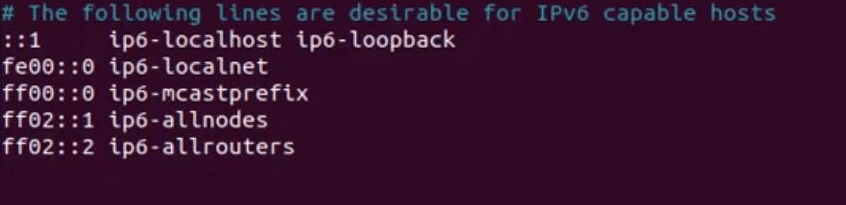
**Step 5: Save the file, Changes are now applied.
How to Edit Hosts File in MacOS?
To edit the hosts file on macOS, follow these steps to edit the MacOS host files:
**Step 1: Open the Terminal application.
**Step 2: Run Text Editor with Administrative Rights by typing following command, you can replace "nano" with your preferred text editor
sudo nano /etc/hosts
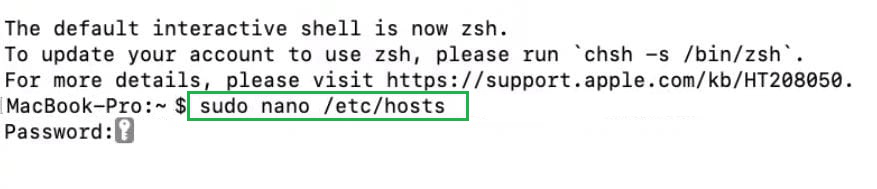
**Step 3: Enter your Admin password.
**Step 4: Edit the file entries in the format "**IP_address domain_name".

**Step 5: Save the file( Ctrl+O ) and exit the text editor ( Ctrl+X ).
By following these simple steps, we successfully edited the host file available on Windows, MacOS, Linux to prevent any malicious attack.