How To Add Extensions in VS Code? (original) (raw)
Last Updated : 20 Sep, 2024
Visual Studio Code is a lightweight but powerful source code editor that runs on your desktop and is available for Windows, macOS, and Linux. It comes with built-in support for JavaScript, TypeScript, and Node.js and has a rich ecosystem of extensions for other languages and runtimes (such as C++, C#, Java, Python, PHP, Go, and NET).
Types of popular VS Code Extensions
Below listed are a few of the most common downloads in VS Code Extensions
- **Python: Python language support with extension access points for IntelliSense (Pylance), Debugging (Python Debugger), linting, formatting, refactoring, unit tests, and more.
- **Pylance: A performant, feature-rich language server for Python in VS Code.
- **Jupyter: Jupyter notebook support, interactive programming, and computing that supports Intellisense, debugging, and more.
- **C/C++: C/C++ IntelliSense, debugging, and code browsing.
- **Jupyter Keymap: Jupyter keymaps for notebooks.
1. VS Code Extensions Capabilities
- Storing workspace or global data.
- Displaying notifications messages.
- Using Quick Pick to Collect user input.
- Open the system file picker or folders.
- Registering commands, Configurations, key bindings, Or Context menu items.
2. Extension Features for Programming Language
- Syntax Highlighting
- snippet completion
- Bracket matching
- Bracket auto-closing
- Bracket auto-surrounding
- Comment toggling
- Auto indentation
- Folding(using Markers)
Step-By-Step Process To Install an Extension in VS Code:
**Step 1: Open Visual Studio Code.
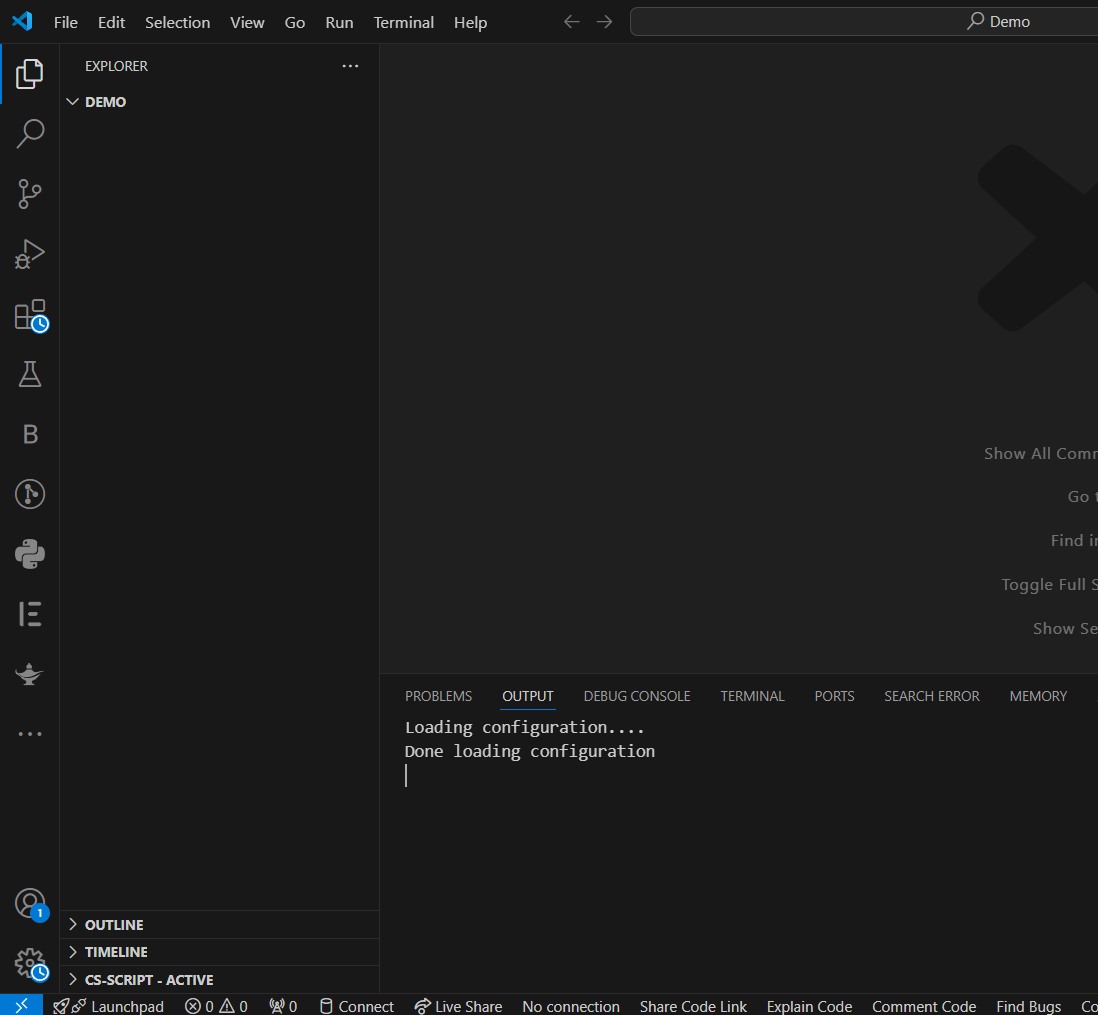
Opening Window in Visual Studio Code
**Step 2: In the Header Menu Select "EDIT" Options.
Select "Extensions" manually or Press "Ctrl+Shift+X".
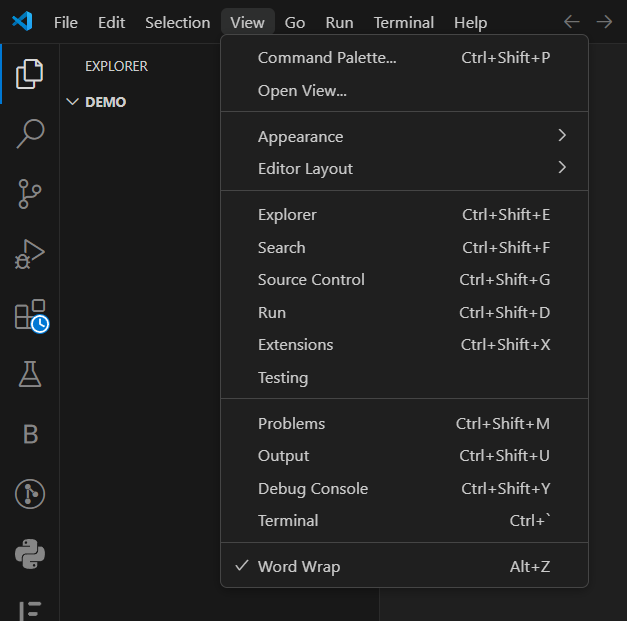
Edit Option in VS Code
**Step 3: Search for the extensions you are looking for in the search bar.
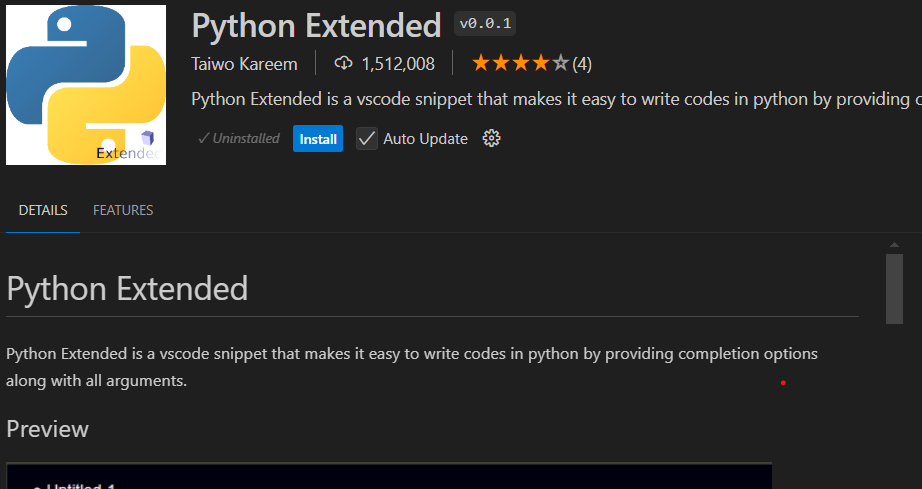
**Example 1: In this example, we will install the "Python Extended" Extension in VS Code Extension.
- Search for "Python Extended" in the Extension Search Bar.
- Click "Install" to install the extension.
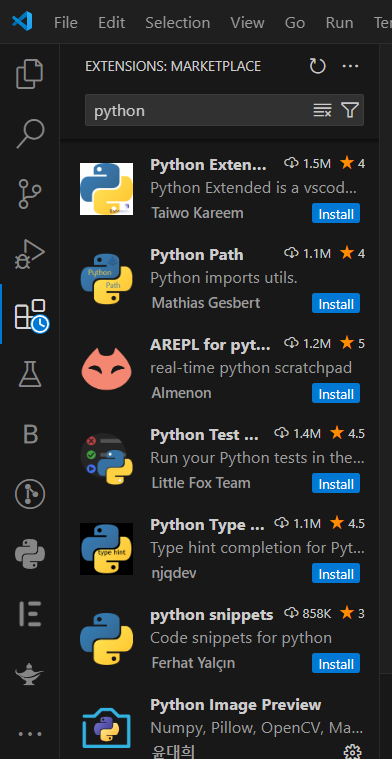
Python Extended Extension in VS Code
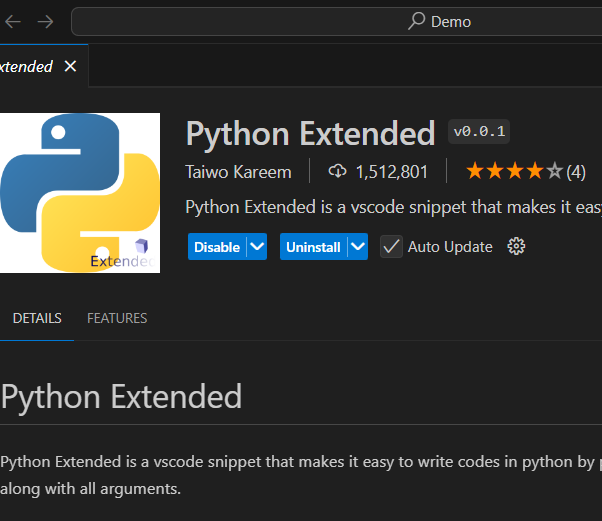
Installation Confirmation of Python Extended
- To Confirm the installation, Verify the above information.
**Example 2: In this example, we will install the "Javascript Debugger" Extension in VS Code Extension.
- Search for "Javascript Debugger" in the Extension Search Bar.
- Click "Install" to install the extension
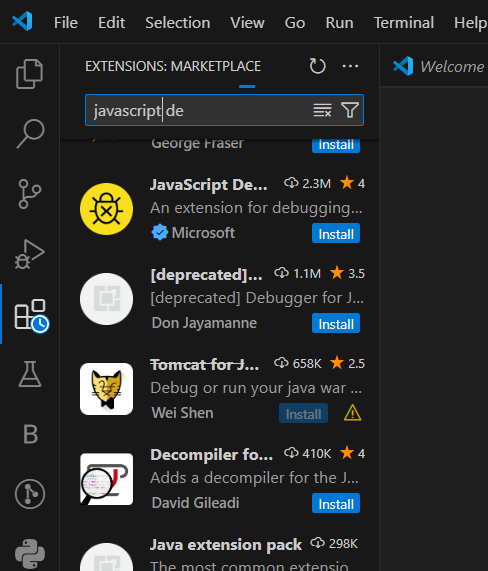
Javascript Debugger Extension in VS Code
- To Confirm the installation, Verify the Below information.
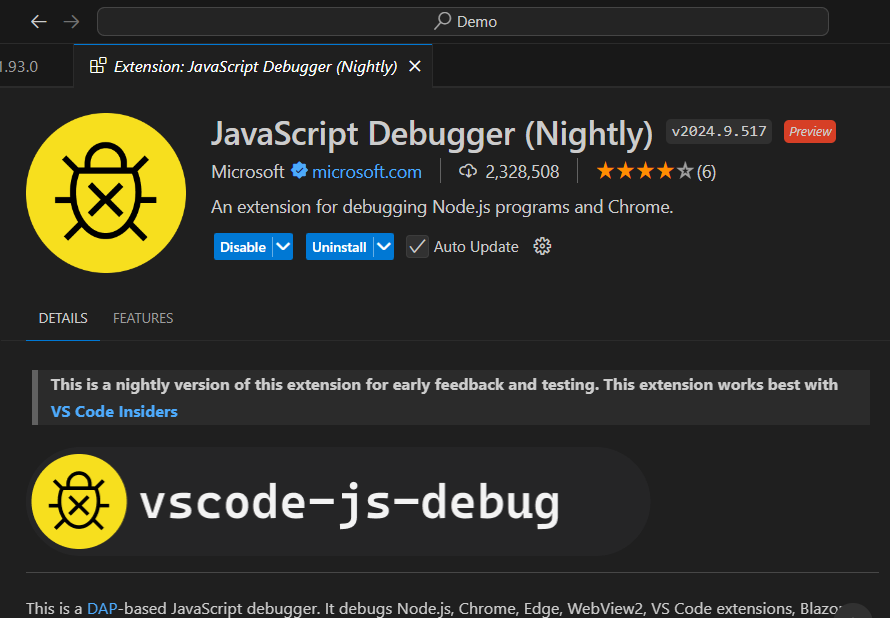
Installation Confirmation of Javascript Debugger
**Enable / Disable Extensions
There is an option called "Disabled" in VS code to temporarily disable the functions of the extension without deleting it permanently.
- You can find the Disable option near the Uninstall options.
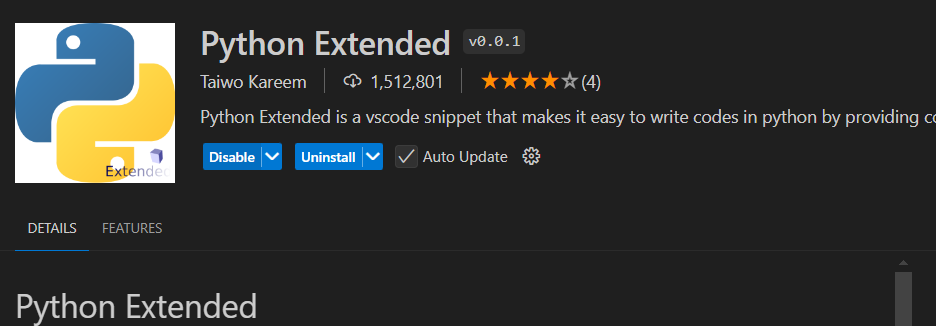
Disable the option in VS Code
- You can Re-enable The extension by clicking the enable Button.
Uninstall Extensions
You can Uninstall the extension by clicking the uninstall options below the extension Name.
- **Note: Uninstalling an extension can be deleted permanently, you have to install it again if you want to use it later.
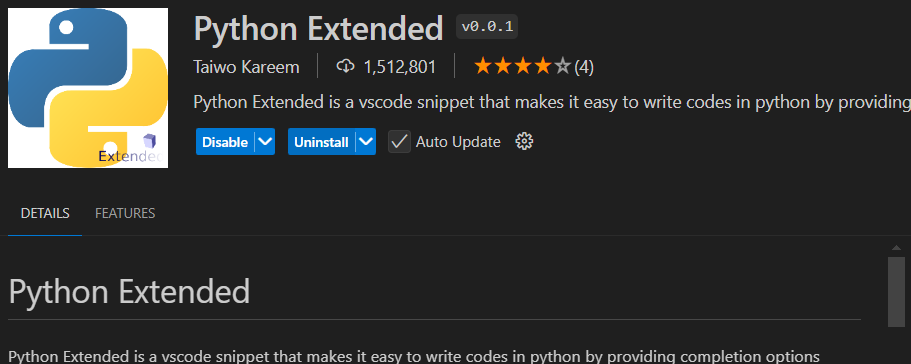
Uninstallation Option in VS Code
- You can Re-Install the extension by clicking the Install Button.
Uninstallation Confirmation
You can follow the above steps to Install, Uninstall, and Enable/Disable Extensions in Visual Studio Code.
Conclusion
Visual Studio Code is a very powerful and versatile code editor because of its rich feature set and extensive ecosystem of extensions. Whichever programming language you choose, the extensions for Visual Studio Code have the potential to significantly enhance your development process. Visual Studio Extensions has several applications including debugging and syntax highlighting.