How to Browse in Microsoft Edge Browser (original) (raw)
**Microsoft Edge has evolved significantly over the years and is now a powerful web browser that offers not just a fast browsing experience but a suite of advanced features for **security, **privacy, and **productivity. With its modern Chromium-based engine, Edge is designed to provide a smoother, more efficient browsing experience, especially for users looking to enhance their web interactions. Whether you’re a casual user or a power user, this comprehensive guide will help you master Microsoft Edge by uncovering its key features, hidden tools, and tips to make your web browsing experience better than ever.
Getting Started with Microsoft Edge
**Microsoft Edge is designed to provide a seamless browsing experience across various devices, including Windows, macOS, iOS, and Android. Built on the Chromium engine, Edge combines the reliability of Google's open-source platform with unique features tailored to enhance user productivity and security.
Key Features of Microsoft Edge:
1. Speed and Performance
Edge offers fast page loading times and smooth navigation, ensuring minimal delays as you browse your favorite websites.
2. Enhanced Security
With built-in features like **Tracking Prevention, Edge helps protect your privacy by blocking unwanted trackers, reducing the risk of data breaches and enhancing your online security.
3. User-Friendly Interface
The browser's clean and intuitive design allows for easy navigation, making it accessible for both new and experienced users.
Installing Microsoft Edge
**Microsoft Edge is the default browser on Windows 10 and Windows 11 devices. If you're using an earlier version of Windows or another operating system, you can install Edge by following these steps:
**Step 1: Visit the Official Microsoft Edge Download Page
Navigate to Microsoft's Edge download page to ensure you're downloading the latest version.
**Step 2: Select Your Operating System
Choose the version of Edge compatible with your operating system (Windows, macOS, iOS, or Android).
**Step 3: Download and Install
Click "Download" and follow the on-screen instructions to complete the installation.
-(1)-(1)-(1).png)
Launching and Browsing with Edge
Once Edge is installed, you can start browsing the web:
**Step 1: Open Microsoft Edge
Click on the Edge icon in your taskbar, Start menu, or applications folder to launch the browser.
**Step 2: Navigate to a Website
In the address bar at the top, type the URL of the website you wish to visit and press Enter.

Exploring Edge's Features
Microsoft Edge offers a variety of tools and features to enhance your browsing experience:
.png)
Accessing Browser Tools
**Open the Menu:
- Click on the three-dot menu (
...) located at the top-right corner of the browser window.
**Explore Available Options:
- **New Tab: Open a new tab within the same window.
- **New Window: Launch a new Edge window.
- **New InPrivate Window: Browse privately without saving history or cookies.
- **Favorites: Access and manage your favorite websites.
- **History: View your browsing history.
- **Downloads: Manage downloaded files.
- **Settings: Customize browser settings to your preference.
Split Screen Feature
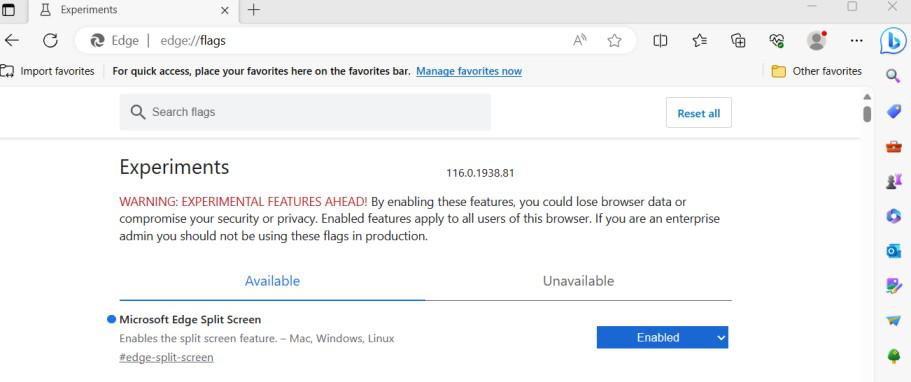
The Split Screen feature allows you to divide the browser window into two sections, enabling you to view multiple tabs side by side. To enable this feature:
**Check Feature Availability
- Type
edge://flags/#edge-split-screenin the address bar and press Enter. - Ensure the setting is enabled.
**Use Split Screen
- Click on the split tab icon to activate the feature.
- Choose the tab you wish to browse in parallel, and it will open on the right side.

- Choose the tab you wish to browse in parallel and it will open on the right side.
.png)
Split Screen Feature
Tab Management
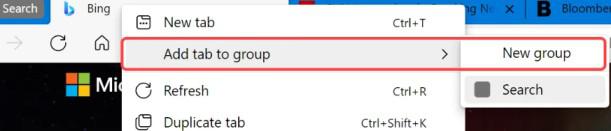
Organize your tabs by grouping similar ones together for better workflow. To group tabs:
**Group Tabs
- Right-click on the tab you want to add to a group.
- Select "Add tab to new group."
- Assign a name and color to the group.
**Manage Groups
- Add or remove tabs from the group by right-clicking on the tab and selecting the appropriate option.
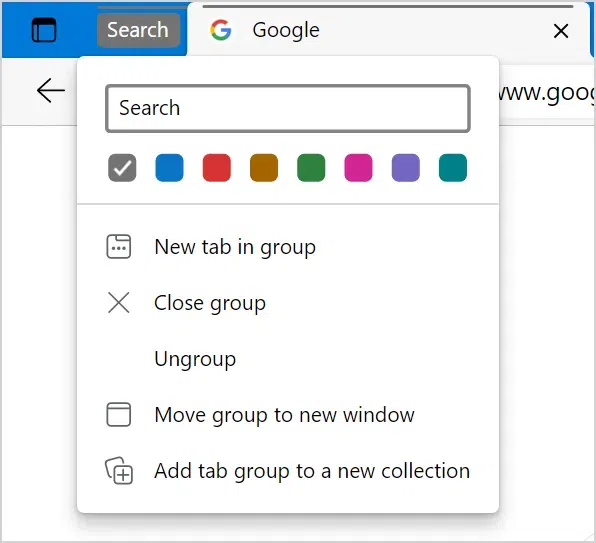
You can now add multiple tabs or remove any tab from the group by following the above steps.
Developer Tools
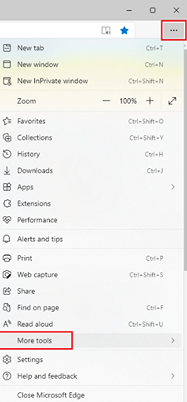
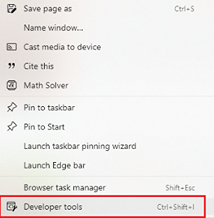
Edge's Developer Tools (DevTools) assist in inspecting, debugging, and optimizing web pages. To access DevTools:
**1. Open Developer Tools
- Click on the three-dot menu (...) > More tools > Developer tools.
- Alternatively, press
Ctrl + Shift + Ion Windows orCmd + Option + Ion macOS.
-(2).png)
Developer Tools
**2. Explore DevTools Panels
- **Elements: Inspect and edit HTML and CSS.
- **Console: View and interact with JavaScript messages and logs.
- **Sources: Debug JavaScript code with breakpoints and variable watches.
- **Network: Monitor network activity during page load.
- **Performance: Record and analyze page performance.
- **Memory: Diagnose and fix memory-related issues.
- **Application: Manage web applications, local storage, and service workers.
- **Lighthouse: Assess performance, accessibility, and SEO.
- **Security: Identify and address security issues.
- **Extensions: Inspect and debug browser extensions.
- **Emulation: Simulate different device profiles and screen sizes.
- **Sensors: Emulate device sensors like geolocation and accelerometer data.
Privacy and Security Features
Edge offers strong privacy and security settings to protect your data:
**Tracking Prevention:
- Navigate to **Settings > **Privacy, search, and services.
- Choose a tracking prevention level: Basic, Balanced, or Strict.
**Password Manager:
- Edge can save and autofill passwords for your convenience.
- Manage saved passwords under **Settings > **Profiles > **Passwords.
**InPrivate Browsing:
- Use InPrivate mode to browse without saving history or cookies.
- Open an InPrivate window by clicking the three-dot menu (
...) > **New InPrivate window.
Using Extensions
Enhance Edge's functionality with extensions:
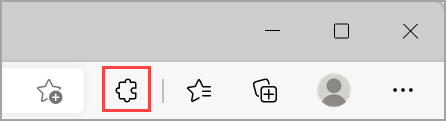
**Step 1: Access Extensions
Click on the three-dot menu (...) > **Extensions.
**Step 2: Browse and Install
Visit the Microsoft Edge Add-ons store to find extensions like ad blockers, password managers, and more.
**Step 3: Manage Extensions
Enable, disable, or remove extensions as needed from the Extensions page.
**Immersive Reader:
Enter Reader Mode in Immersive Reader
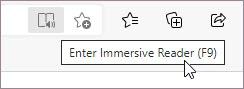
- To access Reader Mode, open Microsoft Edge and navigate to a website you wish to read. Click on Enter Immersive Reader option in the address bar or press the F9 keyboard shortcut.
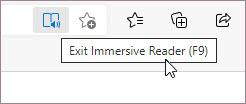
- To exit Immersive Reader, press the keyboard shortcut F9 or select Exit Immersive Reader in the address bar.
Read Aloud in Microsoft Edge
Read Aloud is a simple but effective tool for reading the text of a web page aloud.
To begin, select Read Aloud from the Immersive Reader toolbar. A ribbon toolbar appears at the top of the page after you start Read Aloud. The toolbar includes buttons to play audio, skip to the next or previous paragraph, and adjust Voice options. Voice options allow you to change the reader's voice and slow down or speed up their reading pace.
To stop listening, select the Pause button or the X to close Read aloud.
.jpg)
**Conclusion
**Microsoft Edge has come a long way from its humble beginnings and now stands as a feature-rich, fast, and secure browser that can meet the needs of both everyday users and web developers. With its **privacy controls, **advanced features, and **integration with Microsoft’s productivity suite, Edge is an excellent choice for those looking for a seamless, modern web browsing experience. Whether you're focused on **security, **web development, or simply browsing the internet, mastering **Microsoft Edge will help you unlock the full potential of the web.