How to Change Screen Brightness on Windows 11 (original) (raw)
Last Updated : 6 Mar, 2026
Knowing how to change screen brightness on Windows 11 is essential for comfortable viewing and eye protection. You may want to increase brightness for better visibility in bright environments or lower it to reduce eye strain and save battery. Windows 11 offers multiple built-in ways to adjust brightness quickly and easily.
How to Change Screen Brightness on Windows 11
Below are methods to change screen brightness on windows.
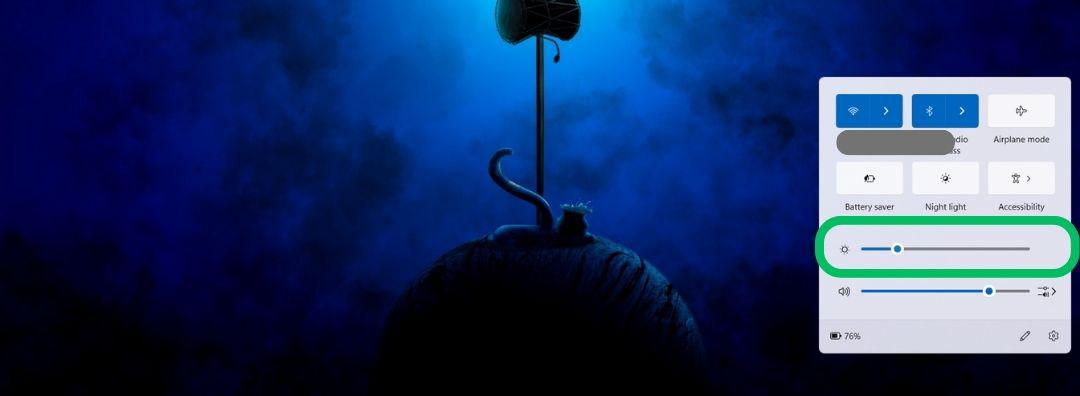
Method 1: Change Screen Brightness Using Quick Settings
Quick Settings is the fastest way to adjust brightness.
**Steps:
- Click the battery / network / volume icon on the taskbar
or press Win + A - Drag the Brightness slider left or right to adjust the screen brightness
This method is quick and ideal for instant brightness changes
Method 2. Screen Brightness Change on Windows 11 Using The Function Keys
Most laptops include dedicated brightness keys on the keyboard.
**Steps:
- Look for sun icons on the F1–F12 keys
- Press Fn + Brightness key (depending on your keyboard layout)
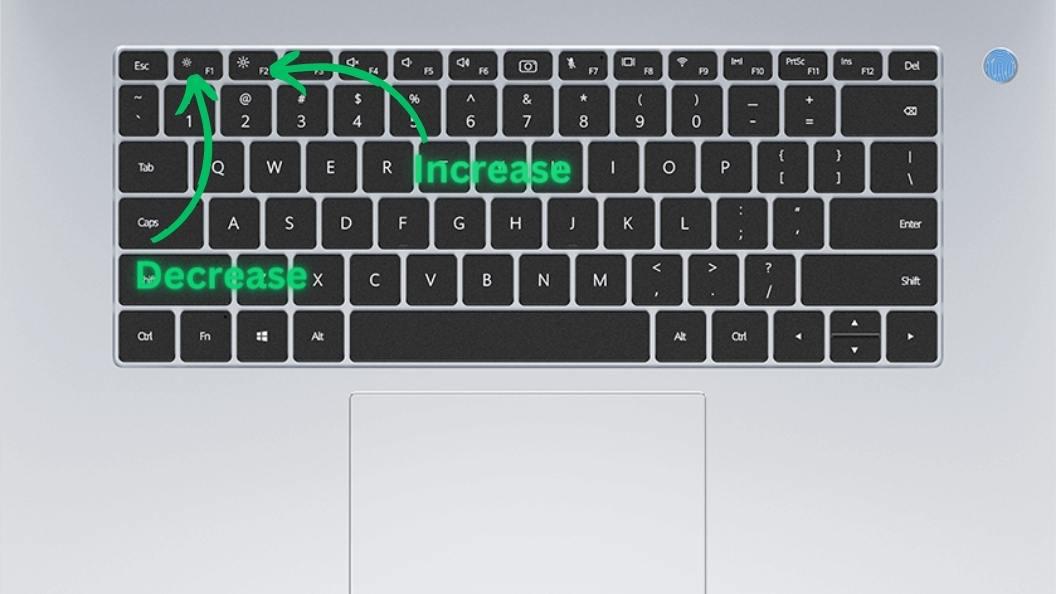
This is a convenient way to change brightness without opening any menus.
Method 3: Change Screen Brightness Using the Settings App
You can precisely control brightness using Windows Settings.
**Steps:
- Press Win + I to open Settings
- Navigate to System → Display
- Under Brightness & color, drag the Brightness slider
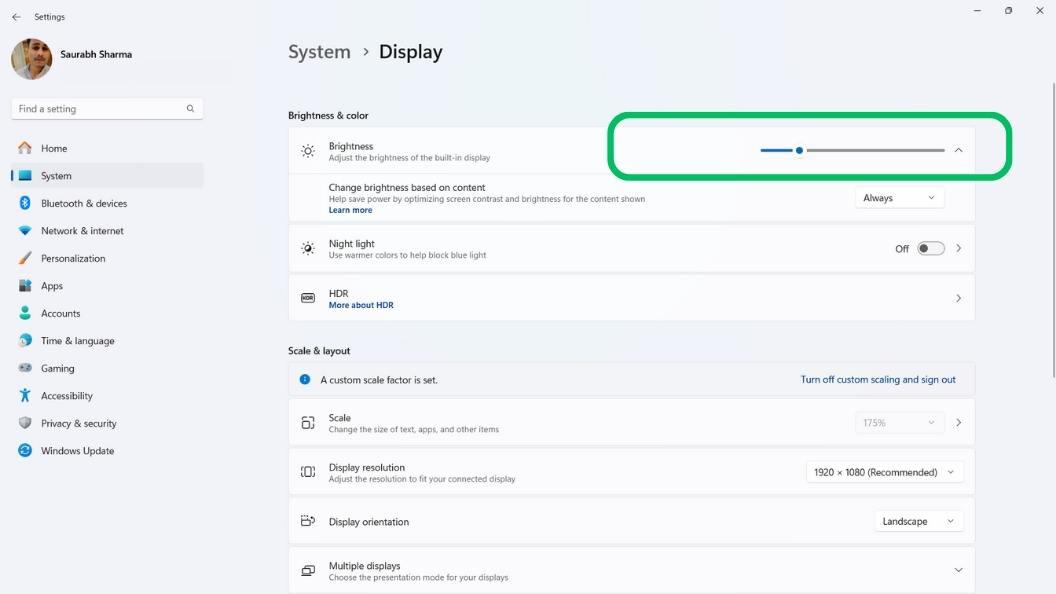
This method is useful for fine-tuning brightness levels.
Method 4: Change Screen Brightness Using Mobility Center
Windows Mobility Center provides quick access to brightness controls.
**Steps:
- Press Win + X
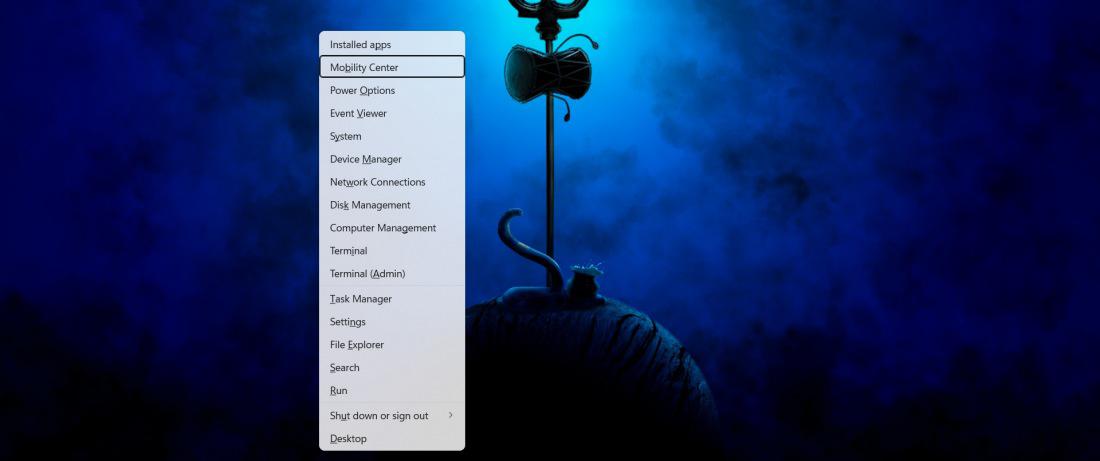
- Select Mobility Center
- Under Display brightness, move the slider to adjust brightness
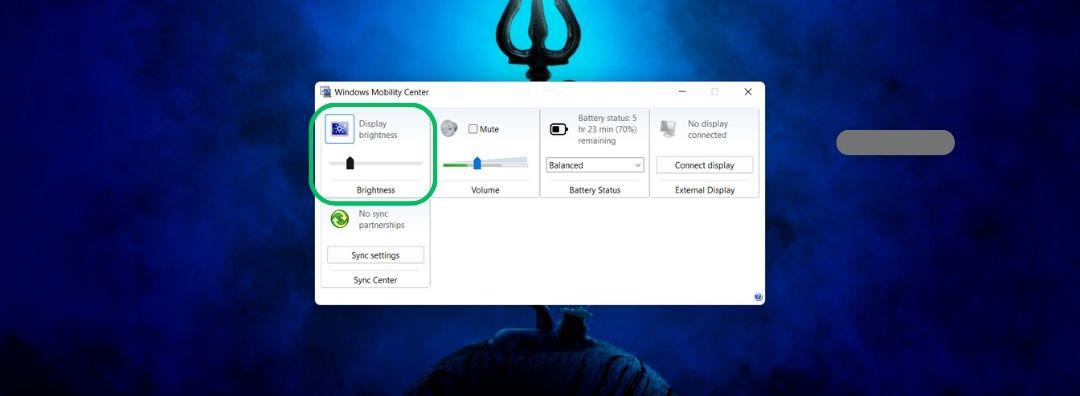
- Changes apply immediately.
Method 5: Change Screen Brightness Using PowerShell
PowerShell allows advanced users to set a specific brightness level.
**Steps:
- Press Win + S, search for PowerShell
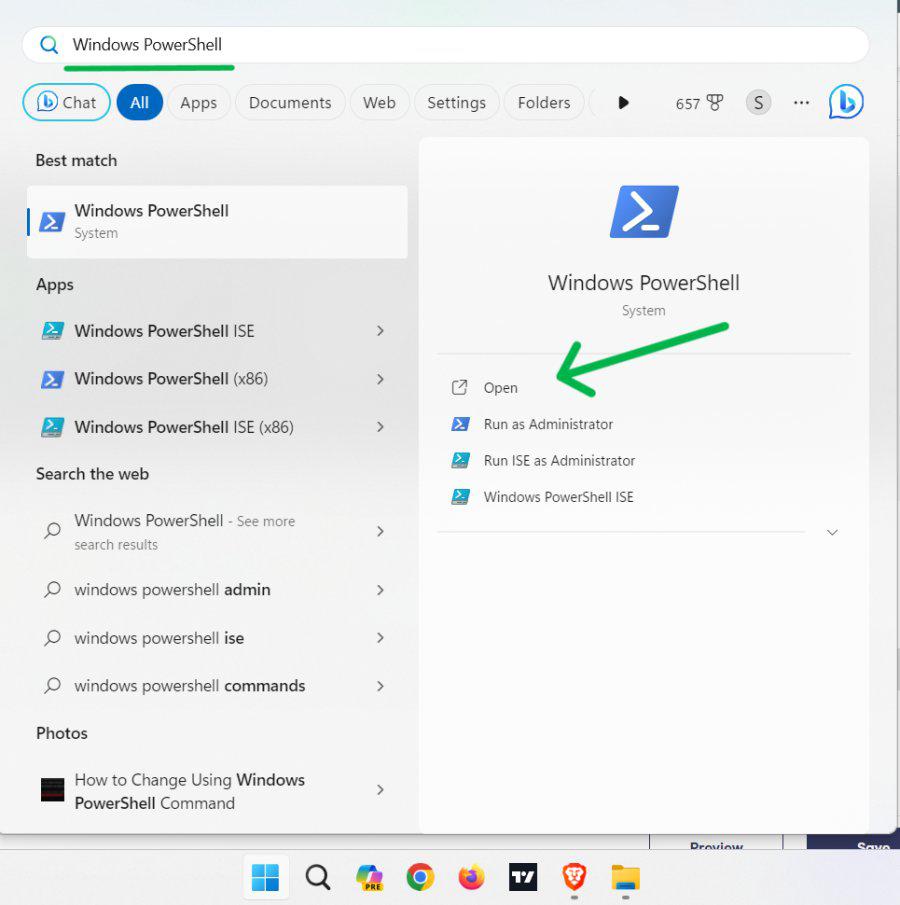
- Right-click and select Run as administrator
- Enter the following command:
(Get-WmiObject -Namespace root/WMI -Class WmiMonitorBrightnessMethods).WmiSetBrightness(1,40)
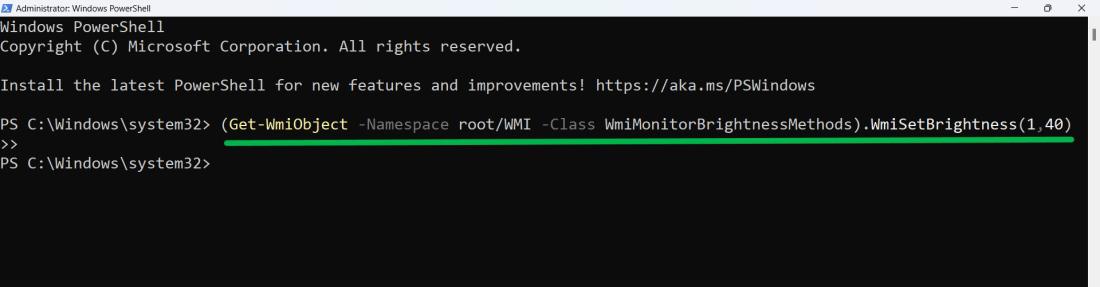
Replace **40 with any value between **0–100 to set your desired brightness.
How to Automatically Adjust Screen Brightness Based on Battery Life
Windows 11 can automatically lower brightness when battery saver is enabled.
**Steps:
- Press Win + I to open Settings
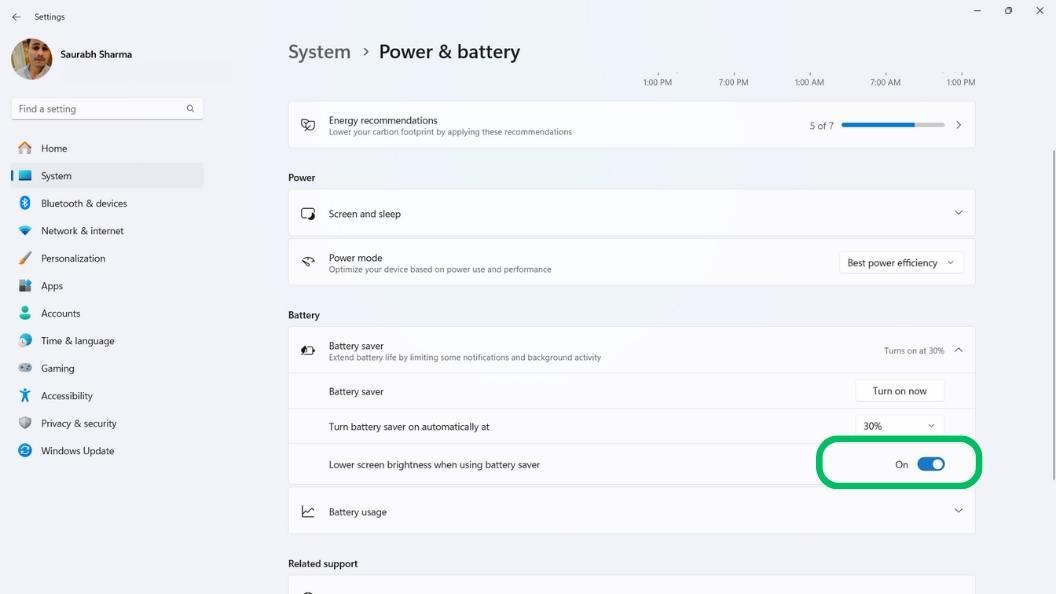
- Go to System → Power & battery
- Expand the Battery saver section
- Enable Lower screen brightness when using battery saver