How to Optimize Windows PC (original) (raw)
Last Updated : 23 Jul, 2025
It's better to have an optimized computer whether it's Windows 10 or 11, so your system can perform efficiently without any freeze. That's why you should try to implement good practices to keep your system smooth and secure. In this article, we're going to discuss some of the best steps and methods to boost your Windows 10 and 11 system's performance at its peak. Let's check them out:
**1. Windows Update
You can begin with the Windows Update process as it will help you to provide better and advanced security features. Here's how you can do it:
- Go to the Start Menu, type **Settings and hit the Enter button
- Click on **Update & Security.
- Navigate to **Windows Update.
- Click the Check for updates button and download the updates.
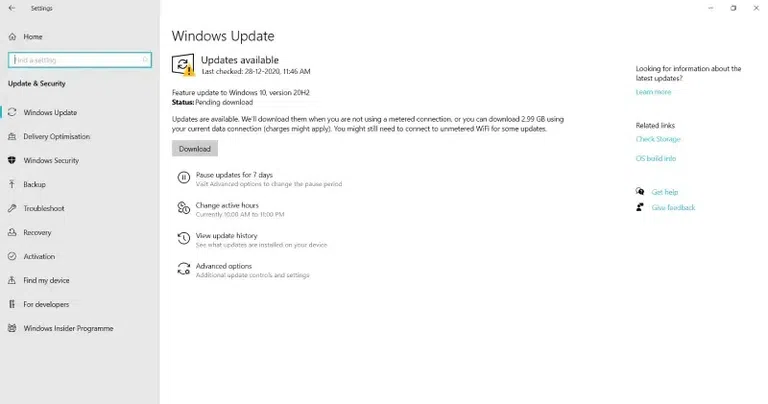
Windows Upgrade
**2. Update Device drivers
You might be aware of the fact that these drivers are very crucial as they works as a intermediator between the operating system and particular devices to communicate. So, it is necessary to update device drivers by using these steps:
- Open **Start.
- Search for **Device Manager.
- Expand the **branch for the device you want to update.
- Right-click the device, and select the **Update Driver option.
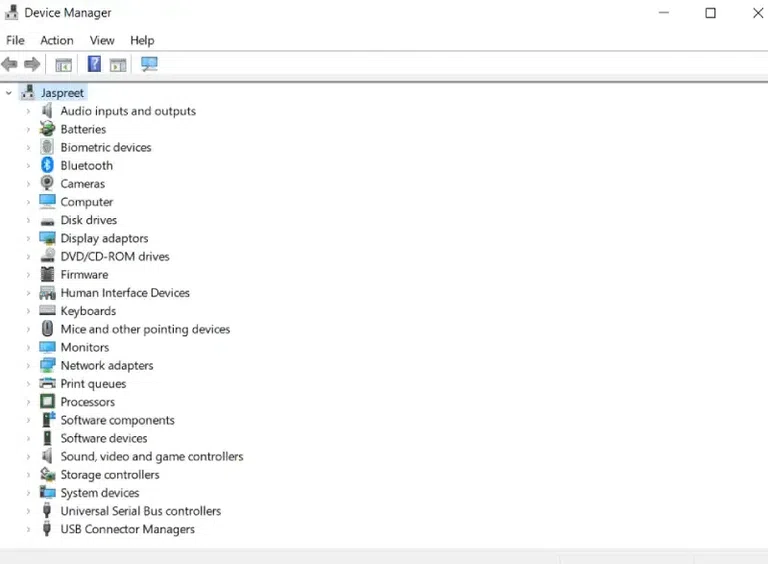
Device manager
**3. Disk Fragmentation
Fragmentation occurs when the allotted memory is larger than the memory requested by the program, then the difference between allotted and requested memory is known as fragmentation. So, we need to run a disk _defragmenter to rearrange fragmentation which makes drives work more efficiently. Follow the steps below to perform this action:
- Select the search bar on the taskbar and enter **defrag.
- Select **Defragment and Optimize Drives.
- Select the **disk drive you want to optimize.
- Select the **Optimize button.
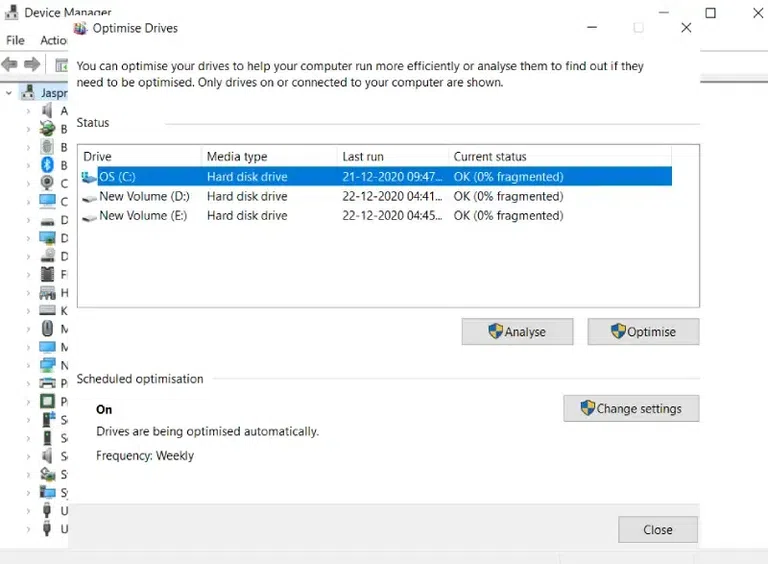
defrag
**4. Disk Clean-up
Disk Clean-up is a computer maintenance utility tool used to remove temporary files, files in the recycle bin, and other items that you no longer need. Here's how you can do it:
- Type Disk clean-up in the search bar on the **taskbar.
- Select the **drives you want to clean.
- Select the **folder or file types to get rid of.
- Select **OK.
To claim more space, you can also delete system files as follows:
- In Disk Clean-up, select **Clean up system files.
- Select the file types to get rid of. To get a description of the file type, just click on it.
- Select **OK.
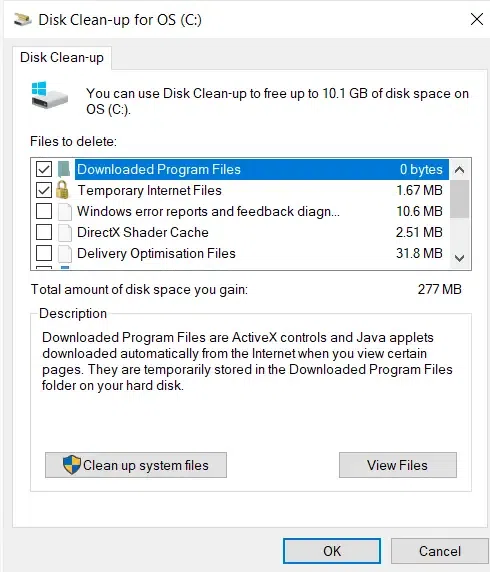
disk clean up
**5. Adjust Windows Visual Effects
Lowering or customizing the settings of Windows visual effects will increase the performance of your devices. Follow the below steps to achieve so:
- Search "**System" in the search bar on the taskbar.
- Click **Advanced system settings and it will open the System Properties menu.
- On the **Advanced tab under **Performance, click **Settings and it will open **Performance Options.
- Click on the Visual Effects tab, either choose to adjust for best performance or go for Custom.
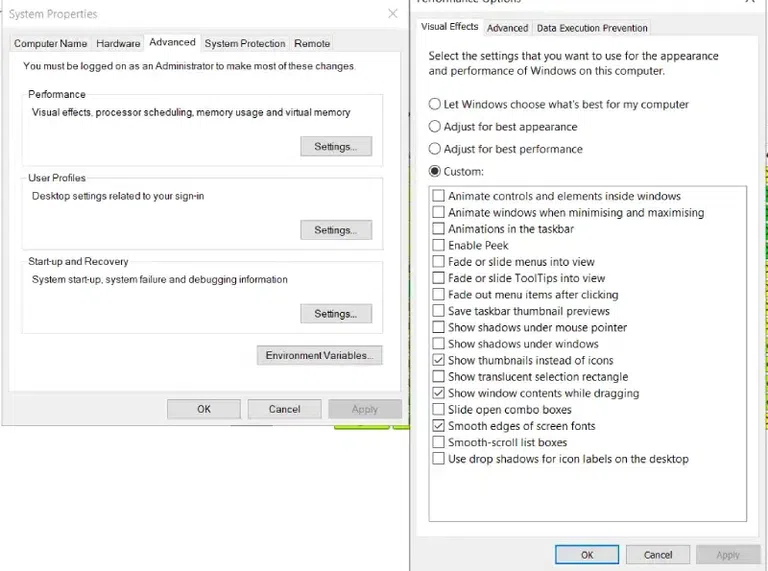
Performance
**6. Turn off Transparency Effects
Transparency effects will make your Windows device slow as it consumes resources. You can disable transparency to reclaim that resources by the following steps:
- Open the **Settings > **Personalization > Colors > Turn off **Transparency effects.
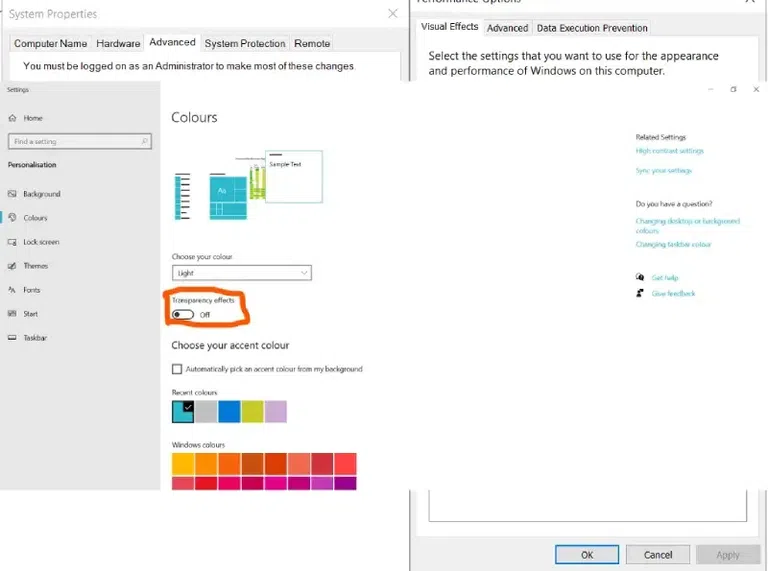
Transparency Effect
**7. Uninstall Unused Programs
Reclaim the hard disk space by uninstalling the programs which are not in use for a long time. To reclaim your memory on the hard disk, follow the below steps:
- In the search box on the taskbar, type **Control Panel.
- After opening the Control Panel, select P**rograms and Features.
- Select the program you want to remove and select **Uninstall or Uninstall/Change.
- Then follow the directions on the screen.
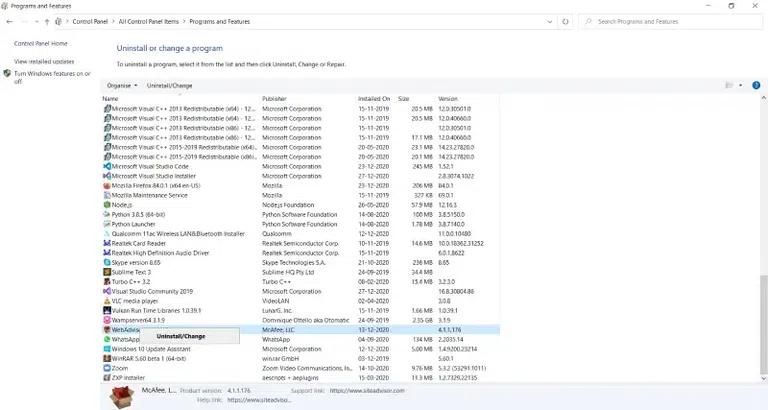
Unused programs
**8. Disable Background Apps
There may be some bloatware (pre-installed applications) on your Windows device which runs in the background even if you are using them. You can even disable the background applications by following the below steps:
- Search the "**Background applications" on the search bar.
- **Disable the application which is not required.
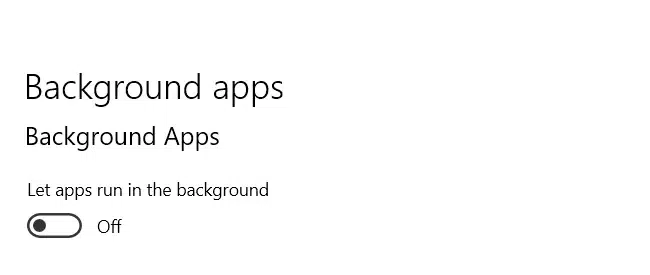
Disable background apps
9. Limit Start-up programs
Start-up programs are the programs that are configured to start when you log in. In most cases, apps will start minimized or may only start in background tasks. To disable start-up programs, follow the below steps:
- Right-click on Start and open **Settings.
- Go to **Apps.
- Go to **Startup and disable the application which causes more impactful task in the background.
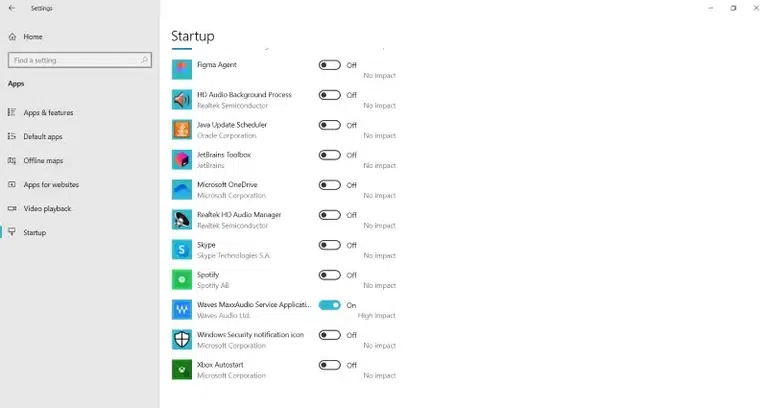
Limit apps usage
**10. Check for Viruses and Spyware
Virus and spyware can not only slow down your device but even can corrupt your data and do identity theft. So, it's better to scan for viruses and spyware to remove it by using Windows Defender/Security or other anti-spyware programs. To use Windows Security follow the below steps:
- Select the search bar on the taskbar and enter**Windows Security.
- Select **Virus and threat protection and click on the **Scan option.
- Select one of the scan options like **Quick Scan, Full Scan, and Custom Scan.
- Press **Scan now button.
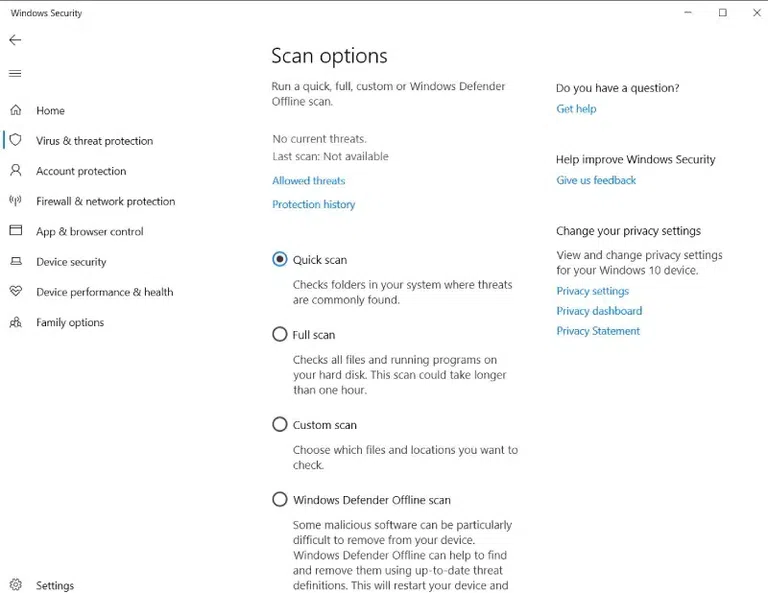
Check for spywares
**11. Change the size of Virtual Memory
A paging file is an area on the hard disk that Window uses as if it were RAM. We can adjust this paging file size to improve window performance. To change the size of virtual memory follow the below steps:
- Select the search bar on the taskbar and open **View advanced system settings, which will open **System Properties.
- In System Properties, select the **Advanced tab > **Settings under **Performance > **Advanced tab.
- Then select Change under the **Virtual memory.
- By default, Windows automatically manage paging file size for all drives check box is checked we can uncheck it to makes changes.
- Under Paging file size for each drive, click on the drive that contains the paging file to change the paging file size.
- Click **Custom size, type a new size in megabytes in the Initial size (MB) or Maximum size (MB) box, click Set, and then click OK.
- **Restart your device.
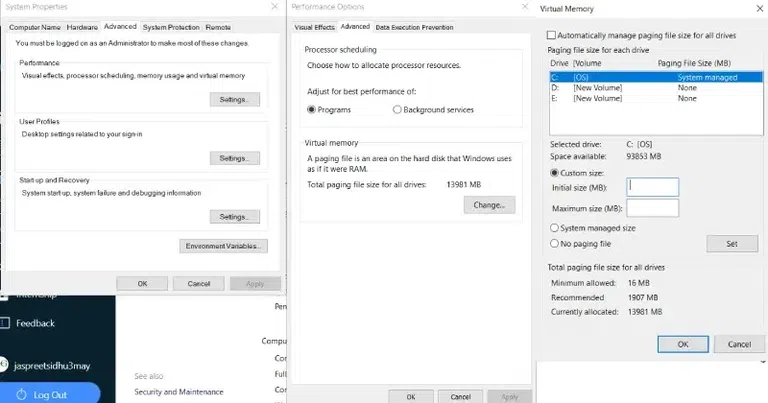
Virtual memory
**12. Close Running Applications
Every running application consumes resources like CPU and memory. So, it is necessary to close all the application which is not used to reclaim the allocated resources. Here's how to perform this action:
- Press Win + X and click "Task manager"
- Check all the running applications
- Select on high consuming applications and click "End Task" to Close it.
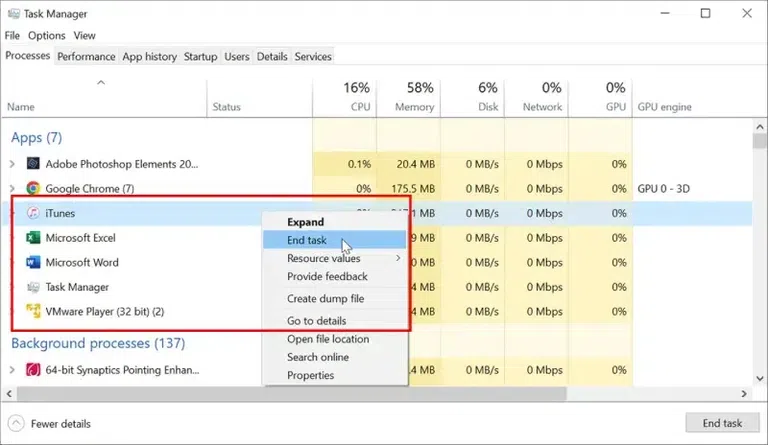
close running apps
**13. Turn Off Tips and Notifications
We can also stop some background services that provide tips and suggestions to use Windows. To do that follow these steps:
- Search the "**Notifications and actions" in the search bar on the taskbar.
- **Uncheck Get tips, tricks, and suggestions as you use windows.
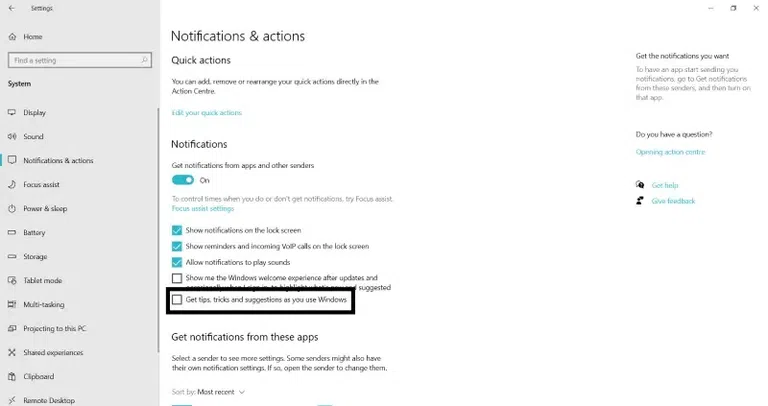
Turn off tips notifications
**14. Upgrade Hardware
To improve the performance of Windows PC we can also upgrade the hardware. Adding better technology hardware will definitely improve the read and write speed of your device.
- Add more RAM.
- Use solid-state disk.
- Upgrade Graphics Card
**15. Optimize Power Settings
You can fix and optimize your Windows PC by choosing the right power plan and it will help in enhancing performance and energy efficiency. Here's how to perform this action:
- Press Win + R and type **"**Control Panel" or click on Start Menu and type "Control Panel"
- Navigate to **Control Panel > Hardware and Sound > Power options > Edit Plan Settings
- Select **High Performance
- **For custom: Adjust individual settings (such as display timeout or screen lock) for best optimization.
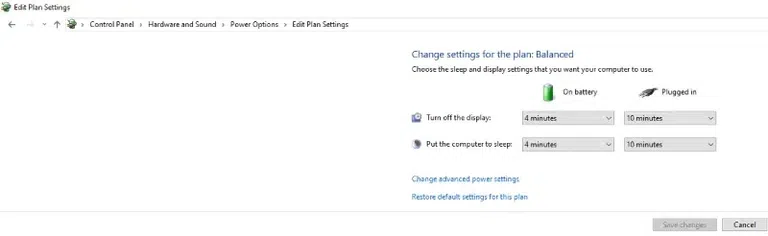
Power Settings
Conclusion
Whether you’re using Windows 10 or 11, following these optimization steps will help you achieve a smoother, faster, and more efficient computing experience. Regular maintenance and staying updated are key to keeping your system running at its best.