How To Run Android Apps On Linux (original) (raw)
Last Updated : 23 Jul, 2025
There are many users who use Android as their portable device but they prefer working on a Linux machine. Now, there are ways or apps available that can easily sync these two platforms. But what if anyone wants to run an Android app on a Linux desktop? There are multiple uses wanting to use mobile-exclusive apps, test Android software, or play games on a bigger screen.
In this guide, we’ll explore multiple methods to run Android apps on Linux, from lightweight container-based solutions to full Android emulators. Whether you're a developer, gamer, or just curious, you'll find the best approach for your needs. Let’s bridge the gap between Android and Linux!

Run Android Apps On Linux\
Methods to Run Android Apps On Linux
Here in this section we have mentioned 3 top methods to run Android app in Linux system. So, explore the section to find the best method to run your Android apps.
Method 1: Using Anbox
Anbox is an open-source, well-known platform for running Android applications within Linux by containerizing the Android OS. It is optimized to run perfectly with your Linux system and for this precise reason; it is the way to go to run Android applications natively.
Step 1: Install Kernel Modules
- Setting up Kernel Modules Install the required kernel modules for Anbox to run in a proper manner.
**Commands:-
sudo apt install anbox-modules-dk
sudo modprobe ashmem_linux
sudo modprobe binder_linux
Step 2: Install Anbox
- As for Anbox, it can also be installed from the Snap, which is the package management system for.
**Command: sudo snap install --devmode --beta anbox

Installing Anbox
Step 3: Installing Android Apps
- Now that you already have installed Anbox, you can open it with your installed applications listing. Anbox doesn't ship with the Google Play Store installed; with some APK files installation:
- Download the APK file for the Android app you want to run.
- Installed by issuing the command.
**Command: adb install
Method 2: Android Emulators
Android emulators are the helping part of the virtual environment that mimics an Android device on your Linux system. Some of the hugely benefitting and also working Android emulators on Linux are Genymotion and AVDs provided within Android Studio.
Step 1: Install Gen
- Go to the website of Genymotion and download the Linux version.
- Install the package and launch Genymotion. You need to create a free account first to be able to use it.
- Choose any configuration for the virtual device for launching your emulator.
- Running, you can install applications either via downloading APK files directly or from the Google Play Store if configured.
Step 2: Android Studio AVD
- Download and install Android Studio by following the instructions on their official website.
- Open Android Studio to set up a new project.
- Now go to "Tools > AVD Manager" and create a new virtual device.
- Choose the device configuration of your choice and start the virtual device.
- You can now launch Android apps through installed APKs or the Google Play Store on the AVD.
Method 3: Using a Virtual Machine
These methods are better suited for running a full-fledged Android OS on top of Linux, particularly if you're a heavy developer or user and desire full Android emulation using a virtual machine setup, such as in VirtualBox.
Step 1: Download the Android-x86
- Visit the Android-x86 website and download the newest ISO image.
**Step 2: Install VirtualBox:
- VirtualBox should be maintained in a Linux distro using the package manager.
- For Ubuntu use this command:
**Command: sudo apt install virtualbox
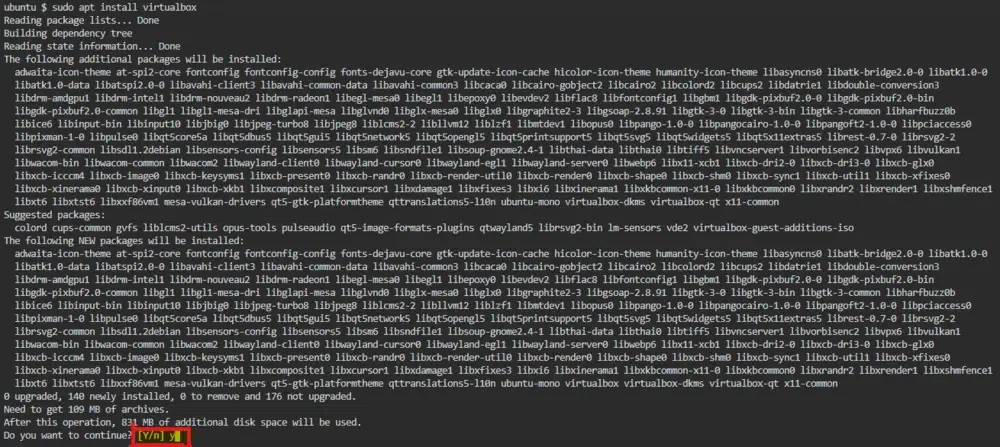
Installing VirtualBox
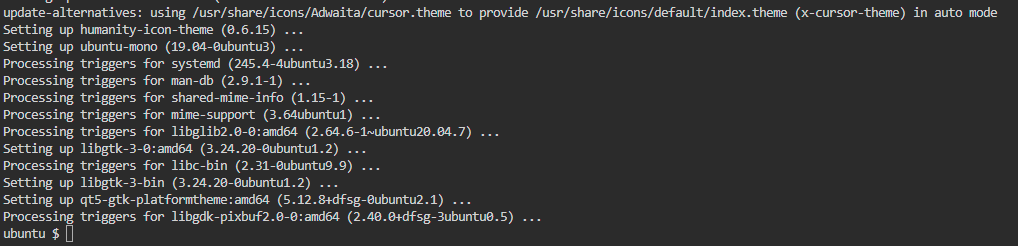
Installed VirtualBox
Step 3: Create new Virtual machine
- Open VirtualBox and create a new VM.
- Select the ****"Linux"** type and the ****"Other Linux (64-bit)"** version.
- Assign the required amount of RAM and create a virtual hard drive.
- Now attach the **Android-x86 ISO on the VM and start to install.
**Step 4: Install Android-x86
- Follow the on-screen instructions to install Android-x86 in the virtual machine.
- After the installation, you can boot into Android and run applications with it, just like any other device.
Conclusion
Now running Android apps on Linux has been made super easy with some outstanding tools like Anbox, together with Android emulators and VirtualBox. After all, each way has its benefits: from having proper integration with your Linux desktop to being a real Android environment, since you can just as easily get an emulator if you need it for only testing. Follow the outlined steps properly to run Android apps on Linux in the right manner and taste the real Android versatility in your desktop.