How to Upgrade from Windows 7 to Windows 10 for Free (original) (raw)
Last Updated : 5 Dec, 2025
Upgrading from Windows 7 to Windows 10 ensures better security, improved system performance, and access to modern features that older systems no longer support. Although the free upgrade offer has ended, users can still install Windows 10 using Microsoft’s tools with a valid product key. Understanding the upgrade requirements and process helps ensure a smooth and safe transition to Windows 10.
**Key Highlights
- Windows 10 offers stronger security, modern features, and better compatibility.
- Free upgrades from Windows 7 officially ended in 2016.
- A valid Windows license key is required to activate Windows 10.
- Back up your data and update BIOS before starting the upgrade process.
Can You Still Upgrade Windows 7 to Windows 10 for Free?
No. Microsoft officially ended the free Windows 10 upgrade offer on **July 29, 2016, and the Windows 7 → Windows 10 free upgrade loopholes have also been removed.
To upgrade now, you must **purchase a valid Windows 10 license.
However, **Windows 10 → Windows 11 upgrades remain free for eligible devices.
Why Upgrade to Windows 10?
Windows 10 offers several improvements over Windows 7, including:
- **Stronger security with built-in antivirus, firewall protection, and biometric authentication (Windows Hello).
- **Better performance with features like ReadyBoost, optimized system processes, and improved memory management.
- **Refined user experience, including the redesigned Start menu, enhanced Snap, Cortana support, and the Action Center.
- **Entertainment upgrades, such as Game Mode, Xbox integration, and Windows Ink for drawing and annotating.
- **Modern hardware support, including USB-C, Bluetooth LE, Wi-Fi Direct, HDR, and newer device drivers.
- **Continuum support for Windows mobile devices, letting you use your phone like a PC when connected to a monitor.
- **Ongoing updates for stability, performance, and security.
**Also Check:Windows 10 –Feel the Difference
**Keep in Mind Before Update: You'll also see a message in Settings and on the desktop warning that the system is not properly activated. You'll also see a message in Settings and on the desktop warning that the system is not properly activated.
How to Upgrade Windows 7 to Windows 10
If your PC is installed with Windows 7 (Home, Pro, or Ultimate Edition) and is properly licensed and activated, you are eligible to install Windows 10 as an upgrade. Just follow the below methods to upgrade Win 7 to Win 10.
**Important: Download and install BIOS update if available, this is very important for all the users who using a system designed in 2017 and earlier. Also, back up all your data to external storage or cloud before starting the upgrading process.
How to Upgrade Via Direct Download?
Step 1: Download Windows 10
- Go to Microsoft’s official download page:
**https://www.microsoft.com/en-us/software-download/windows10
- Click **“Download Now” to download the Windows 10 setup tool.
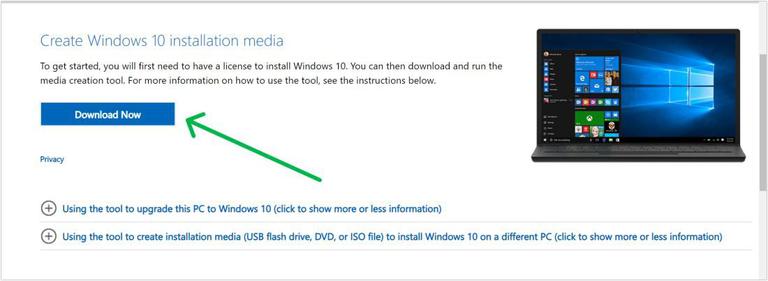
Download Windows
Step 2: Run MediaCreationTool
- After downloading, double-click **MediaCreationTool22H2.exe.
Choose **“Upgrade this PC now.” - You can:
- Upgrade directly, OR
- Create installation media later (USB/DVD/ISO)
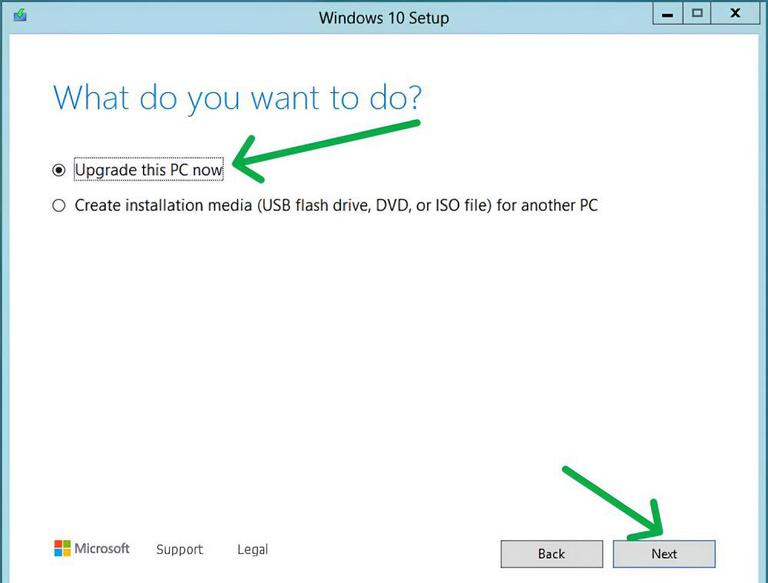
Run MediaCreationTool
You can upgrade directly with this Media Creation Tool or create separate installation media. Scroll down to get the setps to how to in create installation media and install Windows 10.
**Step 3: Choose What to Keep
- Select:
✔ **Keep personal files and apps (This ensures your apps and files remain intact.) - Click **Next.
**Step 4: Begin Installation
- Click **Install to start the upgrade process.
- Your PC will restart several times during installation.
Method 2: Upgrade Using USB Flash Drive or ISO File
**Step 1: Download Windows Setup Tool
Visit Microsoft’s download page and run **MediaCreationTool22H2.exe.
**Step 2: Create Installation Media
- Choose:
✔ **Create installation media (USB flash drive, DVD, or ISO file) for another PC
Select:
- Language
- Windows edition
- Architecture (32-bit / 64-bit)
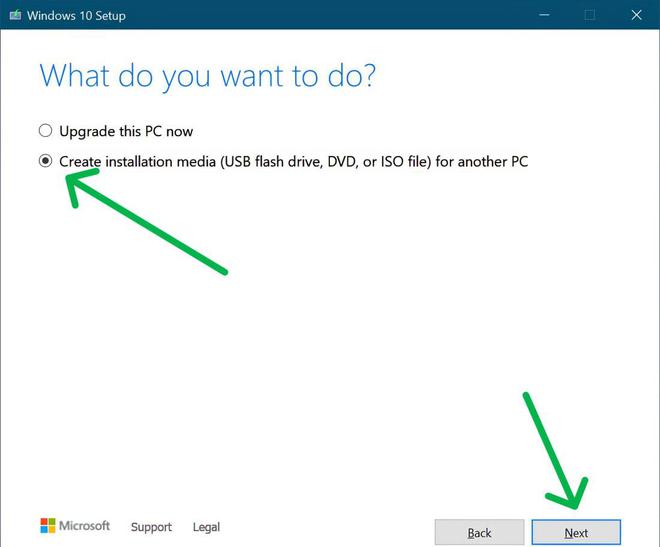
Create USB Flash Drive or ISO File
**Step 3: Select Media Type
- Choose one of the following:
- **USB flash drive → Creates a bootable USB (8GB or more)
- **ISO file → For DVD or manual installation
- Click **Next.
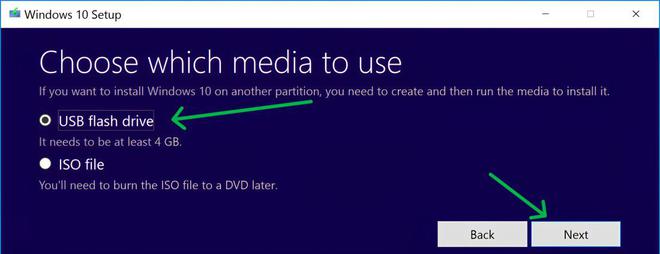
Choose Media Type for Installations
**Step 4: Start Windows 10 Setup
- Once media is ready:
Open **setup.exe from the USB/ISO. - Choose:
✔ **Download and install updates
✔ Accept the license terms
✔ Choose what to keep (recommended: Keep personal files and apps) - Click **Install.
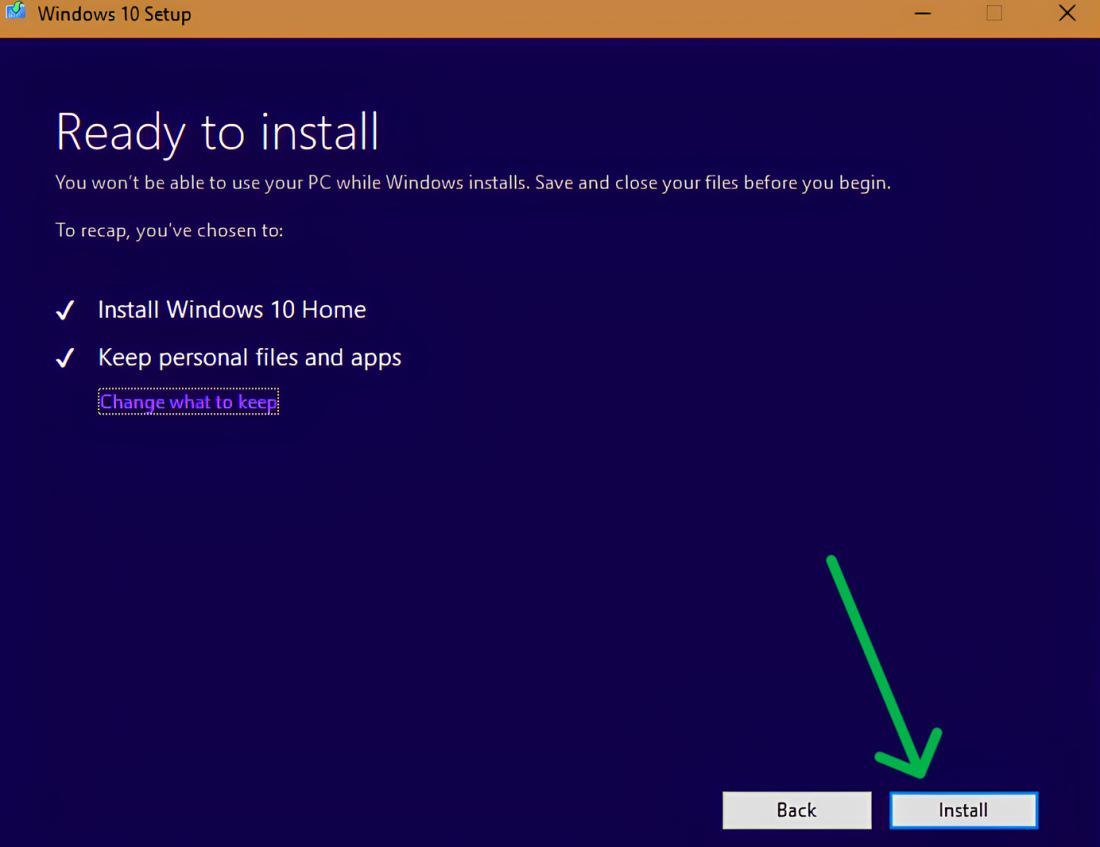
Start the Installation Process of Windows 10
**Step 5: Complete Installation
- After installation:
Click **Next and choose **Use Express Settings (or customize settings).
Your PC will finish setup and boot into Windows 10.
**Will You Get a Licensed Windows Copy After the Upgrade?
**No, not automatically. If you install Windows 10 using:
- USB drive
- ISO file
- Media Creation Tool
and **your system has never had Windows 10 activated before, you must enter a **valid Windows 10 product key to activate all features.
**Also Check -How to Upgrade From Windows 10 to Windows 11