How to Use SIRI on MacOS? (original) (raw)
Last Updated : 9 Sep, 2024
With voice commands, Siri is a strong tool on macOS that can assist you with tasks, navigation, and rapid replies. This article will bring you through all you need to know about using Siri on Mac, whether your goal is to enable Siri or you're just interested in learning how to make the most of its features. Find out how the Mac's voice assistant can simplify your life with everything from simple settings to sophisticated shortcuts.
Table of Content
- Why should you use SIRI?
- How to Enable SIRI on Mac?
- How to Activate SIRI on MacOS?
- How to Use SIRI on MacOS?
- Basic SIRI Voice Commands
- How to Disable SIRI completely?
- How to Use SIRI on MacOS - FAQ's
Why should you use SIRI?
Siri is a multi-functional voice assistant that users can do multiple required tasks on MacOS. For example, to find a specific file or folder on MacOS, the user can ask Siri to search for it quickly. To find a file from a specific folder, the user can search it by **System Settings > **Siri and can select a specific category. Siri can also help users find their last week's created documents and also can tell the weather of the next day, read the emails, and so on.
How to Enable SIRI on Mac?
MacOS Sierra and its subsequent versions come with Siri for users. To enable and utilize Siri on MacOS, Users must update the computer to macOS 10.12 or higher if they haven't already in the system. Here, we'll discuss easy steps to enable or activate Siri on MacOS.
**Step 1: Open **System Settings > Select **Siri & Spotlight > Enable **Ask Siri to activate Siri in MacOS.
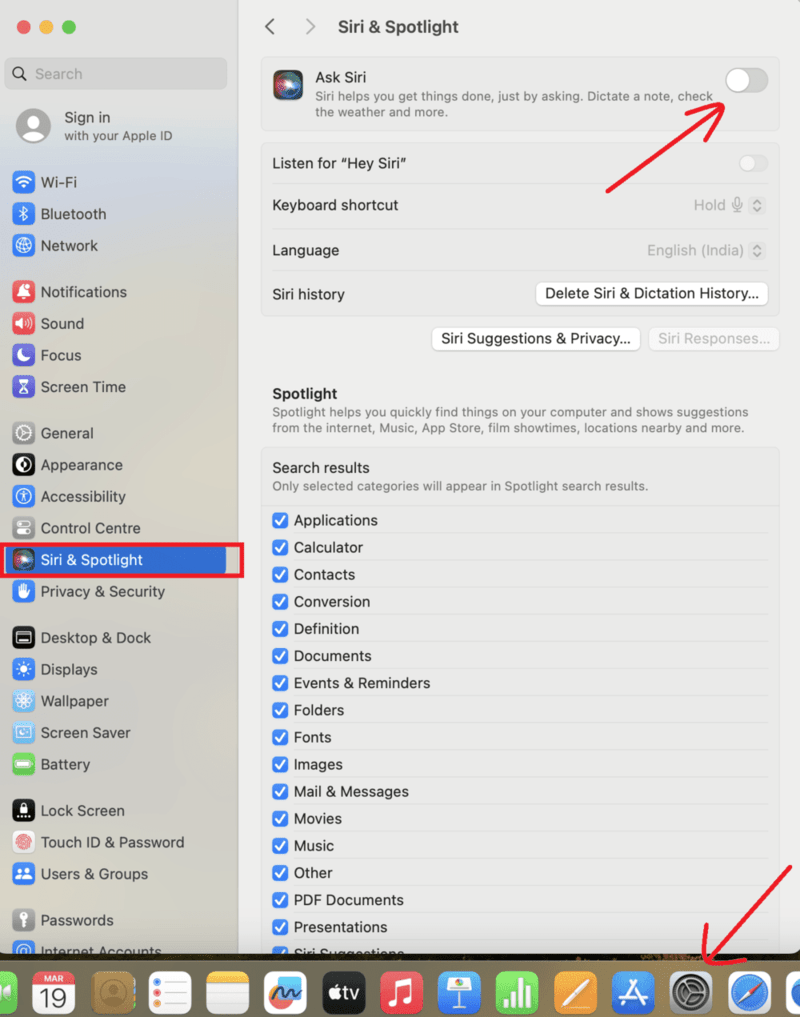
**Step 2: Click the **Enable option to enable it.
.png)
How to Activate SIRI on MacOS?
After enabling Siri on macOS, We need to activate it first. There are two ways to activate Siri - Activate SIRI Using Voice or Activate SIRI by Typing. Let's see how to activate Siri on macOS with a proper demonstration.
Method 1: Activate SIRI Using Voice
Saying "Hey Siri" is the best option to activate Siri properly. To use Siri on your Mac, activate the "Hey Siri" command by following the steps.
**Step 1: Open **System Settings > Select **Siri & Spotlight > Enable **Listen for "Hey Siri".
.png)
**Step 2: Siri will prompt you to say some phrases to recognize your voice. Repeat the instructed phrases.
.png)
**Step 3: After repeating all the phrases,the ****'Siri Is Ready'** Dialog Box appears, Click **Done to complete the process.
.png)
Method 2: Activate SIRI by Typing
**Step 1: Open **System Settings > **Accessibility > Scroll down to **Siri.
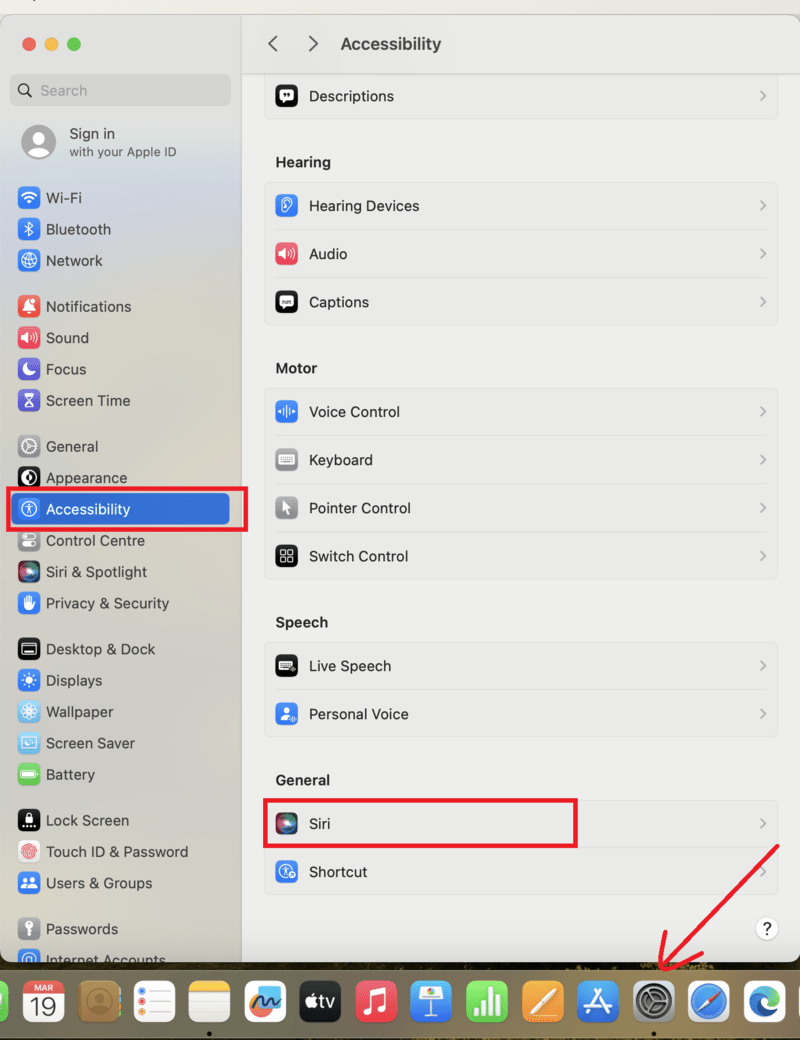
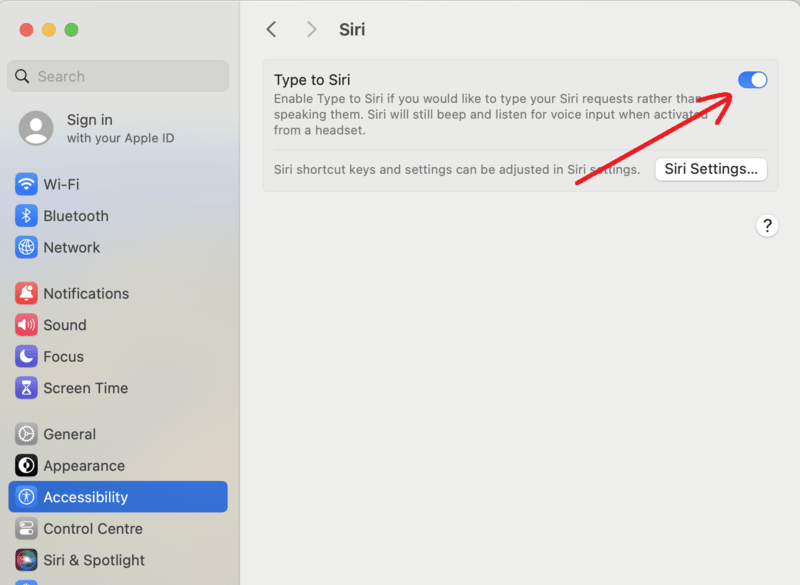
**Step 2: Enable '**Type to Siri' toggle button to type your Siri request.
How to Use SIRI on MacOS?
Users can use Siri by following some easy steps. Here we'll mention all the required steps that they need to follow -
**Step 1: Click the **Siri icon or press **Command + Spacebar to open the Spotlight search field.
**Step 2: Now type Siri > select **Siri Application to use it. .png)
**Step 3: If **Siri appears, all the other sounds on the computer will be muted > See the pop-up like "**Hello' or "Hi there" or "How can I help you"
.png)
**Step 4: Ask a **Question > Click on glowing Siri to ask another question.
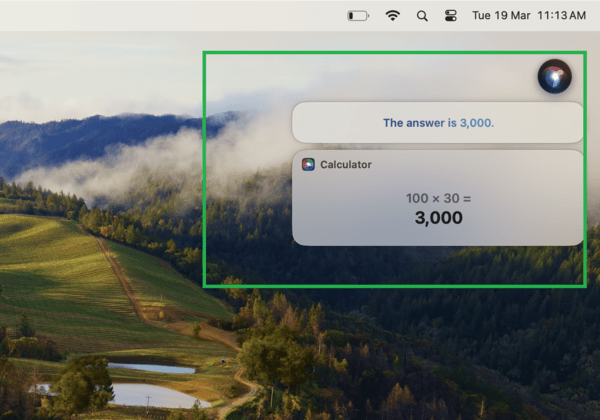
After finishing the task, Click the **cross icon on the top-left corner to Disappear Siri application. In this way, you can command Siri.
Basic SIRI Voice Commands
As per the intelligence of Siri, we can use a remarkable number of commands for finding features on MacOS. Here, we'll mention some virtual commands that users can ask for Siri on MacOS.
- "How fast is my MacOS?"
- "Open my recently updated PPTX files"
- "Play some Party songs"
- "Show me photos I took last day"
- "What is my MacOS serial number?"
- "Send me a happy message"
- "How much free space do I have in my Mac"
- "Show my download folders"
How to Disable SIRI completely?
Users sometimes thought that they activated Siri on MacOS accidentally. That's why to disable Siri completely, the user needs to follow the following basic steps -
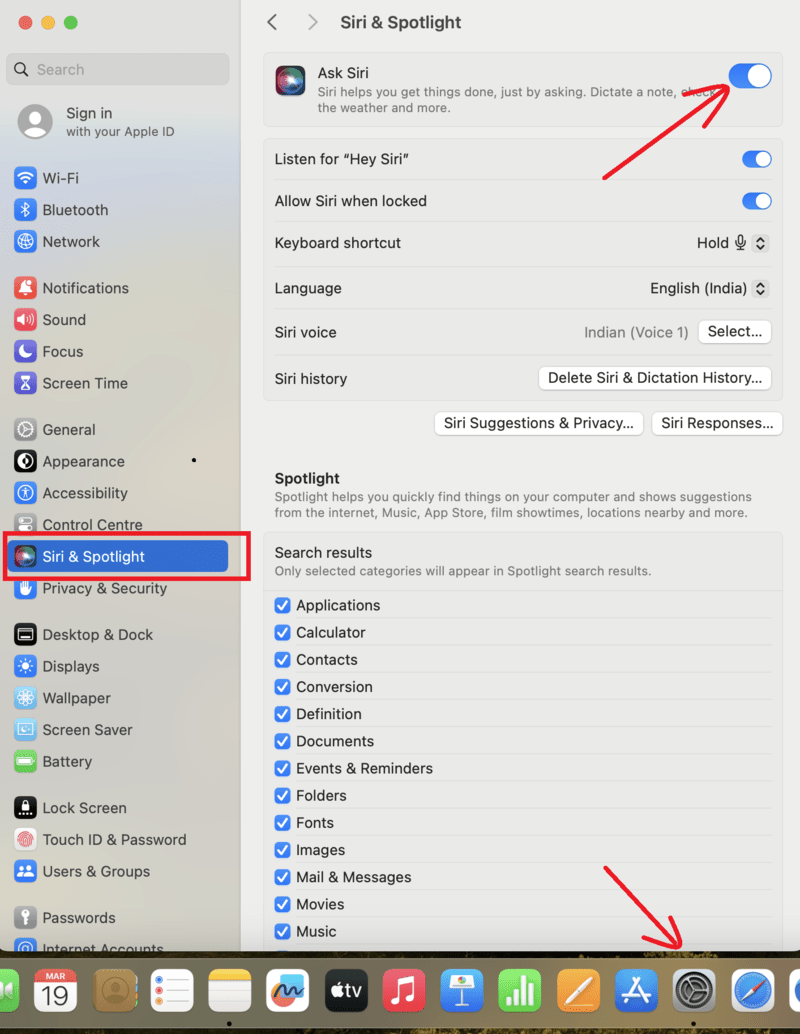
**Step 1: Open **System Settings > Select **Siri & Spotlight > Turn Off **Ask Siri toggle button to disable it.
Conclusion
On **macOS, using Siri makes it easier to communicate with your computer. **Siri commands for Mac are flexible and easy to use, whether you're opening apps, creating reminders, or checking the weather. You can save time and work more efficiently if you know how to use **Mac Siri shortcuts and turn on Siri on your computer. To get the **most out of MacOS Siri, don't be afraid to investigate more of its functions.