How to Use Split Screen in Microsoft Edge? (original) (raw)
Last Updated : 26 Sep, 2024
With **Microsoft Edge, you may increase productivity by seeing two tabs side by side. This function is particularly beneficial for multitasking, allowing users to compare information, follow tutorials, or **work on multiple tasks simultaneously. This tutorial will teach you how to **maximize your browsing experience with Microsoft Edge by using a split screen.
How to Use Split Screen in Microsoft Edge?
We'll walk you through the process whether you're unfamiliar with the **Microsoft Edge split screen function or want to take full advantage of it.
**Step 1: Open Microsoft Edge and click on the search bar located at the top of your screen, Then, type **edge://flags in it and hit **Enter.

**Step 2.1: On the page that opens up, you will notice a search bar at the top. Type **Split Screen in it and hit **Enter.
**Step 2.2: The below feature will pop up. Now, click on the dropdown menu at the end of the row and hit **Enabled.
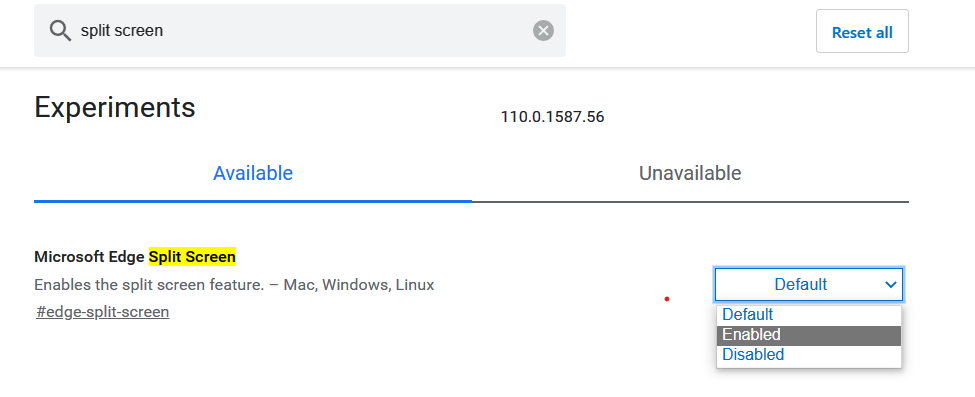
**Step 3: You will notice a **Restart button at the bottom right corner of your screen. Click on it to relaunch Microsoft Edge.

**Step 4.1: After Edge is relaunched, open any webpage in it.
**Step 4.2: Right-click on any link in the webpage that you would like to open.
**Step 4.3: In the context menu that appears, you will notice an option called **Open link in the **split window. Click on it to proceed.

**Step 5: As you can see below, the link opens side-by-side in the same tab, instead of in another tab. Now, you can work simultaneously on both tabs without falling into the hassle of changing tabs over and over again.

Conclusion
Getting proficient with Microsoft Edge's split screen can revolutionize your workflow by facilitating effective multitasking. Microsoft Edge's dual-screen browsing feature makes it easy to multitask when conducting research, comparing websites, or just working on two activities at once. You'll be able to increase productivity and convenience to a whole new level with the Microsoft Edge split screen.