How to Install Windows 10 From a USB Flash Drive? (original) (raw)
Last Updated : 8 Oct, 2025
Installing **Windows 10 from a USB flash drive is one of the most efficient ways to set up or upgrade your operating system. Whether you’re installing Windows 10 on a new PC or performing a clean installation on your existing device, using a bootable USB drive simplifies the process. This method allows you to bypass the need for physical discs and offers faster installation times.
In this guide, we'll show you how to create a bootable USB drive, set it up as your primary boot device, and install Windows 10 step by step.
**Windows 10 Hardware Requirements:
Here are the minimum system specifications needed to properly run Windows 10:
- Processor: 1GHz or faster
- RAM: 1GB for 32-bit or 2GB for 64-bit
- Storage Space: 16GB for 32-bit or 20GB for 64-bit
- Graphics Card: DirectX 9 or later with a WDDM 1.0 driver
- Display: 800x600
How to Install Windows 10 From USB Flash Drive - 8 Steps
It's not always possible to install Windows 10 using a disc because the majority of modern computers do not have a CD or DVD drive. Luckily, discs are no longer necessary—all you need is a USB drive.
Step 1: Visit the Windows 10 website Official site
Browse to the **Official Website of Windows 10 & download the **ISO File for configuration purposes.
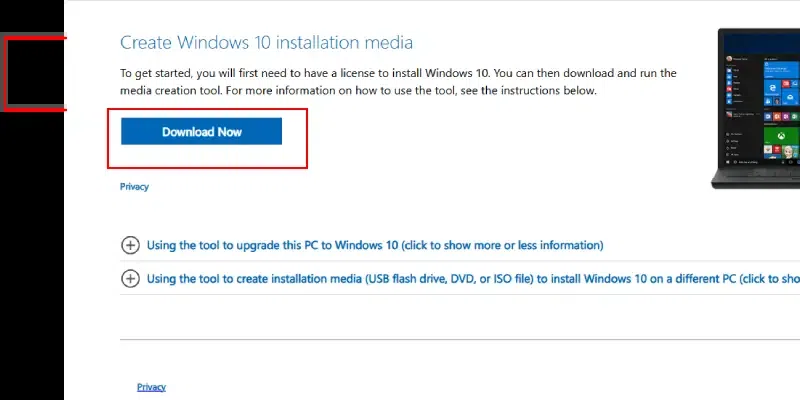
Visit the official site
Step 2: Create Windows 10 Installation Media
Click on **Download Tool Now. Insert the **USB Drive into the device which has a minimum of 8 GB of free memory.
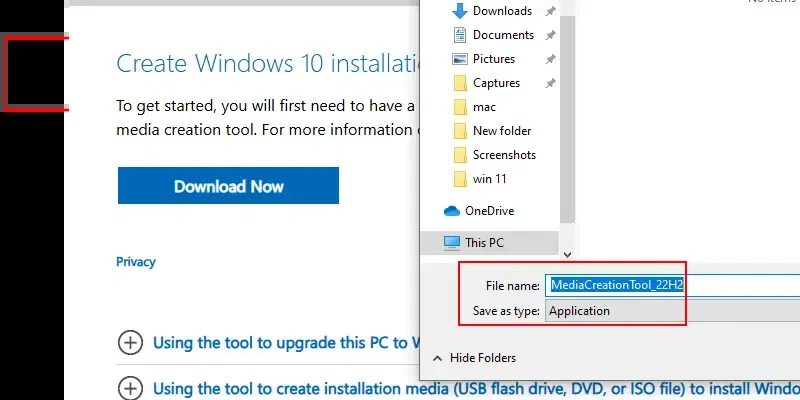
Create media
Step 3: Accept the License Agreement
Open the installed file & click on the **Accept button to move ahead. It is advisable to read all the items & conditions before moving ahead.
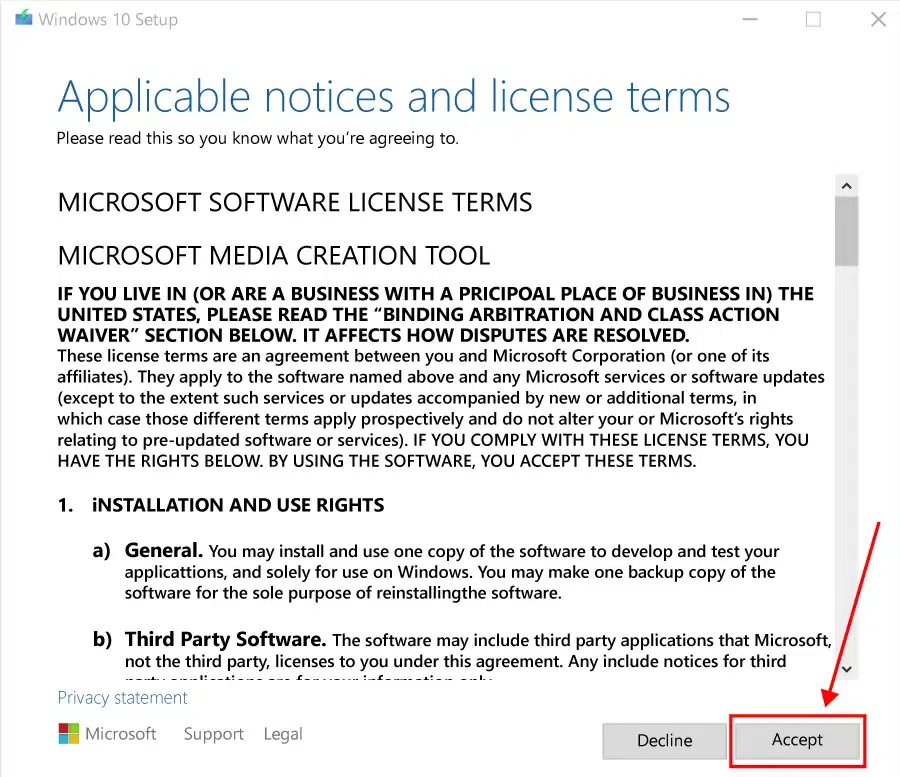
Accept License
Step 4: Select the Installation Media
Choose "Create installation media (USB flash drive, DVD, or ISO file) for another PC" and click "Next."
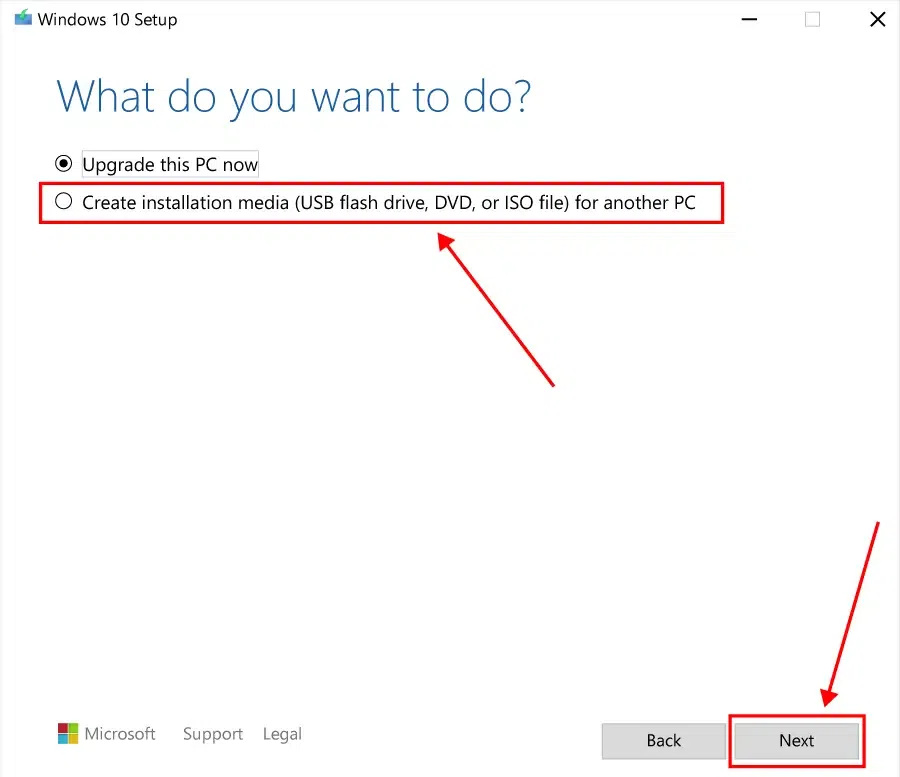
Create media
Step 5: Choose Language
Now, in the next window, mark the **Checkbox which will get all the device-related information. Click **Next to move ahead.
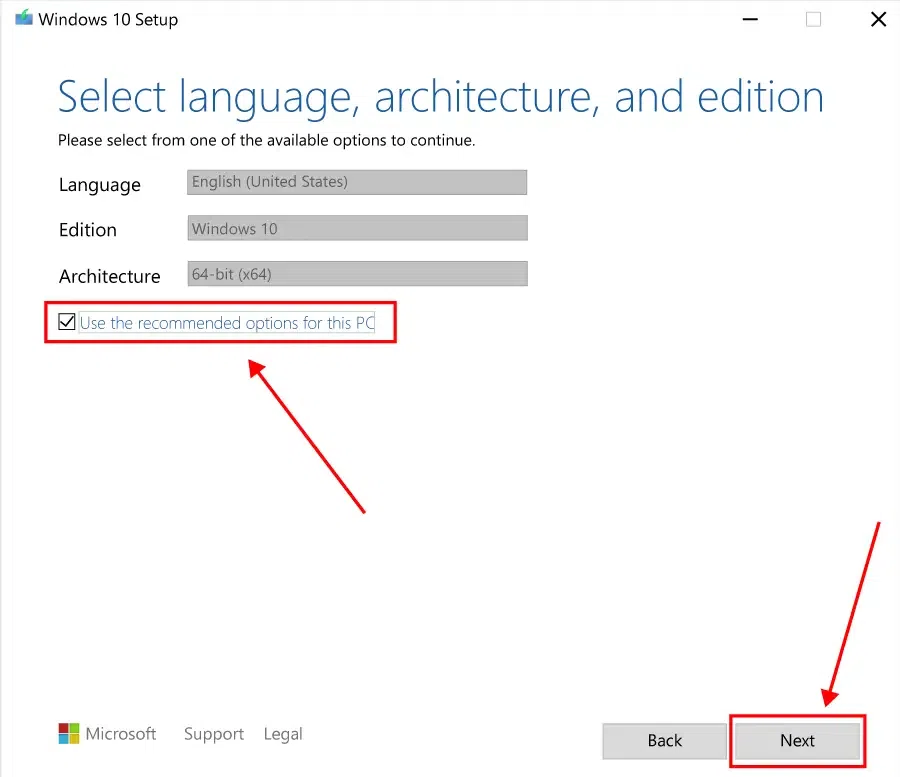
Choose Language
Step 6: Select USB Flash Drive
Now, click on the **USB Drive option & click **Next.
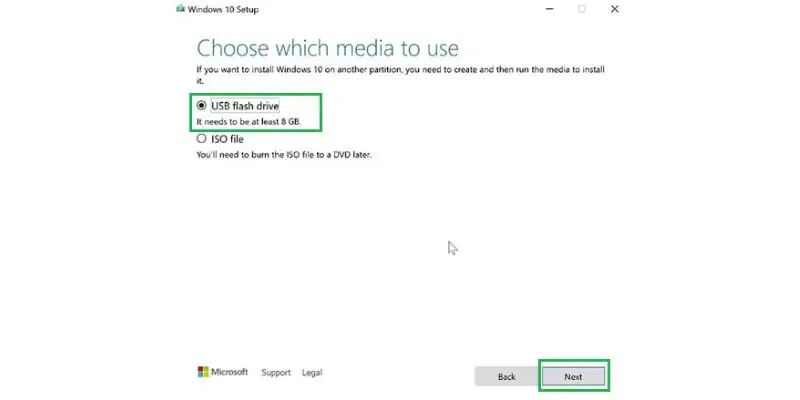
Choose Media
Step 7: Select the USB Drive to Initiate
Now, the **USB Drive will be shown, click **Next to start processing.
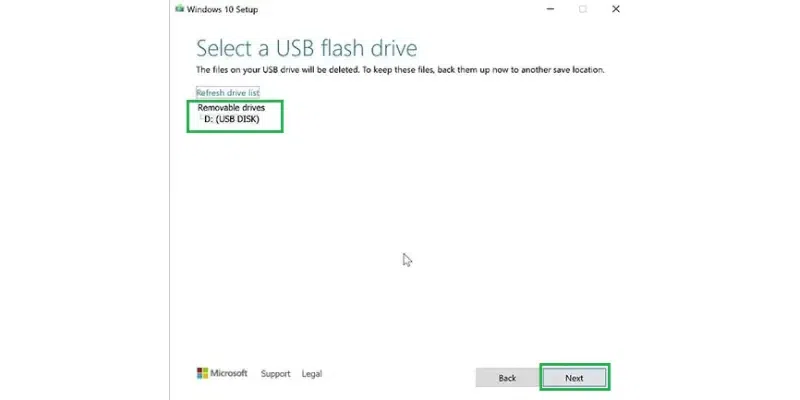
USB Flash
Step 8: Finish the Setup
After waiting a bit, click on **Finish to complete the process.
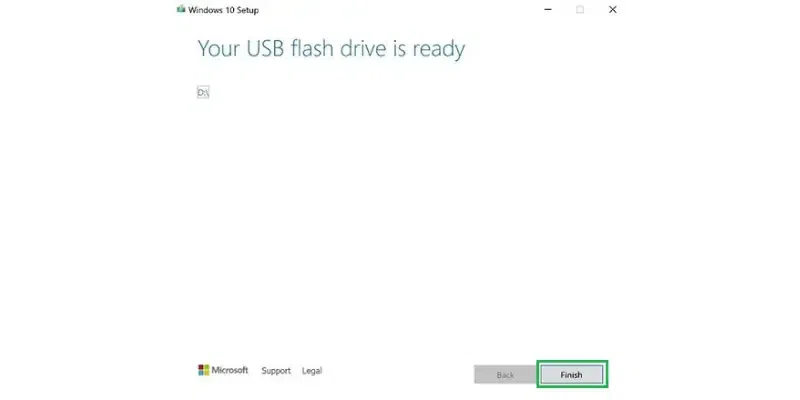
PC Ready
Hence, we have successfully configured the USB drive for installing Windows 10 on a desktop or laptop.
Steps to Configure Your Computer to Boot from the USB Drive
The steps to install Windows 10 from USB are as follows:
**Step 1: Insert the Bootable USB Drive and Restart the Device
To **boot Windows 10 with USB, restart the device & enter the boot menu option. On the screen, click on **Next by leaving all the options as it is.
**Note: The method to enter the boot menu is different for different devices. Sometimes, pressing the F2 key can lead to the boot menu. It is advisable to search for the key on the internet along with the name of the motherboard. Because the key depends upon the type of motherboard installed in the device.
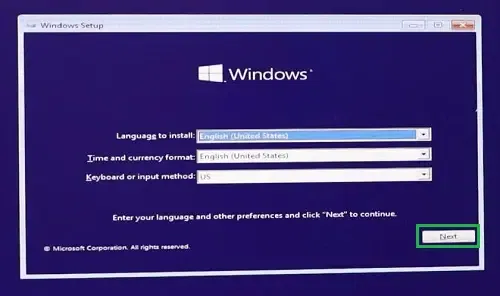
Boot menu
**Step 2: Proceed to Install
Now, click on the **Install Now button.
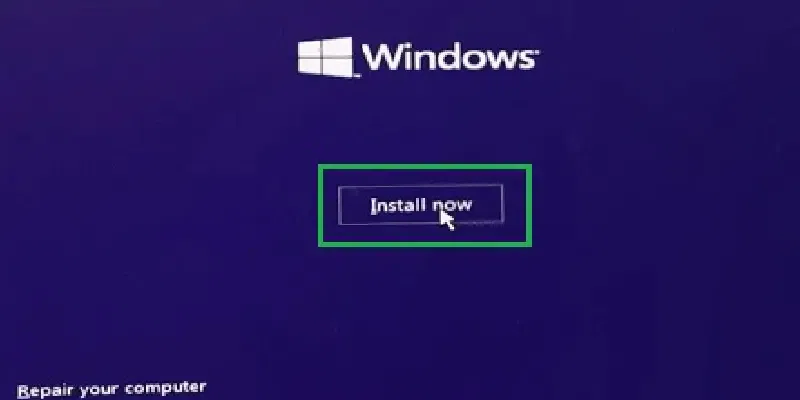
Click to Install now
**Step 3: Proceed ahead with or without Product Key
In the next window, it will ask for the **Product Key. Click on the option below to move ahead without Product Key.
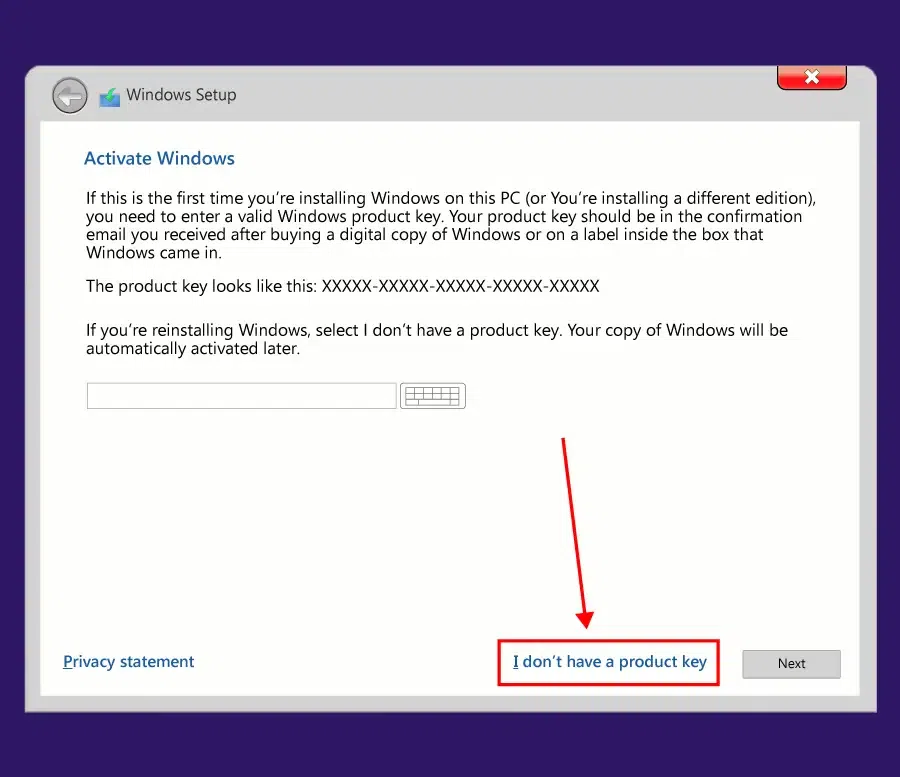
Product key
**Step 4: Choose Installation Type
On the next page, so many options will be present for Windows 10. Select the **Default one & click **Next.
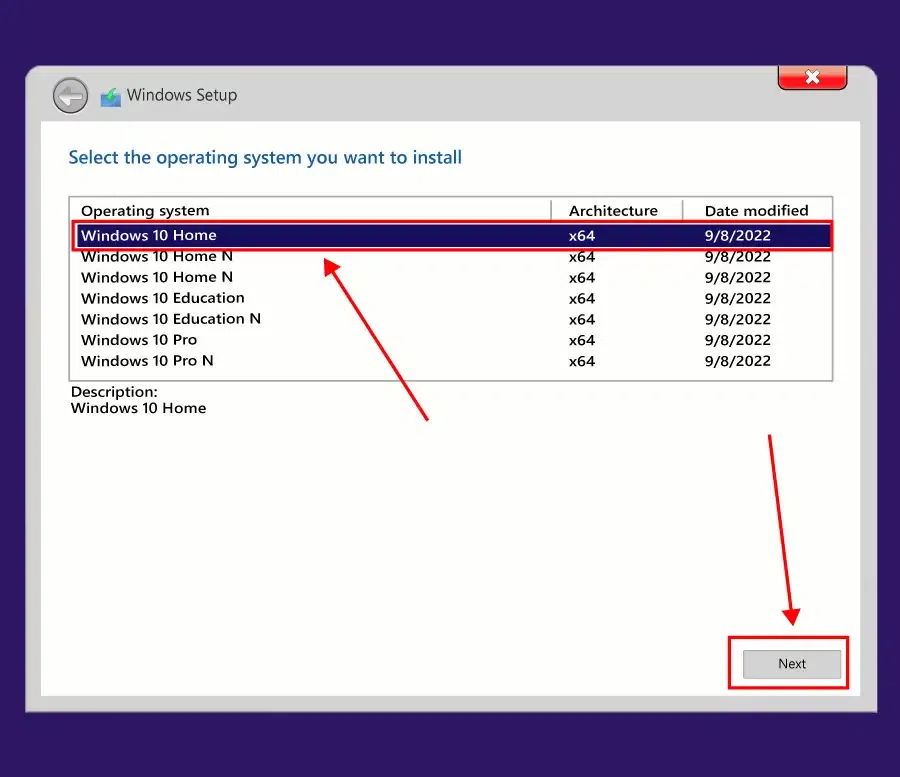
Installation type
**Step 5: Proceed with the License
Click on the **Checkbox as consent for the terms & conditions. And click on the **Next button. It is advisable to read all the items & conditions before moving ahead.
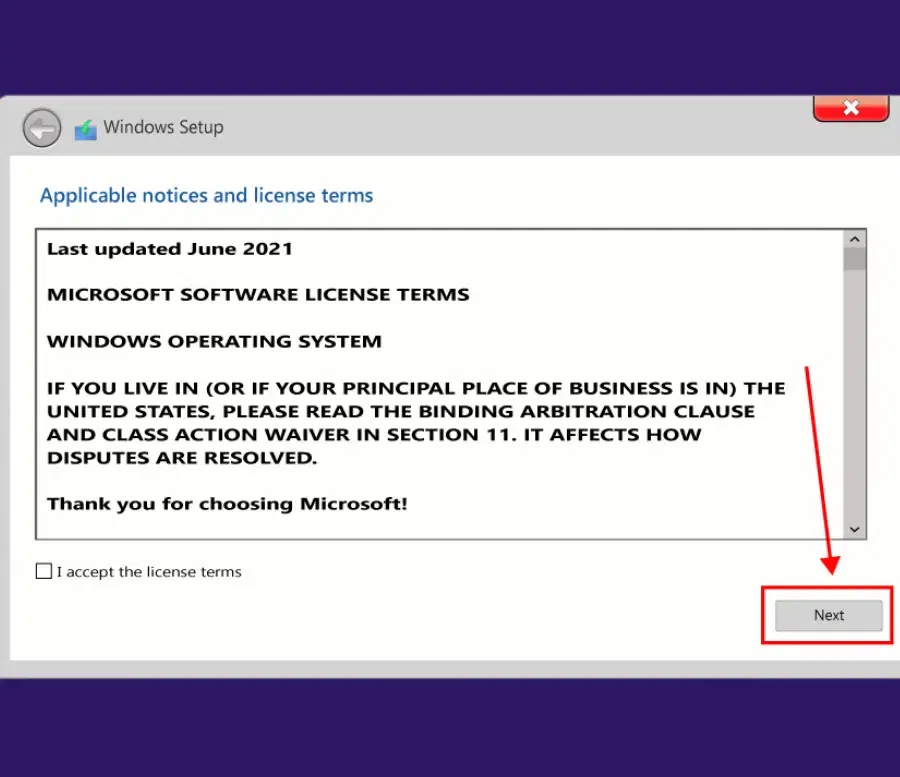
License and Agreement
Step 6: Begin the Installation by clicking on the "Upgrade" option
Now, click on the **Upgrade option to move all the files & supported applications to Windows 10 without occurring any error.
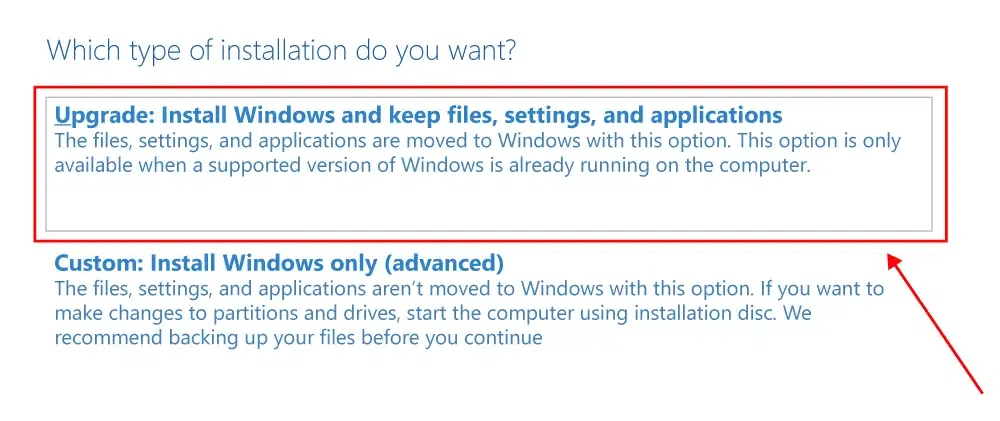
Upgrade
**Finish Setting up Windows 10
Now, the installation process is started. Wait till the installation is completed.
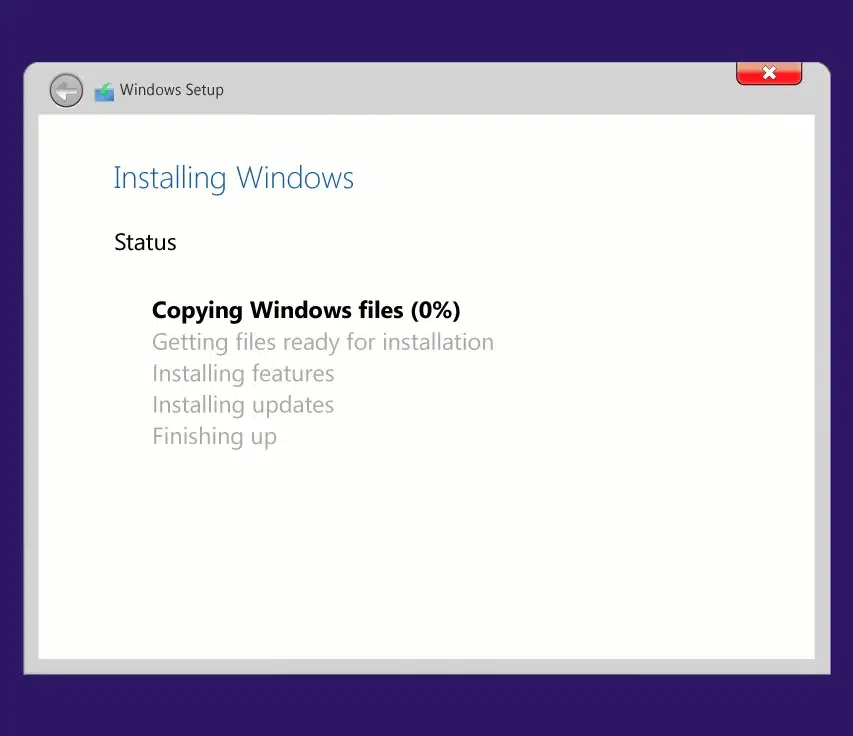
Complete Installation of Windows 10
Hence, we have successfully installed Windows 10 operating system using a USB drive on any computer or laptop.
By following these steps, you can successfully install Windows 10 from a USB flash drive, providing a fresh and efficient operating system experience.