Essential CMD Commands for Windows Users (original) (raw)
Last Updated : 12 Jan, 2026
The Windows Command Prompt (CMD) is a powerful tool that allows users to interact with their operating system through text-based commands.
1. CMD Commands for Beginners
These commands are essential for users who are new to CMD and provide basic functionalities to help them navigate and perform simple tasks.
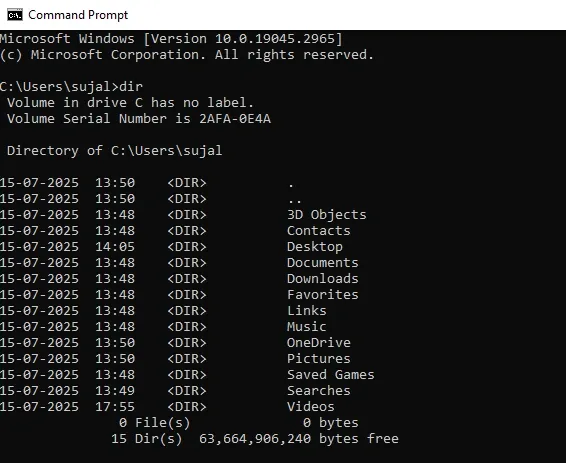
**1. View Directory ' dir '
- **Function: Displays the contents of the current directory.
- **How to use: Type **
dir**and press Enter. Use **dir /s**to include subdirectories. - **Use case: Quickly view files and folders in your current location.
**Syntax: dir
2. Change Directories 'cd'
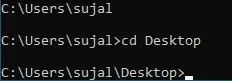
- **Function: Let's you navigate between folders.
- **How to use: Type
cd [folder_name]to move into a directory. Usedcd ..to go up one level. - **Use case: Navigate to specific directories to manage files or execute commands
**Syntax: cd [folder name]
3. Create a New Directory 'mkdir' or 'md'
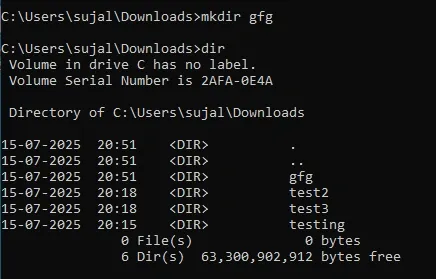
- **Function: Allows you to create a new directory
- **How to use: Type **mkdir [file_name]- Here the new directory name is GFG
- **Use case: When you need a new directory for any separate work, you may create a new directory
**Syntax: mkdir [GFG]
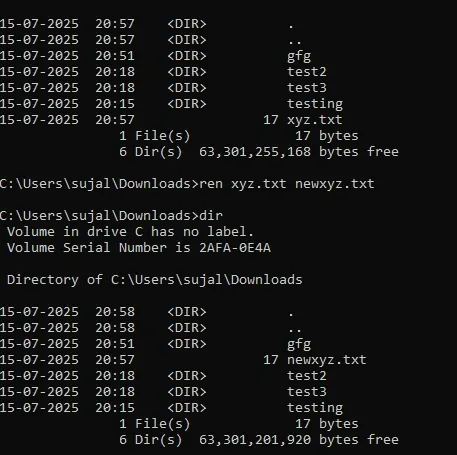
4. Rename a File 'ren'
- **Function: Helps in renaming any file or directory.
- **How to use: Type
renor**rename [old_name] [new_name]**and press **Enter. - **Use case: Discover new method of renaming file or any directory.
**Syntax: ren xyz.txt newxyz.txt
5. Delete a File 'del'
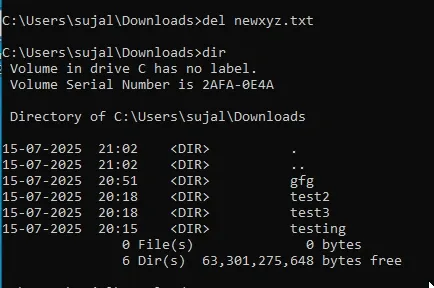
- **Function: Lets you to remove one or more files
- **How to use: Type **del [file_name]- This will erase the provided file name
- **Use case: This function allows you to erase any file if you're unable to fetch
**Syntax: del[file_name]
6. Close 'exit'
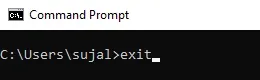
- **Function: Closes the Command Prompt window.
- **How to use: Type **
exit**and press **Enter. - **Use case: Ends your session with CMD.
**Syntax: exit
7. Clear Screen 'cls'
- **Function: Clears all text from the CMD window.
- **How to use: Type **
cls**and press **Enter. - **Use case: Removes clutter after multiple commands
**Syntax: cls

8. View Available Command 'help'
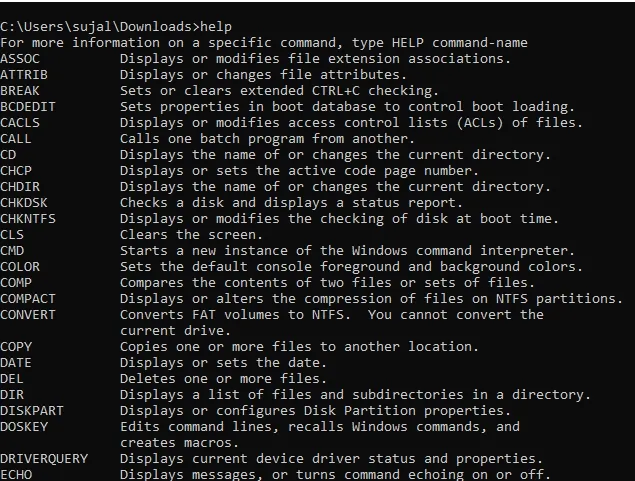
- **Function: Lists all available commands and their descriptions.
- **How to use: Type **
help**and press **Enter. - **Use case: Discover new commands and learn their functions.
**Syntax: help
time
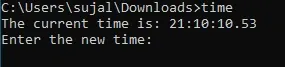
9. Display or Set the System time 'time'
- **Function: Lets you set the system time or display the current time.
- **How to use: Type
time [new_time] and press **Enter. - **Use case: Allows the user to set their system's time without additional navigation
**Syntax: time [new_time]
10. Copy Files 'copy'
- **Function: Lists all available commands and their descriptions.
- **How to use: Type
copy [source1] [destination2] and press **Enter. - **Use case: Discover new commands and learn their functions.
**Syntax: copy file.txt Backup\

| **Command | **Description | **Syntax | **Example |
|---|---|---|---|
| dir | View the contents of a directory | dir | dir C:\Users\Documents |
| cd | Change the current working directory | cd [directory_name] | cd Downloads |
| mkdir | Create a new directory | mkdir [directory_name] | mkdir NewProject |
| ren | Rename a file | ren [old_name] [new_name] | ren draft.txt final.txt |
| del | Delete a file | del [file_name] | del unwanted.txt |
| exit | Close the Command Prompt | exit | exit |
| cls | Clear the Command Prompt screen | cls | cls |
| help | View available CMD commands and their descriptions | help | help |
| time | Display or set the system time | time | time 14:30:00 |
| copy | Copy files from one location to another | copy [source] [destination] | copy report.docx D:\Backup\ |
2. CMD Commands for Experts
These commands are more advanced and suitable for users comfortable with troubleshooting and system management tasks.
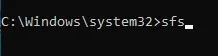
1. System File Checker 'sfc'
- **Function: Scans and repairs corrupted system files.
- **How to use: Type
sfc /scannowin CMD (run as administrator). - **Use case: Fix system errors related to missing or corrupted files.
**Syntax: sfc /scannow
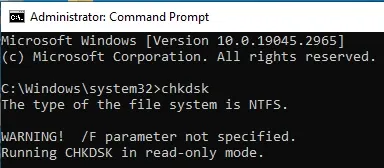
2. Disk Error 'chkdsk'
- **Function: Scans the hard drive for bad sectors and file system errors.
- **How to use: Type
chkdsk [drive letter]: /f(e.g.,chkdsk C: /f) in CMD. - **Use case: Identify and fix disk issues.
**Syntax: chkdsk C: /f
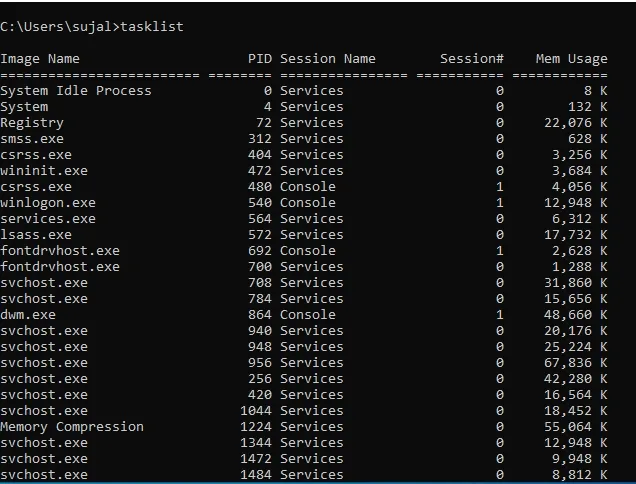
3. View Running Processor 'tasklist'
- **Function: Displays all running processes and their details.
- **How to use: Type **
tasklist**to list processes. Usetasklist /fi "imagename eq [process name]"to filter. - **Use case: Identify resource-heavy or unresponsive processes.
**Syntax: tasklist /fi "imagename eq [process name]
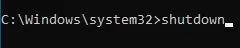
4. Restart 'shutdown'
- **Function: Allows you to shut down or restart the computer via CMD.
- **How to use:
- Shutdown:
shutdown /s /f /t [seconds]. - Restart:
shutdown /r /f /t [seconds].
- Shutdown:
- **Use case: Automate shutdown or restart tasks
**Syntax:
Shutdown: shutdown /s /f /t [seconds].
Restart: shutdown /r /f /t [seconds].
5. Network Statistics 'netstat'
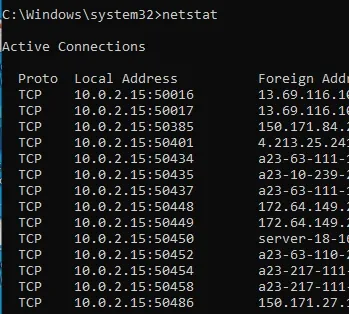
- **Function: Displays active connections and listening ports.
- **How to use: Type **
netstat**to view all active connections. - **Use case: Diagnose network-related issues or monitor network activity.
**Syntax: netstat
6. Kill a Running Process 'taskkill'
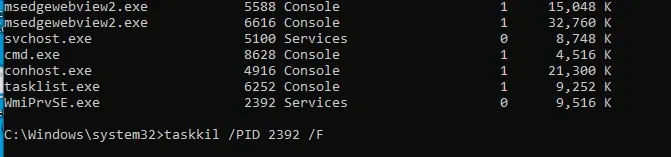
- **Function: Lets you terminate a process using its process ID (PID)
- **How to use: Type
taskkill /[PID] /F to terminate - **Use case: Can be helpful for terminating any dedicated PID.
Example (PID: 1124)
**Syntax: taskkill /PID 11234 /F
7. View Saved Passwords 'netsh wlan show profiles'
- **Function: Retrieve the password of a saved Wi-Fi network.
- **How to use: Type netsh wlan show profile name="WiFi-Name" key=clear
- **Use case: Discover new commands and learn their functions.
**Example: netsh wlan show profile name="MyHomeWiFi" key=clear

| **Command | **Description | **Syntax | **Example |
|---|---|---|---|
| sfc | System File Checker - Scans and repairs system files | sfc /scannow | sfc /scannow |
| chkdsk | Check Disk - Scans and fixes disk errors | chkdsk [drive]: /f /r | chkdsk C: /f /r |
| tasklist | View running processes | tasklist | tasklist |
| shutdown | Shutdown or restart the system | shutdown /r /t [seconds] | shutdown /r /t 10 _(Restart in 10 seconds) |
| netstat | View network statistics and active connections | netstat -a | netstat -an _(Show all connections numerically) |
| taskkill | Kill a running process using its process ID (PID) | taskkill /PID [PID] /F | taskkill /PID 4567 /F _(Kill process with ID 4567) |
| netsh wlan show profiles | View saved Wi-Fi network names | netsh wlan show profiles | netsh wlan show profiles |
3. CMD Commands for Utility
These commands are focused on specific tasks and utilities to enhance productivity and system performance.
1. Network Configuration 'ipconfig'
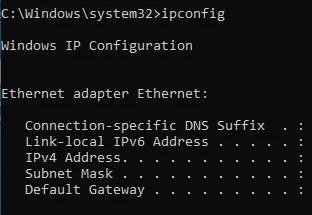
- **Function: Displays IP address, subnet mask, and gateway information.
- **How to use:
- Basic: Type
ipconfig. - Detailed: Type
ipconfig /all.
- Basic: Type
- **Use case: Troubleshoot internet connectivity issues.
**Syntax: ipconfig
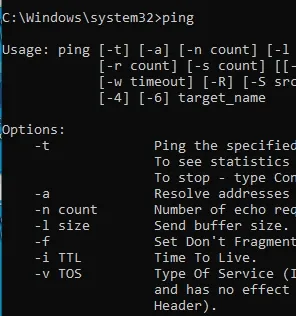
2. Network Connectivity 'ping'
- **Function: Sends packets to test communication with another device or website.
- **How to use: Type
ping[destination] - **Use case: Check if a device or website is reachable.
**Syntax: ping geeksforgeeks.org
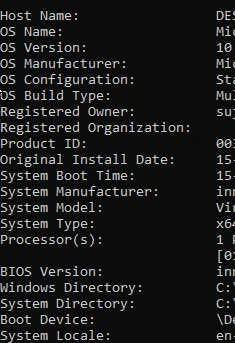
3. System Information 'systeminfo'
- **Function: Displays detailed information about your computer.
- **How to use: Type
systeminfo. - **Use case: Quickly access system specifications for troubleshooting or reporting.
**Syntax: systeminfo
4. Trace Route 'tracert'
- **Function: Shows the path packets take to reach a specific destination.
- **How to use: Type
tracert[destination] - **Use case: Identify network bottlenecks or connectivity issues.
**Syntax: tracert geeksforgeeks.org

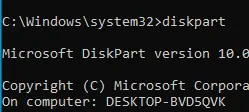
5. Manage Drives 'diskpart'
- **Function: Opens a command-line utility for managing disk partitions.
- **How to use: Type **
diskpart**to enter the disk management interface. - **Use case: Create, delete, or modify partitions on your drives.
**Syntax: diskpart
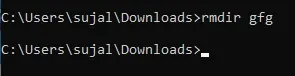
6. Delete a Directory 'rmdir'
- **Function: Removes directory from the origin
- **How to use: Type rmdir [directory_name] and press **Enter.
- **Use case: Discover new commands and learn their functions.
**Example: GFG - Directory name
**Syntax: rmdir GFG
7. View 'rmdir'
- **Function: Removes directory from the origin
- **How to use: Type rmdir [directory_name] and press **Enter.
- **Use case: Discover new commands and learn their functions.
**Example: GFG - Directory name
8. Manage User Account 'net user'
- **Function: To list all the user accounts
- **How to use: Type net user and press **Enter.
- **Use case: Discover new commands and learn their functions.
**Syntax: net user username password /add

9. View Startup Programs 'wmic startup get caption,command'
- **Function: To check what programs launch on startup.
- **How to use: Type wmic startup get caption,command, and press **Enter.
- **Use case: Discover new commands and learn their functions.
**Syntax: wmic startup get caption,command

| **Command | **Description | **Syntax | **Example |
|---|---|---|---|
| ipconfig | View network configuration, including IP address, subnet mask, and gateway | ipconfig | ipconfig /all _(Displays detailed network info) |
| ping | Test network connectivity by sending packets to a host | ping [host or IP] | ping google.com _(Check connection to Google) |
| systeminfo | Display detailed system information, including OS version, installed memory, and processor | systeminfo | systeminfo |
| tracert | Trace the route packets take to a network destination | tracert [hostname or IP] | tracert google.com _(View network path to Google) |
| diskpart | Manage disk partitions, including creating, formatting, and deleting partitions | diskpart | diskpart → list disk → select disk 1 → create partition primary |
| rmdir | Delete a directory (folder) | rmdir [directory_name] | rmdir /s /q OldFolder _(Delete a folder and its contents without confirmation) |
| dir | View contents of a directory | dir | dir C:\Users\Documents _(List files in a specific directory) |
| net user | Manage user accounts, including adding, modifying, or deleting users | net user | net user John password123 /add _(Create a new user account) |
| wmic startup get caption,command | View startup programs and their commands | wmic startup get caption,command | wmic startup get caption,command |
4. CMD Commands for Troubleshooting
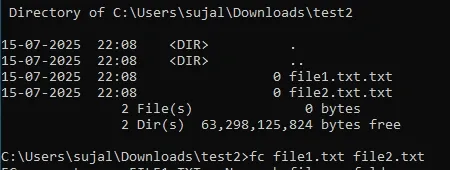
1. File Comparison 'fc'
- **Function: Compares two files and highlights differences.
- **How to use: Type
fc [file1] [file2]to compare files. - **Use case: Detect changes or errors in files
**Syntax: fc 1 2
2. **Advanced Network Diagnostics 'pathping'
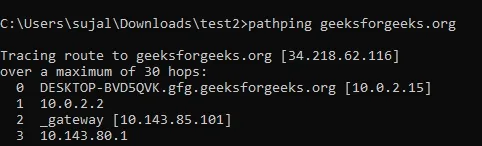
- **Function: Combines
pingandtracertfunctionalities to provide detailed network path diagnostics. - **How to use: Type
pathping[destination] - **Use case: Troubleshoot complex network issues.
**Syntax: pathping geeksforgeeks.org
3. Registry Editor 'regedit'
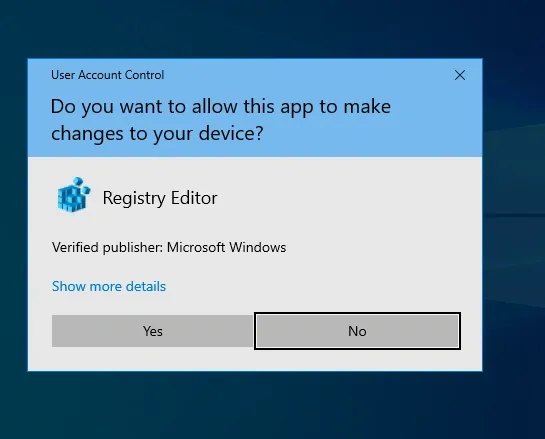
- **Function: Launches the Windows Registry Editor.
- **How to use: Type **
regedit**to open the registry. - **Use case: Modify registry keys for advanced configuration or troubleshooting.
**Syntax: regedit
4. View MAC 'getmac'
- **Function: Displays the MAC address of your network adapter.
- **How to use: Type **
getmac**to view the MAC address. - **Use case: Identify your device's hardware address for network configurations
**Syntax: getmac

5. Power Configuration 'powercfg'
- **Function: Displays and manages power settings.
- **How to use: Type
powercfg/[option] - **Use case: Optimize power usage and troubleshoot battery issues.
**Syntax: powercfg /energy for a detailed power usage report

6. Enable Boot Manager 'bcdedit'
- **Function: Used to modify boot configuration settings
- **How to use: Type
bcdedit/ set current - **Use case: Discover new commands and learn their functions.
**Syntax: bcdedit /set {current} bootmenupolicy standard

7. Format a Drive 'format'
- **Function: To erase any specific drive.
- **How to use: Type format [drive]: /FS:NTFS and press **Enter.
- **Use case: Discover new commands and learn their functions.
**Syntax: format D: /FS:NTFS

| **Command | **Description | **Syntax | **Example |
|---|---|---|---|
| fc | Compare two files and highlight differences | fc [file1] [file2] | fc file1.txt file2.txt _(Compare two text files) |
| pathping | Perform advanced network diagnostics with packet loss details | pathping [destination] | pathping google.com _(Analyze network route to Google) |
| regedit | Open the Windows Registry Editor (GUI) | regedit | regedit _(Opens the registry editor – use with caution!) |
| getmac | Display the MAC (Media Access Control) address of your network adapters | getmac | getmac /v /fo list _(View MAC addresses in detailed format) |
| powercfg | Manage and analyze power configurations | powercfg /[option] | powercfg /batteryreport _(Generate a battery usage report) |
| bcdedit | Enable, disable, or modify Windows Boot Configuration | bcdedit /set {current} [option] | bcdedit /set {current} bootmenupolicy standard _(Enable boot menu in Windows 10/11) |
| format | Format a drive (erase all data) | format [drive]: /FS:[filesystem] | format D: /FS:NTFS _(Format drive D: with NTFS file system) |
5. CMD Commands for Students
Students can use these commands to manage files, perform simple calculations, and even help with tasks like coding and studying.
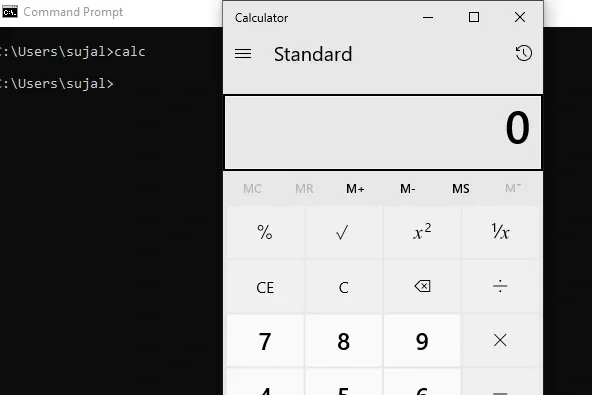
1. Calculator 'calc'
- **Function: Opens the Windows Calculator application.
- **How to use: Type **
calc**and press Enter. - **Use case: Quickly open the calculator for
**Syntax: calc
6. CMD Commands for Programmers
Programmers often use CMD to automate tasks, compile code, and test network functionality. These commands can be especially useful for developers working in command-line environments.
1. Compile Java Code 'javac'
- **Function: Compiles Java source files into bytecode.
- **How to use: Type
javac [file name].javato compile Java code. - **Use case: Compile and test Java programs directly from the command line.
**Syntax: javac

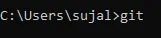
2. Version Control 'git'
- **Function: Interacts with Git repositories from the command line.
- **How to use: Type
git [command] - **Use case: Manage version control, clone repositories, or push commits from the command line.
**Syntax: git clone [repository URL]
3. Execute Python Script 'python'
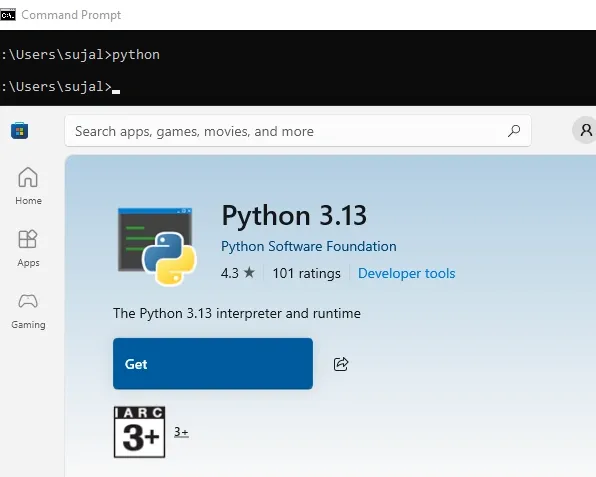
- **Function: Runs Python scripts in the command prompt.
- **How to use: Type
python [script.py]to execute a Python program. - **Use case: Test and run Python code directly in the command line.
**Syntax: python [script.py]
4. Run Node.js Scripts 'node'
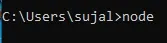
- **Function: Executes Node.js scripts.
- **How to use: Type
node [script.js]to run a JavaScript file using Node.js. - **Use case: Run backend scripts and test JavaScript programs in the command line.
**Syntax: node [script.js]
5. Node Package Manager 'npm'
- **Function: Installs and manages JavaScript packages.
- **How to use: Type
npm install [package]to install a package. - **Use case: Manage dependencies and libraries in Node.js applications.
**Syntax: npm install [package]

| **Command | **Description | **Syntax | **Example |
|---|---|---|---|
| javac | Compile Java source code into bytecode (.class files) | javac [filename].java | javac HelloWorld.java _(Compile a Java file) |
| git | Version control system for tracking changes in files | git [command] | git clone https://github.com/user/repo _(Clone a repository) |
| python | Execute a Python script or enter interactive mode | python [script.py] | python script.py _(Run a Python script) |
| node | Execute JavaScript code using Node.js | node [script.js] | node app.js _(Run a Node.js script) |
| npm | Manage Node.js packages and dependencies | npm [command] | npm install express _(Install the Express.js package) |
**7. Bonus: CMD Tricks and Tips
To make CMD usage even more efficient, here are some bonus tips:
**1. Save CMD Output to a File
Use the**>** operator to save the output of a command to a text file.
**2. Open CMD in a Specific Directory
Instead of navigating manually, you can directly open CMD in a folder by typing cmd in the File Explorer's address bar.
**3. Use && for Multiple Commands
You can run multiple commands sequentially:
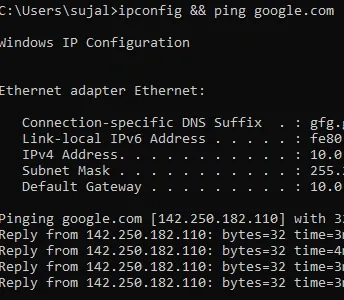
ipconfig && ping google.com