Network Console Tool in Microsoft Edge Browser (original) (raw)
Last Updated : 16 Oct, 2023
The network console is one of the developer tools offered by Microsoft Edge, a web browser. It provides a picture of network activity during web page loading for web developers and analysts. The Network Console aids in optimizing web page speed and troubleshooting network-related problems by capturing and showing information about network requests, responses, and other pertinent information.
Features of the Network Console Tool:
The Network Console Tool in Edge web browsers offers a variety of tools that help developers and analysts understand how networks function.
- **Customization: With the help of the network console, we can customize the requests by tweaking the different parameters like headers, methods, bodies, and query parameters.
- **Parameterized Testing: We can easily test different situations and scenarios by changing the given input. Fog: If we are testing the weather API, we can test using different dates, locations, etc.
- **Authentication: Along with the API testing endpoint, we can include the authentication key and other parameters to ensure a personalized experience.
Benefits of using the Network Console Tool:
- With the help of the network console, we can easily take advantage of the customization, which limits the possibility of some type of inaccurate testing.
- With the help of authentication provided by the network console, we can simply get a personalized response, which helps in proper testing by avoiding chances of data loss.
- We can easily tweak the request by changing the method, such as GET,POST,PUT,PATCH, etc., according to the need.
- By providing the custom authentication key and headers, we can easily perform isolations. Which also helps in understanding status codes and errors.
When we can use the Network Console Tool:
- **Testing API: with the help of Network console, API testing will be very easy as we can customize the Endpoint as we want.
- **Sending / Receiving Testing Data: We can send sample data to see the response given by API, by analysing that data we can make further changes in the input URL and parameters.
Using the Network Console Tool:
****Step 1:**To open DevTools, right-click the webpage, and then select Inspect. Or, press **Ctrl+Shift+I (Windows, Linux) or **Command+Option+I (macOS).
Opening Network Console
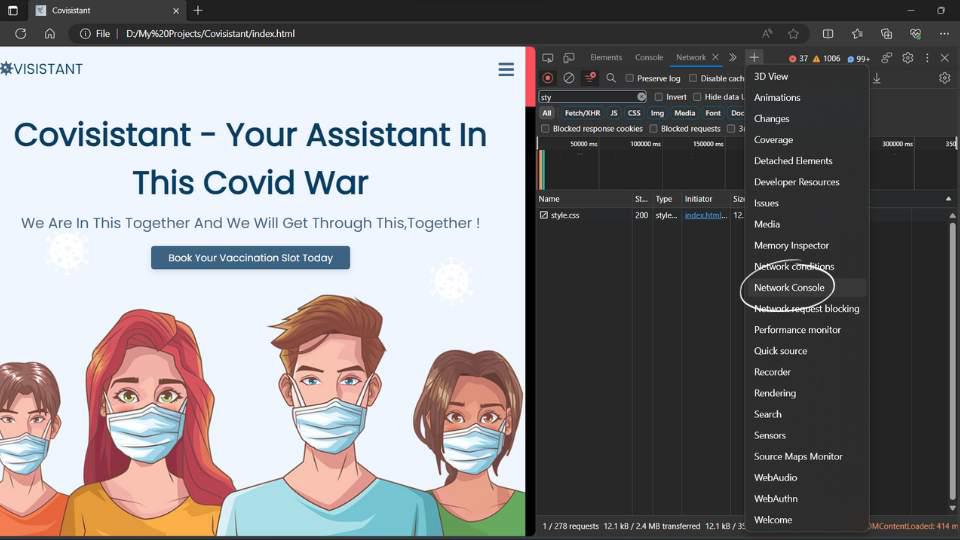
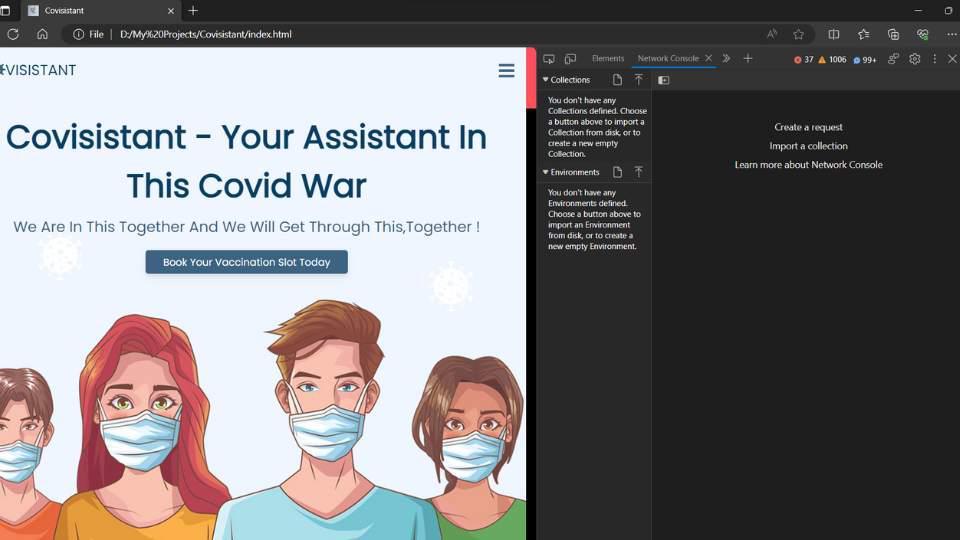
**Step 2: In DevTools, on the main toolbar or the Drawer toolbar at the bottom, select the Network Console tab. If that tab isn't visible, click the More tabs (More tabs icon) button, or else the More Tools (More Tools icon) button.
Network console Tab
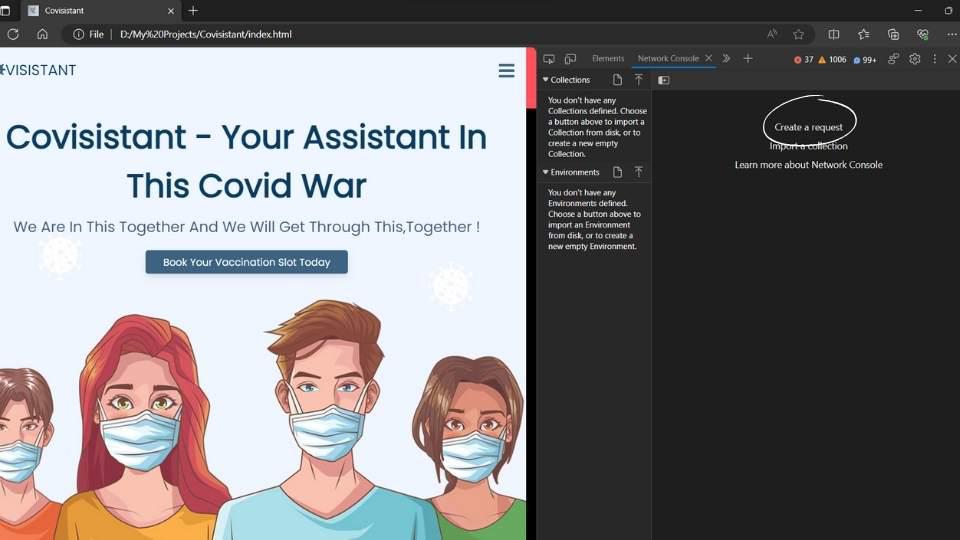
**Step 3: **Create a Custom Request: In the main pane of the Network Console tool, locate and click on the "**Create a request" button. This button may appear as a plus icon (+) or a similar indicator, depending on the version of Microsoft Edge you are using.
Create custom request
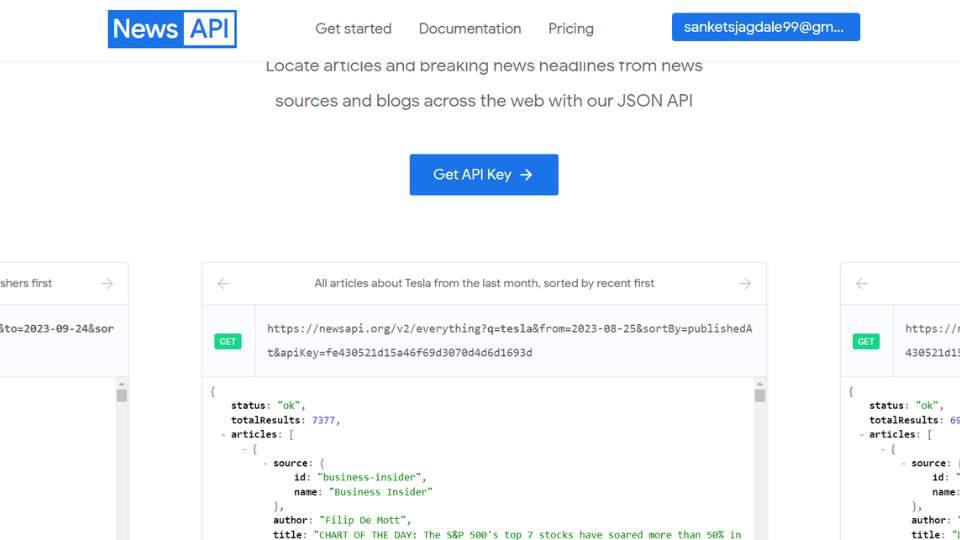
**Step 4: **Enter the URL: In the "**Untitled Request" text box that appears, enter the URL you want to test. This is the URL to which your custom request will be sent for testing.
We will test "**NEWS API" by sending dummy API request for fething all the trending news.
News API
**Step 5: **Choose the HTTP Method: Choose the appropriate REST method for your request from the "**GET" dropdown list (or any other dropdown with HTTP methods). Depending on your testing needs, you can pick from standard methods like **GET, HEAD, POST, PUT, or PATCH.
**Step 6: **Submit the Request: To submit the customised request after entering the URL and choosing the HTTP method, press the "**Enter" key or, if one is present, click the "**Send" button.
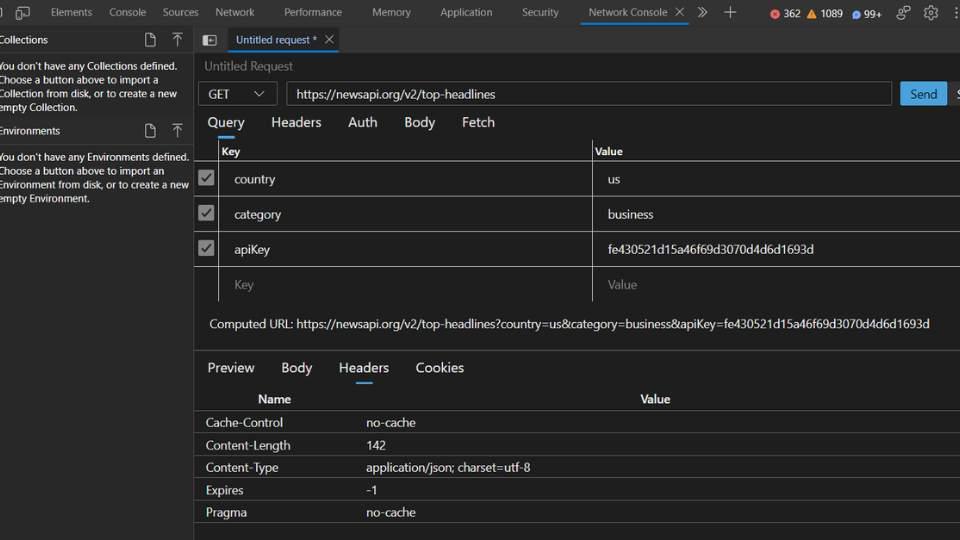
**Step 7:Analyze Requests: You'll see a list of network requests in the Network Console. Click on a request to view detailed information, including headers, timing, and response data.
analyzing req
**Conclusion
custom requests are a fundamental and powerful tool for developers, testers, and analysts working with web services and APIs. They provide a level of control and flexibility that is essential for a wide range of tasks, from API testing and debugging to security assessments and performance optimization.