Troubleshooting Google Chrome on Windows 10 (original) (raw)
Last Updated : 23 Jul, 2025
Experiencing issues with **Google Chrome on Windows 10 can be frustrating, especially when it affects your browsing experience. Whether **Chrome is crashing frequently or you notice **slow performance, this guide will help you **troubleshoot Google Chrome on Windows 10 effectively. From simple fixes like clearing your cache to advanced solutions such as resetting Chrome, we’ll explore the best methods to **resolve Chrome issues and get your browser running smoothly again.
Table of Content
- Troubleshooting Google Chrome on Windows 10
- Method 1: Check Chrome's Latest Version
- Method 2: Clear History and Browser Cache
- Method 3: Disable all Chrome Extensions
- Method 4: Using the no-sandbox flag for Google Chrome
- Method 5: Change Chrome Default Profile
- Method 6: Check for and remove incompatible programs
- Method 7: Switch to a new user profile
- Method 8: Clear DNS Cache on System
- Method 9: Run System File Checker (Checks corrupt system files)
- Method 10: Run the DISM Tool to restore corrupted files
- Method 11: Reinstall the Google Chrome
- Method 12: Change DNS Server
- Troubleshooting Google Chrome on Windows 10 - FAQs
Troubleshooting Google Chrome on Windows 10
Let’s dive into it and look at the 12 best possible methods of troubleshooting the crashing Google Chrome issue:
**Method 1: Check Chrome's Latest Version
- Open your Google Chrome browser.
- Go to the **Settings icon on the extreme right.
- Then click on the **Help option followed by the **About Google Chrome option.
- Make sure that you have the latest version of Google Chrome installed on your system.
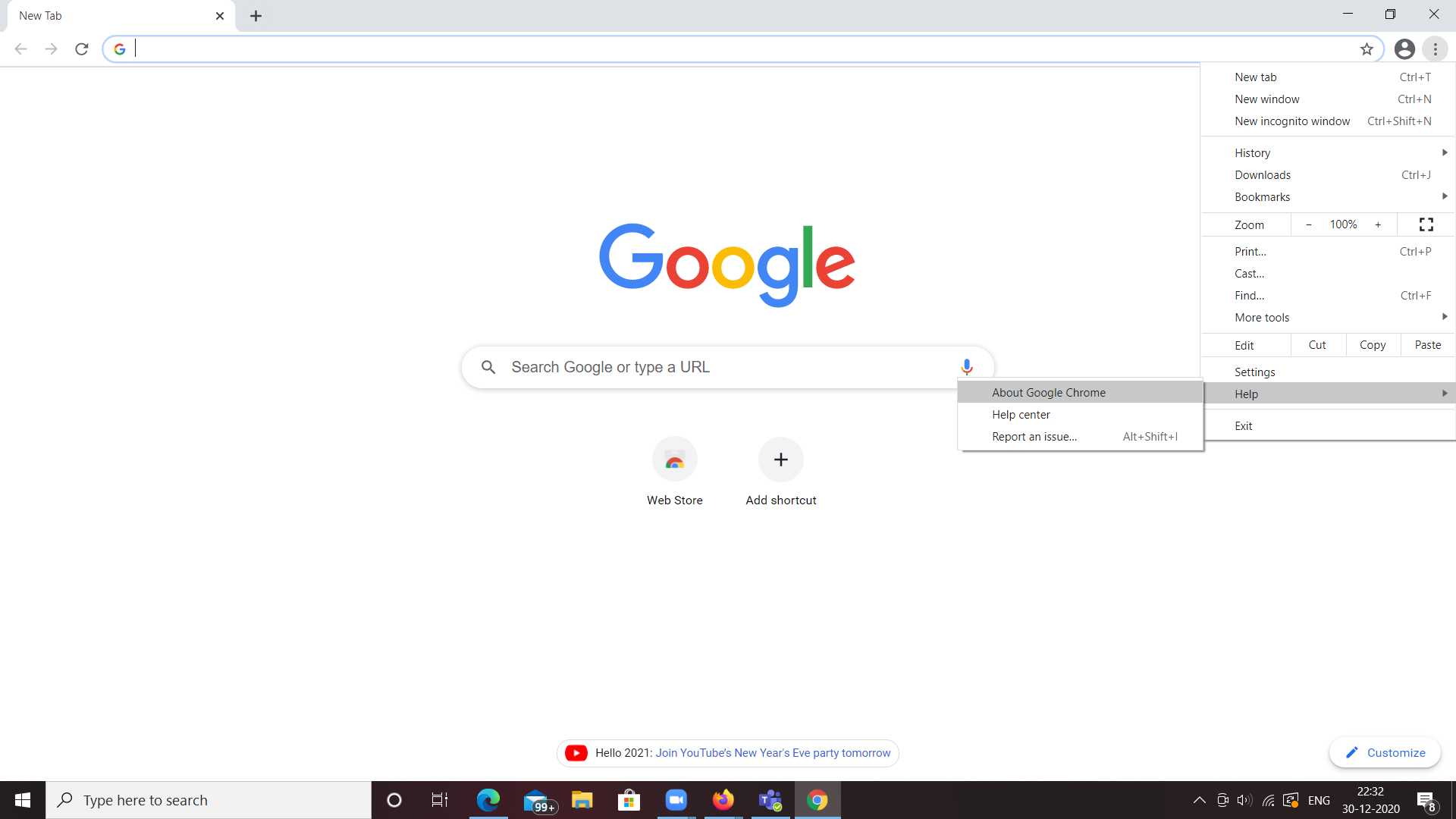
- Check whether Google Chrome is up to date or not as shown below. If not update it.

**Method 2: Clear History and Browser Cache
- Go to the **Settings icon on the extreme right.
- Go to **History followed by the History option.
- A new screen pops up as shown below.

- Click on the **Clear Browsing data on the left side. Then a screen pops up as shown below.

- Click on the **Advanced tab. Select the time range to all time. Select all the data and click on the clear data button.

- Relaunch the web browser and see if it works.
**Method 3: Disable all Chrome Extensions
- Go to the address bar and type **chrome://extensions. Here you will be shown all the extensions installed in your web browser.
- Disable all the extensions and see if Google Chrome becomes more stable.
- Relaunch your web browser.

- Try browsing in Google Chrome and check if it fixes your problem. If yes, it means some extensions are causing a crash on your web browser.
- So try manually enabling all the extensions one by one and observe whether that particular extension is the one that is causing the issue.
**Method 4: Using the no-sandbox flag for Google Chrome
- Go to your desktop.
- Right-click on the Google Chrome shortcut.
- Click on the **Properties option.
- Before proceeding any further make sure you have a shortcut icon on the Desktop. If not, simply drag the Google Chrome icon from your Start menu to the Desktop.
- Locate the Target line.
- Type **-no-sandbox at the end of the input field
- Click on the Apply button
- Relaunch Google Chrome

**Method 5: Change Chrome Default Profile
- Close the web browser and ensure that all the instances of Google Chrome are closed by going to the Task Manager's Details tab.
- Once done go to the file explorer and type ****%appdata%** in the address bar.

- Click on the **AppData followed by the Local folder.
- Look for the Google folder followed by the Chrome folder. Open the User Data folder inside Chrome.
- Rename the Default folder to Default. Old and see if this solves your problem.
**Method 6: Check for and remove incompatible programs
- Open your Google Chrome browser.
- Navigate to the settings page by typing **chrome://settings in the address bar.
- Scroll to the bottom of the page.
- Click on the Advanced link.
- Locate the Reset and Clean-up section.
- Click on Clean up computer.
- A new page pops up with the option to Find harmful software.
- Click on the Find button.
- Choose to remove any incompatible applications on your device.
- Restart Google Chrome.

**Method 7: Switch to a new user profile
- Open your Google Chrome browser.
- Click on the **Profile icon on the extreme right of the browser window.
- Click on Manage People in the context menu
- A new window pops up, click on the Add Person button.
- After typing your name and selecting a profile picture, click on the Add button.
- To switch to a new user profile visit the Profile icon in the extreme right of the browser.

**Method 8: Clear DNS Cache on System
- Close the Google Chrome browser.
- Go to the start menu and open the command prompt.
- Type **ipconfig /flushdns.
- Then type **netsh winsock reset.

- It clears the DNS Cache on your System.
- See if this works and solves your problem.
**Method 9: Run System File Checker (Checks corrupt system files)
- Stay on the command prompt and type **sfc /scannow.
- It runs the system file checker and checks if any of our files get corrupted in shutdown, reboot, or update.
- It will try to check the crucial system files that would probably be the cause of the crash.

**Method 10: Run the DISM Tool to restore corrupted files
- After the System file checker is done. Go ahead and try typing the command as shown below.

- It checks and repairs the found corrupt files on your system by looking at the Windows or rather the deployment image servicing and management tool image and trying and copying those corrupted files and replacing them with a fresh copy so once done hopefully that would fix your problem.
**Method 11: Reinstall the Google Chrome
- Close your Google Chrome.
- Go to the **Start menu.
- Click on the **Settings.
- Go to the apps option.
- You will be shown the list of all the apps that are currently installed on your system go ahead and look for Google Chrome then make sure to uninstall it.
- After it is uninstalled go ahead and download a fresh copy of Google Chrome.

**Method 12: Change DNS Server
- Navigate to Control Panel.
- Click on Network and Internet.
- Click on Network and Sharing Center.
- On the left-hand side you can see Change Adapter Settings Click on it.
- You can see your connected network, right-click on it, and navigate to properties.
- In the middle it shows connection items, click **Internet Connection Version 4(TCP/IPv4) and click on properties.
- Click Use the following IP Address.
- Enter **8.8.8.8 in the Preferred DNS server box and **8.8.4.4 in the Alternate DNS Server box and hit OK.
- Wait for some minutes and the Site Can't be Reached problem solved.

Control Panel View
Conclusion
By following these troubleshooting steps, you can quickly **fix Google Chrome issues on **Windows 10 and enjoy a seamless browsing experience. Whether **Chrome is freezing or refusing to open, these tips will help you diagnose and repair the problem. Keep this **Chrome troubleshooting guide handy to ensure that you can tackle any future issues with ease.