How to Use WebView2 in Microsoft Edge Browser (original) (raw)
Last Updated : 23 Jul, 2025
Have you ever wanted to integrate web content into a desktop application seamlessly? With **WebView2 in Microsoft Edge, developers can now embed web content directly within native Windows applications. **WebView2 offers a simple way to display web-based content using the **Chromium engine inside your apps—whether it's for a quick web page display or a more complex web-based interaction.
It’s a perfect solution for developers looking to build modern, browser-powered applications. In this guide, we’ll explain **how to use WebView2 in Microsoft Edge, explore its benefits, and walk you through integrating it into a simple **Windows Presentation Foundation (WPF) application.
**What is WebView2
**Microsoft WebView2 allows developers to easily embed web content (like HTML, CSS, and JavaScript) directly into their native Windows applications. This makes it possible to use modern web technologies while still enjoying the features and performance of traditional apps.
Built on the **Chromium engine (the same engine used by **Google Chrome and **Microsoft Edge), **WebView2 ensures that your app is compatible with the latest web standards, offering excellent performance and security.
By adding **WebView2 to your development process, you can create interactive and engaging user experiences that combine the best of both web and native app features.
**Benefits of WebView2
- **Accelerated progress: Utilize the extensive array of web technologies (**libraries, **frameworks, and **tools) to speed up development timelines and minimize coding workload.
- **Flexibility: Merge web components with native apps, empowering the development of interactive and advanced applications.
- **Enhanced user satisfaction: Blend the top features of web and native app experiences, providing users with a recognizable and visually pleasing interface.
- **Budget-friendly solutions: Cut down on development and upkeep expenses by making use of established web technologies and expertise.
**When to Use WebView2 in Microsoft Edge
- **Hybrid applications: Develop apps that combine the advantages of web and native features, providing improved flexibility and user satisfaction.
- **Modern UI: When developing modern user interfaces that require dynamic web content, WebView2 can be used to integrate such content seamlessly.
- **Old Application Modernization: WebView2 has the power to revitalize outdated applications by seamlessly incorporating cutting-edge web technologies, all without the need to completely rewrite the entire application.
- **Progressive web apps (PWAs): Host PWAs within your native app, enabling offline access and a more integrated user experience.
**Steps to Use WebView2 in Microsoft Edge Browser
**Necessary Requirements Before Implementing
- You should have installed Visual Studio, if not **Download Visual Studio: https://visualstudio.microsoft.com/downloads/
- WebView2 works with both .NET Framework and ****.NET Core projects**. Ensure you have the appropriate version installed for your project type.
**Step 1: Create a New Project
- Open **Visual Studio and choose to **create a new project.
- Select either a **WPF App (.NET Framework) or a **Windows Forms App (.NET Core) depending on your preference.
- Give your project a name and **location and click **Create.
**Step 2: Install the WebView2 SDK
- Utilize the **NuGet Package Manager in **Visual Studio to incorporate the **WebView2 SDK into your project.

- In the **Solution Explorer, **right-click on your project and choose **Manage NuGet Packages.
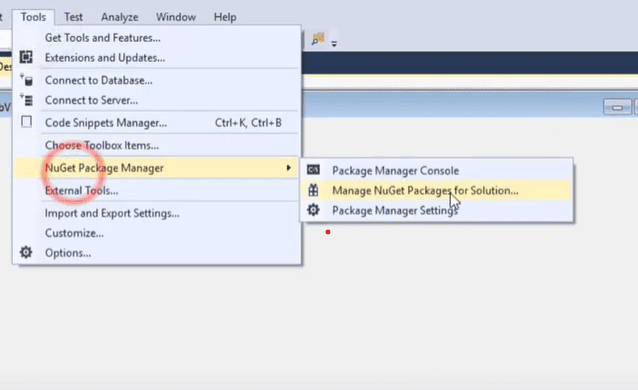
- Within the **NuGet Package Manager window, navigate to the **Browse tab and look for **Microsoft.Web.WebView2.
- Press on Install beside the Microsoft.Web.WebView2 package.

- Agree to the default version and proceed with the installation.
**Step 3: Add a WebView2 control
- Once you have installed the WebView2 SDK, you can easily incorporate the WebView2 control into your application's user interface.
- Locate the **WebView2 control in the toolbox window of Visual Studio, which is typically positioned on the right side.It may be found under the **Common or Experimental section, depending on the version of Visual Studio you are using.
- Simply **drag and drop the WebView2 control onto the design surface of your main form, which is the window where your application will be shown.
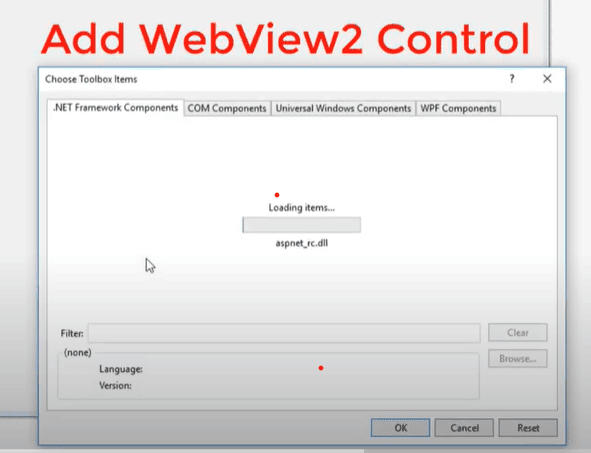

select webview2?
**Step 4: Handle navigation
You have the choice to include additional features such as **navigation buttons (back, forward, refresh) in your application. WebView2 offers events and methods to interact with the displayed web content.
**Step 5: Build and run
- Once you have included the **WebView2 control and added any extra features, you are ready to develop and test your application. Remember to save your project by pressing **Ctrl+Shift+S.
- To start **debugging and run the application, **press F5. The WebView2 control will appear blank initially.
**Step 6: Navigate to a website
To show a website in the **WebView2 control, you must utilize its navigation techniques in your code. The exact code will vary based on the programming language you are using ****(C# for WPF or WinForms)**.
**Steps to Create Simple WPF Application with WebView2
**1. Create a WPF App: Open Visual Studio and start a new **WPF App (.NET Framework) project.
**2. Install WebView2 SDK: Right-click on your project in the Solution Explorer and select Manage NuGet Packages.
**3. Search for and install the Microsoft.Web.WebView2 package.
4. XAML Code (MainWindow.xaml):
XML `
`
- This code creates a simple window that contains a WebView2 control called webView.
- The WebView2 control's Source property is set to ****"https://www.microsoft.com/en-us/**" to indicate the website to load first.
**5. C# Code-behind (MainWindow.cs):
C# `
using Microsoft.Web.WebView2.Core; using System.Windows;
namespace WebView2Example { public partial class MainWindow : Window { public MainWindow() { InitializeComponent(); } } }
`
- The code-behind file is currently blank, but it can be utilized to manage events from the WebView2 control or engage with the web content that has been loaded.
**6. Build and Run:
- Save your project (Ctrl+Shift+S).
- Press F5 to run the application.
- The window will open and display the Microsoft website within the WebView2 control.
**This is a very basic example, but it demonstrates the core functionality of using WebView2 in a WPF application.
Conclusion
Integrating **WebView2 into your application opens up a wealth of possibilities for displaying web content, improving user experience, and leveraging the **Chromium engine in native apps. Whether you are building a simple browser view or a more dynamic web-powered interface, **WebView2 is a powerful tool that brings web technologies into your Windows desktop applications. By following the steps outlined in this guide, developers can start enhancing their applications and offer better user experiences, all without needing to rely on external browsers.