How to change or reset Your Discord Password (original) (raw)
Last Updated : 19 Feb, 2024
How to Change Discord Password - Quick Steps
- Open the Discord app.
- Click the gear icon in the bottom left to open “User Settings.”
- Go to “My account” > Click “Edit” next to your username.
- Click “Change password"
- Enter your current and new passwords > Press “Save.”
- Your password has been changed.
In the era where digital communication has become a part of your lives, managing and securing your online accounts is of the highest importance. One such platform that has gained significant popularity is Discord, a communication platform designed primarily for gamers but now used by communities worldwide. However, like any other online platform, it’s crucial to know how to manage your account settings, particularly your password.
This article will guide you through the process of changing or resetting your Discord password, ensuring that your account remains secure and accessible only to you. Whether you’ve forgotten your password or simply want to update it for security reasons, this guide will provide you with the necessary steps to do so.
How to Reset Your Discord Password on Desktop
Step 1: Open the Discord App
To launch the Discord app on your Desktop, navigate the Discord icon and give it a click.

Click on the Discord icon to open App
Step 2: Enter Email or Phone and Click on "Forgot your Password"
In order to rest your password, you have to go to the login page and after coming to the login page enter your email or phone and then click on the "Forgot Password".

Enter Email or Phone >> Click on forgot your Password
Step 3: Enter the Confirmation Code
When you will click on the "Forgot your Password" button a code will be send to the mobile number that has linked to the account just enter the code and you will be automatically taken to the next page.

Enter Confirmation Code
Step 4: Enter New Password and Click on "Change Password"
A new page asking you to enter you the new password will appear, you just have to create a new password for your Discord account and enter in the box. After entering your new password in the box click on the "Change Password" button.

Enter New Password >> Click on "Change Password"
How to Change Password in Discord on Desktop
Step 1: Open Discord App
To launch the Discord app on your Desktop, navigate the Discord icon and give it a click.
Click on Discord icon to open App
Step 2: Click on Gear Icon
After opening your discord move to the Home page of Discord and click on the "Gear" icon located next to your Profile name.

Click on Gear Icon
Step 3: In "My Account" Tab >> Click on Change Password
Now you will be entered into the Discord's User Setting, here select the ****"My Account"** Tab and click on the ****"Change Password"** button located in the Password and Authentication section.

In "My Account" Tab >> Click on Change Password
Step 4: Enter Current Password
After all your first step will be to enter the current password of your account so that you can modify your password, so enter your current password in the box asking you the current password.

Enter Current Password
Step 5: Enter New Password
In the second and third box enter the new password you want to change for your Discord account.

Enter New Password
How to Reset Your Discord Password on Mobile
Step 1: Open Discord Mobile App
Click on the Discord icon to open the Discord Mobile App.
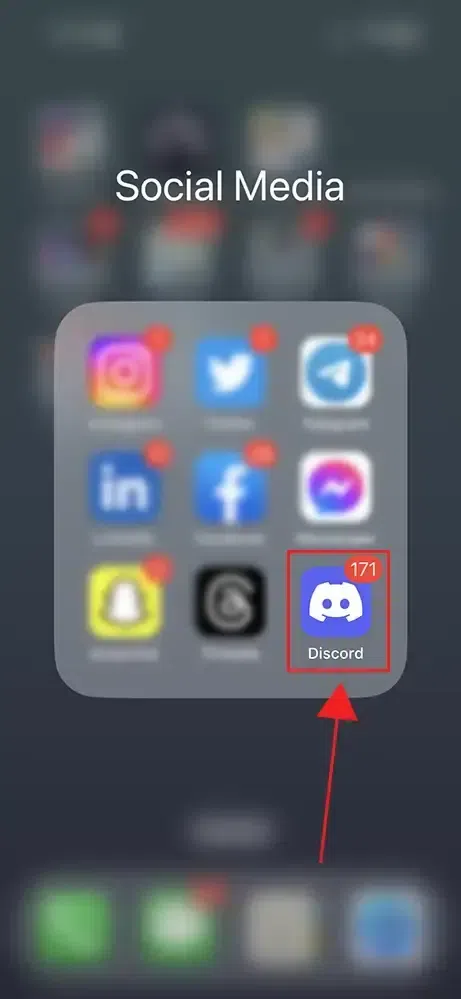
Click on Discord App
Step 2: Click on Log In
As you want to reset the password then you have to move to the Login page of the Discord and then you have to click on "Login" button.

Click on Log In
Step 3: Enter "Email or Phone" and Click on "Forgot Password"
Now enter your email or phone in the first box and click on "Forgot your Password" button.

Enter Email or Phone >> Click on "Forgot your Password"
Step 4: Verify You are Human
Just click on the "Confirm" button and solve the puzzle to prove that you are a human.

Click on Confirm
Step 5: Enter Confirmation Code and Click on "Verify"
A verification code will be sent to your mobile number linked to your Discord account, just enter that code and click on "Verify" button.

Enter Confirmation Code
Step 6: Enter New Password and Click on Change Password
When you will enter the verification code then you will be directed to the discord website of changing password, here you just have to enter your New Password and click on "Change Password".

Enter New Password >> Click on Change Password
Step 7: Click on Continue to Discord
Click on "Continue to Discord" button to move to the Discord app.

Click on Continue to Discord
Step 8: Select Log in Method
Click on "Back on Login" button to move to the login page and to login into your account.

Select Log in Method
Step 9: Log In with your Credentials
Now enter your email or phone number and password and login into your account.

Log In with your Credentials
How to Update your Password in Discord on Mobile
Step 1: Open Discord Mobile App
Click on the Discord icon to open the Discord app.
Click on Discord icon to open App
Step 2: Click on your Profile Icon
Navigate to your profile by clicking on the Profile icon located on the bottom-right corner of the interface.

Click on your Profile Icon
Step 3: Click on "Gear Icon"
In your profile search for the Gear icon located on the top-right corner of the interface and click on it.

Click on Gear icon
Step 4: Select Account Tab
When you will click on the Gear icon a drop-down will appear on the screen, among the options select ****"Account"** from the drop-down menu.

Select Account
Step 5: Click on Password
Now in the Account Settings click on the "Password" button to move to the password section of the Discord.

Click on Password
Step 6: Enter Current and New Password and Click on Change Password
Here you can change your password by entering your current password and the new password that you want to make for your account.

Enter Current and New Password >> Click on Change Password
Conclusion
Changing your password in Discord helps you in maintaining the security of your account. You can reset your account's password by going to the Login page and using the "Forgot your Password" button, it helps you in changing the password for your account. On the other hand, if you want to change your Discord password then you can go through the User Settings in Discord and by clicking on the "Change Password" button, to change your password enter your current password and new password.
- Go to Discord Login Page
- Enter your Email or Phone Number
- Click on "Forgot Password"
- Enter Verification Code
- Change Password
I didn't receive the password reset email. What should I do?
In the case you didn't receive the password reset link then you should check some factors such as:
- Your entered E-mail for receiving link
- Check Spam or Junk Folder
- Wait and Try Again
Can I reset my Discord password without access to my email?
No, you will need your email for resetting your password for your Discord account as by your email you will receive a password reset link.