How to Export Google Sheets to CSV, Excel, or PDF (original) (raw)
Last Updated : 15 Sep, 2025
Exporting data from **Google Sheets to a CSV file is a common task when you need to share or integrate your spreadsheet data with other applications, systems, or databases. The **CSV (Comma-Separated Values) format is widely compatible and ideal for handling structured data in a lightweight and efficient manner.
1. How to Save Google Sheets as CSV, Excel, and PDF
Here are the steps to export or save Google Sheets as CSV, Excel, or PDF:
**Step 1: Open Your Google Sheet
**Open the Google Sheets document that contains the data you want to **export or **you can choose blank page.
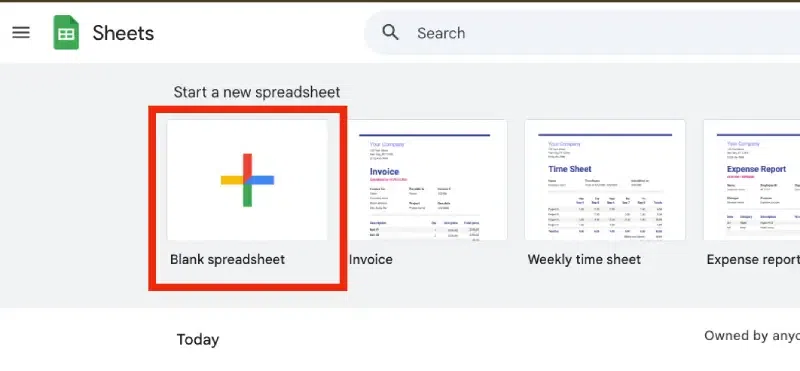
Open Your Google Sheet
At the **top-left corner of the screen, click on the **File option to **open a dropdown menu.
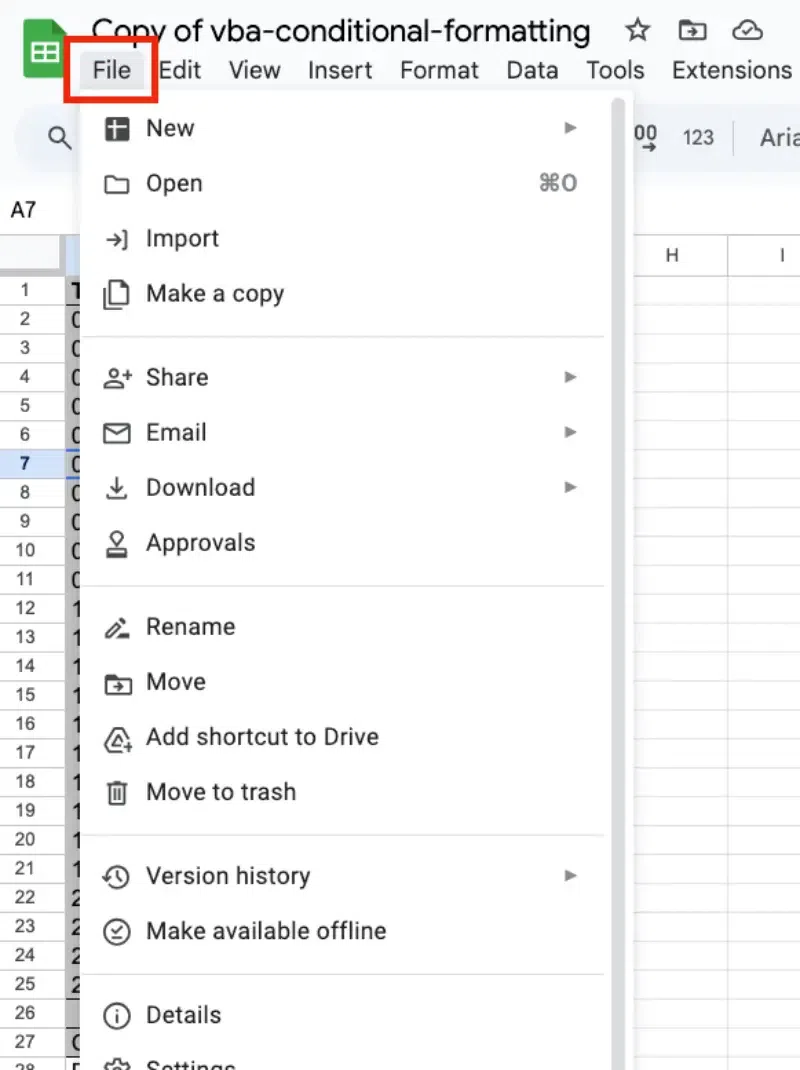
Click on "File" in the Menu Bar
**Step 3: Select "Download"
**In the dropdown menu, Hover over **Download to view the available file format options.
****(I)** Select **Comma-separated values (.csv, current sheet) from the list.
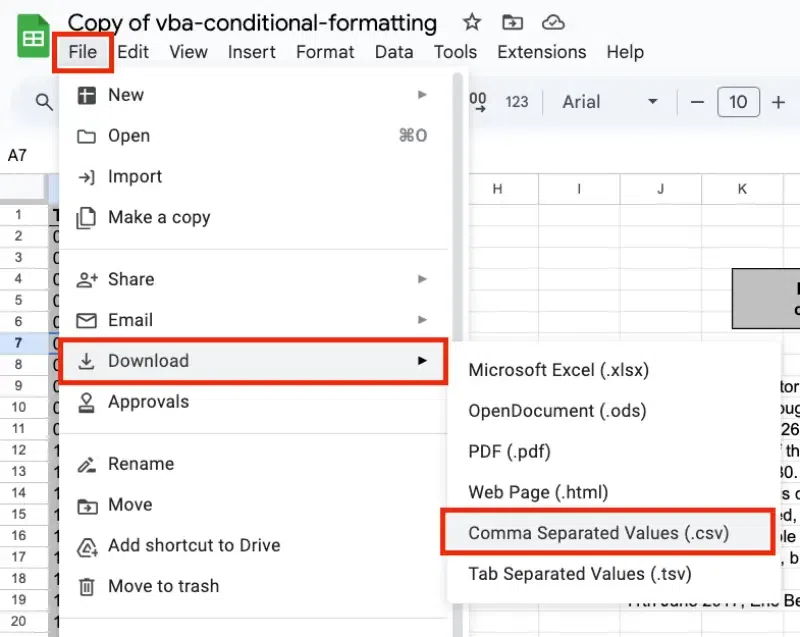
Select CSV "Download"
****(II)** Click on **Microsoft Excel (.xlsx) to select the Excel format.
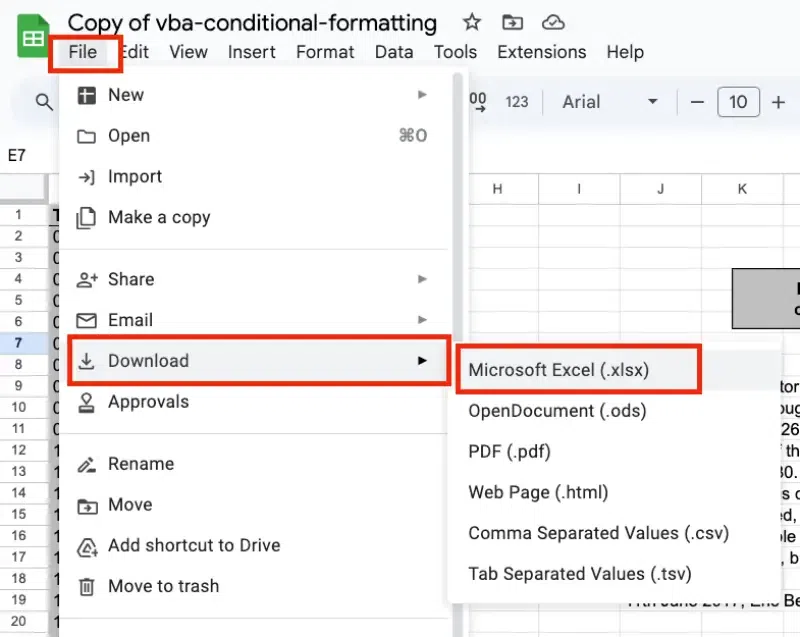
Select Excel "Download"
****(III)** Click on **PDF document (.pdf) to select the PDF format.
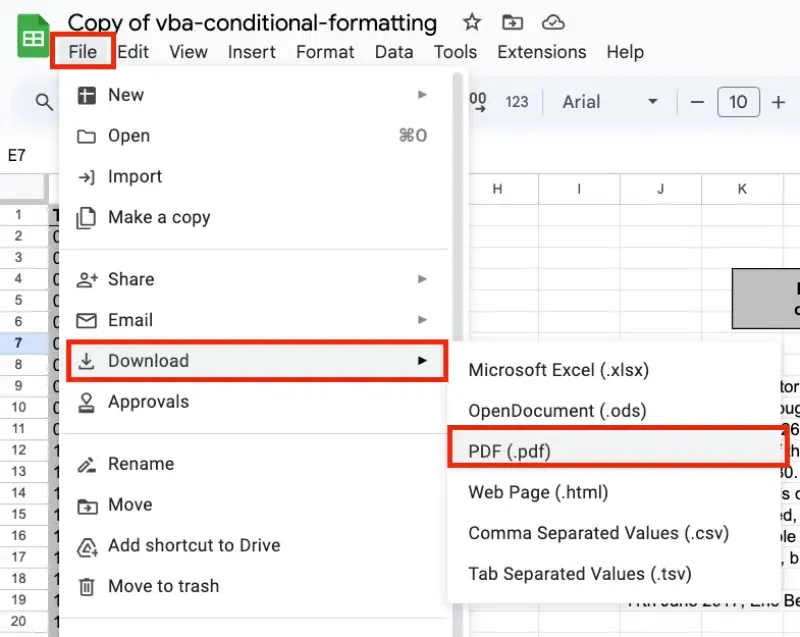
Select PDF "Download"
Optional: **Adjust Export Settings
A settings window will appear with various customization options:
- **Export Range: Choose whether to export the entire document or a specific sheet.
- **Paper Size and Orientation: Set the paper size (e.g., A4, Letter) and choose between Portrait or Landscape orientation.
- **Scaling: Adjust scaling to fit data properly on the page.
- **Margins: Set margins (normal, narrow, or custom) as per your preference.
- **Page Numbers: Enable or disable page numbers.

Adjust Export Settings
**Step 4: Save the File
A download prompt will appear, allowing you to save the file to your computer. The file will only include data from the currently active sheet in your Google Sheets document.
**Step 5: Verify the Exported File
Locate the **downloaded CSV file on your computer. Open it in a **text editor, **spreadsheet software, or any compatible application to confirm the data has been exported correctly.
**Tips for Exporting CSV Files
- **Export One Sheet at a Time: Ensure the correct sheet is active, as Google Sheets only exports the current sheet.
- **Check for Data Integrity: Double-check special characters, formatting, and large numbers, as they might not appear correctly in CSV files.
- **Keep Backups: Always maintain a backup of your original Google Sheet before exporting to avoid accidental data loss.