What is Trello and How To Use It (original) (raw)
Last Updated : 31 Mar, 2026
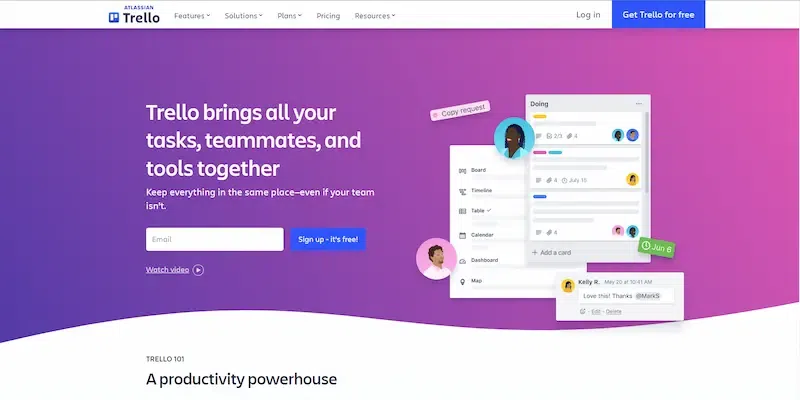
Trello is a highly intuitive project management tool designed to simplify task organization and enhance team collaboration. Built around a visual workflow system, it enables users to manage projects efficiently using boards, lists, and cards.
Trello follows a Kanban-style structure, providing a visual representation of tasks and progress:
- **Boards: Represent individual projects
- **Lists: Indicate stages of workflow (e.g., To-Do, In Progress, Done)
- **Cards: Represent tasks, ideas, or deliverables
Key Features of Trello
Trello offers a comprehensive set of features to manage projects efficiently:
- **Boards, Lists, and Cards: Organize projects visually for better tracking and workflow management
- **Checklists and Subtasks: Break down complex tasks into smaller, manageable steps
- **Task Assignment & Notifications: Assign tasks to team members and receive real-time updates
- **Deadline Management: Set due dates to ensure timely completion of tasks and milestones
- **Activity Log: Track all changes and updates for transparency and accountability
- **Attachments & Integrations: Attach files and integrate with tools like Google Drive, Slack, and GitHub
- **Power-Ups: Extend functionality with plugins such as custom fields, automation, and analytics
- **Calendar View: Visualize deadlines and schedules for better planning and prioritization
- **Search & Filters: Quickly find tasks using labels, members, or due dates
Trello Pricing Plans
Trello provides flexible pricing options suitable for individuals and organizations:
- **Free: $0 Basic features for individuals and small teams
- **Standard: $5/user/month, Enhanced collaboration and features
- **Premium: $10/user/month, Advanced views and automation
- **Enterprise: $17.50/user/month, Scalable solutions for large organizations
**How to Use Trello
By starting with the well-ordered layout of Trello, you make planning tasks easy. Follow these steps for effective project management:
1. Sign Up and Access
- Visit Trello and create an account
- Explore the dashboard and interface
2. Create a Board
- Click on “Create Board”
- Name it based on your project (e.g., Website Redesign)

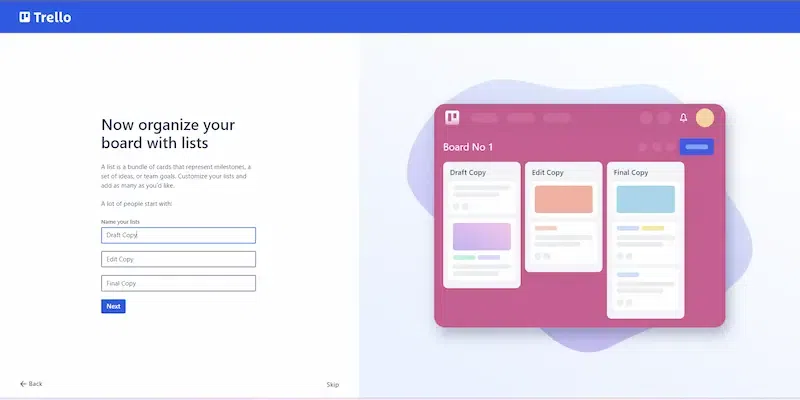
3. Add Lists
- Define workflow stages such as:
- To-Do
- In Progress
- Review
- Completed
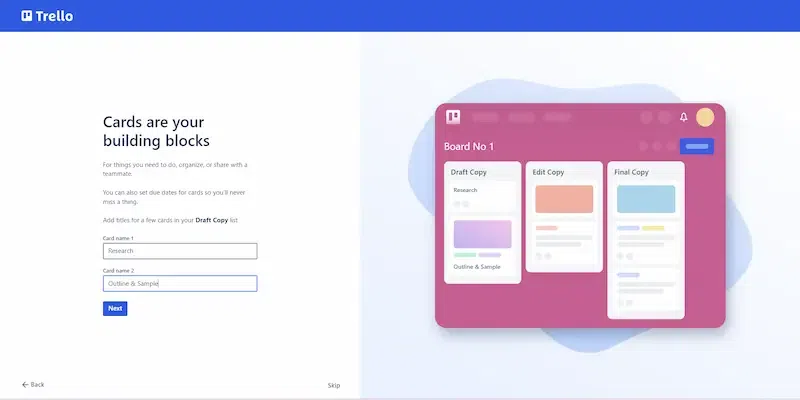
4. Create Cards (Tasks)
- Add tasks within lists
- Include descriptions, due dates, attachments, and checklists
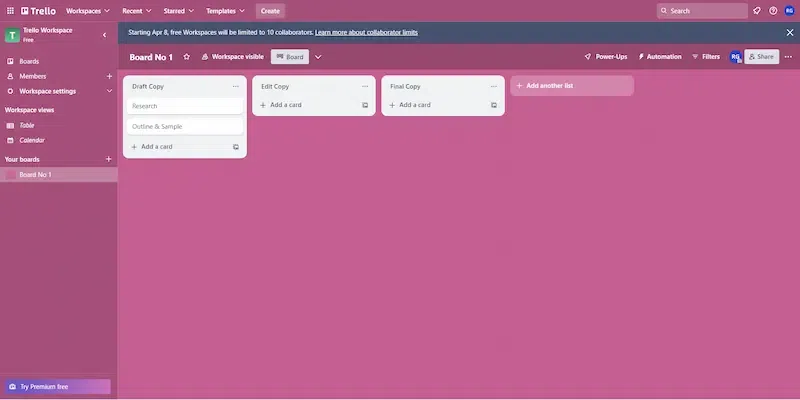
5. Track Progress
- Drag and drop cards across lists as work progresses
- Use labels for categorization (priority, type, etc.)
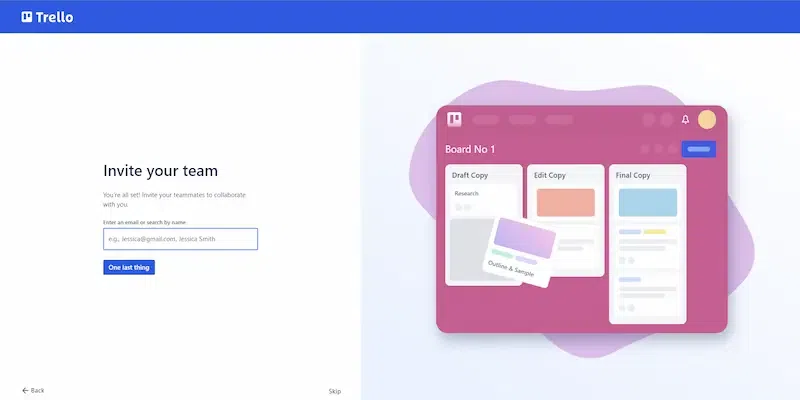
6. Collaborate with Team
- Invite team members
- Assign tasks and communicate via comments
- Receive notifications for updates
Best Use Cases of Trello
Trello’s flexibility makes it suitable for multiple use cases:
- **Visual Storyboarding: Ideal for creative workflows like content planning, filmmaking, and design
- **Event Planning: Manage logistics, vendors, timelines, and checklists in one place
- **Remote Team Collaboration: Keeps distributed teams aligned and connected
- **Research & Knowledge Management: Organize documents, findings, and references systematically
- **Personal Productivity: Track goals, habits, and self-improvement plans
Why Trello Stands Out
- Simple and user-friendly interface
- Highly visual and intuitive workflow management
- Strong collaboration capabilities
- Flexible for both professional and personal use
- Scalable with integrations and automation