How to login into your WordPress Admin Dashboard ? (original) (raw)
Last Updated : 23 Jul, 2025
**Logging Into your WordPress Admin Dashboard: After installing a self-hosted WordPress site for the first time, it's normal for new users to have problems finding their login URL. Furthermore, it's all too simple to forget or misplace your login URL. You may want to generate posts, add plugins, or do other "backend" activities on your WordPress site from time to time. These are usually done through your WordPress Dashboard. This article will help you to access your WP Dashboard.
Prerequisites for Accessing Your WordPress Dashboard
Before you can log into your WordPress admin dashboard, ensure you have the following information ready:
- **WordPress Backend URL: This URL is usually in the format **example.com/wp-admin or **example.com/wp-login.php. If WordPress is installed in a subdirectory, the URL will be **example.com/subdirectory/wp-admin.
- **Username: The username you created when setting up WordPress. If you've forgotten it, you can usually find it in the installation confirmation email or retrieve it through your hosting provider.
- **Password: The password set during the installation process. Like the username, this can be found in your installation confirmation email if you've forgotten it.
How to Log into Your WordPress Admin Dashboard
Follow these steps to access your WordPress dashboard:
Step 1: Open Your Web Browser and Navigate to the Login URL
Open a web browser of your choice (e.g., Chrome, Firefox, Safari).
In the address bar, type your WordPress login URL, which is typically example.com/wp-admin or example.com/wp-login.php. Replace "example.com" with your actual domain name.
**Note: If WordPress is installed in a subdirectory (e.g., a folder named "test"), the URL would be example.com/test/wp-admin.
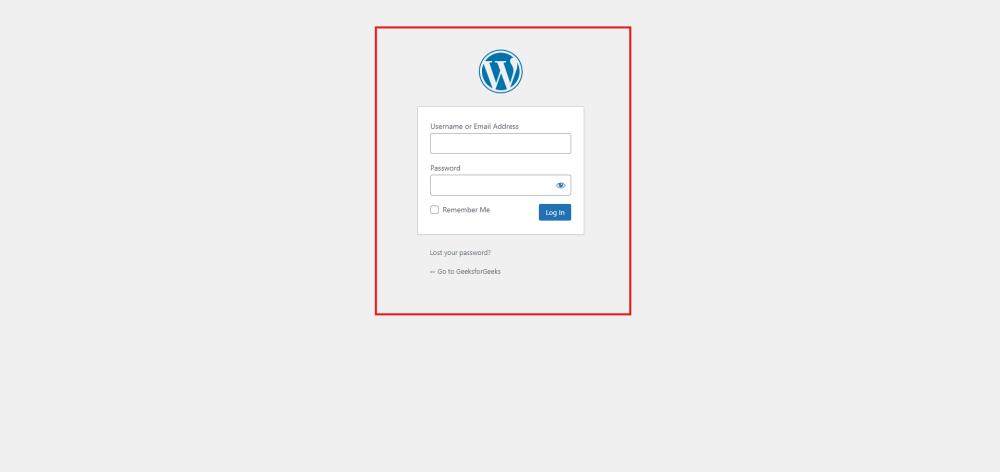
Wordpress Login
Step 2: Enter Your Username and Password
- On the WordPress login page, you'll see fields for your username and password.
- Enter the username and password that you set during the WordPress installation process.
- Click the Login button to proceed.
Step 3: Access Your WordPress Dashboard
- After logging in, you'll be directed to the WordPress admin dashboard.
- The dashboard is the central hub of your WordPress site, where you can create posts, install plugins, change themes, and manage other settings.

Wordpress Dashboard
Troubleshooting Common Login Issues
- **Forgot Password: Click on the "**Lost your password?" link on the login page. You'll be prompted to enter your username or email address to receive a password reset link.
- **Incorrect Username or Password: Double-check your login credentials. If you’re sure they are correct, consider clearing your browser’s cache or trying a different browser.
- **Login URL Not Working: Ensure that you're using the correct URL. If WordPress is installed in a subdirectory, make sure to include the correct path (e.g., **example.com/subdirectory/wp-admin).
By keeping your login URL, username, and password secure and readily available, you can easily navigate the backend of your WordPress site to create content, install plugins, and make necessary adjustments. Regularly logging into your dashboard ensures that your site remains up-to-date, secure, and fully optimized for your audience.