How to Upload Video on WordPress? (original) (raw)
Last Updated : 23 Jul, 2025
**Uploading videos to your WordPress website can significantly enhance user engagement and make your content more dynamic. Whether you want to showcase a product demo, a tutorial, or just a fun video, WordPress makes it easy. In this guide, we'll walk you through the process of uploading videos to your WordPress site, ensuring it's SEO-friendly and user-friendly.
Why Upload Videos to Your WordPress Site?
- **Increased Engagement: Videos are more engaging than text or images alone. They can keep visitors on your site longer.
- **Improved SEO: Search engines favor websites with diverse content types, including videos.
- **Better Communication: Videos can convey complex information more clearly and quickly than text.
How to upload the video to WordPress
Method 1: Embedding Videos from Third-Party Services
Embedding videos from third-party services like YouTube, Vimeo, or Dailymotion is another popular method. This method is often preferred due to its ease of use and the reduced load on your server.
Here's how you can embed a video from YouTube:
**Step 1: Copy the video **URL from the hosting site (e.g., YouTube, Vimeo).
**Step 2: Paste the **URL into the content section of your WordPress post or page.
**Step 3: WordPress will **automatically fetch and display the embedded video.
After embedding the video, you can use the block toolbar and options panel to customize its **appearance, such as **width, **alignment, and **caption. You can now save your post and watch the embedded video in your blog post by clicking the **preview button.
Method 2: Uploading Videos Directly to WordPress
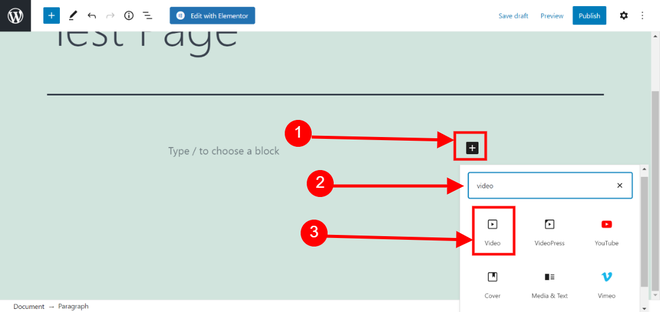
Uploading videos directly to your WordPress media library is a straightforward process. This method is ideal if you want to have full control over your video content and ensure that it remains accessible even if third-party services are down. Here's a step-by-step guide:
**Step 1: Click the ****"Choose a block"** button and search for "**Video."
**Step 2: Select the **Video block.
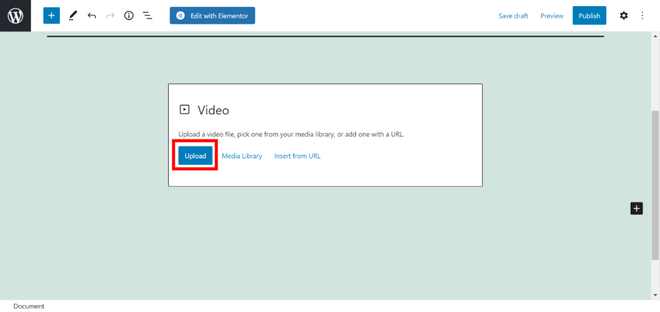
**Step 3: Click the "**Upload" button and choose the video file from your computer.
**Step 4: Once uploaded, you can customize the video using the block toolbar and options panel, similar to the **auto-embed process.
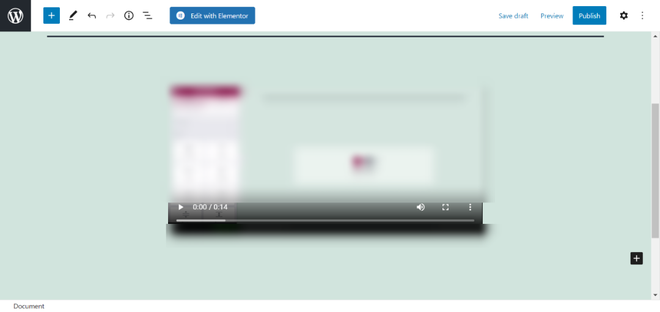
After inserting the video, you may change its parameters using the block toolbar and choices column on the right. You may vary the width of the video, make it full-width, and change its orientation, among other options. On mobile devices, you may also add a caption while maintaining the aspect ratio of the video.
Supported Video Platforms
WordPress can auto-embed videos from whitelisted platforms like **YouTube, **Vimeo, **Facebook, **Amazon, **Instagram, and **Spotify. For other websites, you'll need to manually copy and paste the embed code into your post or page.
Customizing Embedded Videos
After inserting the video, use the block toolbar and options column on the right to customize its parameters:
- Adjust the video's width
- Make the video full-width
- Change the alignment
- Add captions (while maintaining **aspect ratio on mobile devices)
We hope you found this article useful in learning how to simply embed videos in WordPress blog articles.
**Also Read:
Conclusion
By following these methods, you can effectively upload and manage video content on your WordPress blog, enhancing your site's engagement and providing a richer experience for your audience. Choose the method that best fits your needs, whether it's direct uploads for more control or embedding for convenience and performance.