WordPress Edit Links (original) (raw)
Last Updated : 5 Aug, 2025
WordPress is a powerful content management system that offers many features to manage your website. One of the essential features is the ability to edit links. Editing links in WordPress can help improve your website’s SEO, enhance user experience, and make your site more organized. This article will walk you through everything you need to know about editing links in WordPress.
Why Edit Links in WordPress?
1. **SEO Optimization
- **Improved Keywords: Use keywords in your URLs to improve your site’s search engine rankings.
- **Readability: Clean and concise URLs are easier for search engines to understand and index.
2. **User Experience
- **Navigation: Easy-to-read URLs help users navigate your site better.
- **Trustworthiness: Users are more likely to click on URLs that are clear and descriptive.
3. **Site Organization
- **Consistency: Maintain a consistent structure for easier content management.
- **Categorization: Properly categorized links make it simpler to find and manage content.
How to Edit Links in WordPress
Links are the interface that helps us to connect from one resource to another. Adding links to the page allows us to connect with another page(s). Let’s see the exact steps to Edit Links on WordPress Page Easily and Quickly :
**Step 1: Go to the WordPress login panel and provide the **username and **password to log in to the WordPress Dashboard. You can access the login panel by adding ****/wp-login.php** at the end of your website URL.

WordPress Login Panel
After login into WordPress, you will be able to see a dashboard like this:
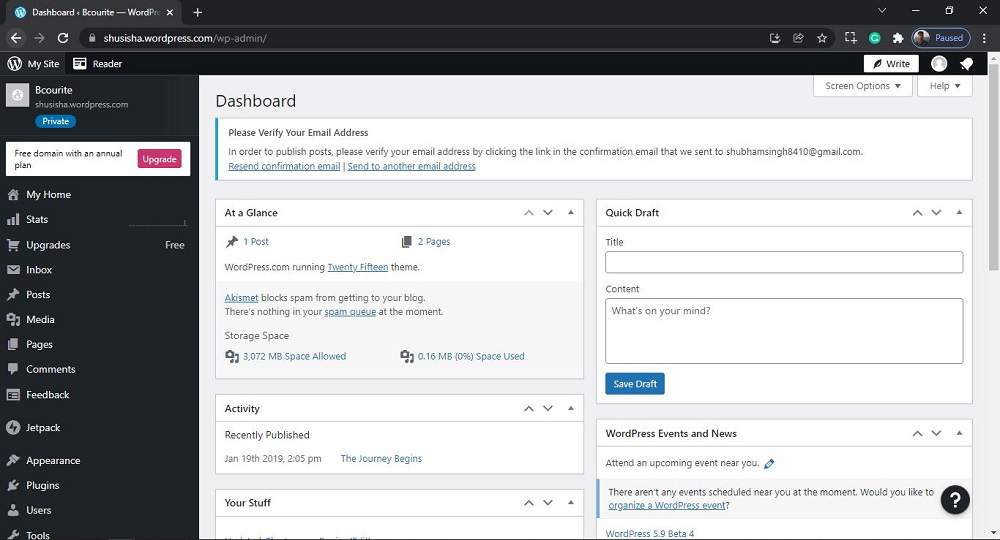
WordPress Dashboard
**Step 2: We have to search and open the Pages. For that:
From the menu option on the left side, there are many options. Go to the Pages>> All Pages.

Opening the All Pages Section
After clicking on All Pages, you will see a similar Page like this:

All Pages Section
**Step 3: Now you just need to select the pages you want to edit links to.
Click on the "**more horiz" button for the selected page you want to Edit links then click on edit to edit links to the Pages. Or Directly Click on the page you want to Edit links.

Editing the Page
After clicking on Edit, you will see a similar editor as shown in the following screenshot:

Edit Page
**Step 4: Use the WordPress editor and edit the link in the page content. Select any word or words where the link is provided and you want to edit that link.
For the sample, we will edit a link to the word WordPress. After selecting WordPress word, click on the **Pencil **symbol on WordPress editor to edit the link as shown in the screenshot:
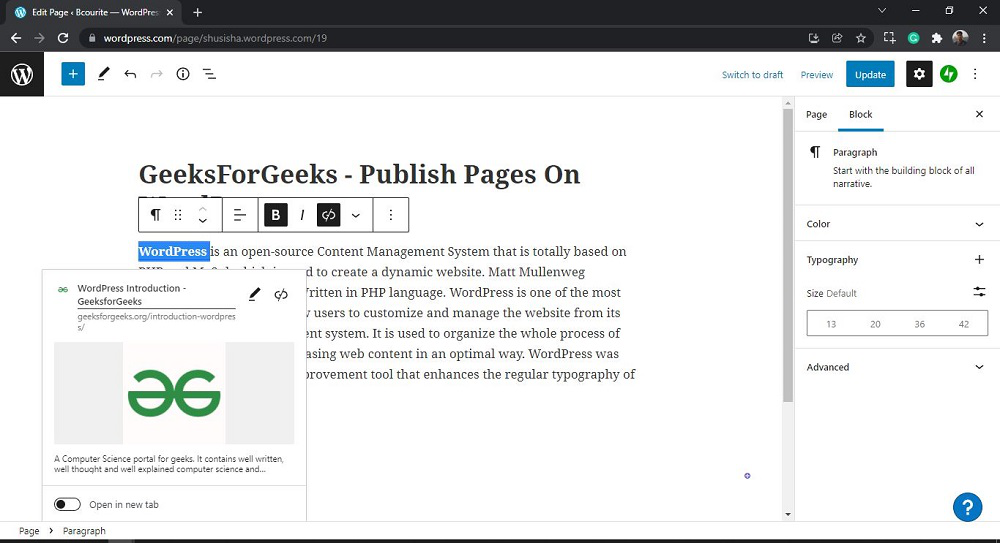
After clicking on the Pencil symbol on WordPress editor, you will be able to edit the link and then edit the link as shown in the screenshots:

Old Link
Here I am entering the new link: '**https://www.geeksforgeeks.org/wordpress/wordpress-tutorial/ '. You can also select to open link in the same tab or new tab by clicking on the 'Open in new tab ' Button.

New Link
After editing a link to word WordPress. If you click on word **WordPress similar link description will be shown there.
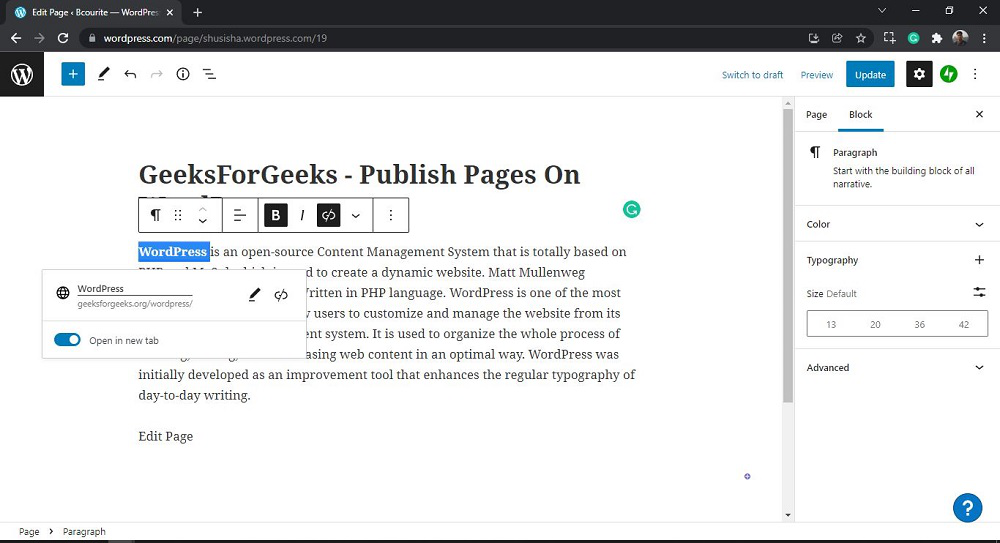
**Step 5: Now you just need to click on the Update button on the pages to update the page.
You will get Page updated message with a View page link on the page.

That’s it, you have now successfully learned how to Edit links to the WordPress pages from your WordPress website.
Conclusion
Links in a WordPress post or page are very important. They help users find more information and related content. Links also build trust by showing sources and improve SEO by connecting your content with other good sites and your own pages. This can help your website rank higher in search results. By following the steps in this article, you can easily edit links in WordPress pages to make your content better for users and search engines.