WordPress Edit Pages (original) (raw)
Last Updated : 23 Jul, 2025
When it comes to managing your WordPress website, understanding how to edit pages effectively is key to maintaining fresh and engaging content.
Why Edit Pages in WordPress?
Editing pages in WordPress allows you to update your website's content without needing technical expertise. This flexibility empowers you to keep your site relevant and up-to-date, ensuring visitors always find valuable information.
Step-by-Step Guide to Edit WordPress Pages
The basic tasks for managing WordPress content include adding, editing, and deleting pages. You can edit pages in WordPress to update them or organize them. Let's go through the steps to easily and quickly edit WordPress pages:
Step 1: To access the WordPress login panel, simply add "/wp-login.php" at the end of your website URL and enter your **username and **password to log in to the WordPress Dashboard.

WordPress Login Panel
After login into WordPress, you will be able to see a dashboard like this:
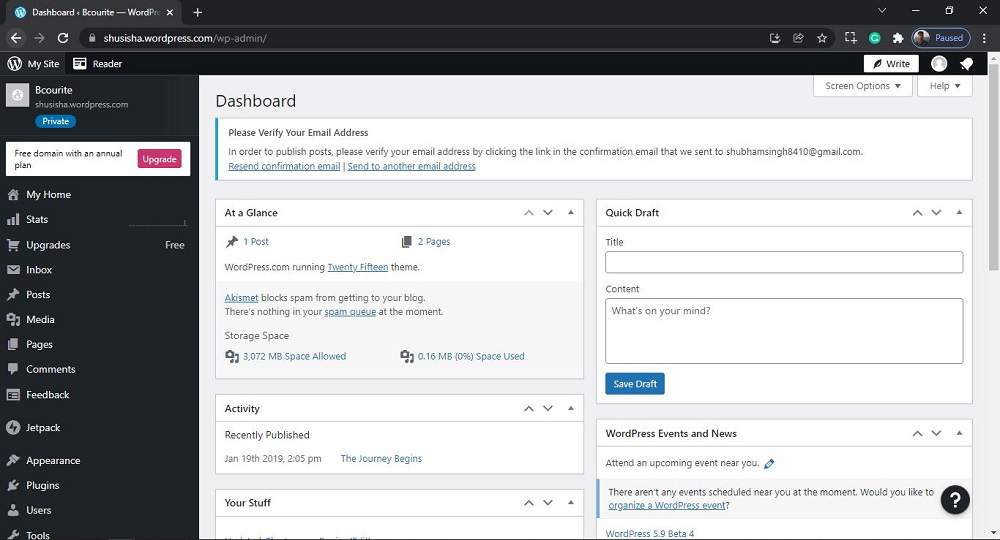
WordPress Dashboard
**Step 2: We have to search and open the **Pages. For that:
From the menu option on the left side, there are many options. Go to the **Pages >> **All Pages.

Opening the All Pages Section
After clicking on **All Pages, you will see a similar Page like this:

All Pages Section
**Step 3: Now you just need to **select the **pages you want to edit.
Click on the "**more horiz" button for the selected page you want to Edit then click on '**Edit' to edit to the Pages. Or Directly Click on the **page you want to Edit.

Editing the Page
After clicking on **Edit, you will see a similar editor as shown in the following screenshot:

Edit Page
**Step 4: Use the **WordPress editor to edit the content to your page. Then click on the **Update button on the pages to edit the page.
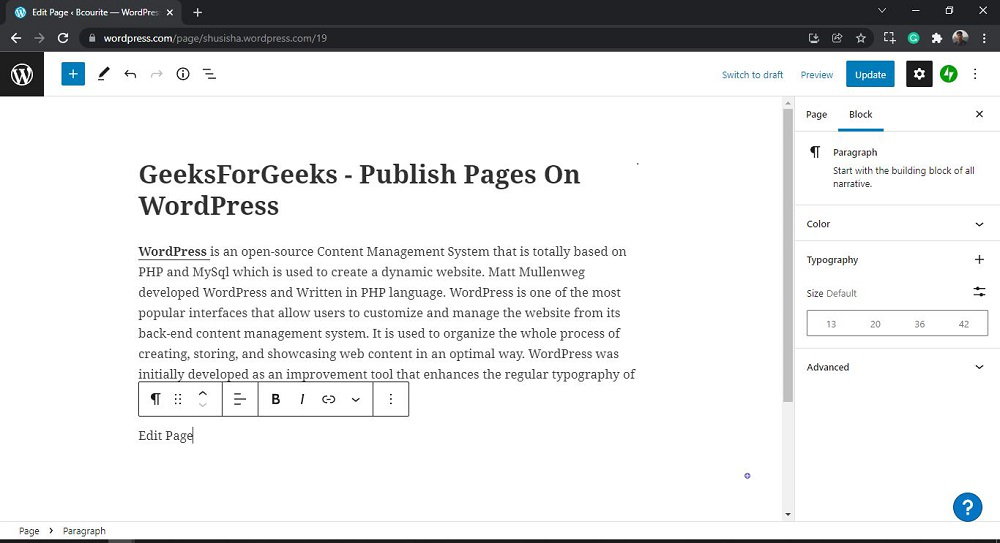
You will get **Page updated message with a **View page link on the page.
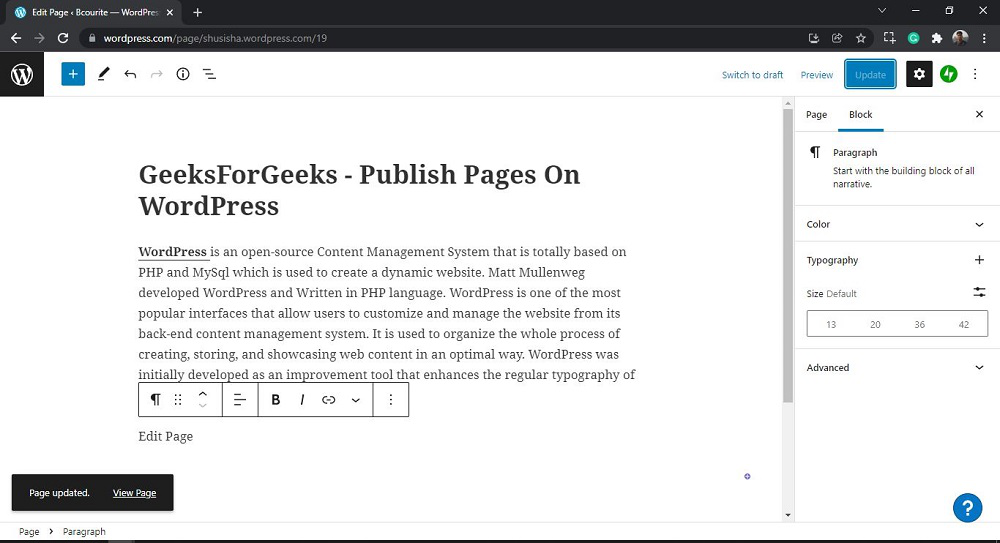
That’s it, you have now successfully learned how to edit the WordPress pages from your WordPress website.
SEO Tips for Page Editing
To optimize your page for search engines:
- **Focus Keyword: Select a primary keyword for your page and use it naturally in the title, headings, and throughout the content.
- **Meta Description: Write a concise and compelling meta description containing your keyword to improve click-through rates from search engine results.
- **Image Alt Text: Describe images using relevant keywords to improve accessibility and SEO.
**Also Read,
Conclusion
Learning how to edit pages in WordPress empowers you to maintain a dynamic and engaging website effortlessly. By mastering these basics, you can ensure your content remains fresh, relevant, and SEO-friendly, attracting and retaining visitors effectively.
Remember to keep your content fresh and engaging, optimize your images and media, and monitor your performance regularly to stay ahead of the competition.