WordPress Media Setting (original) (raw)
Last Updated : 23 Jul, 2025
WordPress provides a dedicated section called Media Settings, allowing users to configure how media files, such as images and videos, are stored, displayed, and managed on their websites. Proper configuration of these settings can improve your website's performance, optimize media for various uses, and enhance the user experience.
What Are WordPress Media Settings?
Media Settings in WordPress control how your media files are stored, displayed, and managed on your website. These settings allow you to define default image sizes, organize your uploads, and optimize how media is used throughout your site. Proper configuration of these settings can significantly impact your site’s performance, load times, and overall user experience.
Steps to Access WordPress Media Settings
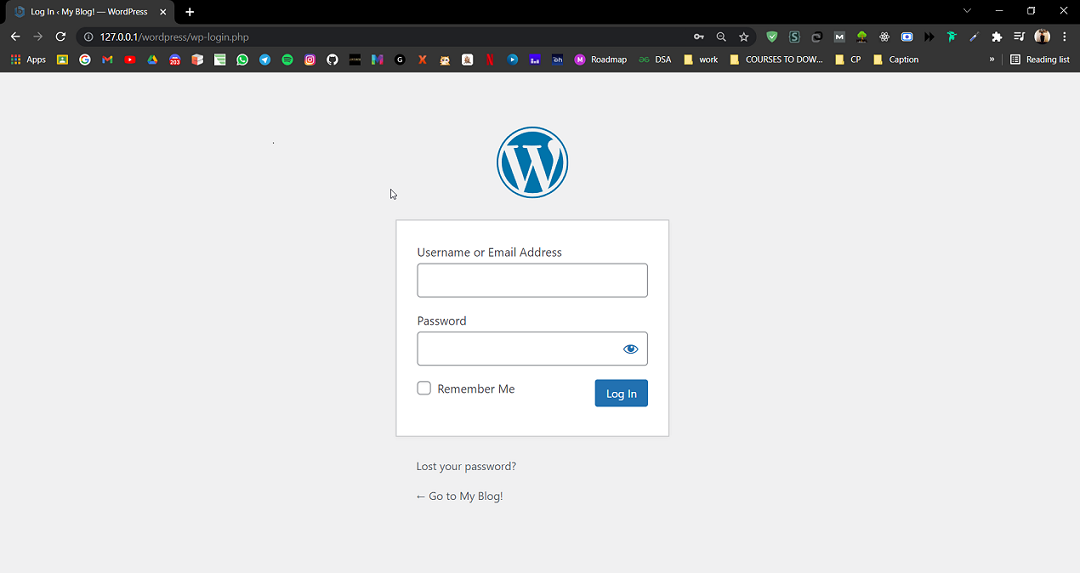
**Step 1: Go to the WordPress login panel and enter the **username and **password to log in to WordPress. You can access the login panel by adding ****/wp-login.php** at the end of your website URL. In my case, it is – **http://127.0.0.1/wordpress/wp-login.php
After login, you’ll see a similar dashboard like this:
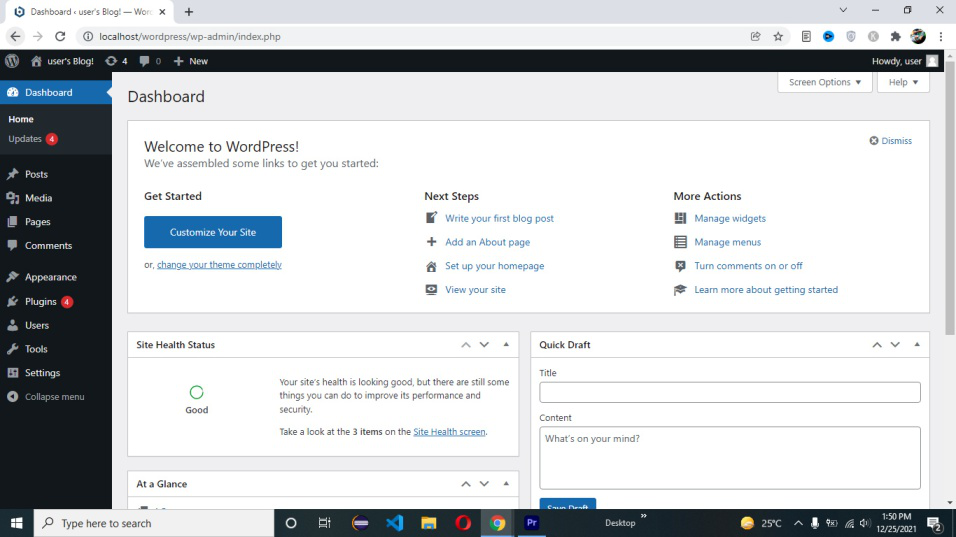
**Step 2: Navigate to Media Settings
- From the WordPress Dashboard, look at the left-hand menu.
- Click on Settings > Media to open the Media Settings page.
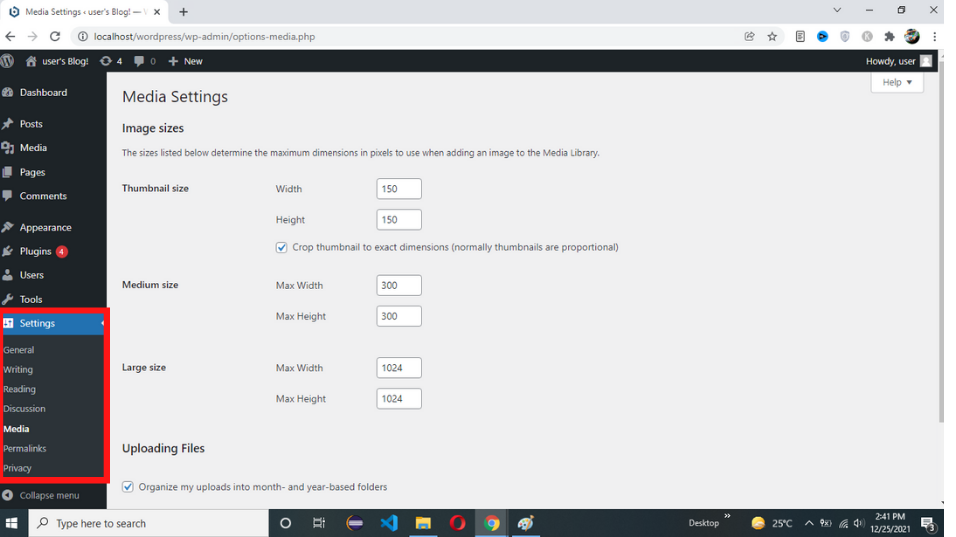
**Step 3: Configure Media Settings
- Adjust the settings for image sizes, file uploads, and embeds as needed.
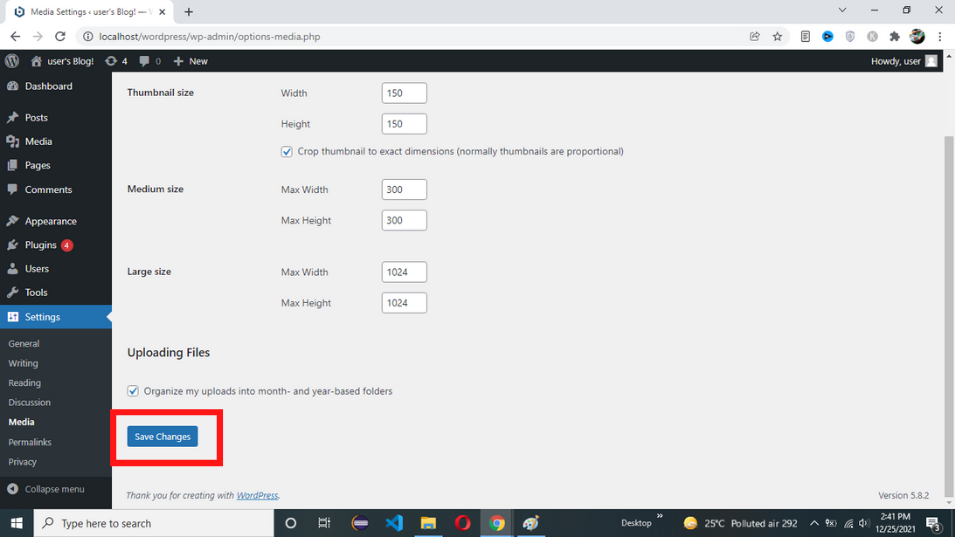
- Click on the Save Changes button at the bottom of the page to apply your settings.
People Also Read:
Configuring Image Sizes in WordPress
WordPress allows you to set default sizes for images that you upload to your website. Configuring these sizes helps ensure that your images are optimized for different uses, such as thumbnails, blog posts, or full-size displays. Here are the three main image sizes you can configure:
1. Thumbnail Size
- **Purpose: Thumbnails are small versions of your images used in gallery views, featured images, or previews.
- **Settings: You can set the maximum width and height for thumbnail images. Additionally, you can choose whether to crop the thumbnails to the exact dimensions specified, which helps maintain uniformity across your site.
2. Medium Size
- **Purpose: Medium-sized images are used within blog posts or pages where a larger view than thumbnails is needed but not a full-size display.
- **Settings: Set the maximum width and height for medium-sized images to ensure they fit well within your content without overpowering the layout.
3. Large Size
- **Purpose: Large images are typically used for detailed views, backgrounds, or feature sections.
- **Settings: Specify the maximum width and height for large images to ensure they fit appropriately within your site’s design while maintaining quality.
Organizing Media Files
WordPress allows you to organize your media files by uploading them into month- and year-based folders. This option can be found under the **Uploading Files section in Media Settings.
1. Organize by Month and Year
Enabling this option will create a structured folder system within your WordPress uploads directory. This can make it easier to manage and locate your media files.
Best Practices for Media Management
To ensure your media files are optimized and well-managed, follow these best practices:
- **Use Descriptive File Names: When uploading media files, use descriptive and keyword-rich file names. This helps search engines understand the content of the files.
- **Alt Text: Always add alt text to your images. Alt text not only improves accessibility but also helps search engines index your images.
- **Compress Images: Use image compression tools or plugins to reduce the file size without compromising quality.
- **Regularly Clean Up Media Library: Remove unused or duplicate media files to keep your library organized and reduce clutter.
Conclusion
Optimizing WordPress Media Settings is an integral part of improving your website. By customizing image sizes, using descriptive filenames, adding alt text, and leveraging plugins and advanced techniques like lazy loading and CDNs, you can enhance the performance and visibility of your media.