GIMP - GIMP 3.0 Release Notes (original) (raw)
Introduction
After seven years of active development, we are proud to announce the next major release of GIMP – GIMP 3.0! While the original focus was on updating to a newer GUI library, this release is packed with many new features, enhancements, and usability improvements. While we can’t cover every single change from 2.10, we want to highlight some of the biggest ones as you start exploring this release.
- Introduction
- Updated GTK3 user interface
- Non-destructive layer effects
- Color space management
- Welcome Dialogue
- Usability Improvements
- Improved file format support
- Better Text Support
- New Logo
- Experimental Tool
- API updates
- Under-the-hood changes
- Translations
- Next Steps on the Roadmap
- Download GIMP 3.0
- Reporting Bugs
- Contributing and Supporting GIMP
Updated GTK3 user interface
One of the main goals of this release was to upgrade our GUI library to GTK3. This was an intensive effort that involved changing every aspect of the code for our user interface. The benefits of this work include:
- Much better UI scaling on HiDPI screens, a common concern for users of GIMP 2.10.
- Much better support for tablet input.
- The theme system now uses CSS, which we hope will allow for users to more easily develop their own custom themes.
- GIMP 3.0 now runs natively on Wayland (though you can still run it on X11 as well)!
- A lot of important bugfixes which could not be backported to the GTK2 library we were using.
Non-destructive layer effects
Another big change introduced in GIMP 3.0 is non-destructive (NDE) filters. In GIMP 2.10, filters were automatically merged onto the layer, which prevented you from making further edits without repeatedly undoing your changes. Now by default, filters stay active once committed. This means you can re-edit most GEGL filters in the  menu on the layer dockable without having to revert your work. You can also toggle them on or off, selectively delete them, or even merge them all down destructively. If you prefer the original GIMP 2.10 workflow, you can select the “Merge Filters” option when applying a filter instead.
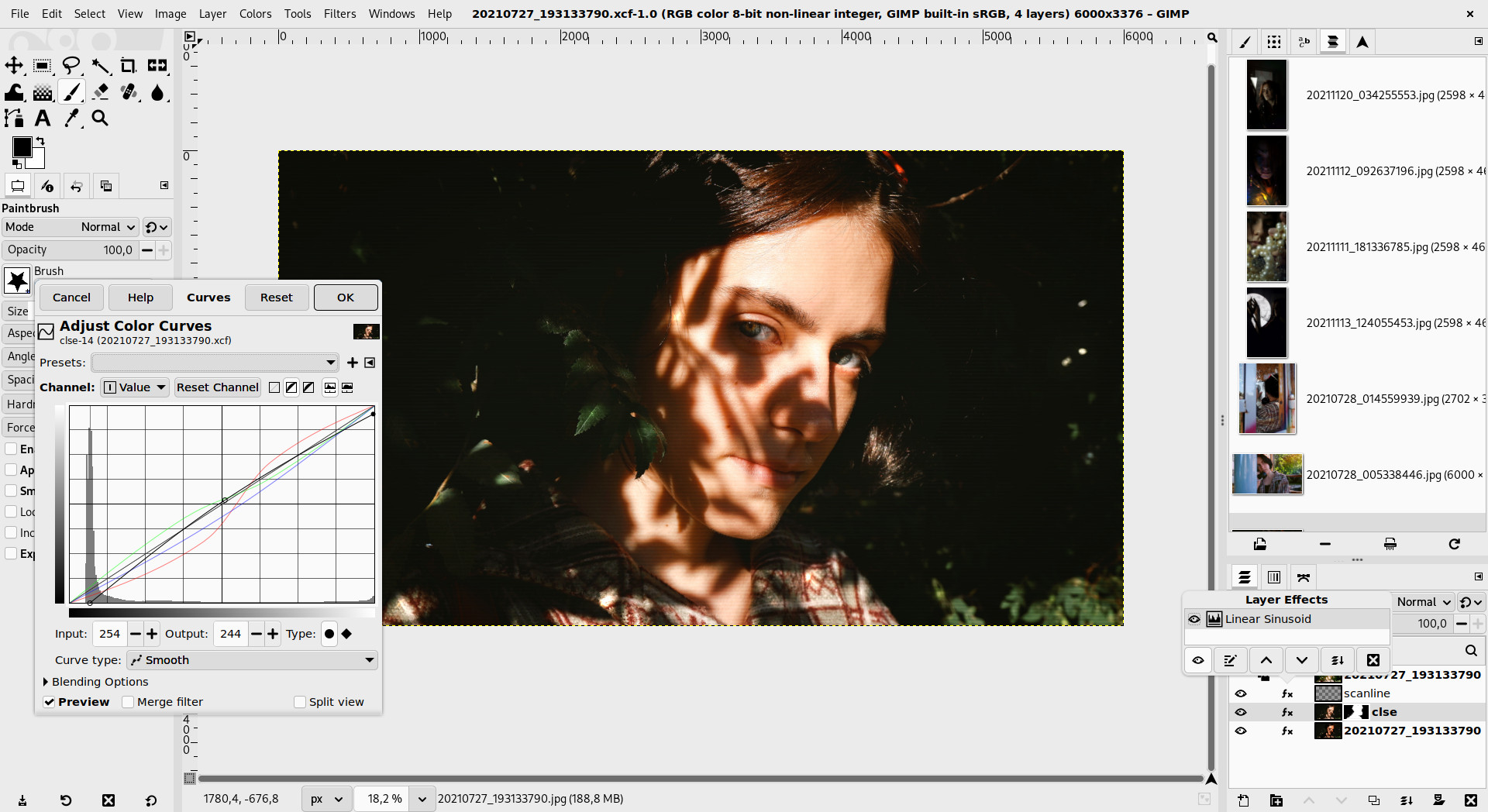
Curves Non-destructive filter being applied to a portrait of Sofiia being edited in GIMP. Photo by Sofia (CC by-sa 4.0 International)
NDE filters can also be saved to XCF and reloaded for further editing. This means that if someone sends you anXCF project with NDE filters, you can make further adjustments on the image and text effects. You can also save and load XCF using third-party filters, although they will be discarded if you don’t have those filters installed.
GEGL filters can now also be found directly with the / search keyboard shortcut. This applies to third-party filters as well, which makes it easier to locate the right effect for your project.
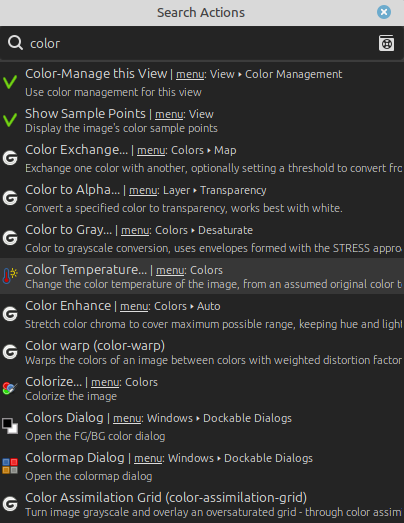
Searching for filters with Search Actions
Finally GEGL operations (the infrastructure underlying filters in GIMP) are now even better integrated with GIMP thanks to new metadata allowing a filter to register into menus without wrapping code in GIMP. This is particularly useful for third-party developers wishing to write filters.
Some people might be pleased to know that a spiritual successor of the legacy Logos feature has appeared in recent versions of GEGL under the name “GEGL Styles”:
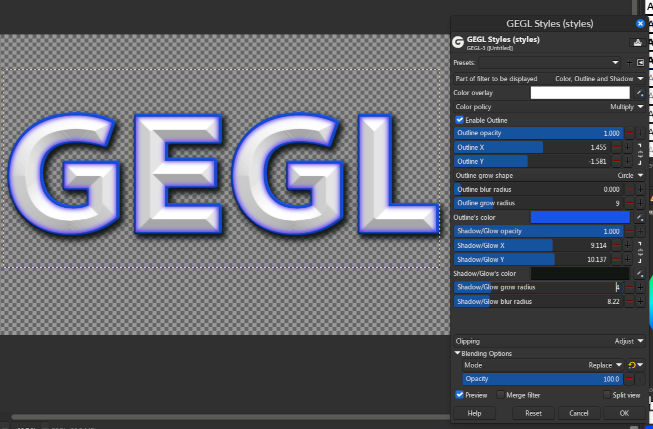
Styling text with GEGL Styles filter
Color space management
Thanks to better integration with the babl and GEGL libraries, GIMP now has more extensive support for RGB color spaces beyond sRGB. For example, if you load an image with an AdobeRGB color profile, that information will be retained in all aspects of GIMP – allowing you to make whatever edits you need without losing color space information. This update also lays the groundwork for future CMYK and LAB image color modes.
This improved support of _any_RGB spaces now spans across various dialogs, such as the Colors dockable window, the Foreground and Background selection dialog, the Color Picker info window, and more, better showing which space a color is shown in.
Color simulation and soft-proofing has also been improved in a variety of ways. Internally, we have ported more of it to use our babl color library, keeping the color processing consistent throughout GIMP. We have also consolidated soft-proofing options in a pop-over menu at the bottom-right corner of the status bar. If a CMYK profile is already attached to the image, you can click the icon to toggle soft-proofing on or off. You can also right-click the icon to quickly change the color profile, rendering intent, black point compensation, and other relevant options.
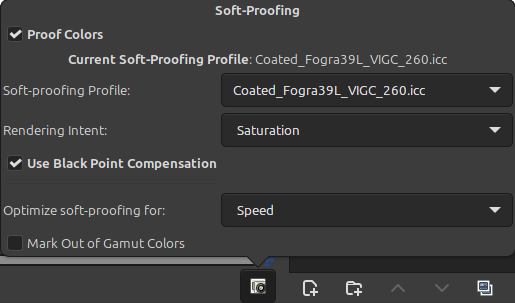
Soft-Proofing Color Pop-over
Welcome Dialogue
GIMP 3.0 now displays an optional Welcome Dialogue on start. This feature provides quick access to create or load new images to begin editing via the Create section.
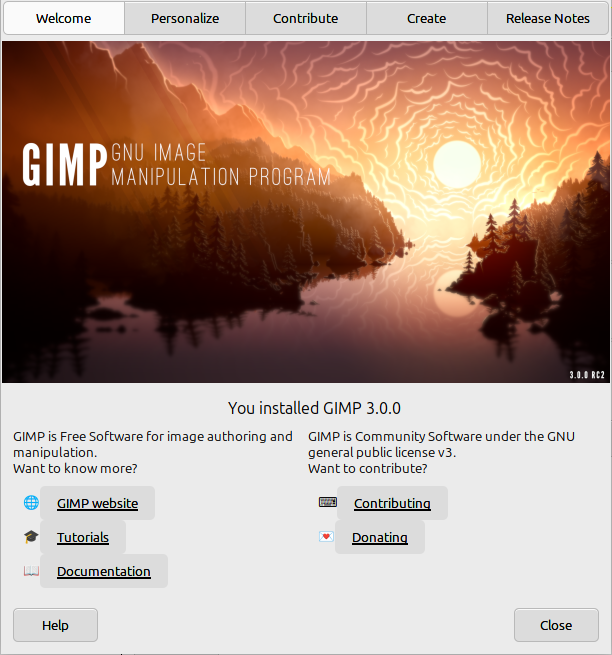
Welcome Dialog
The Personalize section makes it easy to quickly change several preference settings such as:
- Symbolic, Color, or Legacy icon styles
- Light, Gray, and Dark variants of the UI theme
- Using Tool Groups to condense icons in the toolbox
- Merging the menu toolbars
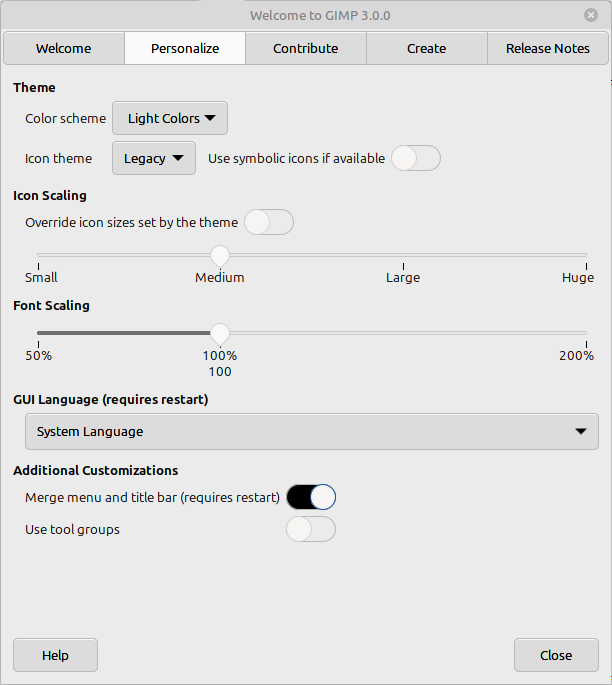
Personalize options in Welcome Dialog
Usability Improvements
This release contains a lot of much requested updates to the GIMP user experience. A few of the most noticeable ones include:
Layers, Channels, and Paths
- It is now possible to have multiple selected layers, channels, and paths! Previously users needed to manually click link icons in order to affect multiple layers. Now you can use standard shortcuts to select multiple items at once.
- Layer locks have been moved from the dockable header to a pop-over menu that you can access next to each layer’s visibility icon. This allows you to more easily see the lock status of each item, especially now that you can have multiple layers, channels, or paths selected at once.
- You can now organize layers with the new layer set feature. You can also search for layers by name, making it easier to find layers within a large project.
- The New Image and New Layer dialogs have a new “_Middle Gray (CIELAB)_” fill option.
Off-Canvas Editing
- Paint tools can now automatically expand the width and height of a layer as you draw! You can select “_Expand Layers_” in the tool options to enable drawing past the current boundaries of layers.
- More features such as guides and auto-expanding layers can be used to work in the off-canvas space!
User Interface
- GIMP’s interface further incorporates Right-to-Left language layouts in various widgets and dialogues.
- We now better respect reduce motion and animation OS settings across the interface. Several animations and “easter eggs” no longer display based on your system settings. We implemented these fixes after feedback from users that these animations could cause motion sickness and other issues for certain people.
- Many
Legacyicons have been converted to SVG, allowing for cleaner scaling when the icon theme size is increased. New icons have also been created to better distinguish certain actions, like the multiple zoom options on the Navigation dockable. - The title bar on Windows now adapts to dark mode if you use a dark variant theme. You can also choose to merge the title bar with the menu to reduce the space it takes up on the screen.
- Number range sliders have been updated to be larger and easier to grab. Due to GTK3, they also now use+ and - icons rather than the more ambigious ^ and v icons.
- A long-standing bug on macOS caused the UI text to become garbled for some users. This has been fixed thanks to an update to the Pango library bundled with GIMP 3.0!
Workflow and Short-Cuts
- Copying and pasting now creates a new layer by default rather than a “floating selection”, which many users found confusing. Floating layers can still be created with the “_Paste as Floating Data_” option for those who prefer that workflow.
- The search menu results now show the menu location for each action. If you’ve ever wondered where a particular filter or feature was located before, now you can quickly discover them! We’ve also added a help buttonto the action search, making it easier to learn more about how to use each feature.
- Brush dynamics can now be turned off via the “Enable Dynamics” checkbox in tool options, rather than having to search for the “Dynamics Off” option in the list.
- You can now customize the actions performed with right or middle clicks (or any other buttons, except the primary button which is reserved for tools) in
Edit > Preferences > Canvas Interaction > Modifiers. For instance, you want to change your brush size with a right click rather than displaying the menu? You can do it! You want to disable Canvas Rotation because you don’t use this feature? It’s possible too! You want to activate your favorite filter onAlt + middle click? No problem! - On Wayland, you can also map tablet buttons to different actions as well. This update gives more options for tablet users to customize their workflow and easily apply important actions without switching input devices.
- 2 New Snapping options appeared in the
Viewmenu:- “_Snap to Bounding Boxes_”: allows on-canvas snapping to either layer borders or center.
- “_Snap to Equidistance_”: allows to snap a layer to be at the same distance from a second one that this second one is to a third one, either horizontally or vertically.
Improved file format support
GIMP 3.0 brings support for many new file formats. Icon creators can now import and export macOS ICNS icons and Windows CUR and ANI cursors. Amiga enthusiasts can now load images from a number of ILBM/IFF formats. Newer formats like QOI and JPEG XL are also now supported, and import support for older formats like DCX, PAM, and WBMP allow for accessing archived images.
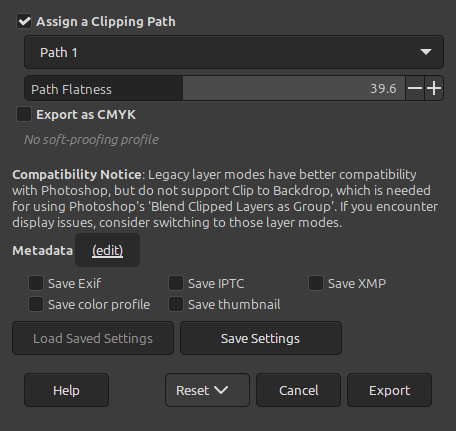
New PSD Export Dialog, with options to save clipping paths, CMYK profiles, and metadata
Existing formats also received important updates. We’ve improved compatibility for importing and exporting PSD project files. JPEGs and TIFFs with Photoshop-specific metadata such as clipping paths, guides, and layers can now be loaded as well. Game developers can now import DDS textures with modern BC7 compression. GIMP also supports importing and exporting CMYK JPEGs, TIFFs, PSDs, and JPEG XL.
In addition to images, a number of new palette formats can now be imported into GIMP. This includes proprietary formats like Adobe Color Book (ACB) and Adobe Swatch Exchange (ASE), as well as the open source Swatchbooker palette. As a result of the color space invasion, we’ve also improved support for loading palettes in the CIE Lab color model.
Note that these are just a few of the many updates to file format support in GIMP 3.0.
Better Text Support
GIMP 3.0’s internal text engine has a number of great improvements. Fonts are more accurately stored and displayed to users; this allows us to better distinguish fonts in the same family rather than just showing them with a different ID number. This also allows users to better see the font’s true bold or italic, rather than just using the faux version. Furthermore, we’ve improved font loading and backwards compatibility. Additionally, as part of the color space invasion we now support text colors with floating point precision rather than just 8 bit.
The updated Text Tool now has options for non-destructive text outlines. You can specify the outline width, style, and color or pattern type right from the tool options. You can also apply NDE filters such as GEGL Styles to create outlines as well. Furthermore, you can now hide or show the on-canvas text editor - this should help when editing text while zoomed in.
New Logo
Wilber went to the stylist and got a fresh relooking!

This new version was designed by the film director and designer Aryeom Han, under Creative Commons Attribution-ShareAlike 4.0 International, with the help of the rest of the GIMP team.
All past versions of Wilber are still available from our gimp-datarepository, including the original version created by Tuomas Kuosmanen (tigert).
GIMP 3.0 includes a new experimental selection tool, Paint Select. This tool allows you to use a brush to progressively select an object or area in an image. While it is a very nice feature, it still has some stability issues. Therefore, it is not visible by default - you will need to enable it in the_Playground_ section of the Preferences Dialog to test it out. You can access this section by running GIMP 3.0 with the --show-playground flag.
API updates
Since this is a major version release, we’re taking the opportunity to update our public API for scripts and plug-ins. This allows us to give third-party developers access to new features like operating on multiple layers at once and using GEGL filters directly. It also lets us clean up and remove duplicate or obsolete functions.
Plug-in developers can also automatically create a UI with the new GimpProcedureDialog API. You just specify the function parameters, and when you create and run the dialog, the options will be generated for you. You can of course customize the type of widget created for each parameter, adjust the layer, or even add your own custom widgets. You can see all the options on our API reference page.
We also support more languages for developing scripts and plug-ins for GIMP. In addition to C and Script-fu’s TinyScheme, you can also run scripts and plug-ins written with Javascript, Lua (though this binding was marked as _experimental_because of instabilities), and Vala on platforms that build GIMP to support these languages. We’ve also switched from GIMP 2.10’s Python-fu to use standard Python 3 for 3.0. You can see examples of plug-ins in each language by checking out our demo plug-ins.
Unfortunately, these improvements break compatibility with GIMP 2.10 plug-ins and scripts, so some of your favorite plug-ins may not work just yet. Since the API is now stable for all GIMP 3.x releases, we hope developers will begin porting their plug-ins and scripts in earnest (some popular add-ons like Resynthesizer and G’MIC have already done so)! On our new developer site, we’ve begun creating tutorials to make this porting process easier – feel free to share with the developers of your favorite scripts.
Under-the-hood changes
Much work has been done over the course of GIMP 3.0’s development to improve our build processes. A big change was switching from autotools to Meson for compiling. This has resulted in a major speed-up when building GIMP, allowing for quicker testing and development.
We have also improved multi-threading and thread safety in several key areas. The changes are most noticable in the XCF code which resulted in much faster saving, and in the painting code which improved performance and stability.
Our public API for plug-ins is now based on the GObject-Introspectioninfrastructure, which means that more languages than listed above (in the “API updates” section) can actually be used (though not all bindings have been tested and some are quite unstable).
Some most needed work has been done on making OpenCL implementations more robust though it is still disabled by default since GIMP2.10.22. We hope to be able to soon make experimental builds for wider testing in order to eventually bring back hardware acceleration.
Translations
Out of the 85 languages which GIMP is available in, 47 translations were updated: Asturian, Basque, Belarusian, Brazilian Portuguese, British English, Bulgarian, Catalan, Central Kurdish, Chinese (China), Chinese (Taiwan), Czech, Danish, Dutch, Esperanto, Finnish, French, Galician, Georgian, German, Greek, Hebrew, Hungarian, Icelandic, Indonesian, Italian, Japanese, Kabyle, Kazakh, Korean, Latvian, Lithuanian, Malay, Norwegian Nynorsk, Persian, Polish, Portuguese, Romanian, Russian, Serbian, Serbian (Latin), Slovak, Slovenian, Spanish, Swedish, Turkish, Ukrainian, Vietnamese.
Next Steps on the Roadmap
GIMP 3.0’s development has been a long journey for developers and the community alike. We want to speed up this process. Going forward, we will only introduce new features during minor releases (such as GIMP 3.2), and 3.0.x releases will be reserved for bugfixes (as it used to be until GIMP 2.8 series; the 2.10 series was an exception when we added features even in micro point releases).
However, we also intend for minor releases to be much more frequent. Rather than having another 6+ years development schedule for GIMP 3.2, we plan to release it within a year of 3.0. As a result, it will include less features, but those features will be available to users much sooner. We’ve already set up several “feature groups” in our post-3.0 roadmap – each of which might become a new GIMP 3.x release. Several features already have initial code developed and posted for review, and we’re looking forward to discussing those more in future news posts!
During 3.0’s development, we also began work on a community UX Design group. We’ve already implemented several suggestions based on user feedback, and now that 3.0 has been released, we’re looking forward to expanding the scope of that effort. We know many people have strong opinions of GIMP’s UI, and we want to make good, well-reasoned decisions about UX improvements in the future. We encourage you to contribute your voice to the discussion so that there’s input from a wider range of users!
Download GIMP 3.0
You can download GIMP 3.0 from our Downloads page. We have a few new packages in addition to our Windows, macOS, and Linux flatpak options. For Windows, you can also download GIMP from the Microsoft Store. This will enable auto-updates whenever we release a new version. For Linux, we now have an AppImage if you prefer that over flatpak.
Reporting Bugs
We deeply appreciate everyone who has reviewed the development builds of GIMP 3.0 and reported bugs, issues, and regressions over the years. We’ve managed to fix a lot of bugs in GIMP as a result! However, we are well aware that many more people will be experiencing GIMP 3.0 for the first time now that it is the stable release, and we expect that you may find some lingering bugs that we missed. Please report any issue you encounter to our bug tracker – that helps us know there’s a problem so we can fix it. You’re also welcome to post requests for new features or enhancements for future versions!
Contributing and Supporting GIMP
GIMP is a community project, and it relies on support from users like you to continue to grow. There are many ways to participate!
- If you’re a developer, we always welcome more code contributions – we’ve even marked some reports for “Newcomers” to help you ease into the codebase.
- As mentioned earlier, we’re also looking for more feedback from designers to help create a better user experience.
- Other ways to directly assist with GIMP’s development include updating translations (contact directly the team coordinator for your language), writing user documentation, and creating new tutorials to assist people with using GIMP.
- You may also donate to support the existing team members.
Working on GIMP itself is not the only way to participate of course. We’re always happy to see people sharing how they use GIMP to create artistic, scientific, or even just fun images!