How to Draw a Text String using JavaScript fillText() Method (original) (raw)
Summary: in this tutorial, you’ll learn how to use the JavaScript fillText() method to draw a text string to a canvas.
Introduction to the JavaScript fillText() method
The fillText() is a method of a 2D drawing context. The fillText() method allows you to draw a text string at a coordinate with the fill derived from the current fillStyle.
The following shows the syntax of the fillText() method:
ctx.fillText(text, y , y [, maxWidth])Code language: CSS (css)
The fillText() accepts the following parameters:
textis the text string to draw.xandyis the x-axis and y-axis coordinates of the point at which the method starts drawing text.maxWidthis the maximum number of pixels wide that the method will render the text. By default, the text width will have no limit if you omit themaxWidthargument. However, if you pass themaxWithvalue, the method will try to adjust the kerning or select a more condensed font for the text to make it fit in the specified width.
JavaScript fillText() example
Let’s take some examples of using the JavaScript fillText() method.
1) Draw a filled text example
This example draws the words "Hello, Canvas!" on a canvas using the fillText() method.
HTML
`
JavaScript fillText Demo<canvas id="canvas" height="400" width="500">
</canvas>
<script src="js/app.js"></script>JavaScript
The following shows the JavaScript code that draws the text:
const canvas = document.getElementById('canvas'); if (canvas.getContext) { const ctx = canvas.getContext('2d'); ctx.fillStyle = 'green'; ctx.font = '60px san-serif'; ctx.fillText('Hello, Canvas!', 100, 200); }Code language: JavaScript (javascript)
Output:
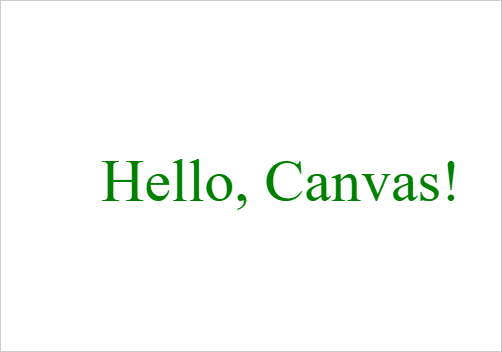
How it works.
- First, select the canvas element using the
querySelector()method. - Second, get the reference to the canvas 2D graphics context.
- Third, set the font to 60-pixel-tall san-serif. and the fill style is green.
- Finally, draw the text
'Hello, Canvas!'starting at the coordinates(100,200).
2) Constraint the text size
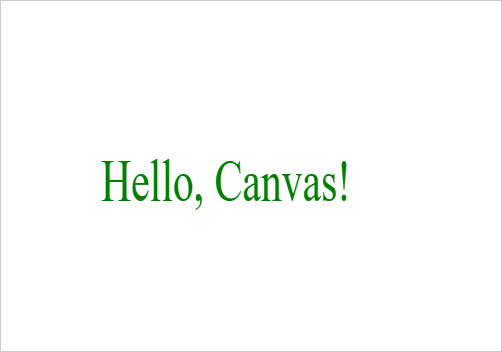
The following example draws the words 'Hello, Canvas!' with a maximum with of 250px.
HTML
<canvas id="canvas" height="400" width="500"> </canvas> Code language: HTML, XML (xml)
JavaScript
`const canvas = document.getElementById('canvas'); if (canvas.getContext) { const ctx = canvas.getContext('2d'); ctx.fillStyle = 'green';
ctx.font = '60px san-serif';
ctx.fillText('Hello, Canvas!', 100, 200, 250);
}`Code language: JavaScript (javascript)
Output:
Text alignments
To align the text on the canvas, you use the textAlign property:
ctx.textAlign = value;
The alignment is relative to the x of the fillText() method.
The value can be one of the following values:
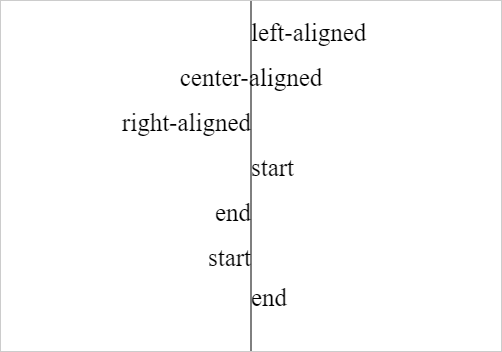
'left'– the text is left-aligned.'right'– the text is right-aligned.'center'– the text is centered.'start'– the text is aligned at the start of the line. It’s left-aligned in the left-to-right locales and right-aligned in the right-to-left locales.'end'– the text is aligned at the end of the line. It’s right-aligned in the left-to-right locales and left-aligned for the right-to-left locales.
The default value for the texAlign is start.
The following example demonstrates the various options of the textAlign property:
HTML
`
`Code language: HTML, XML (xml)
JavaScript
`const canvas = document.getElementById('canvas'); const ctx = canvas.getContext('2d'); const x = canvas.width / 2;
ctx.beginPath(); ctx.moveTo(x, 0); ctx.lineTo(x, canvas.height); ctx.stroke();
ctx.font = '25px san-serif';
ctx.textAlign = 'left'; ctx.fillText('left-aligned', x, 40);
ctx.textAlign = 'center'; ctx.fillText('center-aligned', x, 85);
ctx.textAlign = 'right'; ctx.fillText('right-aligned', x, 130);
// LTR locale canvas.setAttribute('dir', 'ltr'); ctx.textAlign = 'start'; ctx.fillText('start', x, 175); ctx.textAlign = 'end'; ctx.fillText('end', x, 220);
// RTL locale canvas.setAttribute('dir', 'rtl'); ctx.textAlign = 'start'; ctx.fillText('start', x, 265); ctx.textAlign = 'end'; ctx.fillText('end', x, 305);`Code language: JavaScript (javascript)
To change the locale to LTR or RTL, you set the dir attribute value of the canvas to 'ltr' and 'rtl'.
Here is the output:
Text baseline
To specify the text baseline for the drawing text, you use the textBaseline property of the 2D drawing context:
ctx.textBaseline = value;
The value of the textBaseline can be one of the following values:
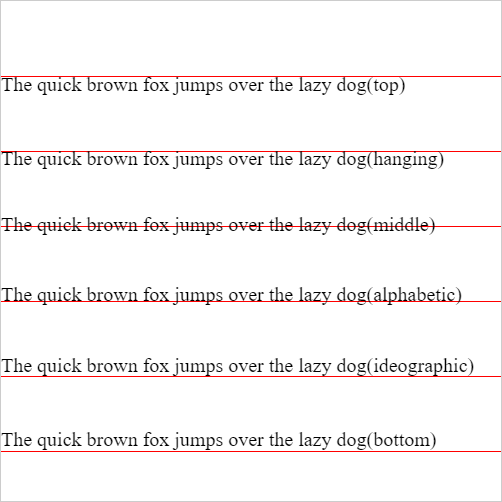
'top'– the text baseline is the top of the em square.'hanging'– the text baseline is the hanging baseline.'middle'– the text baseline is the middle of the em square.'alphabetic'– the text baseline is the alphabetic baseline. This is the default value.'ideographic'– the text baseline is ideographic. It’s mainly used by Chinese, Japanese, and Korean scripts.'bottom'– the text baseline is the bottom of the bounding box.
Text baseline example
The following example illustrates various textBaseline values.
HTML
<canvas id="canvas" width="550" height="500"></canvas> Code language: HTML, XML (xml)
JavaScript
`` const canvas = document.getElementById('canvas');
if (canvas.getContext) { const ctx = canvas.getContext('2d'); const baselines = ['top', 'hanging', 'middle', 'alphabetic', 'ideographic', 'bottom']; const str = 'The quick brown fox jumps over the lazy dog'; ctx.font = '20px san-serif'; ctx.strokeStyle = 'red';
baselines.forEach((baseline, index) => {
    // set the text baseline
    ctx.textBaseline = baseline;

    const y = 75 + index * 75;
    // draw a line
    ctx.beginPath();
    ctx.moveTo(0, y + 0.5);
    ctx.lineTo(500, y + 0.5);
    ctx.stroke();

    // draw the text
    ctx.fillText(`${str}(${baseline})`, 0, y);
});
} ``Code language: JavaScript (javascript)
Output:
Summary
- Use the JavaScript
fillText()to draw a text string at a coordinate to a canvas. - Use the
font,textAlign, andtextBaselineproperty to set the options for drawing text.
Was this tutorial helpful ?