How To Install And Use Flatpak On Ubuntu - Linux Start (original) (raw)
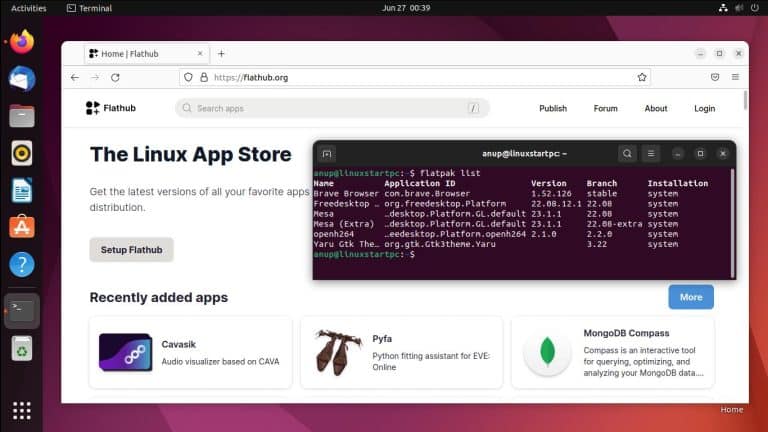
Flatpak is a universal app packaging format for distributing sandboxed apps. Unlike distro-specific package distribution methods like .deb packages, flatpak apps can be installed and run on any Linux distro.
Canonical encourages the use of snaps as an alternative way to install packages on Ubuntu. Snap is similar to flatpak in various ways; snaps are universal, they’re sandboxed, and they make a wider range of programs conveniently available to users.
However, due to certain reasons (snap store being closed-source, the way Canonical is pushing snaps on Ubuntu, and so on), some users strongly dislike Snap. In this case, Flatpak can be an excellent alternative.
Installing Flatpak On Ubuntu
On any recent Ubuntu version, you can install Flatpak from the default repository.
sudo apt install flatpakOn Ubuntu 18.04 or any older version, you should add the Flatpak PPA first. Then, update your package index and install the Flatpak package.
sudo add-apt-repository ppa:flatpak/stablesudo apt update && sudo apt install flatpakAdding Flathub Repository
You’ve installed the Flatpak tool, but you don’t have access to any Flatpak repositories just yet. You can start by adding Flathub, which is the main Flatpak remote source (repo).
flatpak remote-add --if-not-exists flathub https://flathub.org/repo/flathub.flatpakrepoNow, restart your system to complete the installation.
If you want to add more remotes in the future, you can use .flatpakrepo files in the same manner. Simply replace flathub with the remote’s local name and adjust the URL.
Finding and Installing Flatpak Apps
Basic flatpak usage is pretty easy to understand. For starters, you can search for apps on the Flathub site, or find them from the terminal with the search command.
flatpak search <appname>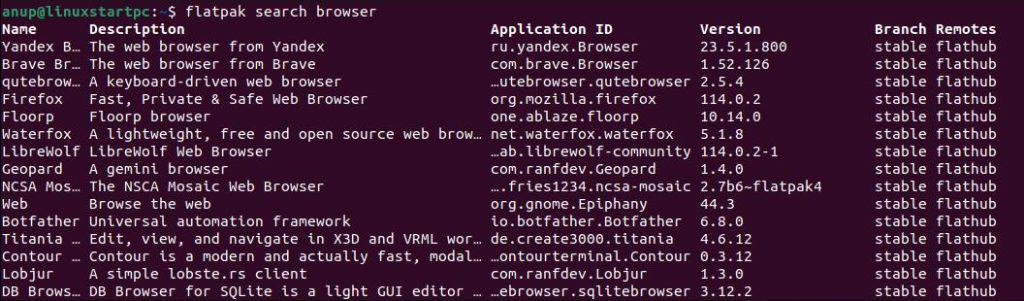
The standard syntax for installing Flatpak apps is
flatpak install <remotesource> <applicationID>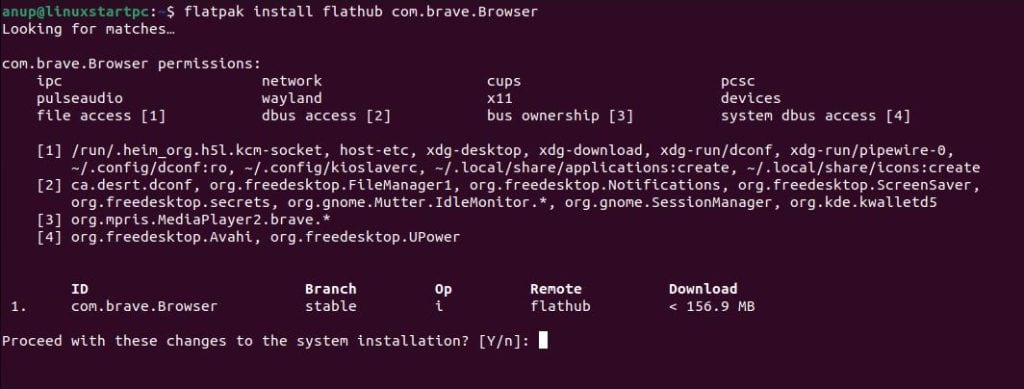
You can also install packages without specifying the remote source or using a vague package name.
flatpak install browserFor instance, with the above command, Flatpak will list some references from the Flathub repo that match the ‘browser’ keyword. You can select which app to install using the entry number.
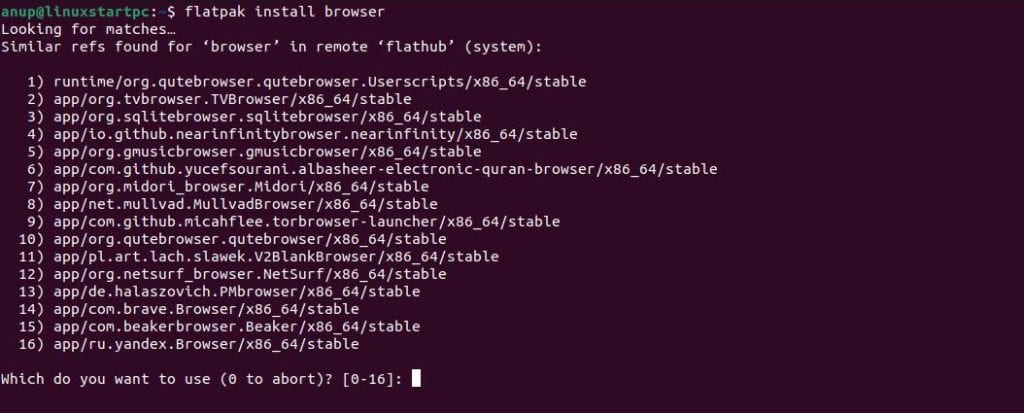
Then, enter Y to proceed past the confirmation prompts.
Flatpak uses shared libraries, so installing the first app with Flatpak may take a while as it’s downloading these libraries for the first time. But the installation process should be swift for most apps afterward.
After installing the app, you can launch it from the Applications menu, or directly from the terminal by using the run command with the application ID.
flatpak run com.brave.BrowserManaging Flatpak Apps
You can list all installed Flatpak apps and runtimes with the list command.
flatpak list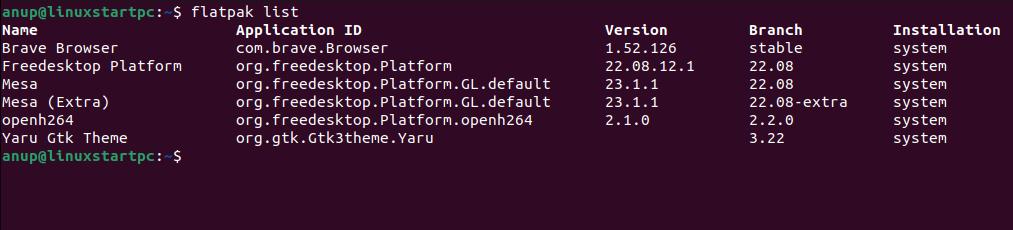
If you want to update all Flatpak apps at once, you can use the update command.
flatpak updateIf you’d prefer to only update a specific app, you can use the app ID like so
flatpak update com.brave.BrowserFinally, if you want to remove a Flatpak app, you can specify the app ID with the uninstall command.
flatpak uninstall com.brave.BrowserSome applications may leave behind some orphaned dependencies. You can remove those with the --unused option.
flatpak uninstall --unused