How To Install And Use Htop On Ubuntu - Linux Start (original) (raw)
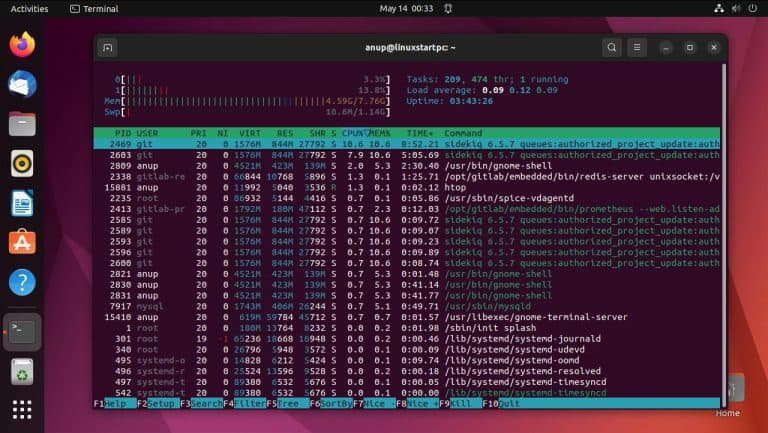
Htop is a powerful system monitor that’s primarily used for checking resource usage stats. It can provide info on the overall system state (CPU, RAM usage) as well as individual processes.
It’s a useful tool for figuring out which programs or processes are occupying how much of your system resources. Aside from viewing the stats, it can also be used to find and kill processes.
Installing Htop on Ubuntu
Htop is pretty similar to the top utility, except that top is preinstalled in Ubuntu but not quite as flexible as htop. Htop is typically installed using apt, but if you need the latest version, you can install it using snap instead. Ultimately, both versions work fine.
sudo apt install htopsudo snap install htopAfter installing htop, you can launch it by entering
htop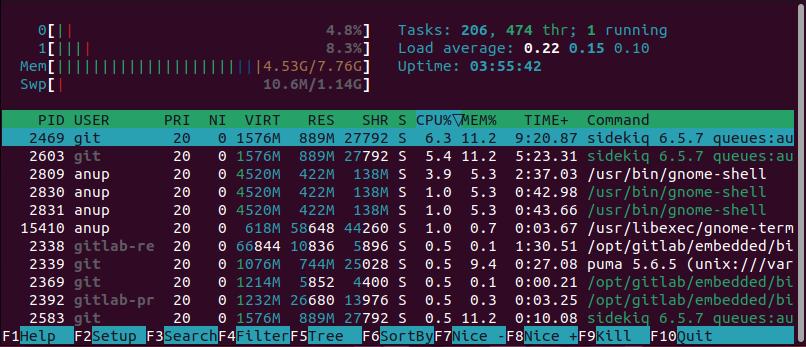
Interpreting Htop’s Output
At first glance, Htop’s output can seem a bit overwhelming but it’s actually pretty simple to understand.
At the top, you have all the CPU cores and threads with color-coded bars and usage percentages.
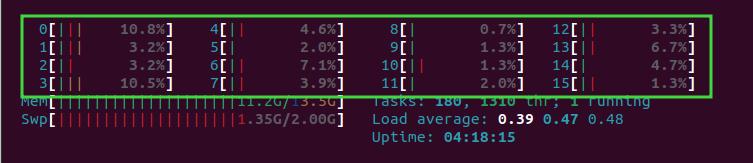
- Green: User processes
- Red: Kernel processes
- Aqua blue: Virtualized processes
- Blue: Low-priority threads
Next is the memory and swap space info with color-coded bars again.
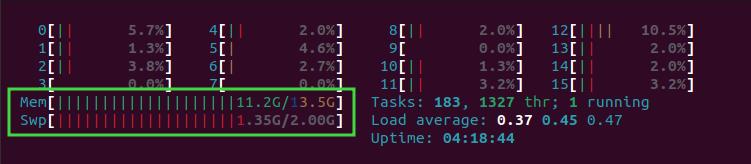
- Green: Memory used by system processes
- Blue: Buffer pages
- Orange: Cache pages
Finally, there are the remaining miscellaneous stats.
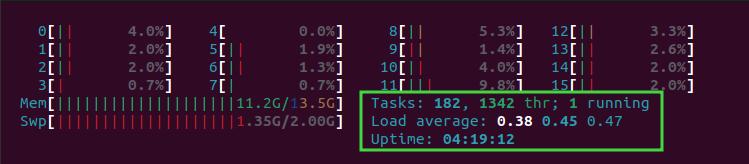
- Tasks: Total ongoing processes
- thr: Total threads handling the processes
- running: tasks in a state of running
- Load average: Average system load over a period of time (last minute, 4 minutes, 15 minutes)
- Uptime: System uptime
In the lower half, there are 12 columns by default. You can add additional columns or remove existing ones through the setup tool (F2), but let’s just go over the standard ones for now.
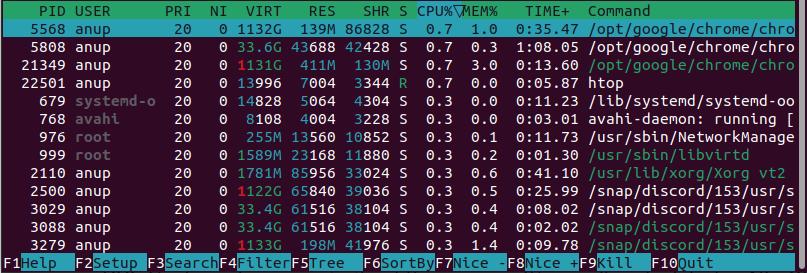
- PID: Process ID
- USER: Process owner
- PRI: The kernel-space priority of the process. It’s usually calculated as NI + 20 and a lower value means higher priority.
- NI: The nice value of the process. It can range from 19 to -20 with a lower value indicating higher priority.
- VIRT: The virtual size of the process. This sum total includes the same memory shared between libraries multiple times, so the value tends to be quite large.
- RES: The resident set size, i.e. how much physical memory the process is actually consuming.
- SHR: The amount of VIRT that is actually sharable.
- S: The state of the process (Sleeping-S, Running-R, Disk Sleep-D, Zombie-Z, Traced/Suspended-T, Paging-W)
- CPU%: The process’s CPU utilization.
- MEM%: The process’s memory utilization.
- TIME+: Process uptime.
- Command: Full path of the process.
Htop Options and Shortcuts
Now that you’re able to understand the output, let’s dive deeper into actually using htop.
Filtering the Output
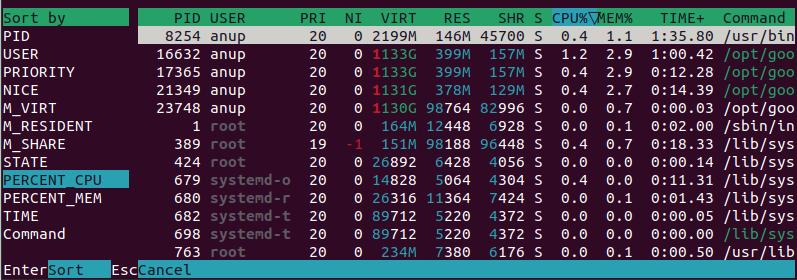
The default output returns a ton of info. The best way to get exactly what you need out of this info is with the SortBy option. You can press F6 and select the metric to sort by (PID, PERCENT_MEM, etc.).
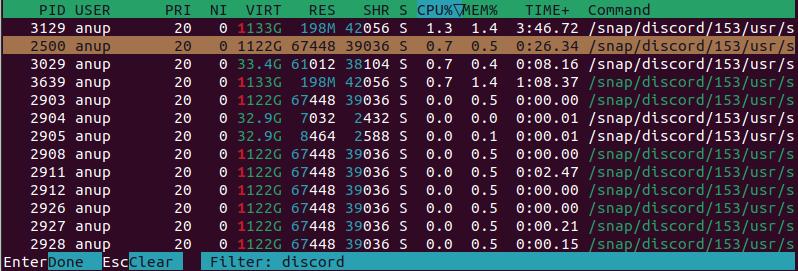
If you want to search for processes using keywords, you can use Search (F3). For instance, if you enter discord, it’ll take you to the closest matching result. Pressing F3 again will cycle through the matches.
If you only want the matching results to be shown, you can use Filter (F4) instead.
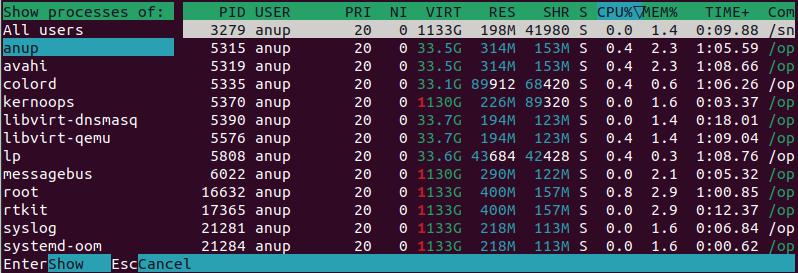
Finally, you can press u to only view processes owned by a specific user.
Killing a Process
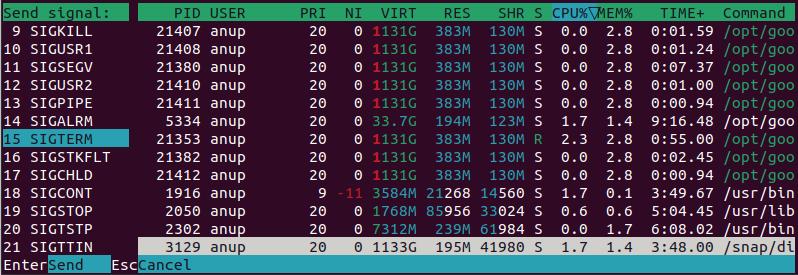
You can press F9 while a process is selected to kill it. In most cases, you should send the terminate signal (SIGTERM-15), which is highlighted by default.
Other Htop Shortcuts
The other shortcuts like F5 (tree view) or F2 (setup htop) aren’t as commonly used but feel free to check them out. Also, check the help page (F1) and manpage (man htop) if you want to read up further on htop.