How To Install Google Chrome On Ubuntu - Linux Start (original) (raw)
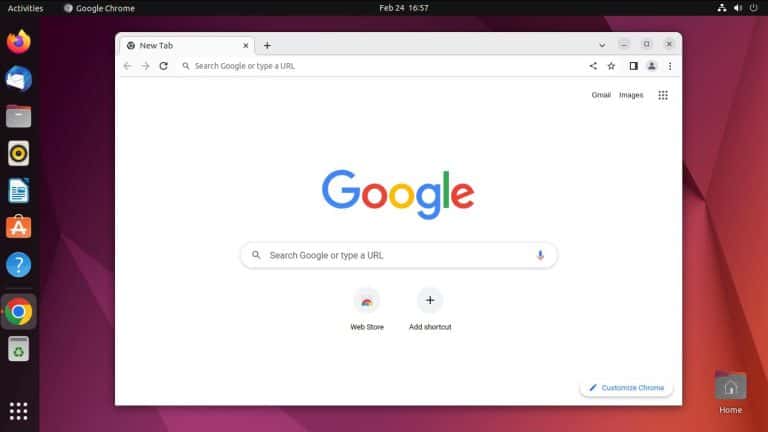
Chrome isn’t included in Ubuntu’s official repositories as it’s a proprietary browser. As such, you’ll have to install it from third-party sources.
We’ll source the Chrome package from Google’s site and install it. Aside from this, we’ll also cover basic management steps like updating or removing Chrome in this article.
Install Chrome Graphically
New users might prefer installing Chrome from the GUI as the process is intuitive and similar to other platforms.
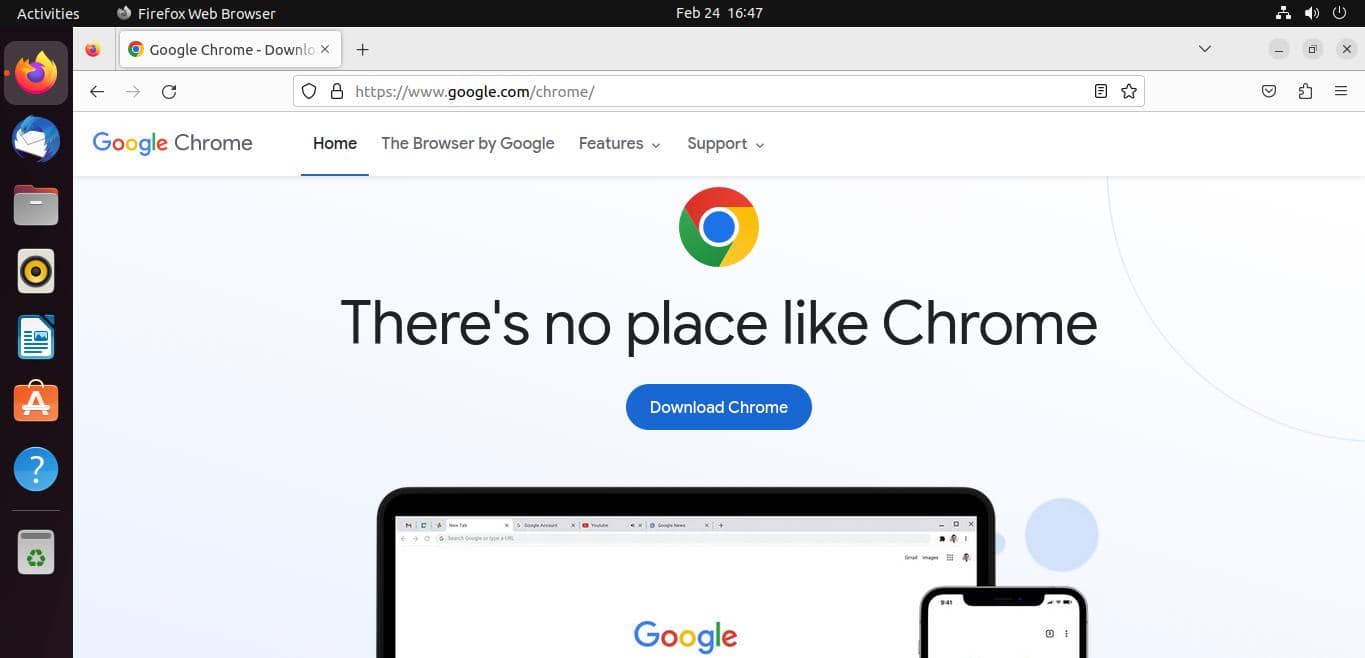
- To start, go to the Google Chrome page and click on Download Chrome.
- Select the
.debpackage and press Accept and install.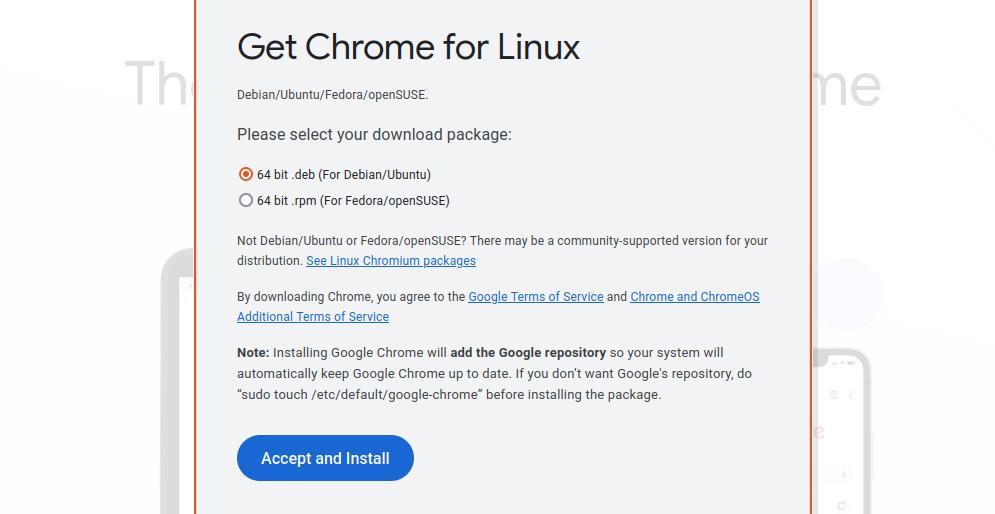
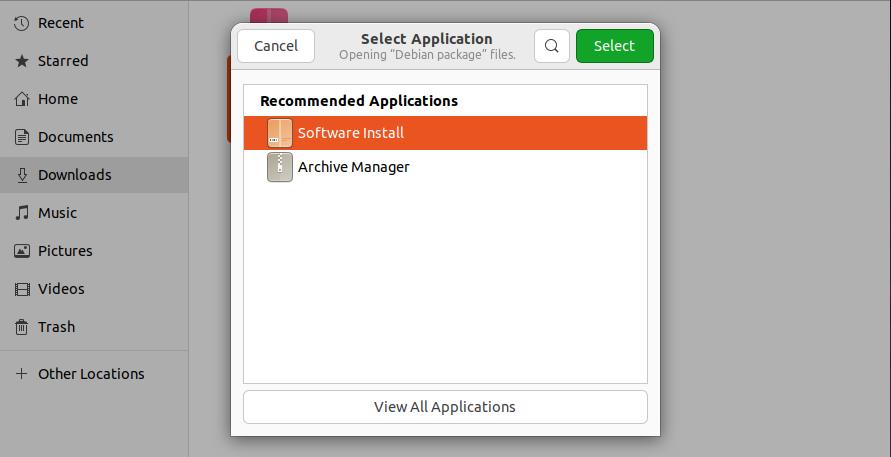
- In the Downloads folder, right-click the package and select Open With Another Application.
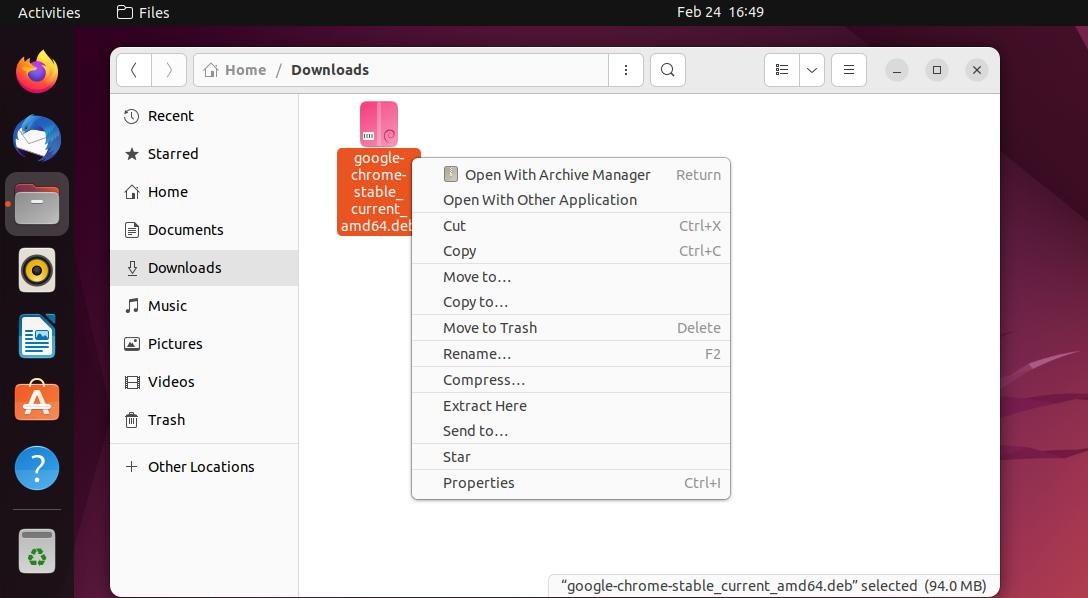
- Click on Software Install and press the Select button.
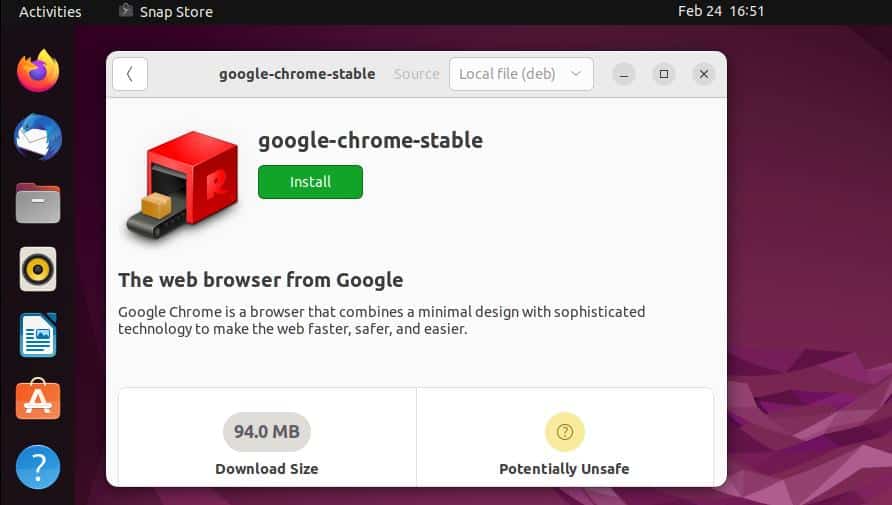
- Press Install and enter your password for authentication.
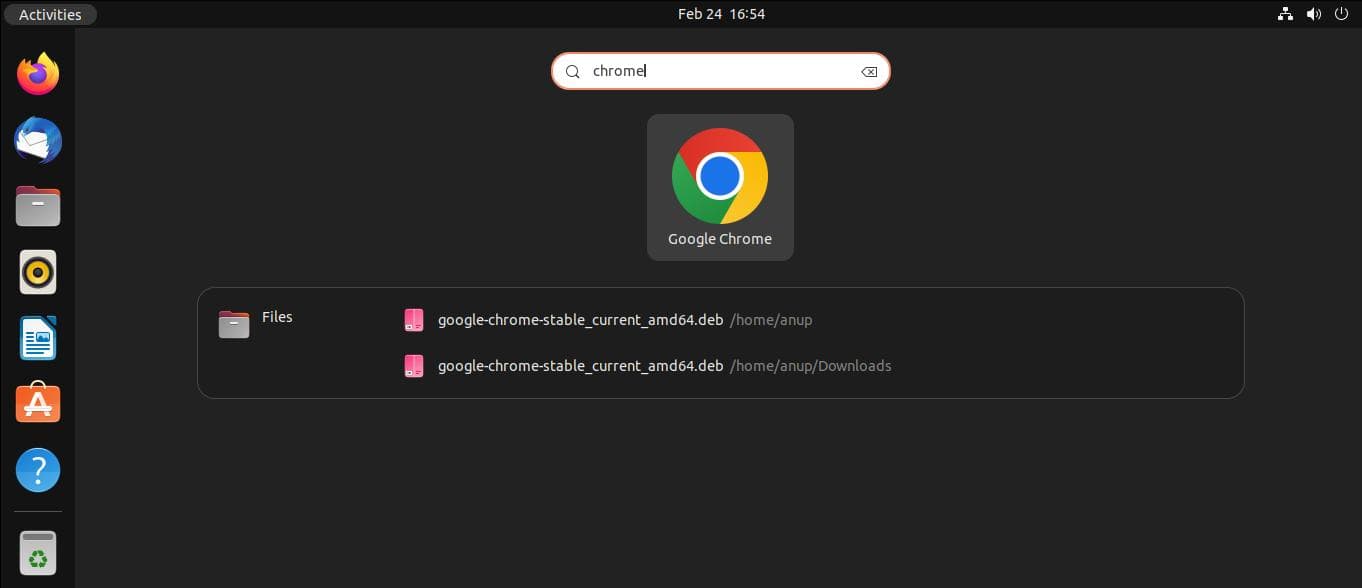
- After the installation completes, you can launch Chrome from the Applications screen.
Install Chrome from the Terminal
You can also perform the same process faster from the terminal. To do this, obtain the latest stable package first.
wget https://dl.google.com/linux/direct/google-chrome-stable_current_amd64.debInstall the package with
sudo apt install ./google-chrome-stable_current_amd64.debIf you encounter any dependency errors, try running the command shown below or installing the missing packages manually.
sudo apt-get -f installAfter installing Chrome, you can launch it from the terminal by entering
google-chromeManaging Google Chrome
When installing Chrome, the official Google repo is added to your system’s sources list. Thanks to this, Chrome will automatically be updated when you’re updating the other packages in your system with
sudo apt update && sudo apt upgradeIf you only want to update Chrome, you can instead use
sudo apt update && sudo apt install --only-upgrade google-chrome-stableFinally, if you need to uninstall Chrome, you can do so with
sudo apt purge google-chrome-stableThis is assuming you installed the Stable version as we did in this tutorial. If you installed the Beta or Unstable versions and want to remove those, use these commands instead.
sudo apt purge google-chrome-betasudo apt purge google-chrome-unstable