How To Install Docker Compose On Ubuntu - Linux Start (original) (raw)
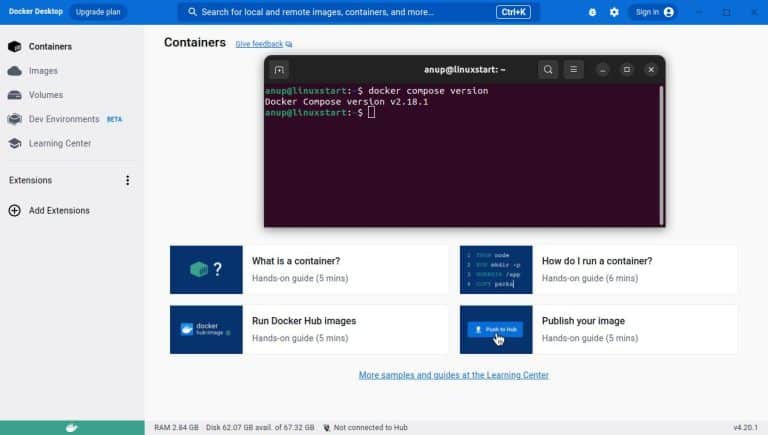
Docker Compose is a tool for running multiple containers as a single service. It lets you use a YAML file to configure and run all the containers with a single set of commands.
Compose V2 was first launched in June 2021, and it is currently included with Docker Desktop. This means if you’ve installed Docker Desktop, Compose is already present on your system.
If you’re using Docker Engine and Docker CLI instead, you can follow the steps from method 2 to install the Compose plugin specifically.
Method 1: Install Compose with Docker Desktop
Docker Desktop includes Docker Engine, CLI, as well as Compose. It runs as a VM on Linux, so there are certain requirements such as KVM virtualization support and QEMU version 5.2 or newer.
Assuming your system meets these requirements, that’ll be the easiest way to install Docker Compose. It’s also the officially recommended method.
Set Up KVM Virtualization
If the host supports virtualization, the kvm module should load automatically. In case you need to do this manually, you can use the following command.
modprobe kvmAlso, load the appropriate corresponding module according to your processor.
modprobe kvm_intel modprobe kvm_amd Next, you’ll want to set up user permissions so that you’ll be able to access the KVM device. Add your user to the kvm group to do this.
sudo usermod -aG kvm $USERLog out and log back in to apply the changes.
Add Docker Repository
While we’ll install Docker Desktop offline using the official .deb package, we’ll need to add the Docker repository too to install some of the dependencies.
Update your package index and install the tools that we’ll need in the later steps.
sudo apt update && sudo apt install ca-certificates curl gnupgAdd the official GPG key with the following commands:
sudo install -m 0755 -d /etc/apt/keyringscurl -fsSL https://download.docker.com/linux/ubuntu/gpg | sudo gpg --dearmor -o /etc/apt/keyrings/docker.gpgsudo chmod a+r /etc/apt/keyrings/docker.gpgFinally, enter the following one-liner to add the Docker repository.
echo \
  "deb [arch="$(dpkg --print-architecture)" signed-by=/etc/apt/keyrings/docker.gpg] https://download.docker.com/linux/ubuntu \
  "$(. /etc/os-release && echo "$VERSION_CODENAME")" stable" | \
  sudo tee /etc/apt/sources.list.d/docker.list > /dev/null
Then, update your package index once again to access packages from the Docker repo.
sudo apt updateDownload & Install Docker Desktop
Download the Docker Desktop DEB package from the official source linked here.
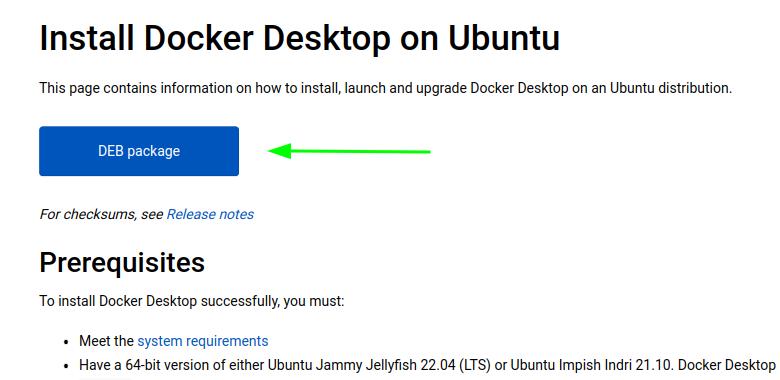
Navigate to the directory containing the file in the terminal and install the deb package like so
cd ~/Downloadssudo apt install ./docker-desktop*.debVerify the Installation
After installing Docker Desktop, you can launch it from the Applications menu, or from the terminal by entering
systemctl --user start docker-desktopYou’ll be prompted to accept the Docker Subscription Service Agreement. You’ll have to accept the terms to start using Docker Desktop.
Method 2: Install Compose from Docker Repository
If you already have Docker Engine and Docker CLI installed, you can also install the Compose plugin from the command line. Since some components are already present, you’ll only need to perform part of the steps.
First, follow the steps from the Add Docker Repository section above to set up the Docker repository. Then, simply use the following command to install the Compose plugin.
sudo apt update && sudo apt install docker-compose-pluginYou can verify the installation by checking the Docker Compose version.
docker compose version