How To Install And Use Vagrant On Ubuntu - Linux Start (original) (raw)
Vagrant is a tool for creating reproducible virtualized environments. You can use it to easily set up your development environment to be the same as the production server. Or if working in a team, it can ensure that all the members are working in the same environment.
Vagrant is simply a configuration script of sorts for hypervisors. You can use it with your preferred hypervisor but we’re going to use VirtualBox for this article as that’s the most popular option.
Installing Vagrant
We recommend adding the Vagrant repository to your sources and installing Vagrant with apt as that’ll be the most convenient in the long term.
Retrieve the GPG keyring used for verifying that we’re downloading the intended file.
wget -O- https://apt.releases.hashicorp.com/gpg | sudo gpg --dearmor -o /usr/share/keyrings/hashicorp-archive-keyring.gpgThen, add the Hashicorp repo to the sources list.
echo "deb [signed-by=/usr/share/keyrings/hashicorp-archive-keyring.gpg] https://apt.releases.hashicorp.com $(lsb_release -cs) main" | sudo tee /etc/apt/sources.list.d/hashicorp.listUpdate your package index so that packages from the newly added repo become accessible. Then, install the Vagrant package.
sudo apt update && sudo apt install vagrantNote: If you don’t have any hypervisors on your system, you can install Virtualbox with
sudo apt install virtualboxInitializing a Vagrant Project
Any Vagrant project consists of a project directory, a Vagrantfile, and a Vagrant box. We’ll start by creating a directory named lsproject.
mkdir lsprojectcd lsprojectVagrant Boxes are predefined environments configured for specific use cases. Some may be a simple clone of a base OS, while others may be customized with setups like LAMP/LEMP stacks.
You can search for boxes from the Vagrant public box catalog and pick one according to your needs. For this tutorial, we’ll use the hashicorp/bionic64 box as it’s lightweight and optimized for minimal use cases and supports VirtualBox.
Initialize Vagrant with the chosen box like so
vagrant init hashicorp/bionic64This’ll create a Vagrantfile in the current directory. You can check this Vagrantfile for various config examples if you want.
Getting Started with Vagrant
Moving on, launch the new virtual environment with
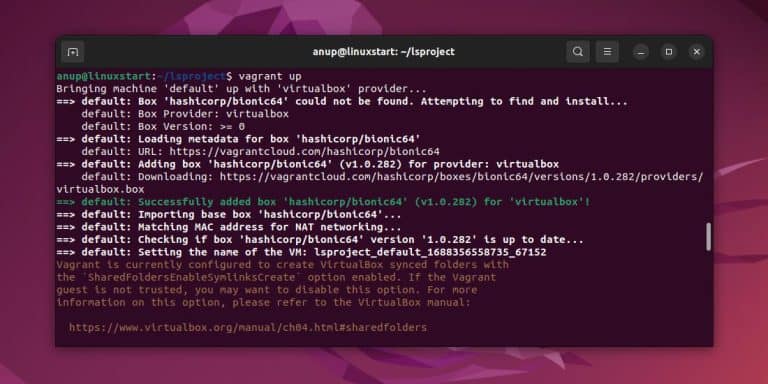
vagrant upThis’ll bring up the machine with the Virtualbox provider (by default), download and install the specified box, and configure the VM accordingly.
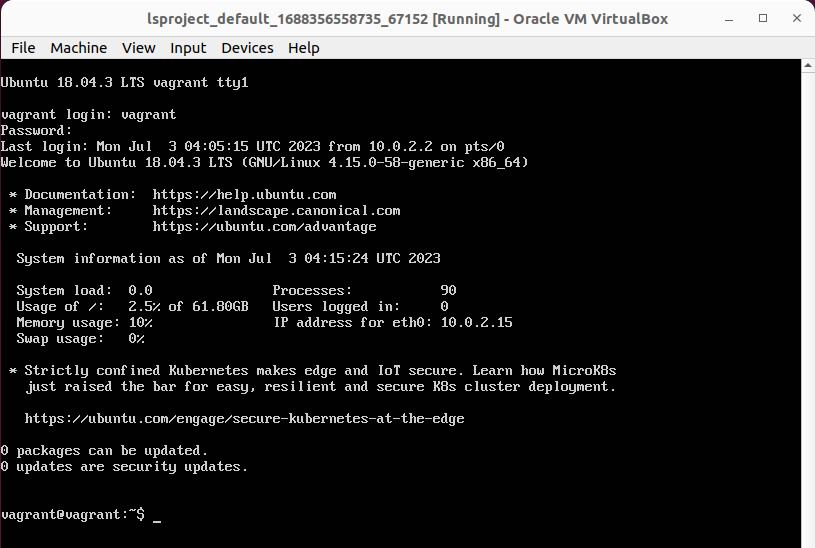
As Vagrant doesn’t have a UI, you’ll need to SSH into the VM to interact with it. The default login credentials are vagrant (username) and vagrant (password).
vagrant sshAlternatively, you can launch the VirtualBox console and access the VM from there.
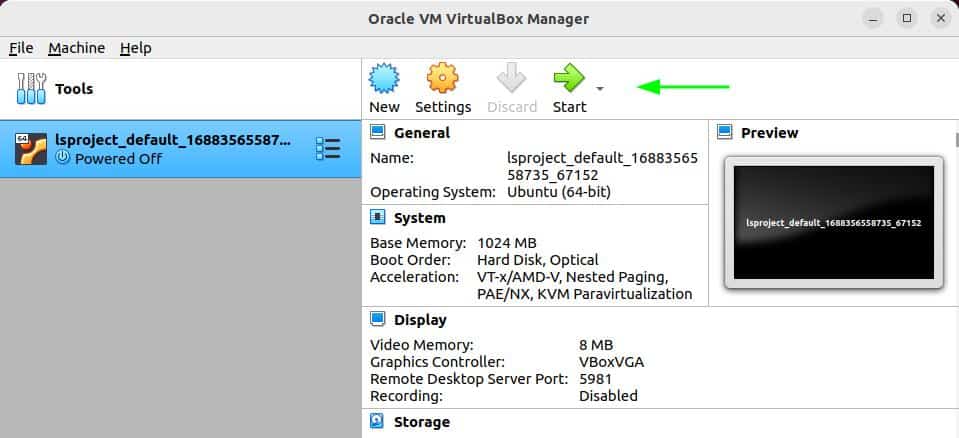
Or, you can modify the Vagrantfile to directly boot the machine with the VirtualBox GUI.
sudo nano VagrantfileUncomment these three lines, save the changes, and exit the editor.
vm.provider "virtualbox" do |vb|gui = trueend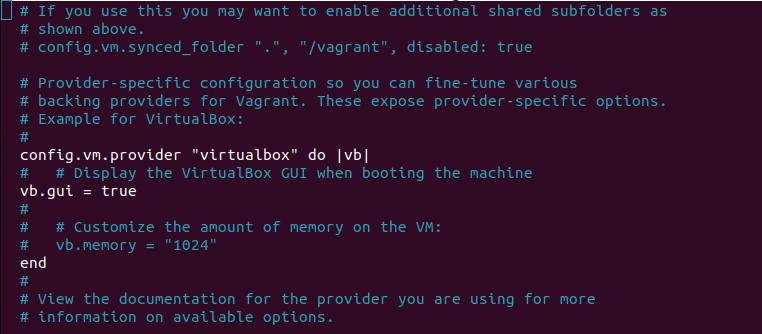
Then, reload the VM with
vagrant reload