ls Command in Linux: Your Comprehensive Guide - Linux Start (original) (raw)
The ‘ls‘ command, short for “list” is used to display a list of files and directories within a specified directory(path) or the current working directory.
With just ls, you can get a basic listing of the files and folders in your current directory. But ls also has many other useful options that allow you to customize your listings and view additional details.
The syntax for using ls is
ls [OPTION] [FILE]Before diving into examples, here is a summary of commonly used ls options:
Common ls Options and Cheat sheet
| Option | Meaning |
|---|---|
| ls | List files in current directory |
| ls -l | Long listing format |
| ls -a | Show hidden files |
| ls -lh | Human readable sizes |
| ls -lS | Sort by size |
| ls -lt | Sort by time modified |
| ls -r | Reverse sort order |
| ls -lah | Long format including hidden with human readable sizes |
| ls -ltr | Sort by modified time, newest last |
| ls -R | Recursive listing of subdirectories |
| ls -d */ | List directories only |
| ls -F | Append file type indicator |
| ls -n | Display contents with UID and GID. |
| ls -i | Show inode number |
| ls -lu | Sort by last access time |
| ls -lc | Sort by last change time |
| ls – -color | Colorized output |
| ls *.txt | Wildcard match |
| ls > files.txt | Redirect output to file |
| ls –help | View ls options |
Commonly Used Options in `ls` command in Linux
ls Basics
To start with the basics, ls by itself will print a simple list of the filenames in your current working directory:
Open up your terminal and simply type ls, then hit Enter. You should see something like this:
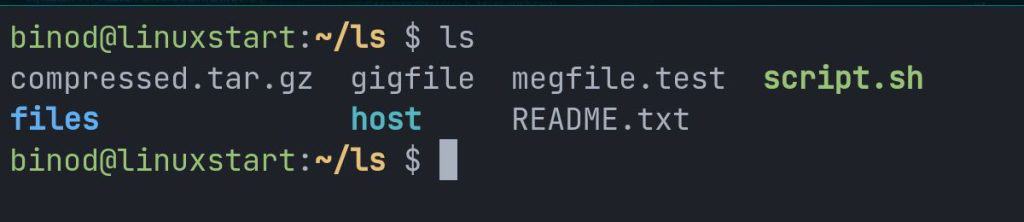
Fig: Basic ls
Some key things to note about basic ls:
- It prints filenames in alphabetical order by default.
- It does not show hidden files by default
- It lists files and directories in the current working directory, not recursively into subdirectories
ls command is installed in the /usr/bin directory. You can check the installed version on your system from the given command:
ls --versionColorizing List Output
Many distros have this enabled. But if not, you can force colorized output with the --color option.
It prints files and folders in different colors for easier visual parsing. Which is great for quickly identifying file types, such as executables, directories, or symlinks.
ls --color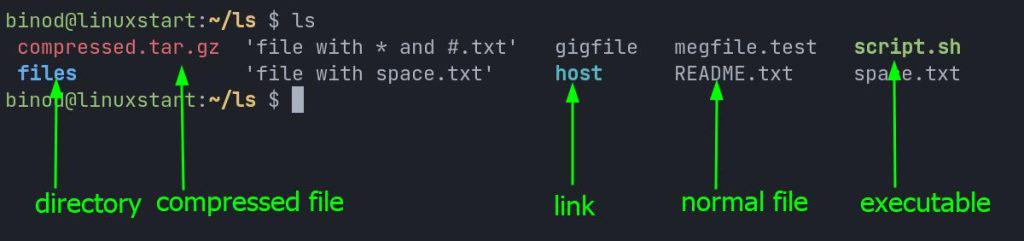
Directories may show in blue, executables in green, compressed files in red, etc.
You can customize the colors by setting the LS_COLORS environment variable with color codes.
LS_COLORS='di=01;33:' # Make directories yellowto make the changes permanent you can edit your shells configuration file, such as .bashrc or .zshrc.
Listing Files in Different Directories
Running ls by itself, will display the contents of the current working directory. To view the contents of a different directory, pass the path:
ls /home/binod/DownloadsI find this option very useful for checking contents of a different directory without changing the current directory.
You can use the ‘Tab‘ key to auto-complete your commands.
You can also check contents of multiple directories at once
ls /root /home/binod /var/logIf you get a “ls: cannot open directory“, it means you do not have permission to read the passed directory
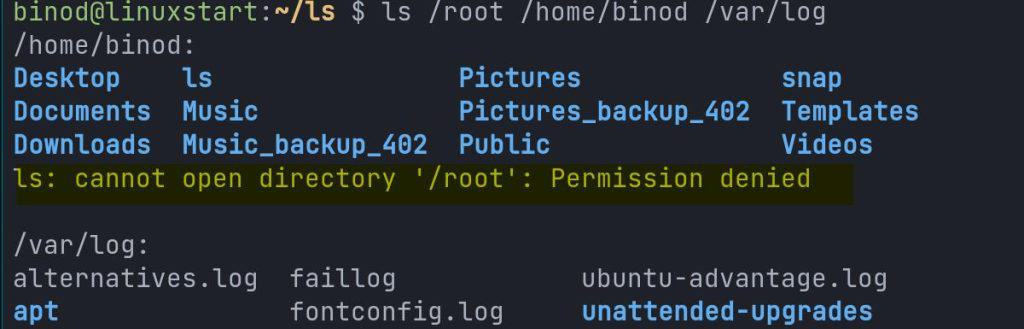
Here are some other useful examples:
ls /for root directory listingls ../for parent directory, use multiple double-dot (..) notation like ../../ for multiple directoriesls ~for home directory ( alternatively you can also use the path or $HOME environment variable )ls -d */to list only directories
Viewing File Details in Long Format
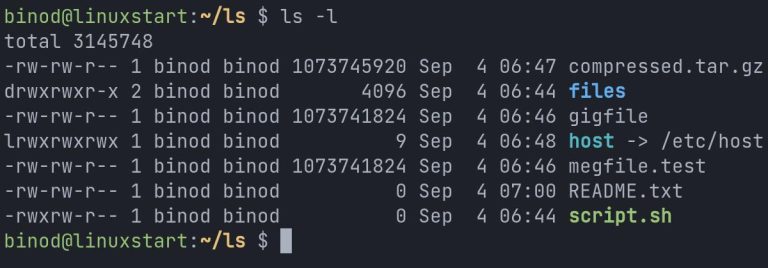
The most useful ls option is -l, which enables the long listing format. This displays additional details in columns:
ls -l 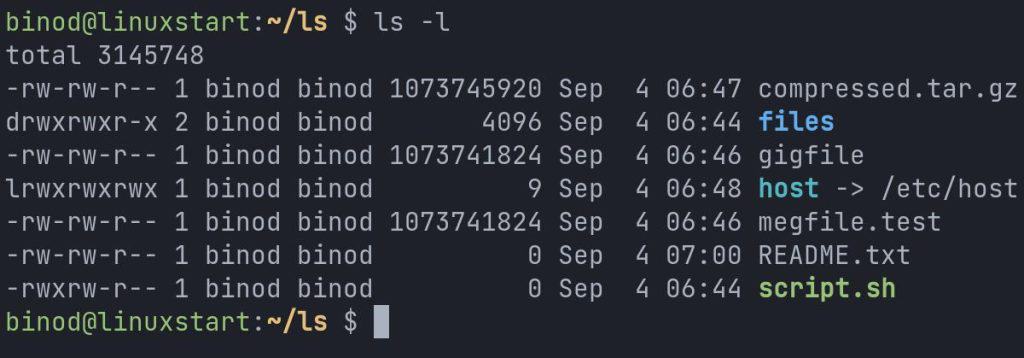
This format shows additional info columns including:
- Permissions – Details user/group/world access.
- Number of Links – How many hard links point to this file.
- Owner – User that owns the file.
- Group – Primary group the file belongs to.
- Size – Size of file in bytes.
- Date & Time – Timestamp of when file was last modified.
- Name – The filename.
The long format gives a helpful overview of file characteristics beyond just the name. It’s great for understanding what a file is, who owns it, when it was updated etc.
Revealing Hidden Files and Folders
Linux hides files and directories starting with dot(.) These are files like .bashrc, .zshrc, .ssh etc
To show both hidden files and parent directories, use the ls -a option:
ls -la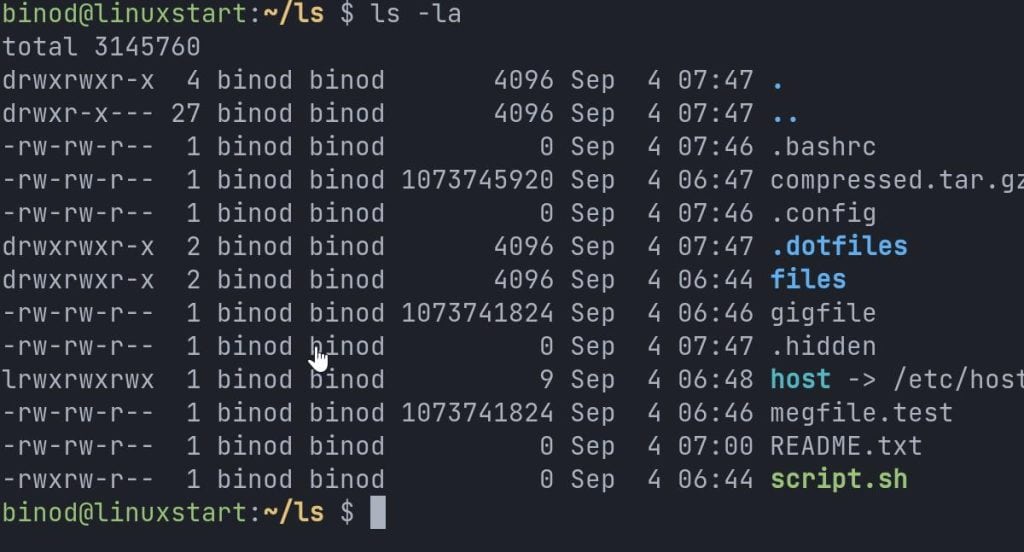
Now you can see dotfiles along with regular files.
While ‘-a‘ is the shorthand option that extends the functionality of the ‘ls‘ command by displaying hidden files. It’s long form ‘–all‘, achieves the same result.
ls --allTo exclude the parent directories you can use
ls -A
ls --almost-all
Displaying Human-Readable File Sizes
-l displays file sizes in bytes. To print sizes in human-readable units like KB, MB, or GB, add the -h option:
ls -lh Much more readable than long strings of bytes! -h works for both individual file sizes and the total directory size summary.
I always use the -h option whenever i want to see quick overview of disk usage when running ls. It’s super helpful when scanning for large files.
Sorting by Size, Time, Name
ls sorts alphabetically by filename. But we can change the sort order with these options:
-S– Sort by file size, largest first-t– Sort by last modified time, newest first-r– Reverse the sort order (combine with the above)
For example, to see your largest files listed first:
ls -lSThis helps quickly identify large space-consuming files in a directory.
Combining Options
One powerful feature of ls is the ability to mix and match options like -l, -h, -a etc.
For example, to show a long listing with human readable sizes including hidden files sorted by size:
ls -lahS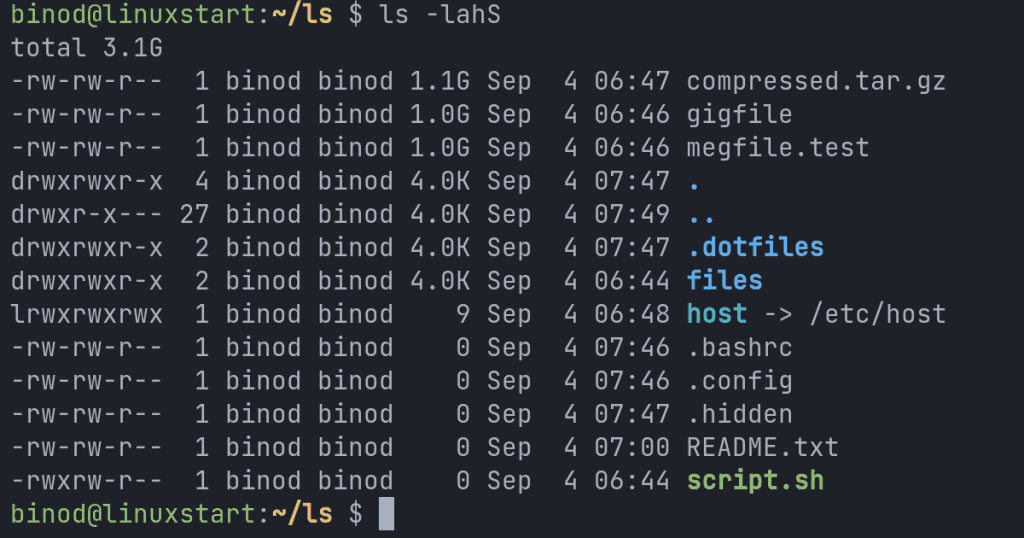
Or long format sorted by date and reversing the order:
ls -ltrSome other useful combined options include:
ls -lh– Long format with human sizesls -lah– long format with human sizes including hiddenls -lt– By last modified timels -ltr– long format sorted by date newest lastls -latr– long format including hidden sorted by date
This allows creating customized ls listings to suit different needs.
Listing One File Per Line
The -1 option modifies the ls output to print each file or directory on its own line:
ls -1This format is useful for piping ls output to other commands.
Recursive listing
To recursively list all subdirectories and files inside a folder, use the -R option:
$ ls -RThis gives a complete overview of a directory tree structure. -R is useful for navigating large directories with many nested folders.
When running ls -R on very large directories, it may take a long time to run and consume significant system resources if outputting thousands of files.
One solution is to pipe the output to less so you can page through the results:
ls -R | lessYou can also specify a custom directory like
ls -R ~/.configor interrupt with Ctrl+C if it’s taking too long.
Listing Files by Type
The -F flag appends an indicator character to each filename denoting its file type:
$ ls -F 
Here the / shows directories, @ is a symbolic link, and * indicates an executable file.
This helps visually distinguish between different file types.
Check If The File Is A Directory
The -p option appends a / character to directory names, similar to -F:
$ ls -pThis provides a clear visual indicator to distinguish directory paths from regular files.
Filtering by File Extension
You can combine ls with wildcards to filter listings by file extension:
$ ls *.txtThis will only show files ending with .txt.
Some useful examples:
ls *.sh– Show only shell scriptsls *.pdf– List PDF filesls -F | grep \*– List executables only:
Separate files and directories with comma
-m prints output separated by commas, useful for feeding into other programs:
$ ls -mInclude UID and GID in the output
UID and GID are numerical IDs for the user and ground. To display user and group IDs:
ls -nSorting by Last Access Time
The -u option sorts the listing by the last time each file was accessed or read, rather than when it was modified.
ls -luThis shows the listing ordered by the most recent access time first. Useful for seeing your most recently used files.
Sorting by Last Status Change
The -c option sorts files and directories by the last time their metadata (like permissions or owner) was changed:
ls -lcThis gives you a chronological view of changes made to your files.
Obtaining File Inode Numbers
In Linux, each file has an inode number that uniquely identifies it on the filesystem. The -i option prints these inode indexes:
ls -iInodes help debug filesystem issues and identify the same file in different locations.
Ignoring Specified Files in Listings
--ignore=FILE omits the given file from the listing:
ls --ignore=script.shYou can ignore pattern matches too:
ls --ignore=*.logThis will skip listing any files ending in .log.
Useful for focusing just on relevant files and excluding temporary files or caches.
Saving ls Output to a File
You can redirect the standard output of ls to a file rather than printing to the terminal:
ls -lah > directory_contents.txtThe listing will now be saved in directory_contents.txt.
Some uses for output redirection:
- Saving a directory tree overview to reference later
- Pipe
lsoutput to other commands for processing - Compare directory snapshots with
diffon saved listings
Overall, > is very handy for scripting uses of ls.
Getting Help with ls
To see all available ls options and syntax, use the --help flag:
$ ls --helpThis prints out all possible options for ls, including:
- Available flags (-l, -a, etc)
- What each flag does
- Whether flags can be combined
- The version of ls
You can also view the man page, which contains even more details:
man lsThe man page has full documentation of ls, including all possible flags, what they do, version info, examples, and more.
Common ls Tricks
ls has many useful shortcuts and tricks to optimize daily usage.
Creating Aliases
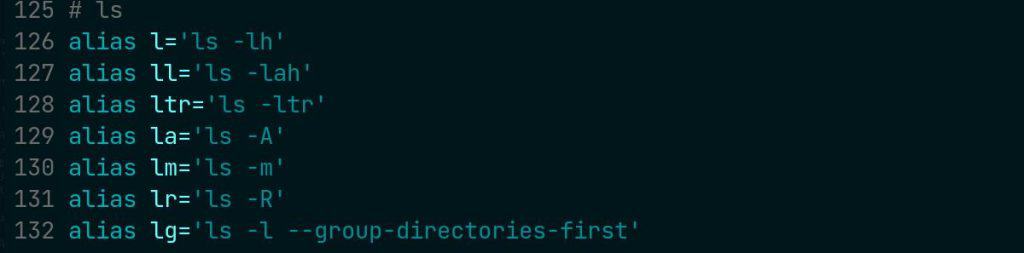
This is one of the first thing i do on every Linux system I setup. You can create aliases for commonly used ls options to save typing.
# .bashrc
alias ll='ls -lah'
Now ll will give a detailed long listing with human sizes, including hidden files.
Here are my frequently used aliases
Chaining ls Commands
You can chain multiple ls calls to filter and transform output:
ls -l | grep ".txt"This will list only .txt files in long format.
Other examples:
ls -lSh | head -3– Top 3 largest filesls -l | wc -l– Count filesls -l | sort -k5– Sort by 5th column (size)
Chaining ls with other commands like grep, head, wc, sort lets you manipulate listings exactly how you need.
Conclusion
Overall, ls is an indispensable tool for productivity on the Linux command line. Mastering its many options will let you quickly inspect, organize, and manipulate files and directories. Check out the man pages to take your ls skills to the next level.
Some notes to remember:
- Linux is case-sensitive –
ls -lis not the same asls -L - Be cautious of infinite loops when using
ls -Ron symbolic links - Pipe
lsto less if output is overwhelming:ls | less - Check the man pagesfor even more flags and advanced operations
- Consider creating aliases for frequent
lsoptions likell='ls -l'