How To Free Up Space On Boot Partition In Ubuntu - Linux Start (original) (raw)
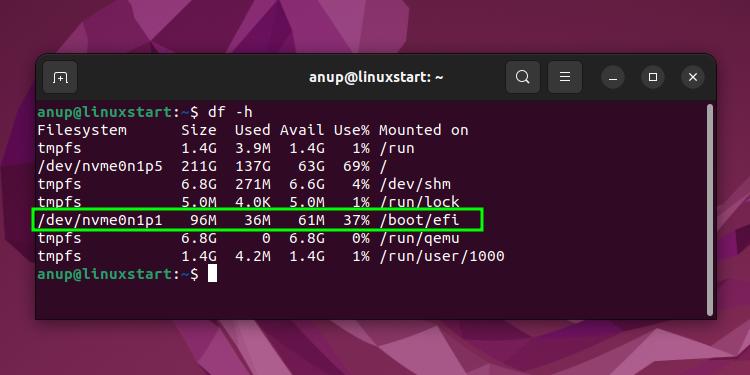
LVM and encrypted installs use a separate /boot partition that’s typically between 100 – 512 MB in size. New kernels are installed to this partition, but there’s only enough space for a few kernels at most.
As the available space decreases, you’ll encounter errors in the form of interrupted system upgrades. Apt might even completely stop working if there’s no free space remaining on the partition.
As you only really need the latest two kernel versions, you can remove the older unused kernels to free up space on the boot partition.
Autoremove Kernels with apt
Autoremove removes orphaned packages that were automatically installed as dependencies. In the case of old unused kernels, autoremove will remove the ones that are marked as automatically installed.
sudo apt autoremoveRemove Specific Kernels with apt
Autoremove is convenient, but it doesn’t remove manually installed kernels. There are also situations where you may want to remove specific kernels only. In such scenarios, check your current kernel release first so that you don’t accidentally remove it.
uname -rList the installed kernels with the list option.
dpkg -l | grep linux-image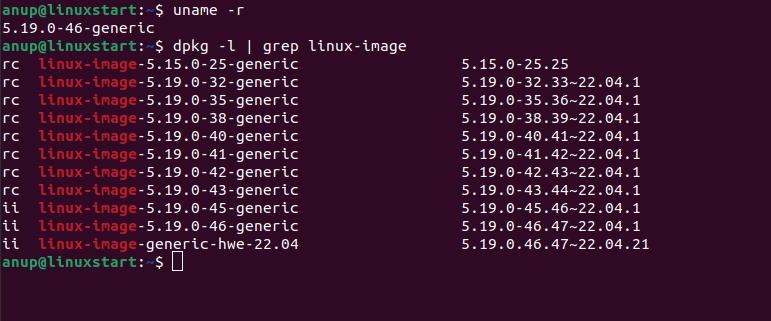
Then, purge the unwanted kernels by specifying the full image name as shown below. Take care not to remove the latest two kernels for fallback purposes.
sudo apt purge linux-image-5.19.0-32-genericOnce you’ve removed the kernel images, use autoremove to clean up any lingering dependencies.
sudo apt autoremoveManually Remove Old Kernels
If your boot partition is completely full, you probably won’t be able to remove packages with apt. In this case, you can manually delete files from the /boot partition.
First, list the kernels present in the boot partition.
ls -l /boot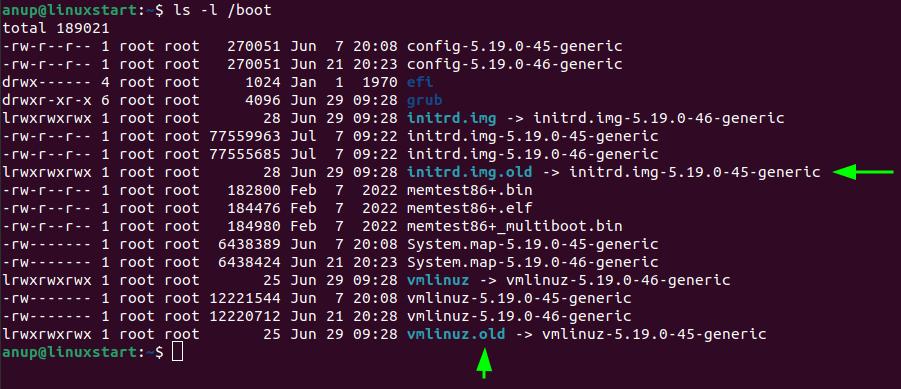
You can delete the files marked .old as shown below. Like earlier, make sure you don’t remove the latest two kernels.
sudo rm /boot/initrd.img-5.19.0-45-genericsudo rm /boot/vmlinuz-5.19.0-45-generic